Connecting Your AI Assistant
You can connect an AI assistant such as Claude or ChatGPT to your AirSign account and ask it, in plain English, to draft an agreement, prepare a session from one of your templates, look up who has not signed yet and much more. The assistant works inside your account with your own permissions, and anything that would email people comes back to you as a draft first.
What you need
https://api.airsign.com.au/mcpStep 1: Add AirSign to your assistant
In Claude: open Settings > Connectors > Add custom connector, paste the server address above and click Add.
In ChatGPT: turn on developer mode (Settings > Connectors > Advanced), then add a connector with the same server address and OAuth sign-in.
There are no keys or passwords to copy - the assistant registers itself with AirSign and sends you to sign in.
Step 2: Sign in and choose your organisation
Your browser opens AirSign. Log in as usual (with your MFA code if you use one). On the Authorize page, choose the organisation the assistant should work in under Connect to organisation, check what it will be able to do, and click Allow. Click Deny if you did not start this.
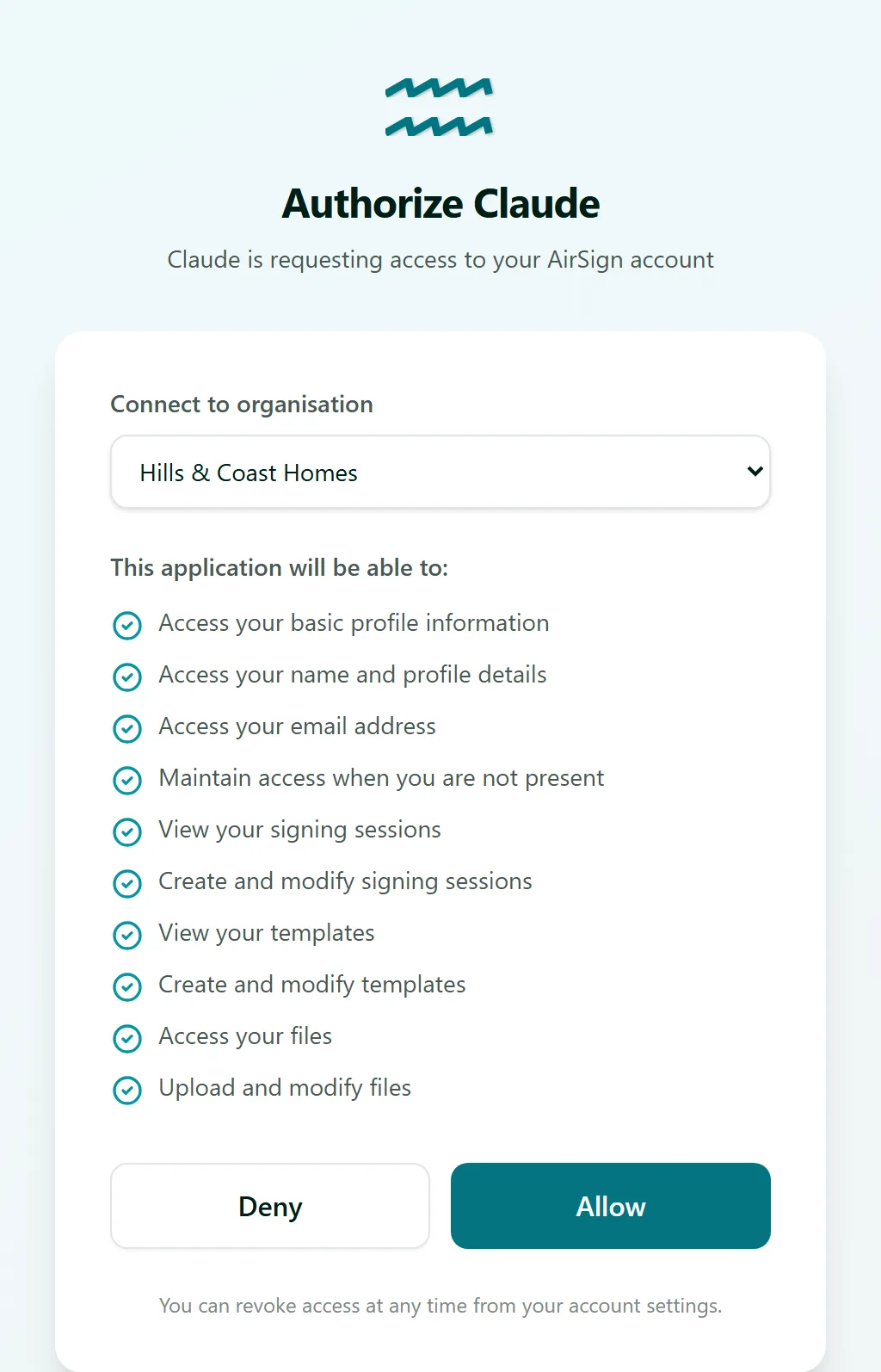
The connection only reaches the organisation you picked. If you belong to several, connect again and pick the other one when you need it.
Step 3: Ask for what you need
Back in your assistant, just ask. For example: "Create a mutual NDA in AirSign between Hills & Coast Homes and Coastal Timber Supplies", "Send our contractor agreement template to Sam Lee", or "Which sessions are still waiting on a signature?". The assistant finds the right templates, people and sessions and does the work in AirSign.
Step 4: Review the draft, then say send
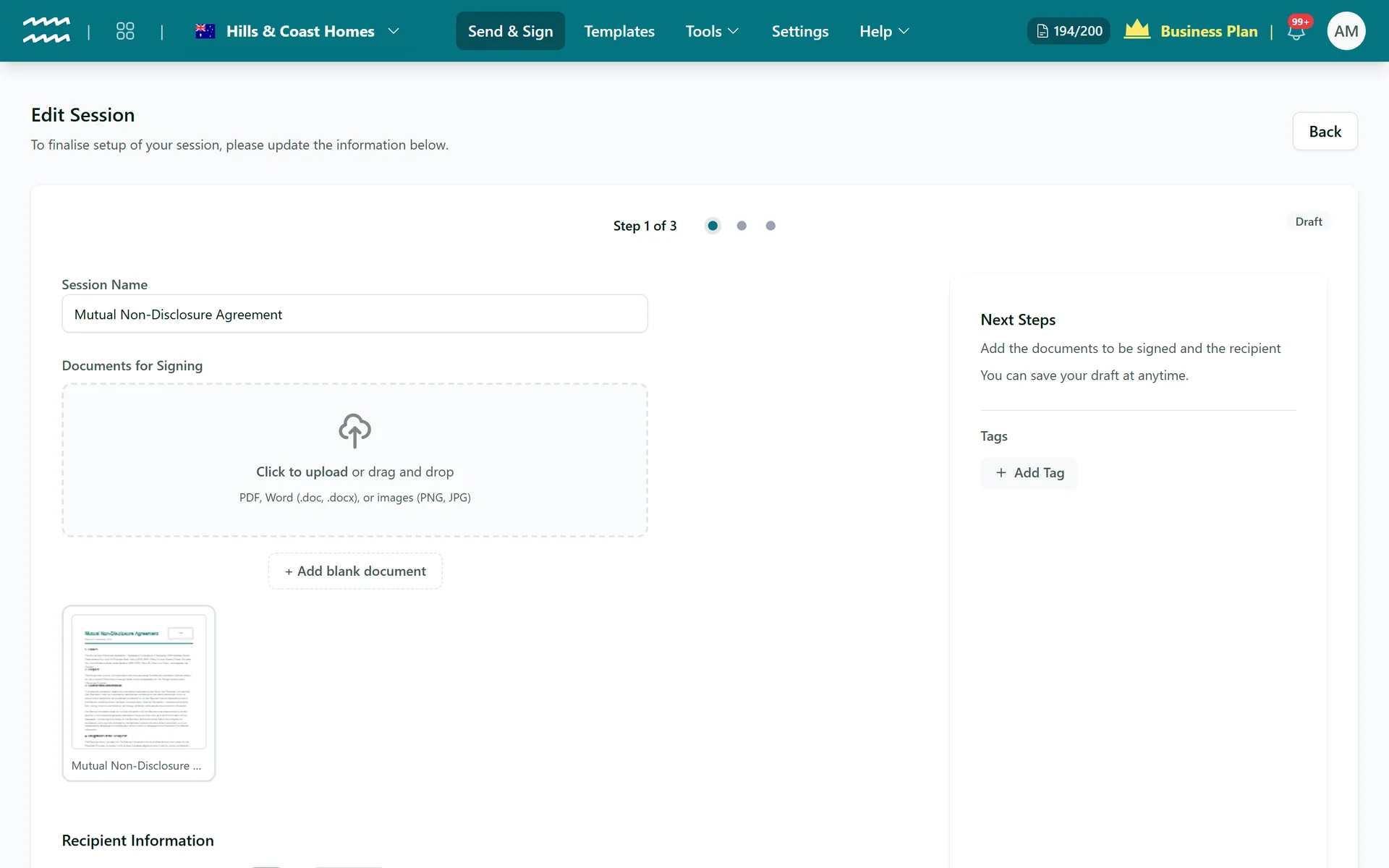
Before anything is emailed, the assistant creates a draft and gives you a link. The link opens the draft in the AirSign session editor, where you can check the document, recipients and fields and change anything. When you are happy, tell the assistant to send it - or send it yourself from the editor. Asking "send this to Jane" is treated as the goal, not as permission to skip your review.
Tips
- Deleting, archiving or voiding anything always needs a clear yes from you in the chat - AirSign asks even if your assistant is set to "always allow".
- The assistant can only do what your own AirSign role allows in that organisation.
- To disconnect, remove the AirSign connector in your assistant's settings.
- Developers can find the full list of actions in the MCP server documentation, and an overview on the AI Assistant page.
Need More Help?
Related guides: Using the Template Library, Creating Your First Signing Session, Setting Up Webhooks. See our FAQ section or email support at [email protected].