Setting a Deadline and Sending Reminders
You do not have to chase signatures by hand. AirSign can give a session a deadline and send automatic reminder emails to whoever has not signed yet, stepping up the frequency as the deadline approaches. This guide shows you how to set it up.
Where to find it
Look for the Session Expiry & Reminders section when setting up a session or template. Reminders are a paid-plan feature, and they are available during your free trial.
Step 1: Set a deadline
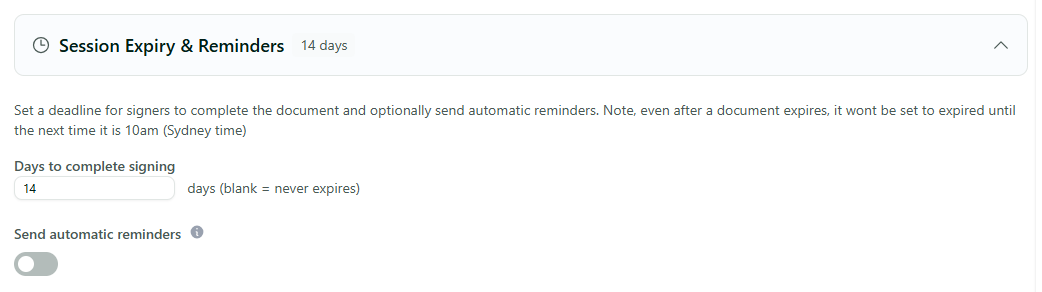
In Session Expiry & Reminders, set Days to complete signing - the number of days recipients have to finish, from 1 up to 730 (two years). Leave it blank and the session never expires. The deadline is shown to your signers and is also what the reminder schedule counts down to.
Step 2: Turn on automatic reminders
Switch on Send automatic reminders. (You need a deadline set first - reminders count down to it.) AirSign will then email anyone who still has not signed, and stop reminding each person as soon as they do.
Step 3: Choose how often to remind
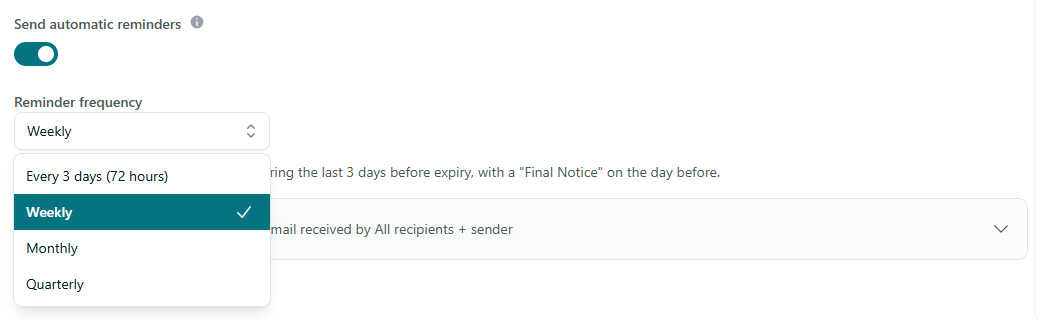
Pick a Reminder frequency to suit the document:
- Weekly - the sensible default for most documents.
- Monthly - for slower-moving agreements.
- Quarterly - for long-running documents.
- Every 3 days (72 hours) - a tighter cadence, available on the Enterprise plan.
Whatever you choose, the last three days before the deadline always send a reminder each day, finishing with a clear Final Notice the day before the session expires.
Tips
- Set expiry and reminders on a template so every session you send from it follows the same follow-up rhythm automatically.
- The clock starts when you send, so the first reminder waits a sensible interval rather than firing immediately.
- Reminders only ever go to people who have not signed - nobody is chased for something they have already done.
Need More Help?
See Tracking Sessions and Downloading Completed Documents to follow progress, or our FAQ section. Support is at [email protected].