Organising with Tags
Tags are coloured labels you add to signing sessions and templates - a region, a type of job, a client, "Urgent", whatever suits your business. Once things are tagged, you can filter the Send & Sign and Templates lists down to just the ones you need.
Where to find it
Step 1: Create your tags
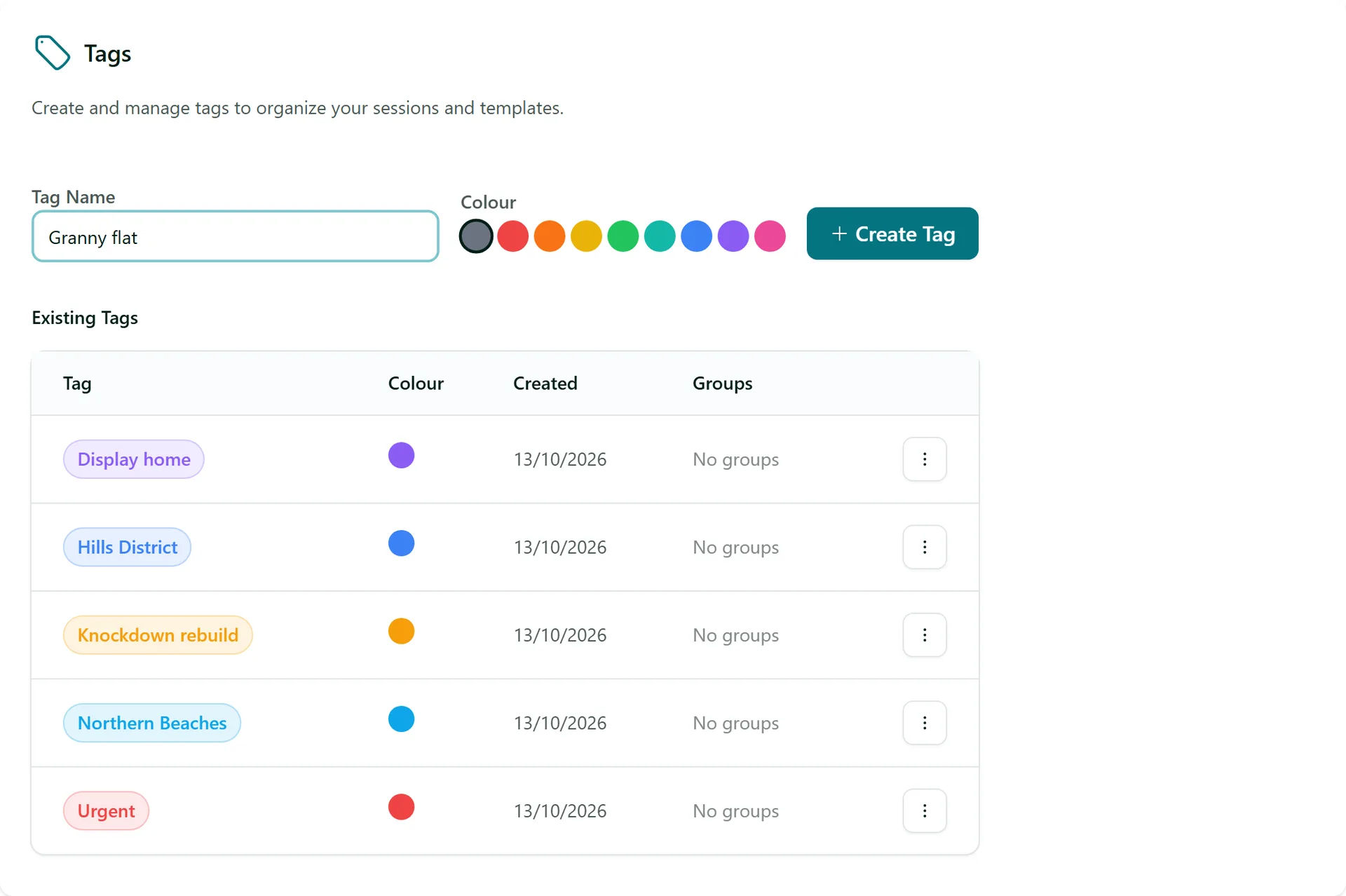
Go to Settings > Tags. Type a Tag Name, pick a Colour and click Create Tag. Your tags are listed under Existing Tags; use the ⋮ menu on a row to Edit its name and colour or Delete it. Deleting a tag removes it from everything it was on.
Step 2: Tag a session or template
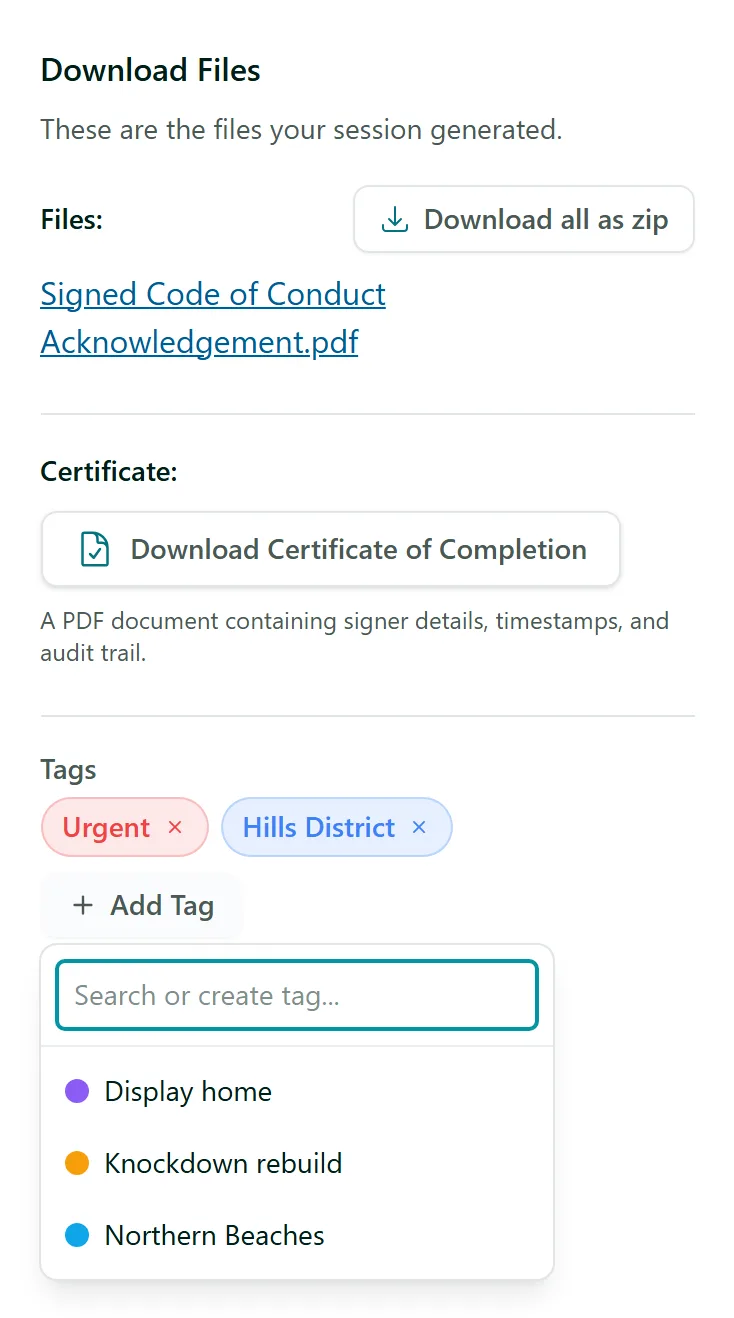
Open a session (or a template) and find the Tags box beside the form. Click Add Tag and pick a tag from the list. To make a new one on the spot, type its name and choose Create "...". On a session that already exists the tag is saved straight away - you can tag sessions at any stage, even after they are completed. Click the × on a tag to take it off.
Step 3: Filter your lists by tag
On the Send & Sign page, click Filter by tags... and pick one or more tags. The list only shows sessions with those tags, and the tags show in the Tags column. Two switches at the top of the list change how several tags combine:
- Match any tag - off, a session needs every tag you picked; on, any one of them is enough.
- Only these tags - hides sessions that also carry a tag you did not pick.
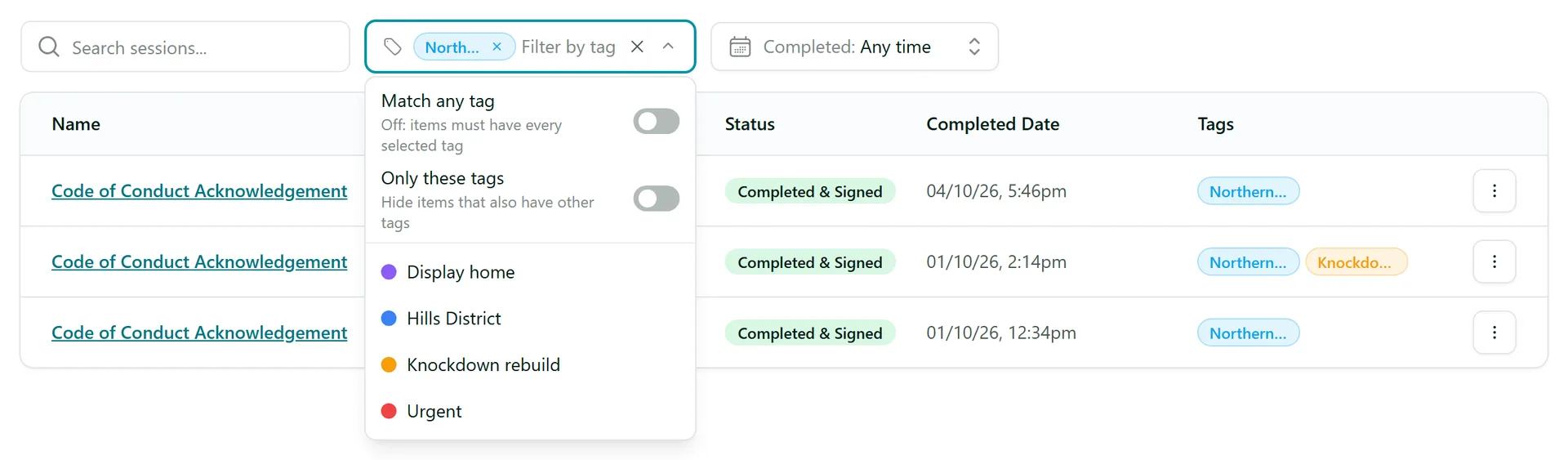
The filter is kept in the page address, so you can bookmark a filtered view or share it with your team.
Step 4: Do the same with templates
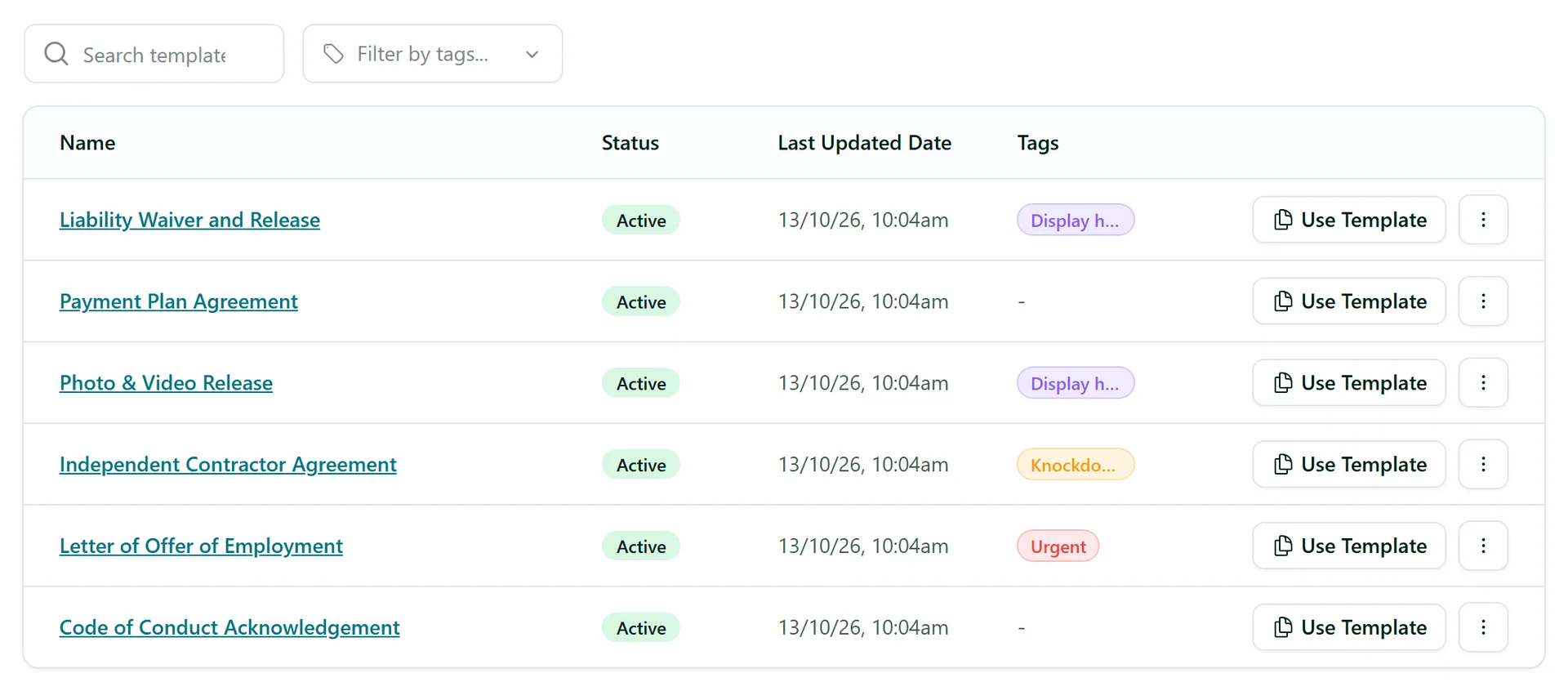
The Templates page has the same Filter by tags... box and Tags column, so a long template list can be narrowed to, say, everything for display homes.
Tips
- Keep tags few and broad - a region, a job type and a priority usually cover it.
- Tags can also limit who sees what: a permission group can be restricted to sessions and templates with certain tags. See Team Access & Single Sign-On.
- The same tags are shared with the other AirSign apps (people, customers, assets and more), so one list of labels works everywhere.
Need More Help?
Related guides: Tracking & Completed Documents, Downloading Many Documents, Team Access & Single Sign-On. See our FAQ section or email support at [email protected].