Adding Recipients, Signing Order and Roles
Recipients are the people (and, for integrations, the systems) involved in a signing session. AirSign lets you decide who signs, in what order, and in what role - from a standard email signer to an in-person signer, a witness, or a nominated signer chosen at signing time.
The basics
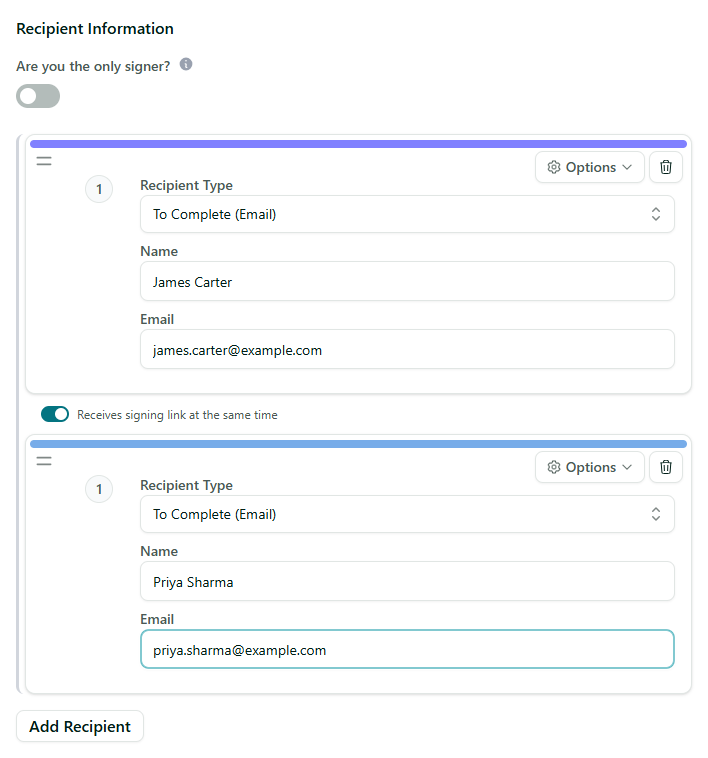
Add each recipient with their name and email (or mobile, for SMS). Each recipient is colour-coded, so when you place fields you can see at a glance who needs to complete what.
Step 1: Add your recipients
In the recipients step, add a name and contact for each person who needs to act on the document. You can add as many as you need and remove any you do not.
Step 2: Choose a recipient type
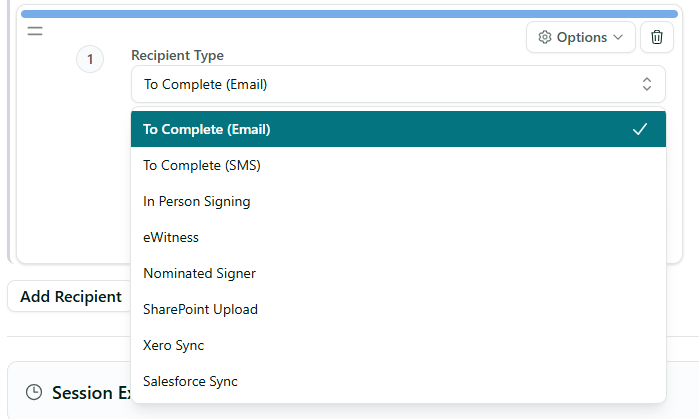
Each recipient has a Recipient Type that controls how they take part:
- To Complete (Email): the standard signer - they receive a secure link by email.
- To Complete (SMS): the signer receives their link by text message instead.
- In Person Signing: for signing on the spot on a shared device, no email round-trip.
- eWitness: a witness attached to a signer - more below.
- Nominated Signer: a placeholder for someone chosen at signing time - more below.
Integration recipients (SharePoint, Xero and Salesforce) also appear here for automatically filing or syncing the completed document.
Step 3: Set the signing order
By default, recipients sign in parallel - everyone receives their signing link at the same time. Between recipients you will see a toggle reading Receives signing link at the same time. Switch it off (it changes to Receives signing link after above) to make that recipient wait until the person above them has finished. Drag to reorder recipients into the sequence you want.
Parallel vs sequential
- Parallel (default): recipients are notified together and can sign in any order. Use when order does not matter.
- Sequential: switch the toggle off so a recipient is only invited once the person above them has finished. Use for approval chains.
Adding a witness
Set a recipient's type to eWitness and choose who they are Witnessing For. The witness signs after that person. You can choose to Specify witness details up front, or have the signer provide them, and tick Witness signs in person if they will witness on the same device. Otherwise the witness gets their own secure link.
Adding a nominated signer
When you do not yet know who will sign for the other side, set the type to Nominated Signer and choose who it is Nominated For. The contact you do have nominates the right person, whose details are captured at signing time and who then signs. Use Nominate at end of signing to control whether they nominate before or after their own part.
Adding a custom message and other recipient options
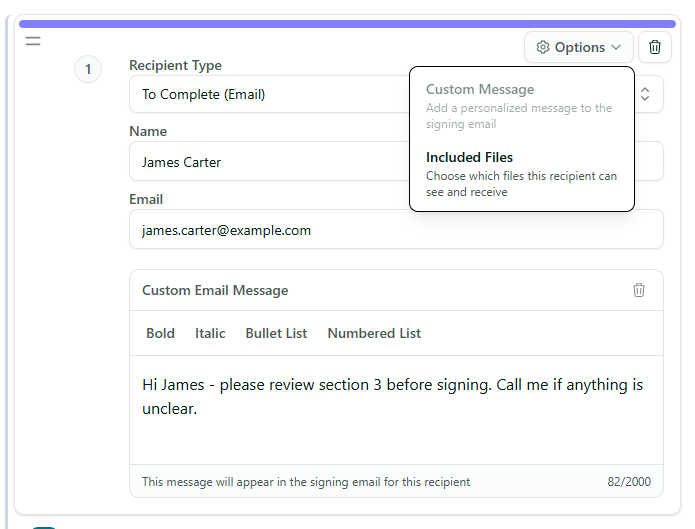
Every recipient has an Options menu - the gear button in the top-right corner of the recipient. It holds optional extras you can switch on per person, so the main form stays clean. The choices shown depend on the recipient's type.
What's in the Options menu
- Custom Message: a personalised note added to that recipient's signing email - ideal for giving context or specific instructions to one person.
- Included Files: choose which of the session's files this recipient can see and receive (available on Enterprise plans).
- Message for Nominator: for witnesses and nominated signers, a note shown to the person who nominates them.
- Independent signing order: for witnesses and nominated signers attached to another recipient - gives them their own position in the signing flow instead of acting straight after that person.
To add a personal note, click Options and choose Custom Message. A small rich-text editor opens right under the recipient so you can write and format the message before you send.
Tips
- Add all recipients before placing fields, so you can assign each field to the right person.
- Use independent signing order when several people sign in parallel to speed things up.
- Save a session with recipients and roles as a template to reuse the whole setup next time.
Need More Help?
Next, see Placing Signatures and Inputs to assign fields to each recipient, or our FAQ section. You can also reach support at [email protected].