Downloading Many Documents
When you need copies of a lot of signed documents - for an audit, an accountant or your own records - you do not have to open each session. AirSign can download them all as one zip file, with a folder for each session and a spreadsheet listing what is inside.
Where to find it
Step 1: Narrow the list to what you need
Use the search box, Filter by tags... and the Completed date filter to show just the sessions you want - for example everything completed last financial year. The downloads below always work on the list as it is filtered.
Step 2: Download everything in the list
Click the ⋮ menu at the top of the page and choose Download all. The number in brackets is how many sessions match your filters.

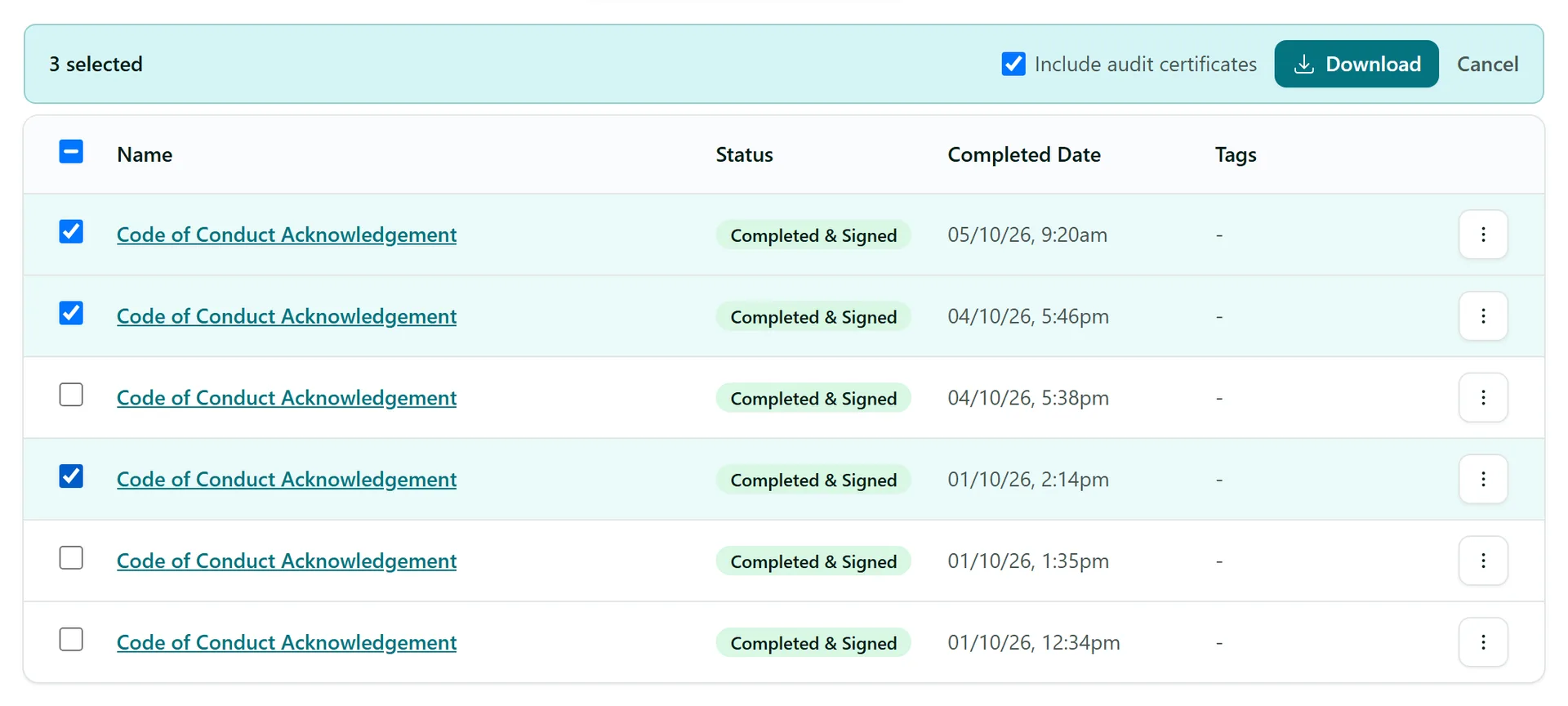
Step 3: Or tick just the ones you want
Choose Download many instead. Tick boxes appear on each row - tick the sessions you want (your ticks are kept as you move between pages). Once a whole page is ticked you can choose Select all ... matching sessions. Leave Include audit certificates ticked to add each session's certificate, then click Download, or Cancel to go back.
Step 4: Open the zip
For up to 25 sessions (and 100 files) the zip is built straight away in your browser and saved to your computer. Inside you will find:
- a folder per session, named with the completed date and the session name, holding the signed PDFs and the audit certificate
- index.csv - one row per session with its status, completed date, sender, recipients and documents, ready to open in Excel
Bigger downloads are prepared in the background instead. AirSign tells you how many files there are, then emails you a link (and shows it in the notification bell) when the zip is ready. The link works for 7 days. Large exports need export permission - organisation admins have it, and other members can be given it through a permission group.
Downloading a single session
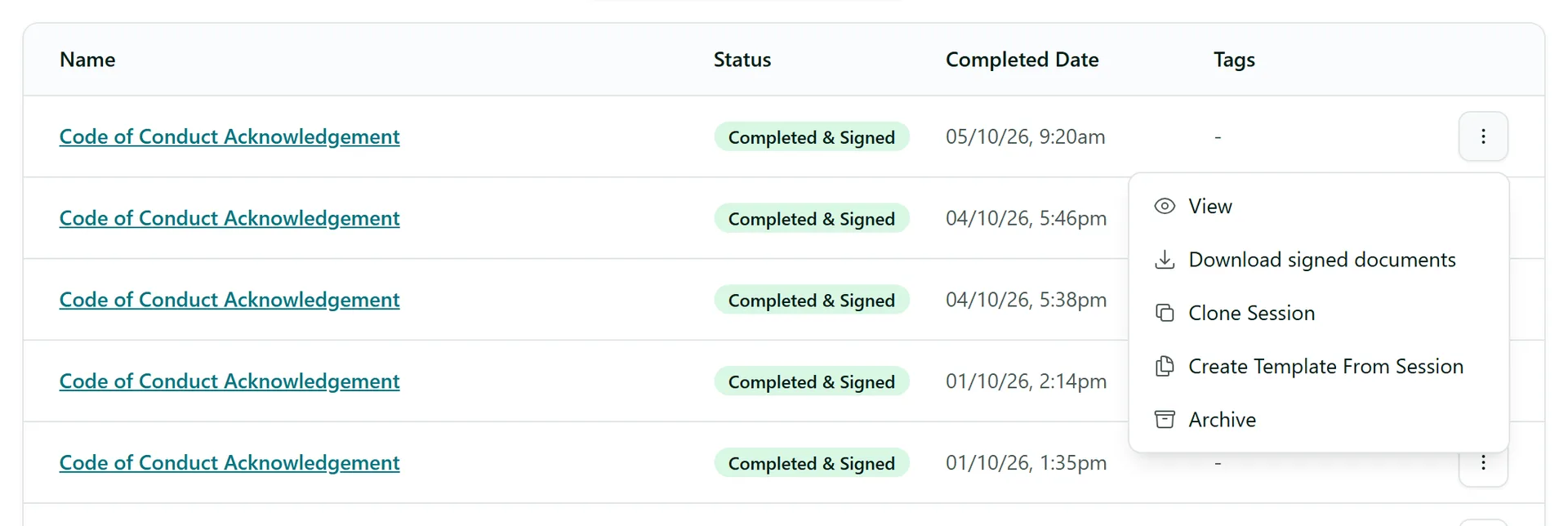
For one session, open the ⋮ menu on its row and choose Download signed documents, or open the session and click Download all as zip.
Tips
- Sessions that have not finished signing are skipped - only completed documents are included.
- If a file could not be added, the zip includes missing-files.txt listing it, so nothing goes missing silently.
- Tag sessions as you go (by job, client or year) so the right set is one filter away - see Organising with Tags.
Need More Help?
Related guides: Tracking & Completed Documents, Organising with Tags. See our FAQ section or email support at [email protected].