Signing a Document
This guide is for the person on the other end - the employee, client or contractor who has been asked to sign. You do not need an AirSign account to sign. Share it with anyone who asks "what do I do with this email?".
Where to find it
Step 1: Open the signing link
The email tells you which organisation is asking for your signature. The button opens the document in your browser on any computer, tablet or phone - there is nothing to install. The link is personal to you, so do not forward it.
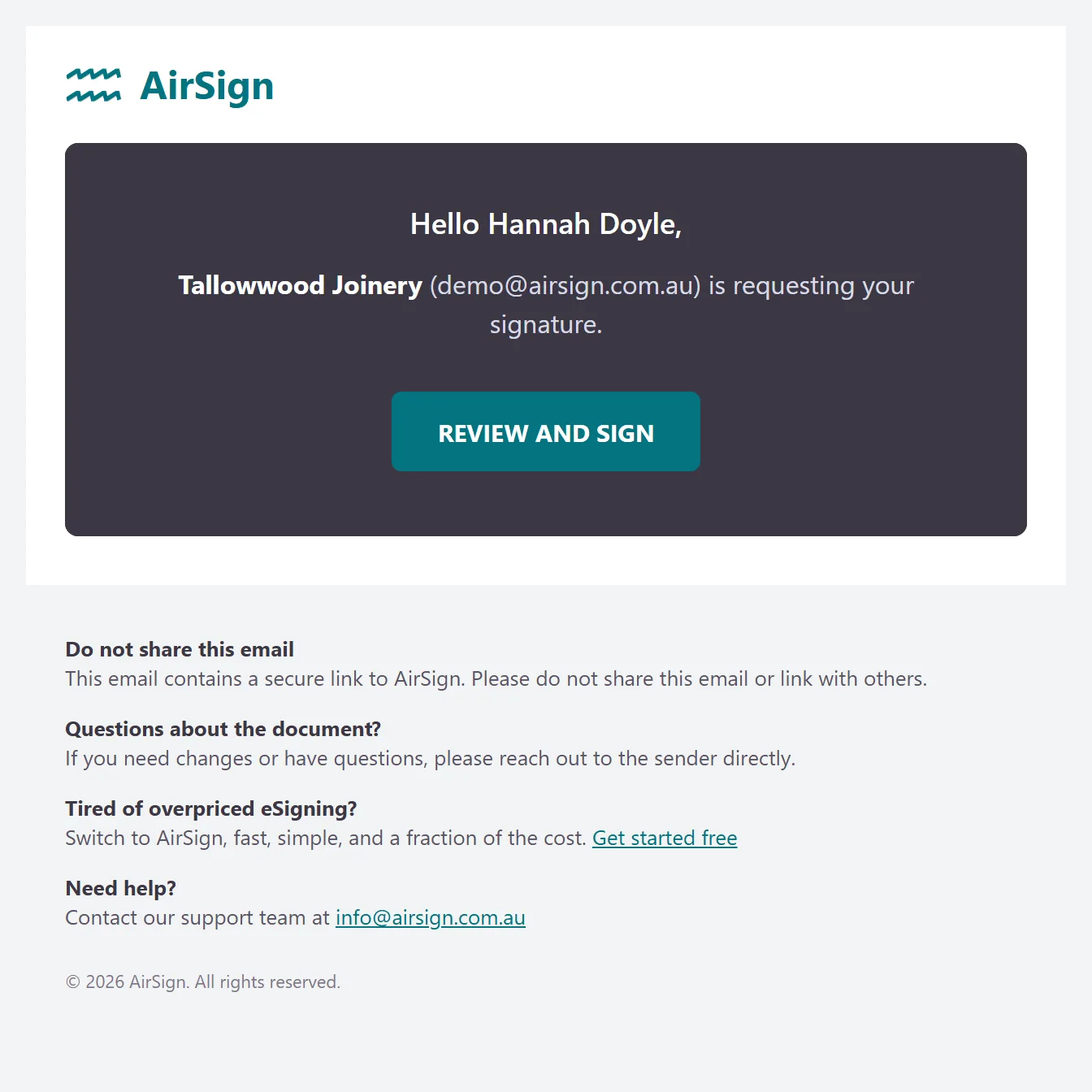
If the email says Password required, the sender has protected the document. They will give you the password separately - by phone or text, never in the email. Type it when the link asks, and contact the sender if you don't have it.
Step 2: Agree to sign electronically
The document opens greyed out with a welcome message (and any note the sender added under Message from sender). Read the Electronic Record and Signature Disclosure if you want the details, then tick I agree to use electronic records and signatures and confirm. The document then becomes active.
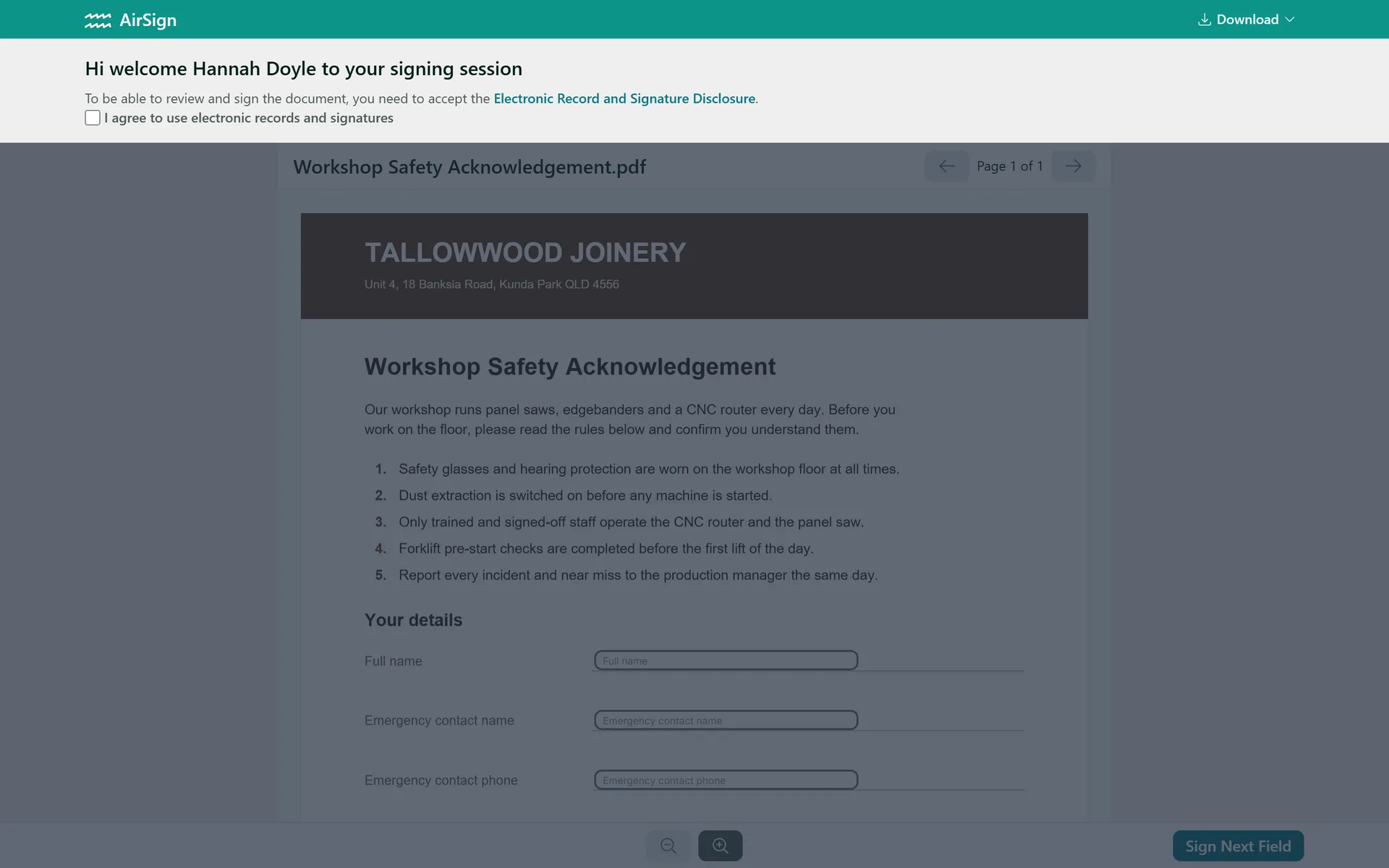
Step 3: Fill in your fields
Click Sign Next Field in the bottom bar and AirSign takes you to each field you need to complete, in order. Type into text boxes, pick from drop-downs and tick boxes. Fields marked as required must be filled before you can finish; optional ones can be left blank. Some fields only appear depending on an earlier answer, so do not be surprised if one shows up as you go. If the sender included more than one document, the button changes to Sign Next File to move you along. Use the + and - buttons (or pinch on a phone) to zoom.
Step 4: Add your signature
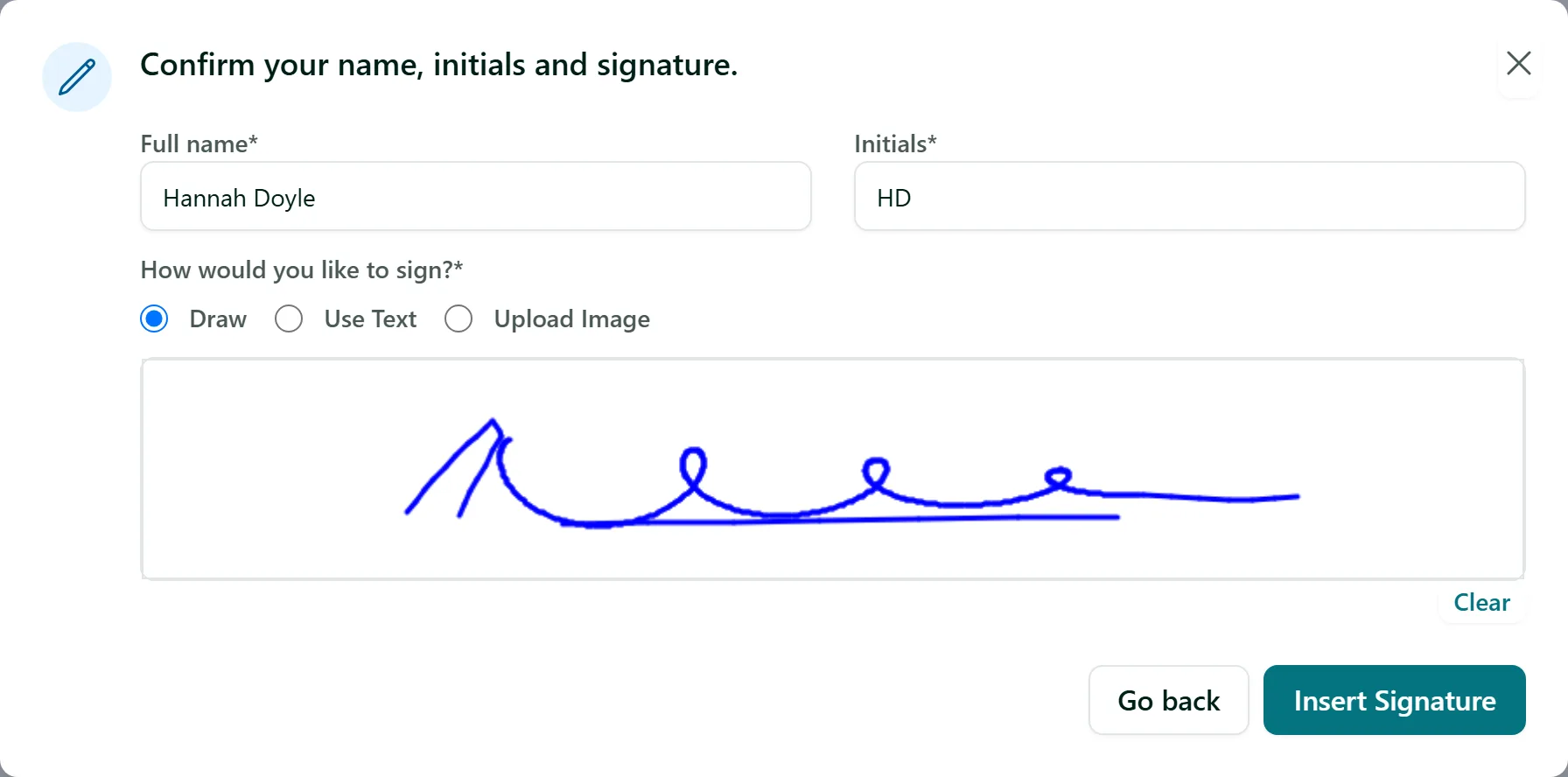
When you reach a signature field, a window opens asking you to confirm your Full name and Initials and choose How would you like to sign?:
- Draw - sign with your mouse, trackpad or finger. Clear starts again.
- Use Text - AirSign writes your full name or initials in a handwriting style.
- Upload Image - use a photo or scan of your signature (an image up to 200KB; a white background is removed for you).
Click Insert Signature. The same signature is offered for any other signature or initials fields in the document.
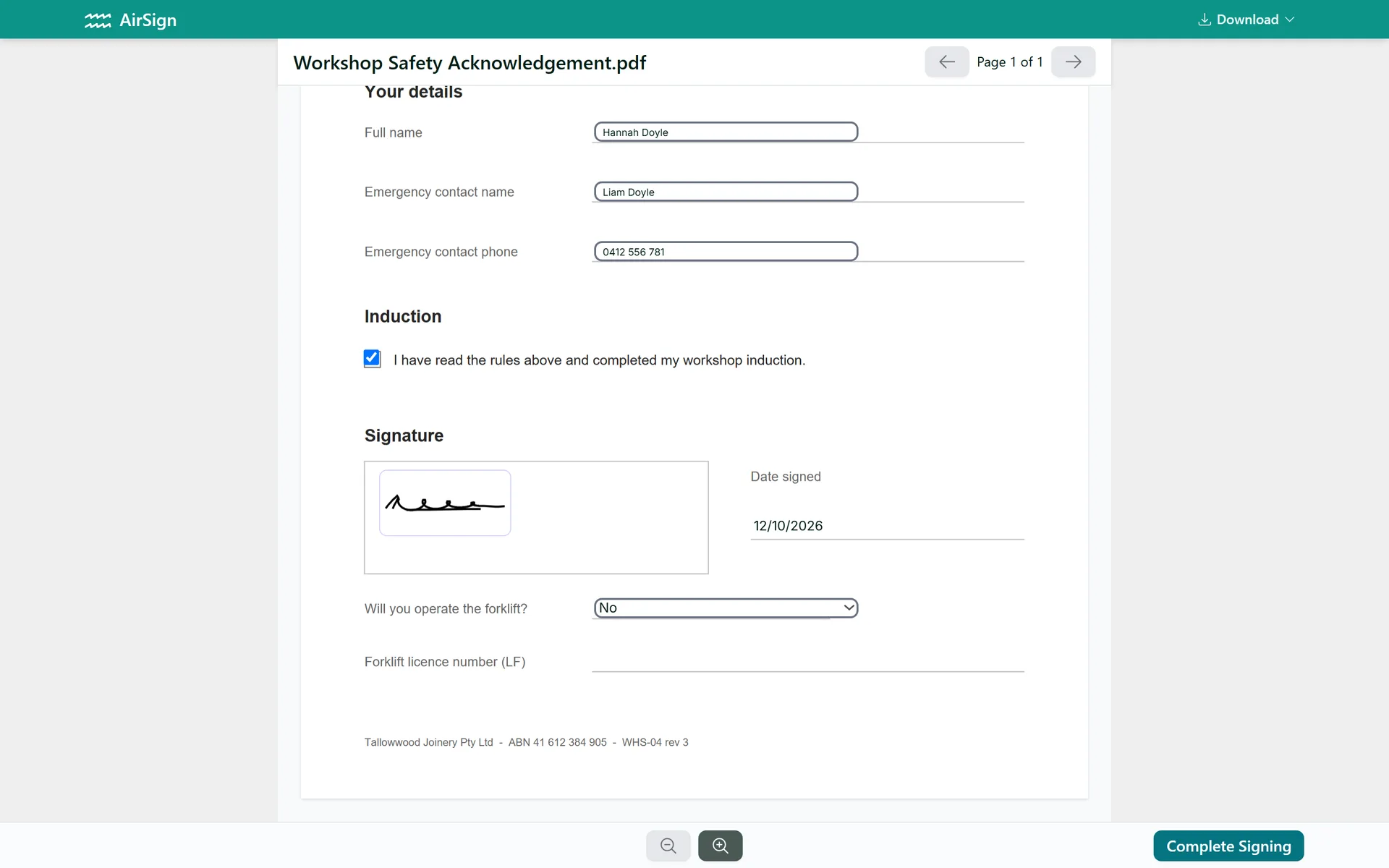
Step 5: Complete signing
Once every required field is done, the button reads Complete Signing. Check the document, click it and confirm. This finalises your part and cannot be undone. The date signed fills itself in.
Step 6: Download your copy
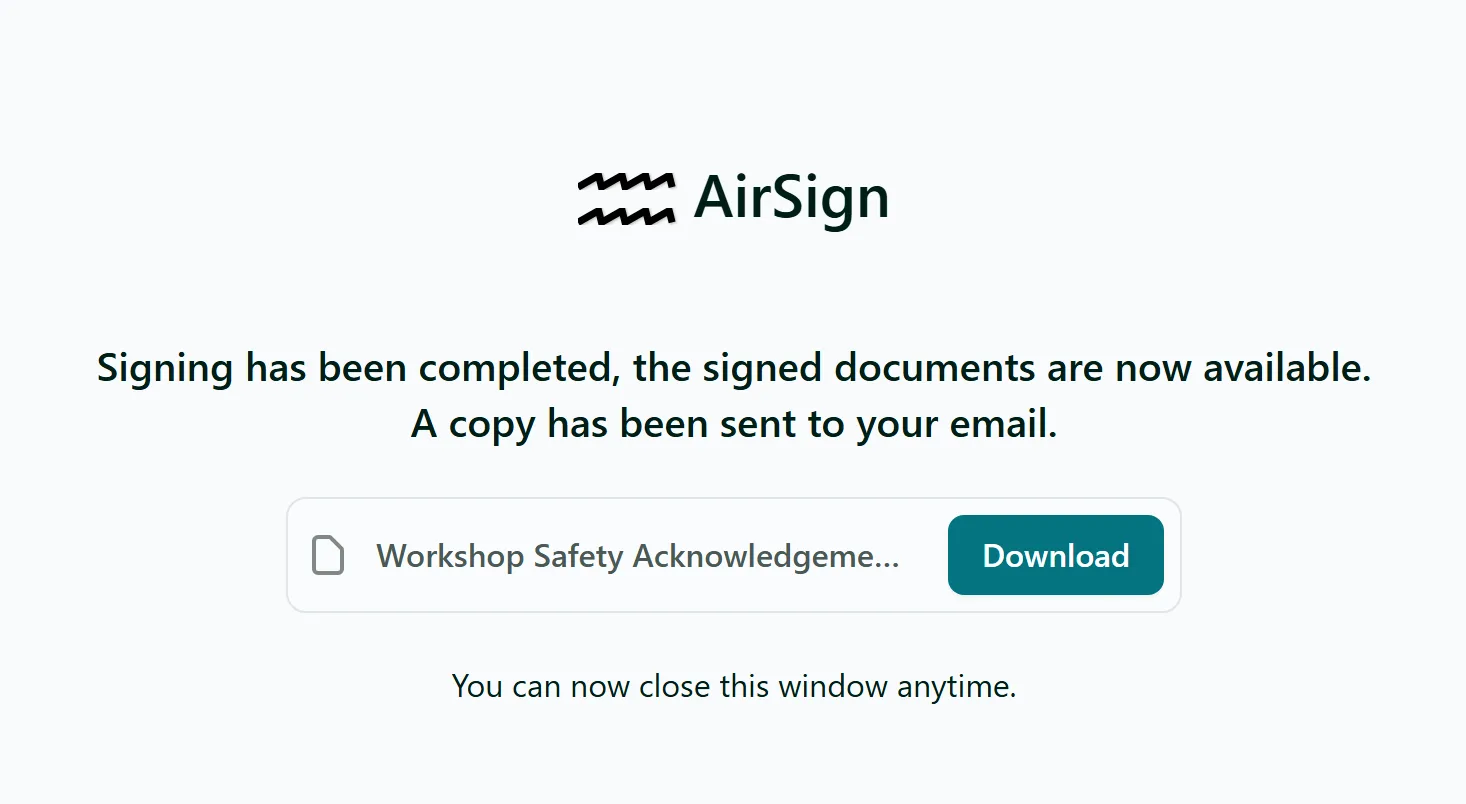
You land on a confirmation page with a Download button for each document. The completed document is also emailed out once everyone has signed (depending on the sender's settings).
If you need to decline or pass it on
AirSign does not have a general "reject" button - the sender decides what you can do:
- If the document has Approve / Decline buttons, choosing Decline records your decision and reason on the document. Where the sender has set declining to end the session, you are asked Decline the entire document? - confirm, then complete signing. Nobody else can sign it and the sender is notified.
- If the sender allowed it, Other actions > Assign to someone else in the top bar hands the document to the right person.
- Otherwise, reply to the sender (their details are in the email) - they can change or cancel the document.
Tips
- The Download menu at the top of the signing page lets you save the document before you sign. Once someone else has signed, you can also download a copy with the signatures so far (marked NOT COMPLETE).
- Not ready yet? Close the page and use the same link later - it keeps working until you complete it or the document expires.
- If you have an AirSign account, signatures you save under Settings > Signatures appear as one-click options when you sign from your Action required list while logged in.
Need More Help?
Related guides: Signing Documents Yourself, Placing Signatures And Inputs, Tracking & Completed Documents. See our FAQ section or email support at [email protected].