Replacing a Document Without Losing Your Fields
You have uploaded a document and carefully placed all your signature and input fields, and then the document changes - a clause is revised, a typo is fixed, or a new version arrives from the other side. Previously that meant starting over. With AirSign you can replace the file and keep your fields exactly where they were. AirSign repositions them onto the new document for you.
When to use this
Use Replace file when the new document is a revised version of the same document - similar wording and layout. AirSign anchors your fields to the surrounding text, so it works best when that text still exists in the new file. For a completely different document, it is better to start fresh.
Step 1: Find the document you want to replace
Open the session or template you are working on and go to the documents area, where your uploaded files appear as thumbnail cards. Hover over the card for the document you want to swap out.
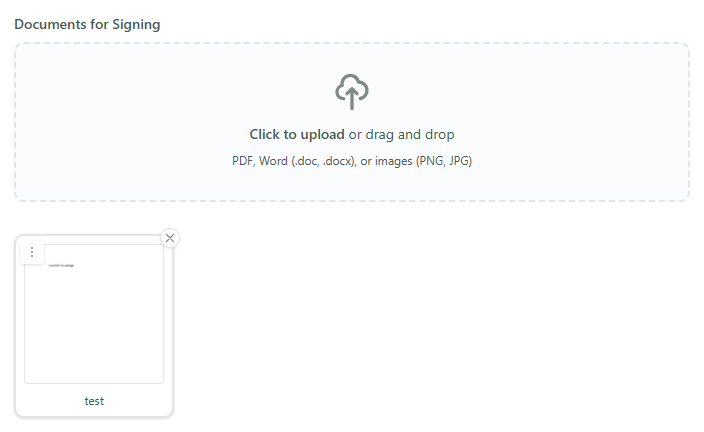
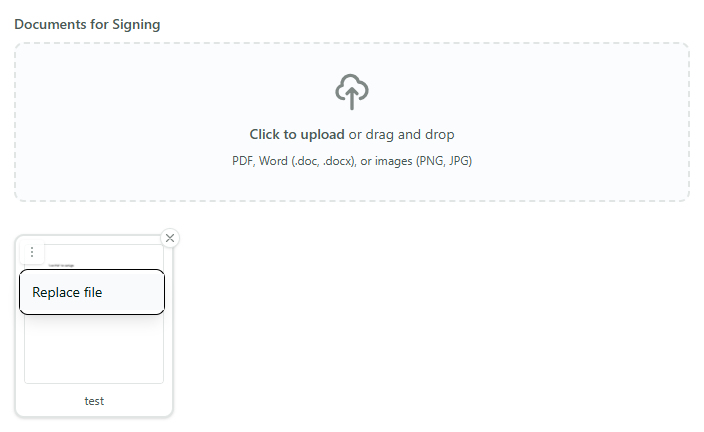
Step 2: Open the file actions menu and choose Replace file
On the document card, click the file actions menu - the vertical dots (⋮) icon in the top corner of the card - and select Replace file. Choose the new PDF from your computer.
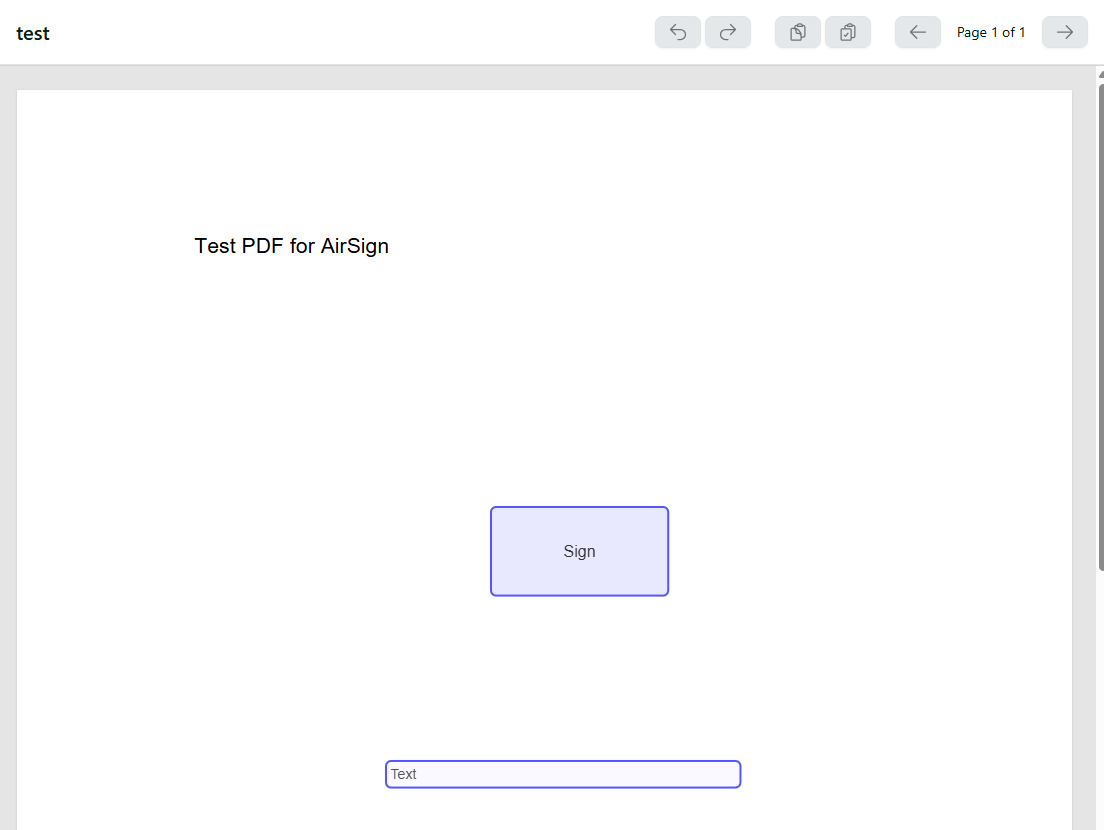
Step 3: Preview the new document
The preview updates to the new file straight away, while your fields stay put. Nothing is final yet - the swap is applied when you save.
What is happening behind the scenes
- The new file is held as a pending replacement on the document.
- Your existing fields are kept and tied to the text they sit near (their anchors).
- On save, AirSign re-places each field on the new document using those anchors, so a field that sat beside "Signed by the Tenant" lands beside that same line even if it moved up or down the page.
Step 4: Save and review the repositioned fields
Save the session or template. AirSign repositions your fields onto the new document. Most of the time everything lands in the right spot, but it is always worth a quick check, especially if the layout changed a lot.
If a field needs attention
When a field cannot be placed with confidence, AirSign keeps it safe rather than guessing. The common cases are:
- Anchor text not found: the wording a field was next to is not in the new document, so it stays at its original position. Drag it to the right spot.
- Field falls off the page: the new document has fewer pages, so the field's page no longer exists. Move it onto a page.
- Text appears more than once: the anchor wording shows up in several places. AirSign uses the first occurrence - double-check it chose the right one.
- Page size changed: the new pages are a different size, so fields are scaled proportionally. Confirm they still line up.
Tips for a clean swap
- Replace with a revised version of the same document for the best results.
- Replace before sending - once recipients have started signing, swapping the document is no longer the right tool.
- Do a final scroll through every page to confirm each field sits where you expect.
Need More Help?
For more on adding and configuring fields, see Placing Signatures and Inputs, or check our FAQ section. You can also reach our support team at [email protected].