Team Access and Single Sign-On
As your team grows, two things matter: how people log in, and what they are allowed to see. AirSign covers both - single sign-on lets your team log in through your existing identity provider, and permission groups let you control who can access which sessions and templates. This guide covers both.
Before you start
These are team and enterprise features. You will need admin access to your organisation in AirSign, and for SSO, access to your identity provider (such as Microsoft Entra ID, Okta or Google Workspace).
Part 1: Permission groups - who can see what
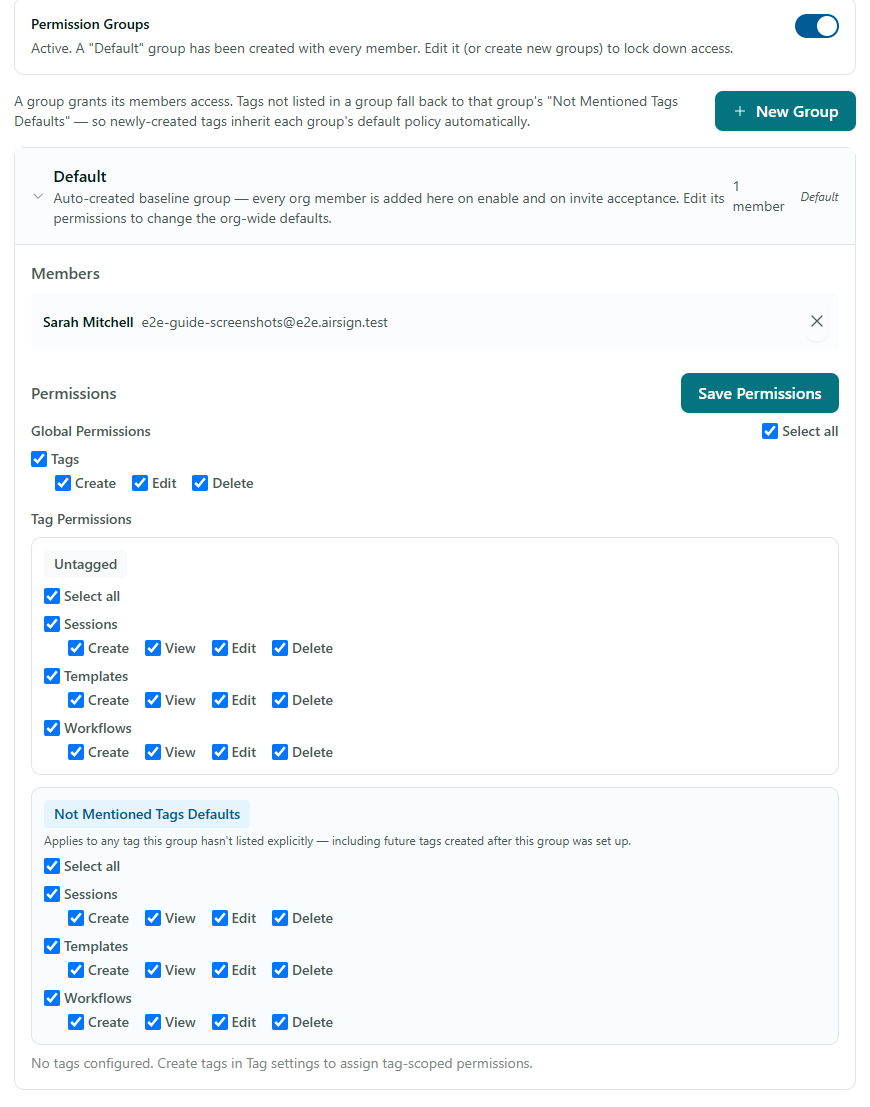
Permission groups give you role-based access control. The rule is simple: a member can act on something only if a group they belong to explicitly grants it. Find this under Settings → Team, on the Groups tab.
How it works
- Off until you turn it on. Until you switch Permission Groups on, nothing is restricted, so small teams are not forced to configure anything.
- A Default group. When you enable it, a Default group is created and everyone is added to it, so nobody loses access. Tighten the Default group's permissions to set your org-wide baseline.
- Create more groups. Use New Group to add a group, give it a name, add members, and set its permissions.
- Global and tag permissions. Grant access broadly with Global Permissions, or scope it to specific tags so a group only sees the sessions, templates and workflows carrying those tags.
- Admins always have full access, so you cannot lock yourself out.
Part 2: Single sign-on (SSO)
SSO lets your team log in with your organisation's identity provider over SAML, rather than a separate AirSign password. Set it up under Settings → SSO.
Setting up a SAML provider
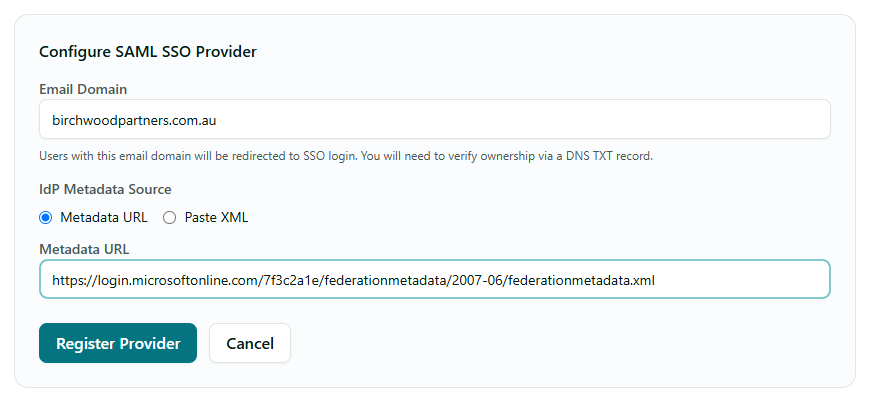
- Open Configure SAML SSO Provider and enter the Email Domain your team signs in with.
- Connect your identity provider by supplying its Metadata URL, or paste its metadata XML directly.
- Complete Verify Domain Ownership so only your organisation can claim that email domain.
- Your provider then appears under Configured Providers, and your team can sign in through it.
Tips
- Roll out permission groups gradually - tighten the Default group first, then add specialised groups as needed.
- With SSO, removing someone from your identity provider removes their AirSign access, so offboarding stays in one place.
- Use tags consistently across your sessions and templates to make tag-scoped permissions easy to manage.
Need More Help?
Setting up SSO for a larger rollout? Our team can help - reach us at [email protected], or see our FAQ section.