Notifications & Completion Emails
AirSign keeps you up to date in two ways: the notification bell inside the app, and the completion email that goes out when everyone has signed. This guide shows how to use the bell and how to set up completion emails for your organisation.
Where to find it
Step 1: Check the bell
A red number on the bell shows how many notifications you have not read. Click it to see the latest - for example a session you sent being completed or declined, a form or training module being submitted, a compliance document about to expire, or a timesheet waiting for approval (depending on the apps you use). Unread ones are highlighted with a dot.
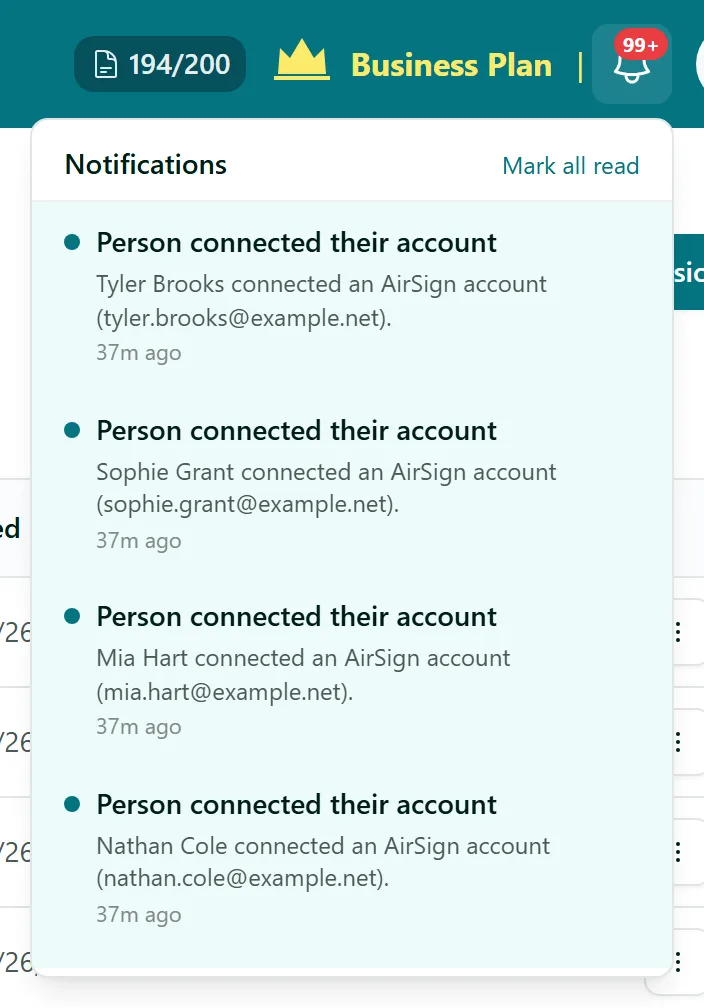
Click a notification to open the thing it is about; it is marked as read at the same time. Click Mark all read to clear the count. Notifications belong to you and to the organisation you are in, so switching organisation switches what the bell shows.
Step 2: Choose who gets the completion email
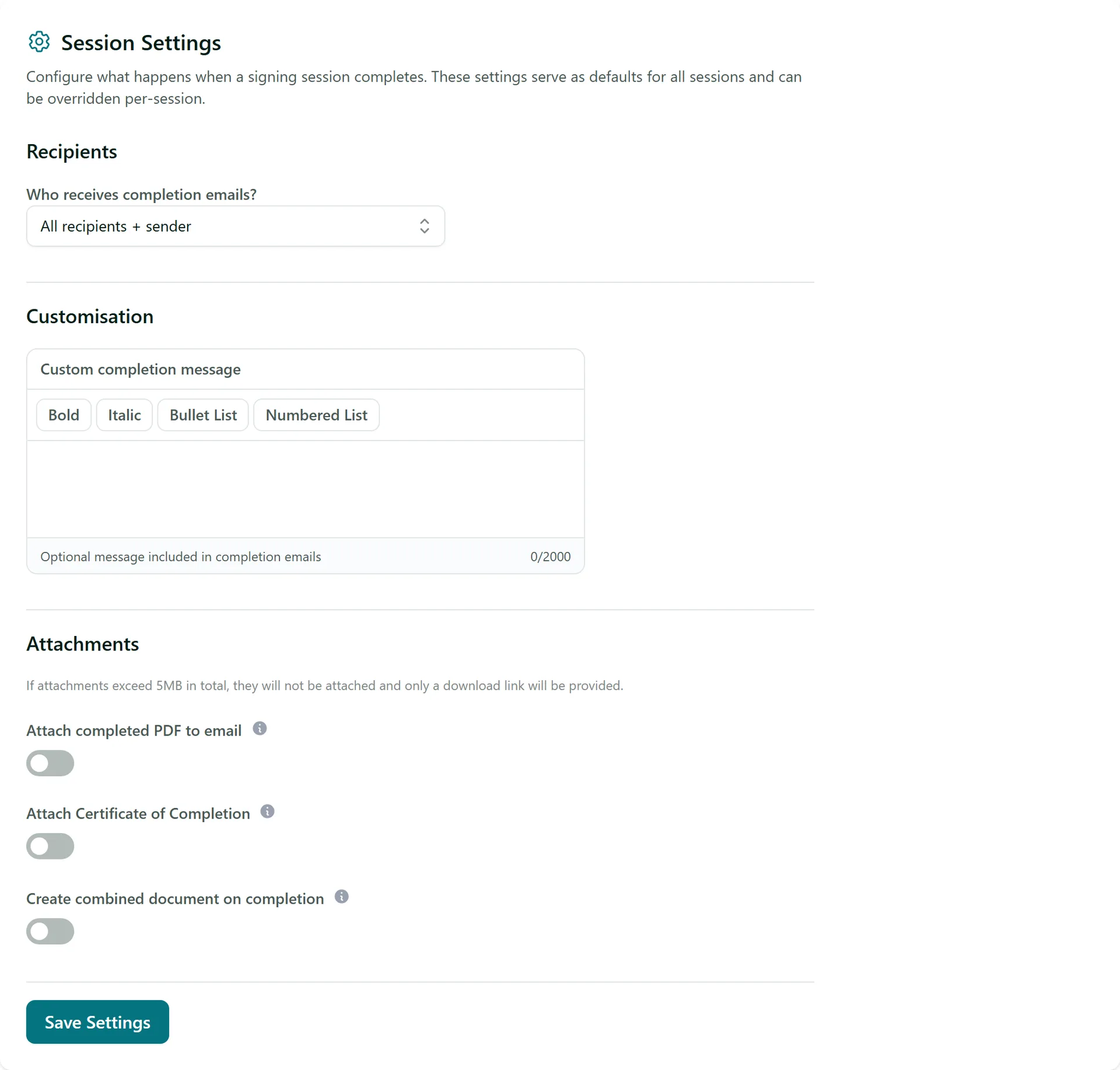
Go to Settings > Signing > Session Settings. Under Who receives completion emails? choose All recipients + sender, Sender only or No completion emails.
Step 3: Add a message and attachments
Under Customisation, write an optional Custom completion message - next steps, a thank you or who to contact. Under Attachments you can turn on:
- Attach completed PDF to email - the signed documents go in the email itself.
- Attach Certificate of Completion - adds the audit certificate.
- Create combined document on completion - merges every signed document and the certificate into one PDF, which you can also attach.
Click Save Settings. If the attachments add up to more than 5MB, the email includes a download link instead. If the section is marked Premium, attaching files is not part of your plan yet.
Step 4: Change it for one session
These settings are the defaults for every new session. To do something different for one session or template, open Extra Settings in its editor and change the completion email there.
Tips
- Choosing No completion emails does not affect the signed copy - you can still download it from the session in AirSign.
- Waiting on a signer? Reminders are set per session - see Setting a Deadline & Reminders.
- Want your own system told when a session completes? Use a webhook.
Need More Help?
Related guides: Tracking & Completed Documents, Setting a Deadline & Reminders. See our FAQ section or email support at [email protected].