Signing Documents Yourself
Often you need to sign too - a covering letter you sign before it goes to the client, or a form only you have to sign. Instead of adding yourself as a recipient and signing from your own inbox, AirSign lets you sign right where you set the document up.
Where to find it
Option 1: You are the only signer
Turn on Are you the only signer?. The recipient list disappears (the heading reads Recipient Information (Self Sign Only)) because nobody else is involved. Click Next Step, place your fields on the document, then on the last step click Send Session - instead of emailing anyone, AirSign opens the document for you to sign straight away. When you finish, the signed copy is in your Completed Sessions.
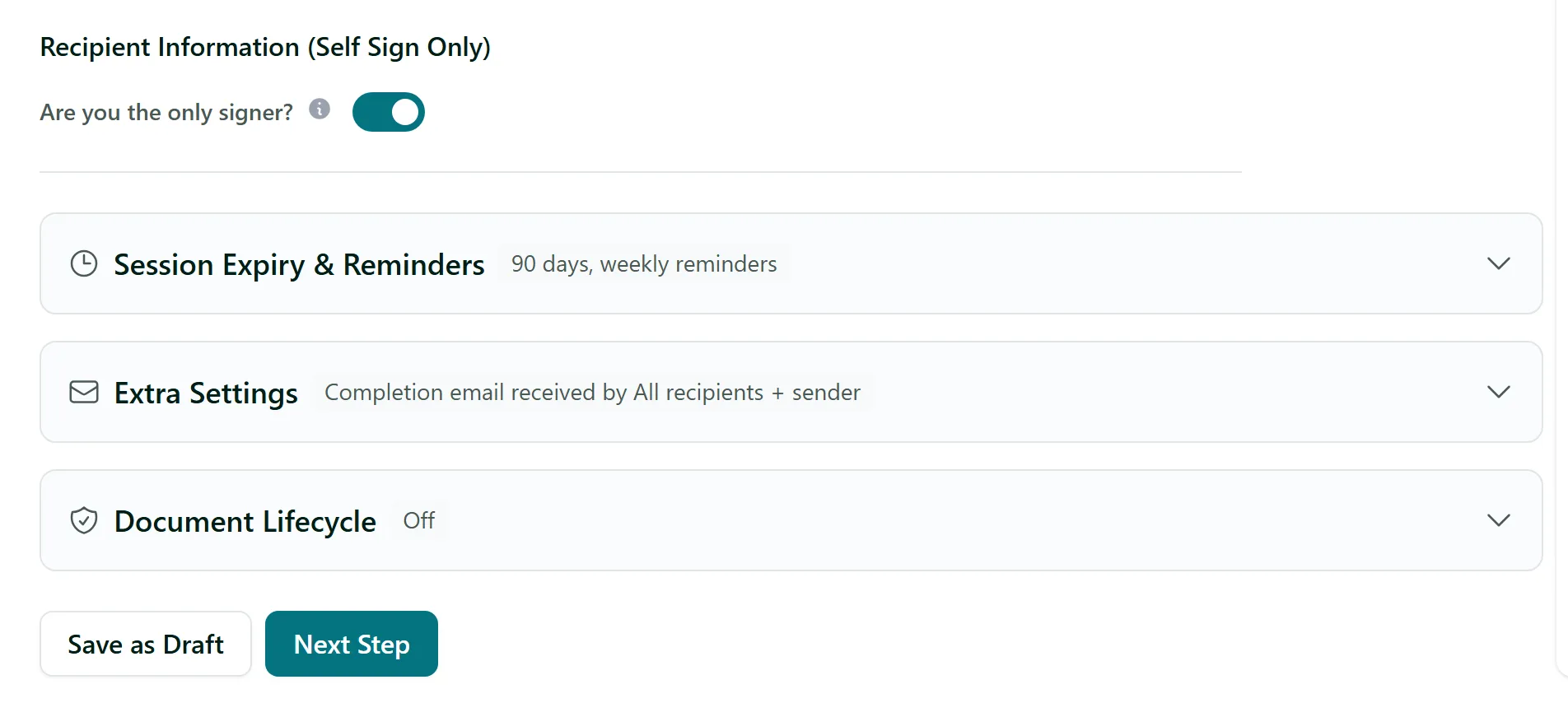
Option 2: Sign first, then send to others
Add your other recipients as normal, then click Add me. AirSign adds you (your profile name and email) as recipient 1 and moves everyone else back one place, set to Receives signing link after above - so they are only emailed once you have signed. If the form only has one empty recipient, Add me fills that row in instead. Clicking it again adds another copy of you, for when you need to sign at two points in the order.
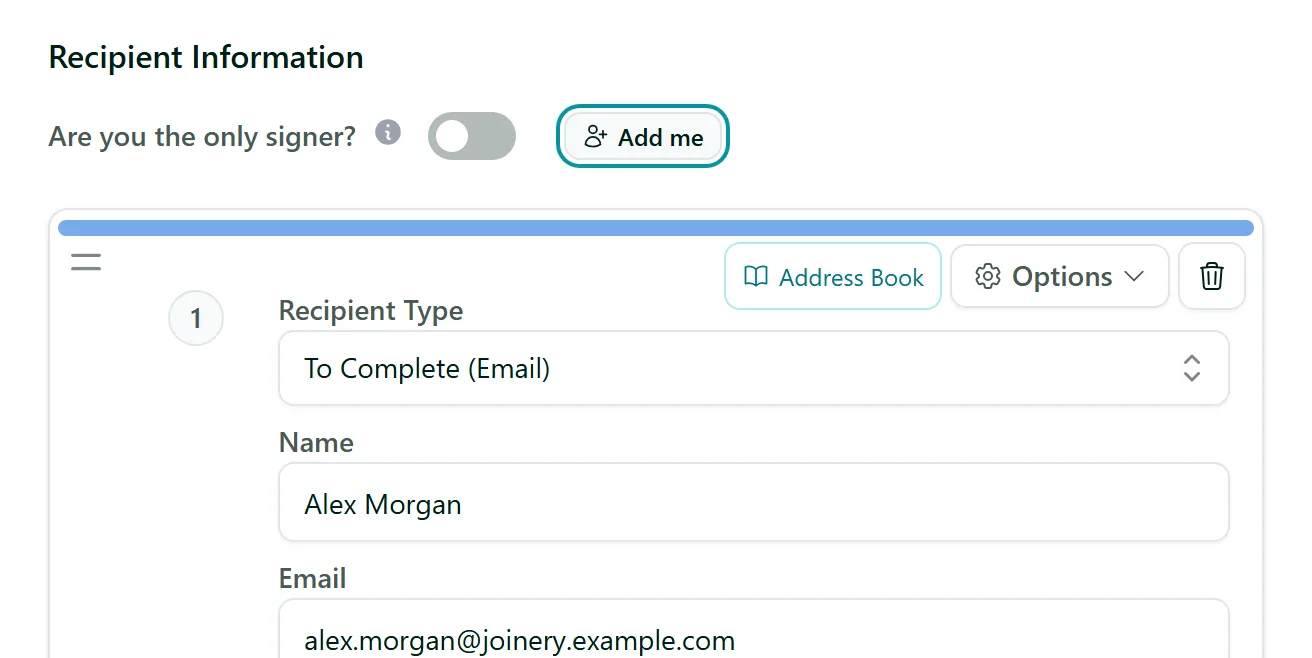
Step 2: Place fields for each person
Click Next Step and place your own signature and date fields, then switch the Selected Recipient to your client and place theirs. See Placing Signatures And Inputs.
Step 3: Send, then sign now
Click Next, then Send Session and confirm. Because it is your turn first, AirSign asks You're the first signer. Click Continue to sign immediately in your browser - no email round trip. As soon as you complete signing, the next recipient is emailed their link. This works whether you used Add me or typed your own email in.
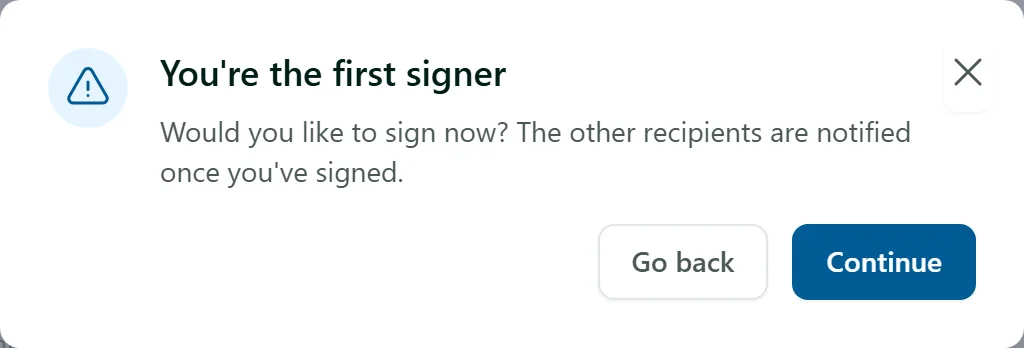
Step 4: Sign later from the session
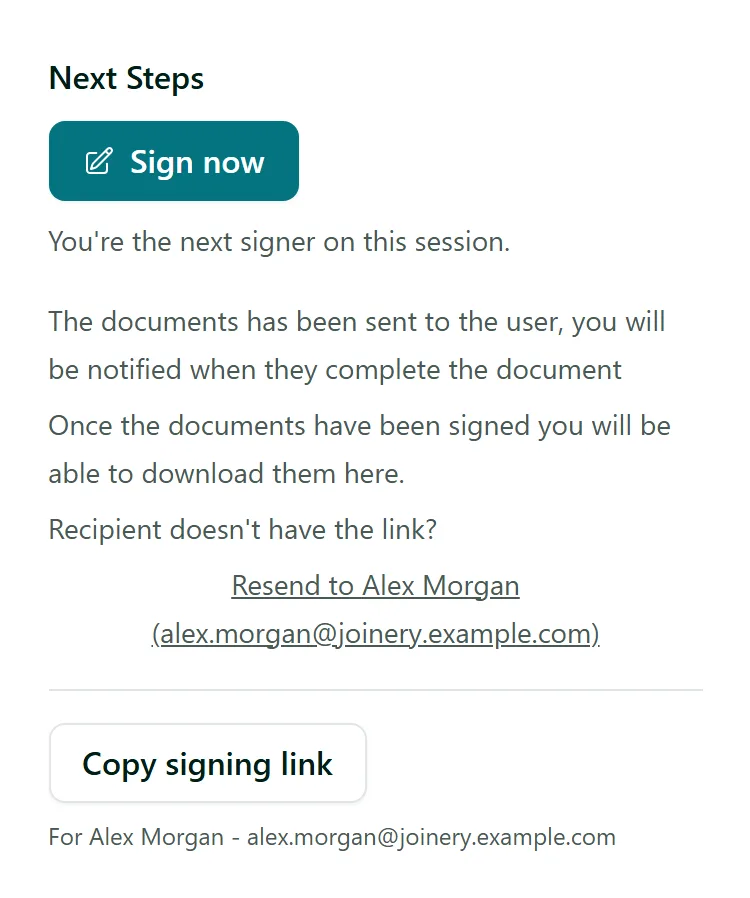
Chose Go back? Open the session from Sent Sessions. While you are the next signer, the Next Steps panel shows a Sign now button. The document also waits in For you > Action required.
Tips
- The sign now prompt and button need a verified email address on your AirSign account. If your email is not verified yet you still get the normal signing email - use Send verification email under For you > Action required.
- Save your signature once in Settings > Signatures and it is offered as a one-click option whenever you sign your own documents.
- Add me puts you first by default. To sign last instead (for example to countersign), drag your row below the others before you send.
Need More Help?
Related guides: Adding Recipients & Roles, Signing a Document, Creating Your First Signing Session. See our FAQ section or email support at [email protected].