Using the Address Book
You should only ever type someone's details once. Every person you send a document to - name, email and mobile - is saved to your organisation's address book automatically, and offered back the next time you add recipients. If you use AirSign CRM, your customers and leads are in there too.
Where to find it
Step 1: Pick from the suggestions
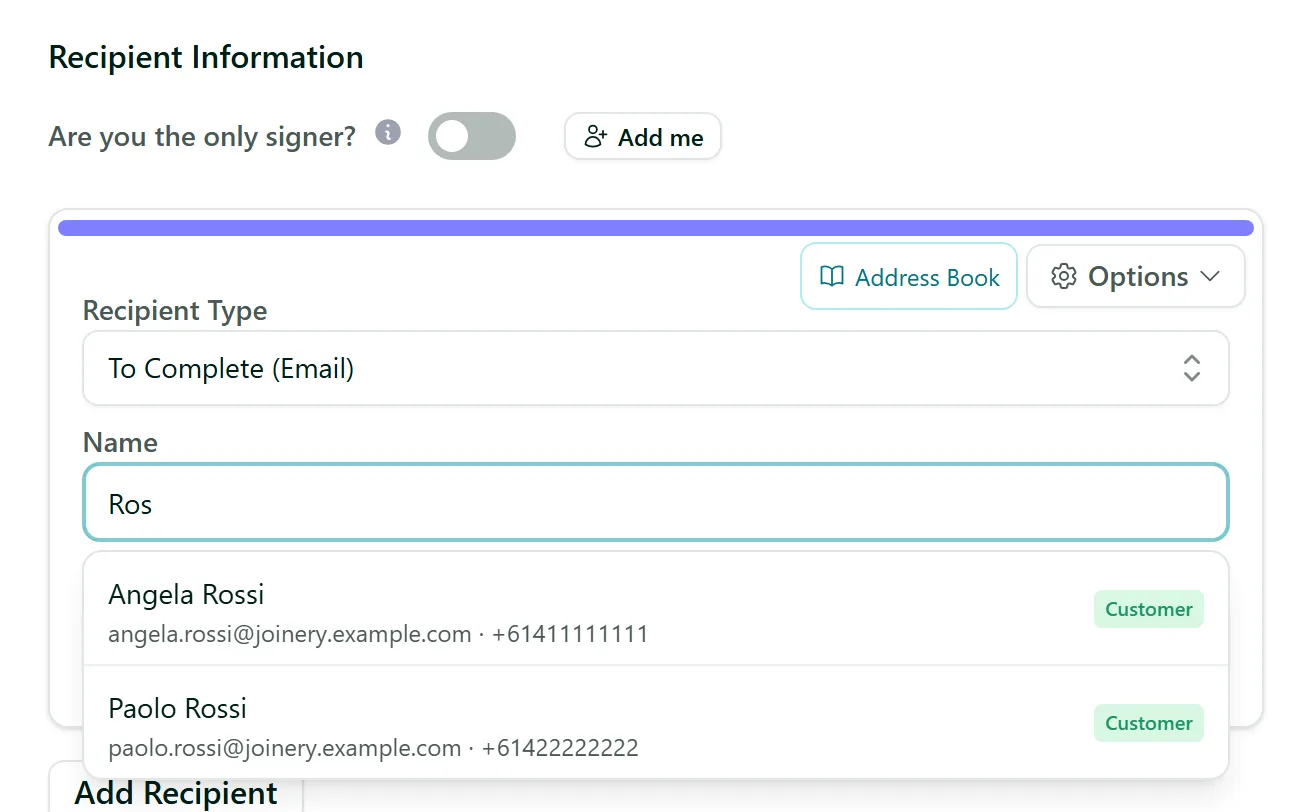
Type two or more letters into a recipient's Name or Email and matching people drop down underneath, each labelled Contact, Customer or Lead. Click one to fill in the recipient. For text message recipients, the suggestions fill in the name and mobile instead.
Step 2: Browse with the Address Book button
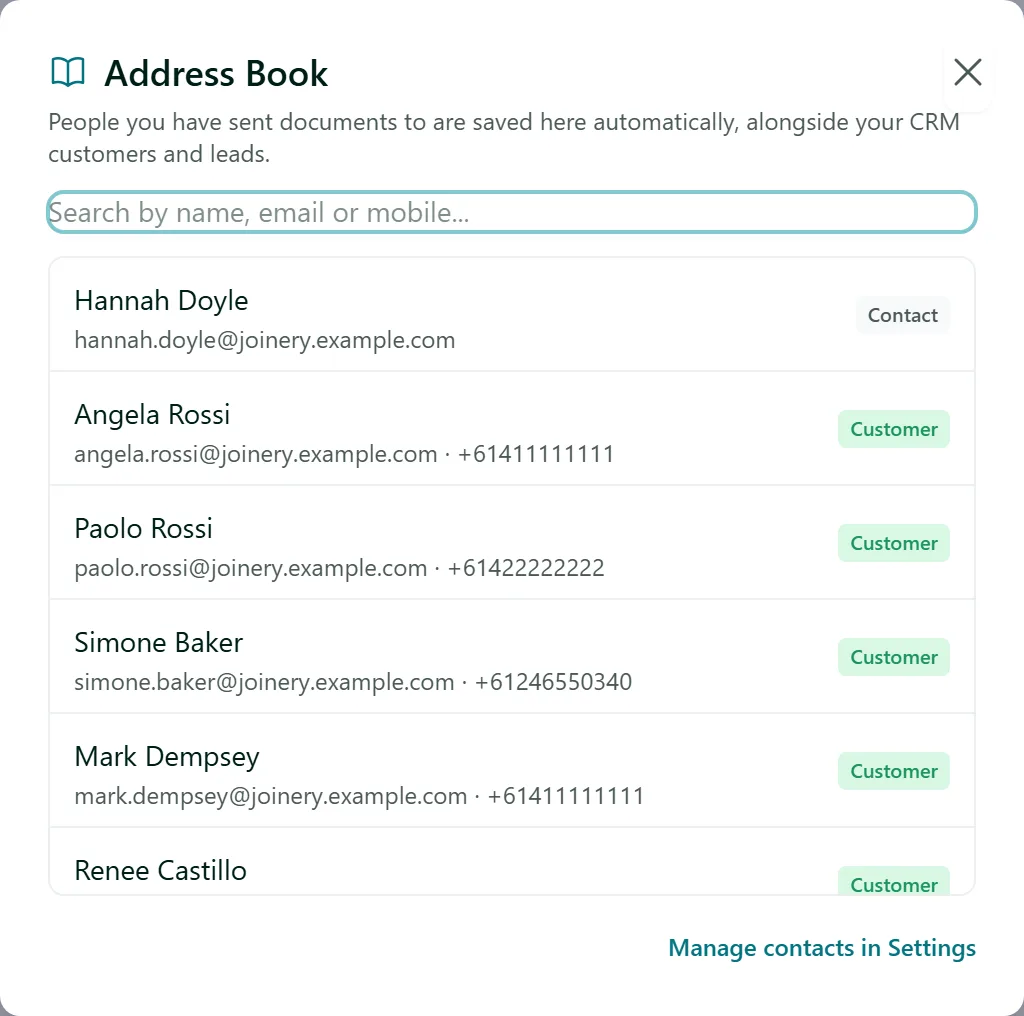
Click Address Book on the recipient to search everyone by name, email or mobile. With the search empty it lists the people you have used most recently. Entries without the detail the recipient needs (for example no mobile for a text message recipient) are greyed out. If you have connected Xero or monday.com, they appear as extra sources on the left, searched live.
Step 3: Tidy your Contact Book
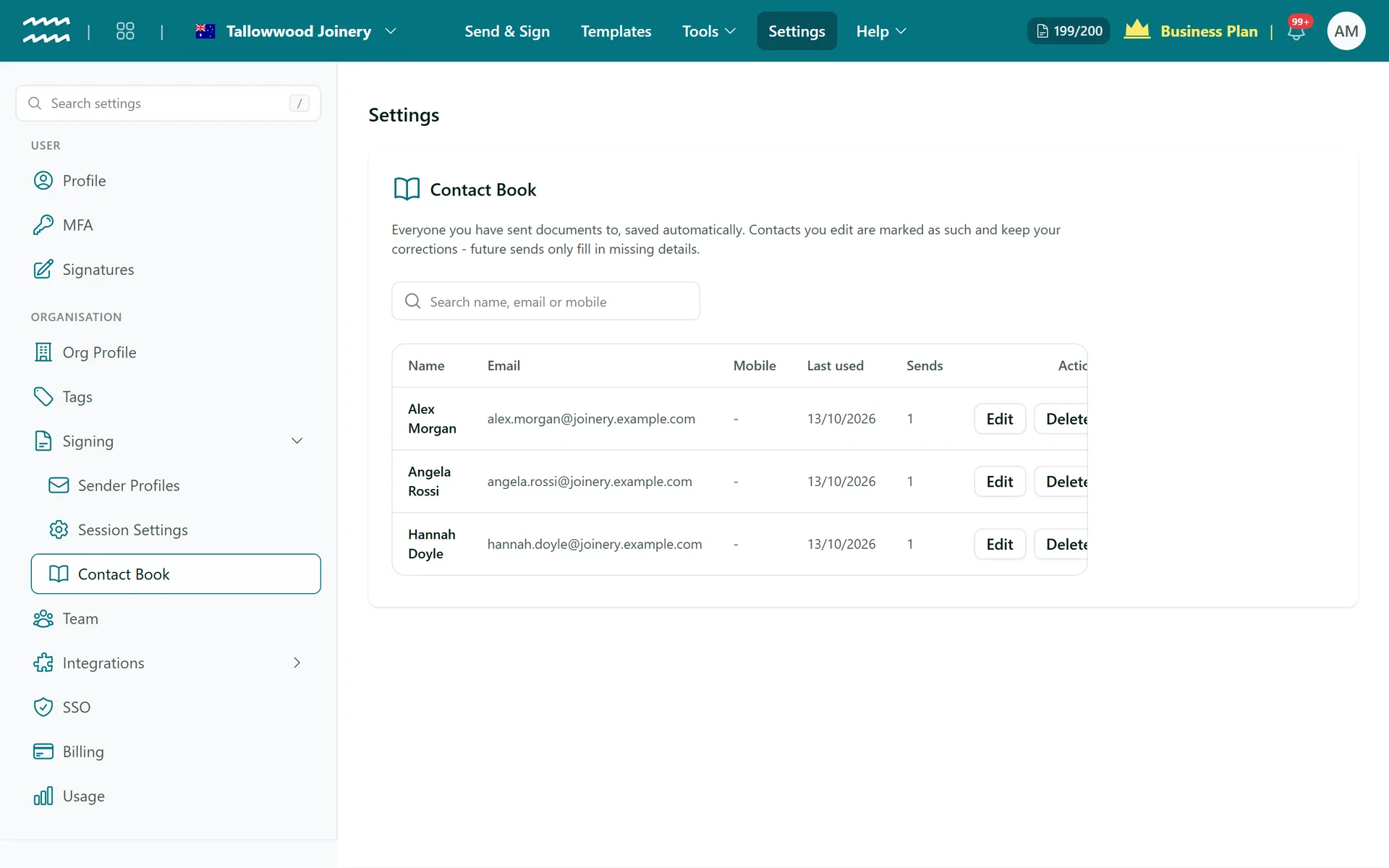
Settings > Signing > Contact Book lists every saved contact with when they were last used and how many documents they have been sent. Click Edit to fix a name, email or mobile, or Delete to remove someone.
Tips
- Contacts you edit are marked Edited and keep your corrections - later sends only fill in details that are missing, they never overwrite your fix.
- Deleted contacts come back automatically the next time you send them a document.
- CRM customers and leads are edited in AirSign CRM, not the Contact Book. Inside the CRM, Contacts also lets you turn a saved contact into a customer.
- The address book is shared by everyone in your organisation, so your whole team benefits from each send.
Need More Help?
Related guides: Adding Recipients & Roles, Bulk Sending a Template. See our FAQ section or email support at [email protected].