Password Protecting a Document
A signing link goes to the recipient's email, so anyone who can read that inbox can open it. For sensitive documents - bank details, contracts, medical or financial information - you can also require a password. AirSign creates the password when you send, and you give it to the recipient some other way, such as a phone call or text message. Without it they cannot see the documents at all.
Where to find it
Step 1: Turn on Password for the recipient
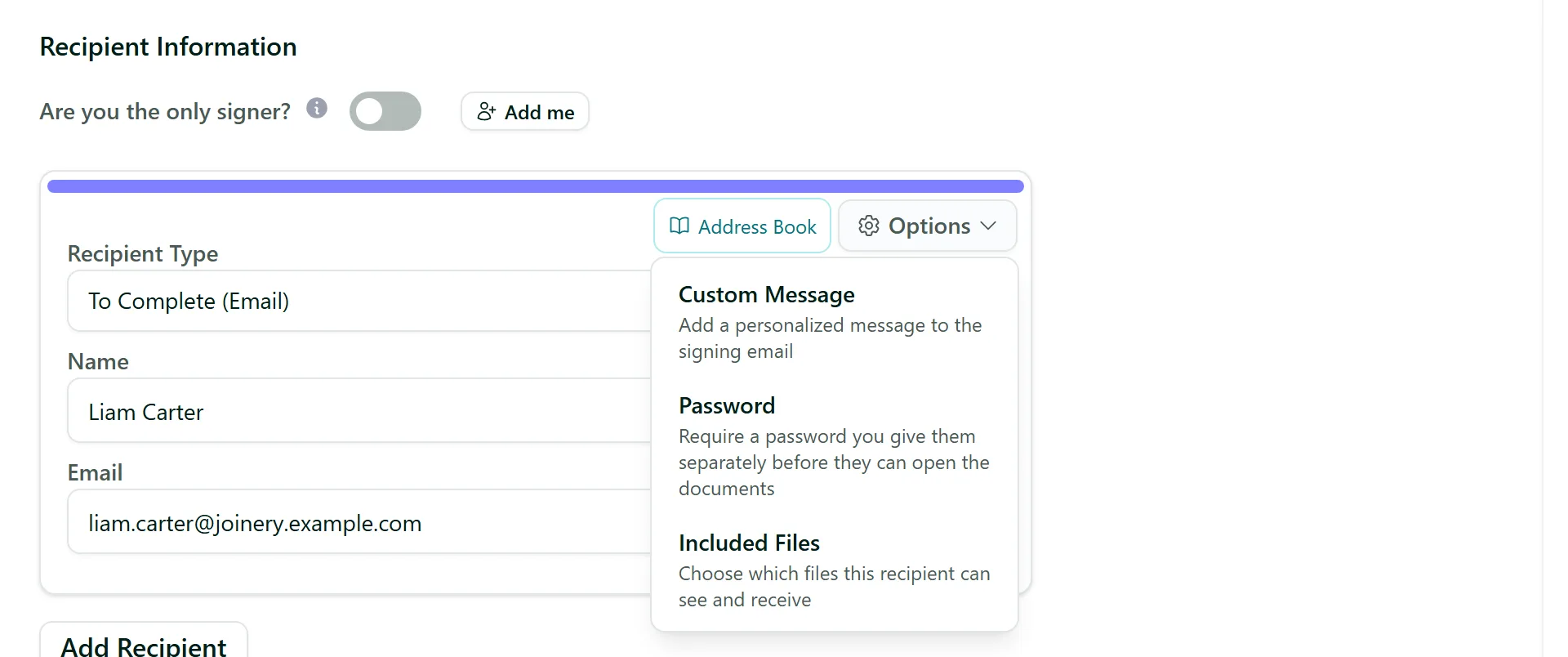
Add the recipient as usual, then click Options and choose Password. You can turn it on for one recipient and not another - for example only the contractor whose bank details are in the agreement.
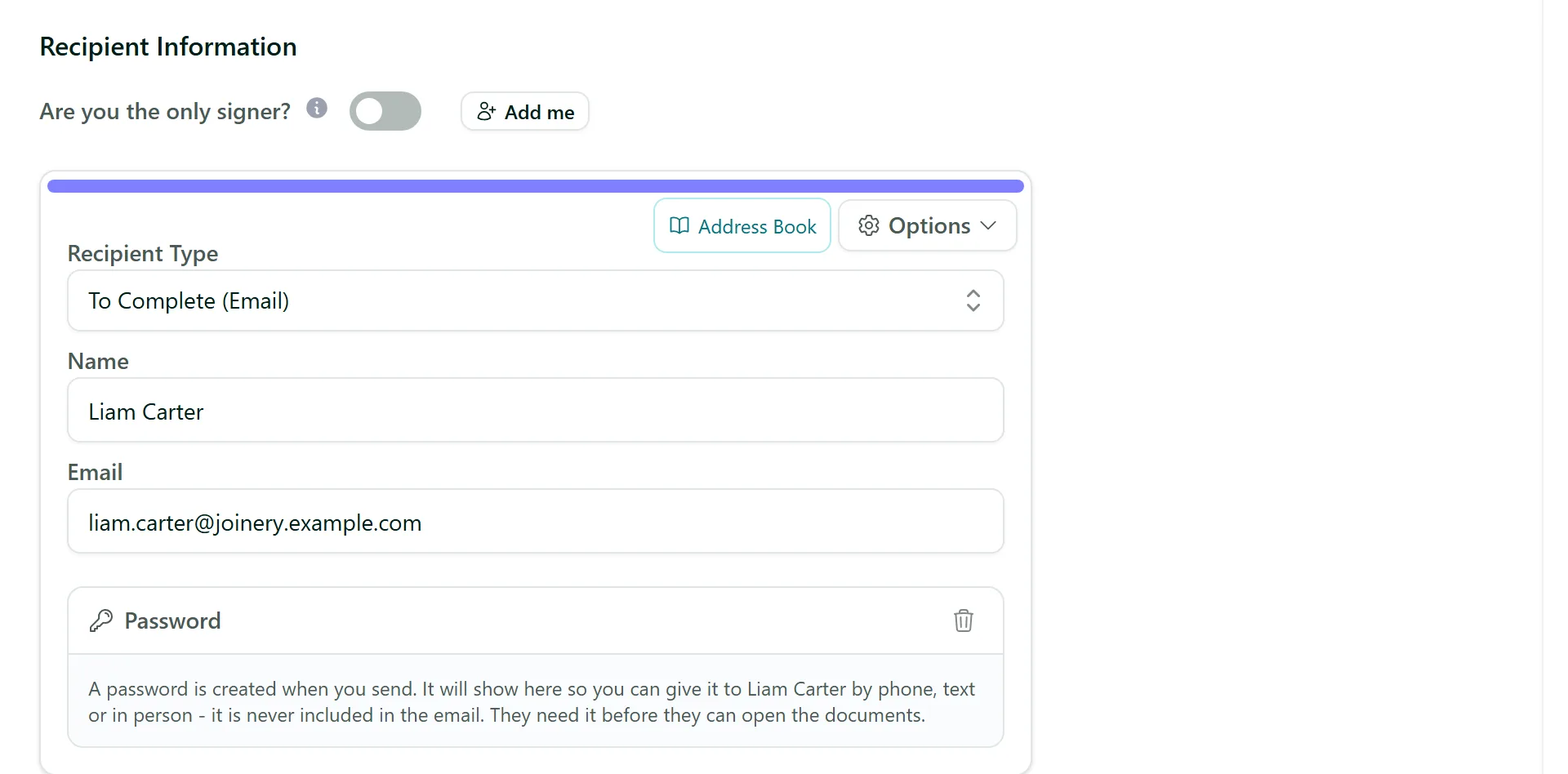
A Password panel appears under the recipient. While the session is still a draft it explains that the password is created when you send. To turn the option off again, click the bin icon on the panel.
Step 2: Send the session
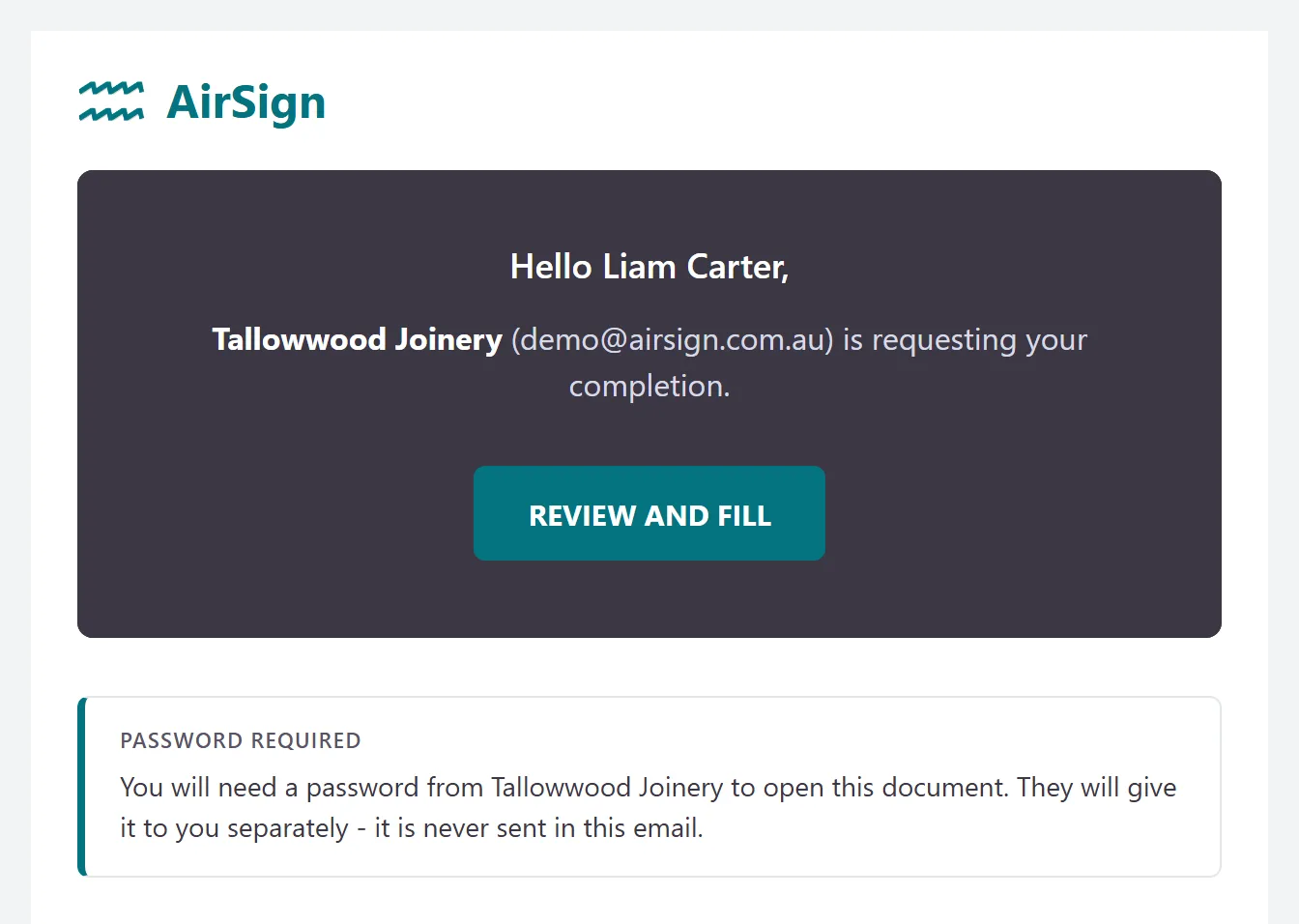
Place your fields and send as normal. The recipient's email (or text message) says they will need a password from you to open the document. The password itself is never included.
Step 3: Give the recipient their password
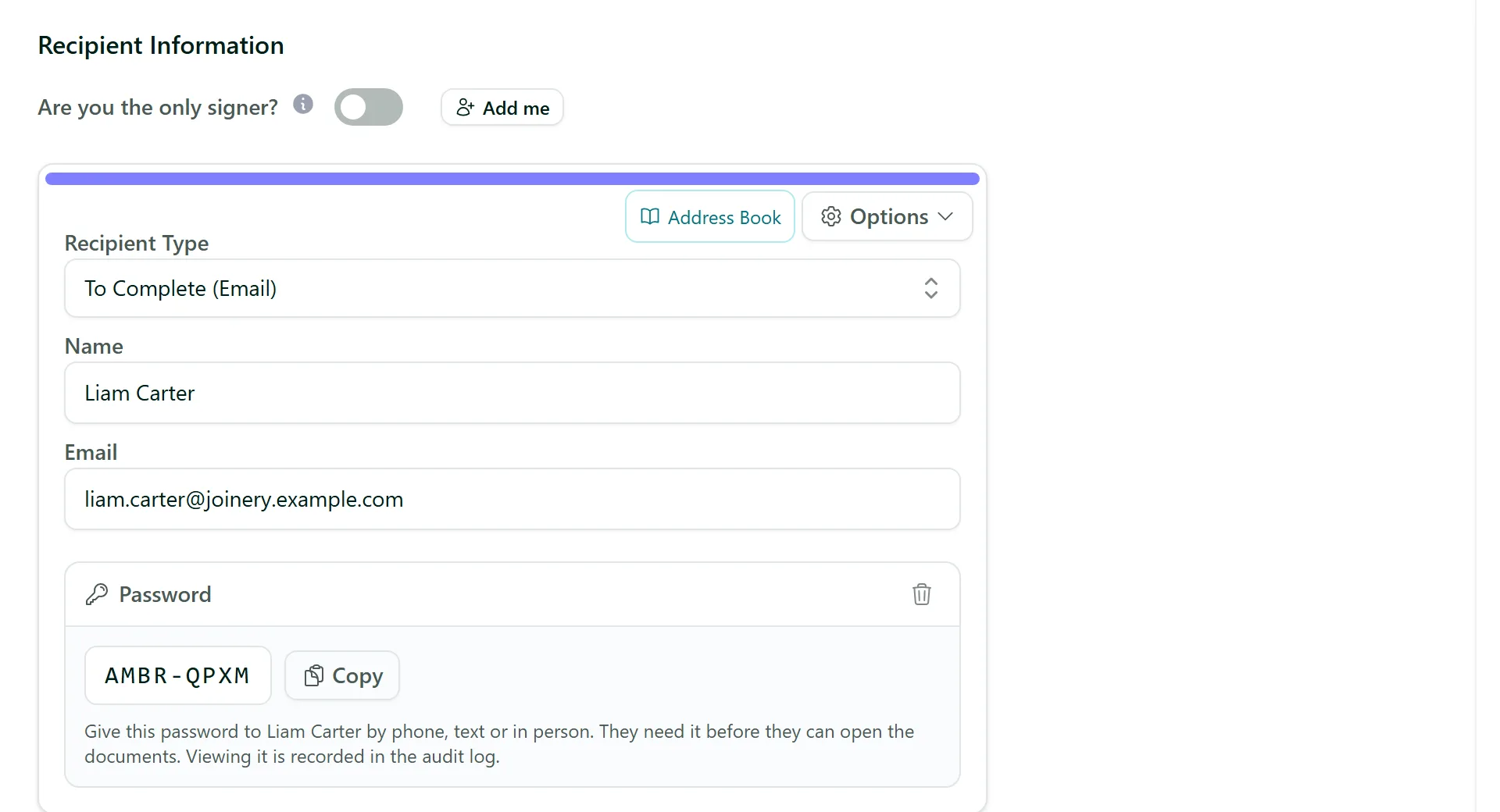
Open the session from Send & Sign. The recipient's Password panel now shows a hidden password - click Show password, then Copy, and give it to them by phone, text or in person. Each time a password is shown it is recorded in the session's audit log.
Step 4: What the recipient sees
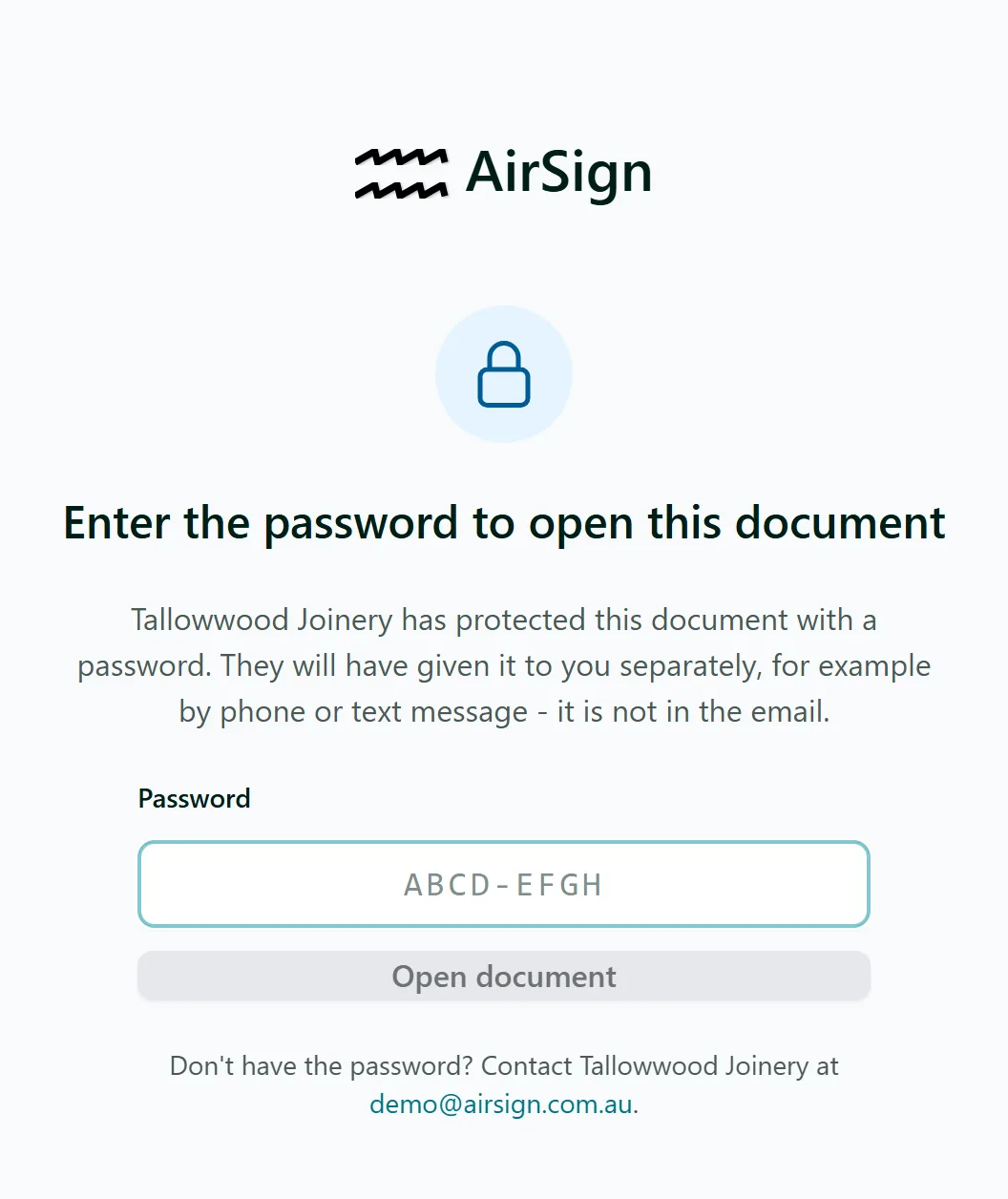
When the recipient opens their link they are asked for the password before anything about the document is shown. Capitals, spaces and dashes do not matter. Once it is accepted they review and sign as normal, and they will not be asked again in the same browser tab.
Tips
- Never send the password in the same email as the signing link - the point is that it travels a different way.
- You can also turn Password on for a session you have already sent - click Save and the password appears on the panel. The email they already have will not mention it, so let them know it is coming.
- After 5 wrong attempts the recipient is locked out for 15 minutes. Every attempt shows in the audit log, so you can see if someone else tried.
- Reminder emails and texts repeat the "password required" note, but never the password.
- If the recipient passes the document to someone else (Allow reassignment), the new person gets a new password - open the session and show it again.
- Turn Password on in a template and every session made from it gets its own password.
- Sending through the API or your AI assistant? Set
requireAccessPasswordon the recipient and read the password with Get Recipient Password.
Need More Help?
Related guides: Adding Recipients, Signing Order and Roles, Signing a Document (For Recipients), Tracking & Completed Documents. See our FAQ section or email support at [email protected].