Tracking Sessions and Downloading Completed Documents
Once you have sent a document, you can follow exactly where it is up to, download the finished file once everyone has signed, and review a complete record of what happened. This guide covers tracking, downloading, and the audit log.
Where to look
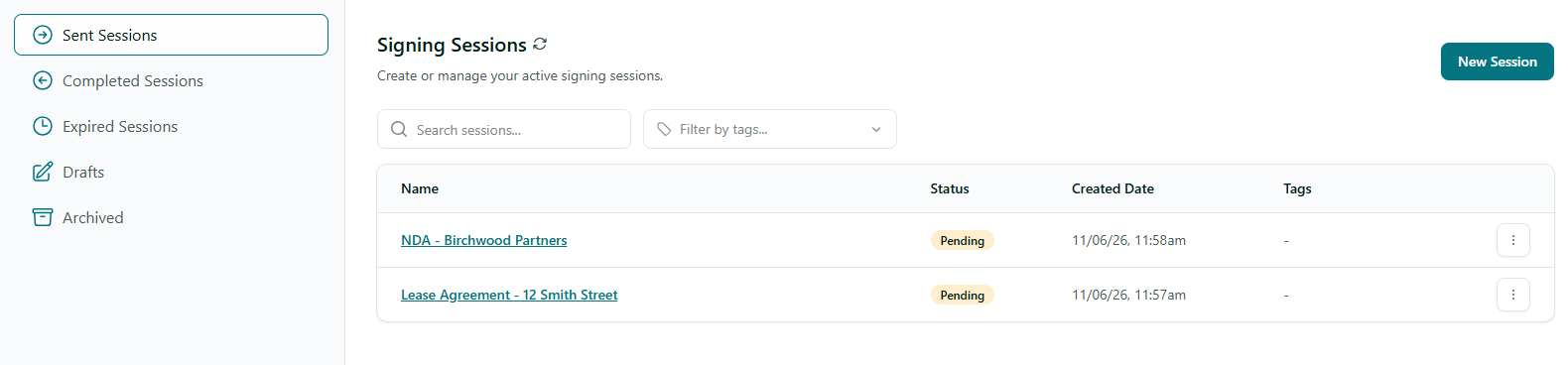
The Signing Sessions page lists your active sessions. A separate Completed view holds documents that everyone has finished signing.
Step 1: Track progress on the Sessions page
Open Signing Sessions to see your sessions and their status at a glance - whether they are waiting on a recipient, in progress, or complete. Open a session to see who has signed and who is still outstanding.
Step 2: Download the completed document
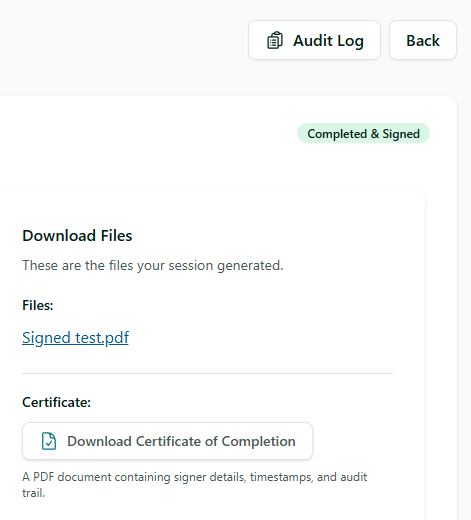
When everyone has signed, the session is complete and you can download the final signed PDF. Completed documents are kept in the Completed view so you can come back and download them again later.
Good to know
- The downloaded PDF is the legally binding signed copy, with all fields completed.
- Keep your own copy once a session is complete - download it so you always have it on hand.
Step 3: View the audit log
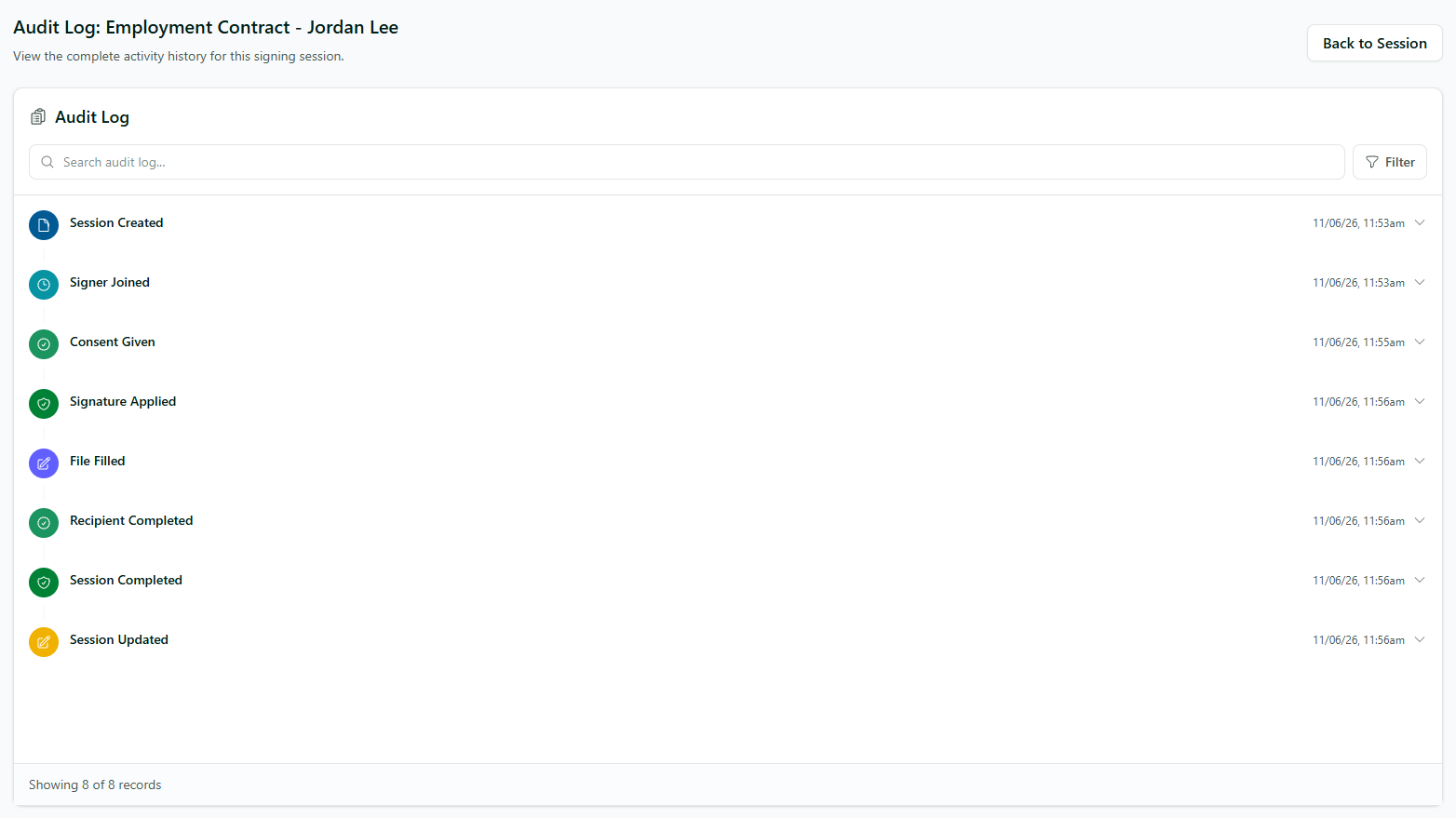
Open a session and select Audit Log to see the complete activity history - every action, who did it, and when. This is your tamper-evident record of how the document was signed, useful for compliance and for resolving any questions later.
Tips
- Waiting on someone? Turn on automatic reminders so AirSign chases them for you.
- Use the audit log if you ever need to prove when and by whom a document was signed.
Need More Help?
See our FAQ section for more, or contact support at [email protected].