Sending to a Signing Group
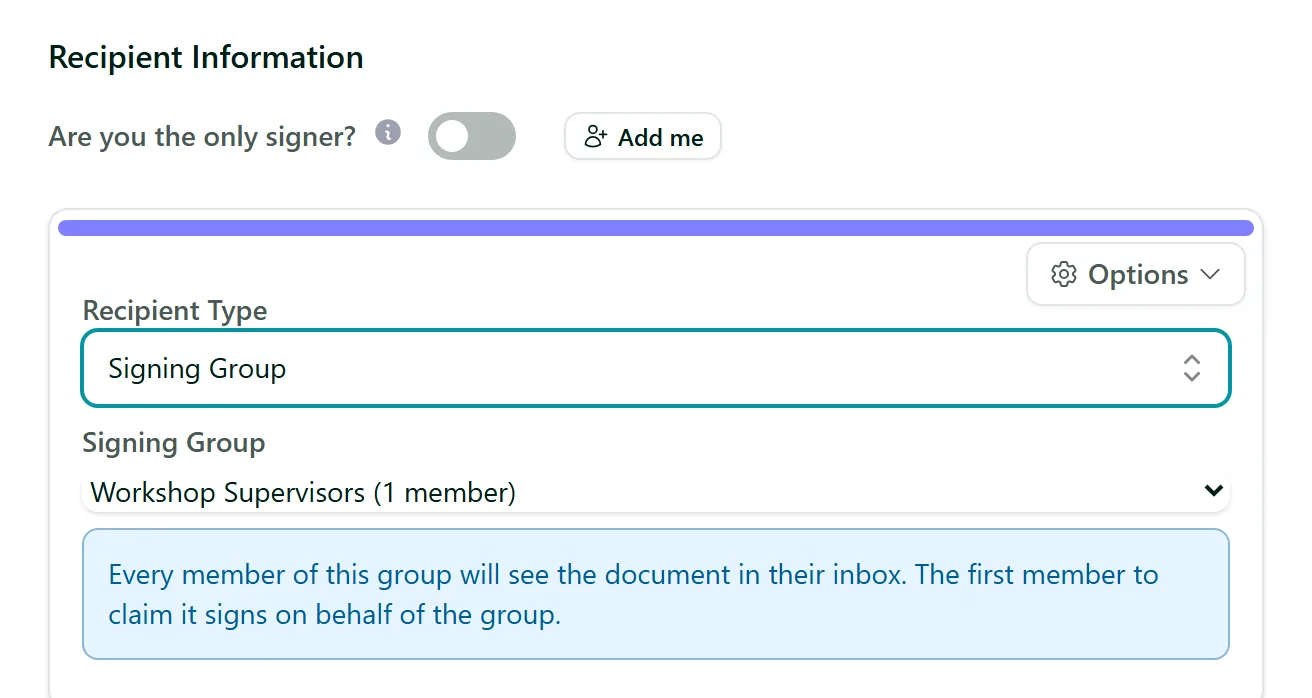
Sometimes it does not matter which person signs, as long as someone from the right team does - "any supervisor", "anyone in accounts". A signing group is a shared team inbox: you send the document to the group, every member sees it, and the first member to claim it signs on the group's behalf.
Where to find it
Step 1: Create the group
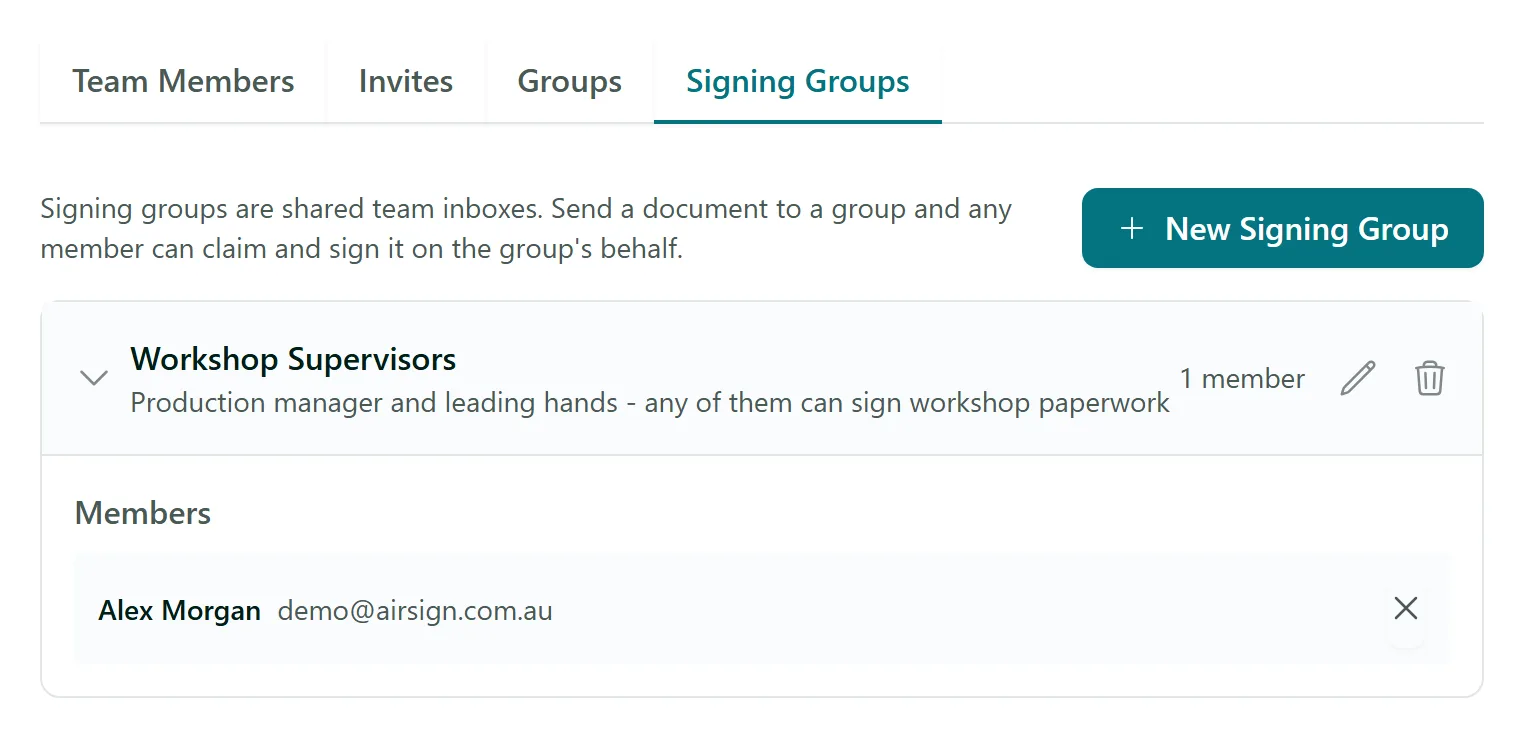
In Settings > Team > Signing Groups, click New Signing Group, enter a Group Name and an optional description, and click Create.
Step 2: Add members
Click the group to open it, then use Add member... to pick people from your team. Members must be users in your organisation (invite them under Team Members first). The pencil renames the group and the cross removes a member.
Step 3: Send a document to the group
In a new session, set a recipient's Recipient Type to Signing Group and choose the group from the list - there is no name or email to fill in. Place that recipient's fields and send as usual. It can sit anywhere in the signing order, alongside normal recipients.
Step 4: A member claims and signs it
When it is the group's turn, every member gets an email asking them to open AirSign, and the document appears in Send & Sign > For you > Action required with a Group badge. The first member to click Claim & sign gets it, and it leaves everyone else's Action required list. Changed your mind? Release hands it back to the group. A claim that is left alone for 30 minutes lapses so another member can pick it up.
When the member finishes, the document and audit trail record who actually signed, so you always know which person signed for the group.
Tips
- Group documents are never sent as a shareable link - members sign from their own logged in AirSign inbox, and their account email must be verified.
- You cannot send to a group with no members, or attach a witness or nominated signer to a group recipient.
- Deleting a group that has been used before archives it instead, so old documents still show it. A group that is waiting to sign a live document cannot be deleted.
Need More Help?
Related guides: Adding Recipients & Roles, Team Access & Single Sign-On, Signing a Document. See our FAQ section or email support at [email protected].