Connecting Other Tools
Connections link AirSign to the other systems you use, so finished documents end up where they belong without anyone downloading and re-uploading them. Once a tool is connected, you add it to a session as a special kind of recipient that does its job automatically when its turn in the signing order comes.
Where to find it
What each connection can do:
- Microsoft 365 - upload signed documents and the audit certificate to a SharePoint folder.
- Xero - use Xero contacts as recipients, pull quotes for signing and push signed PDFs back to Xero.
- monday.com - pick boards and items, send in bulk from a board, and push signed files, a status and an update back to the item.
- Salesforce - send for signing from Salesforce records and attach signed PDFs back to them.
Step 1: Add a connection
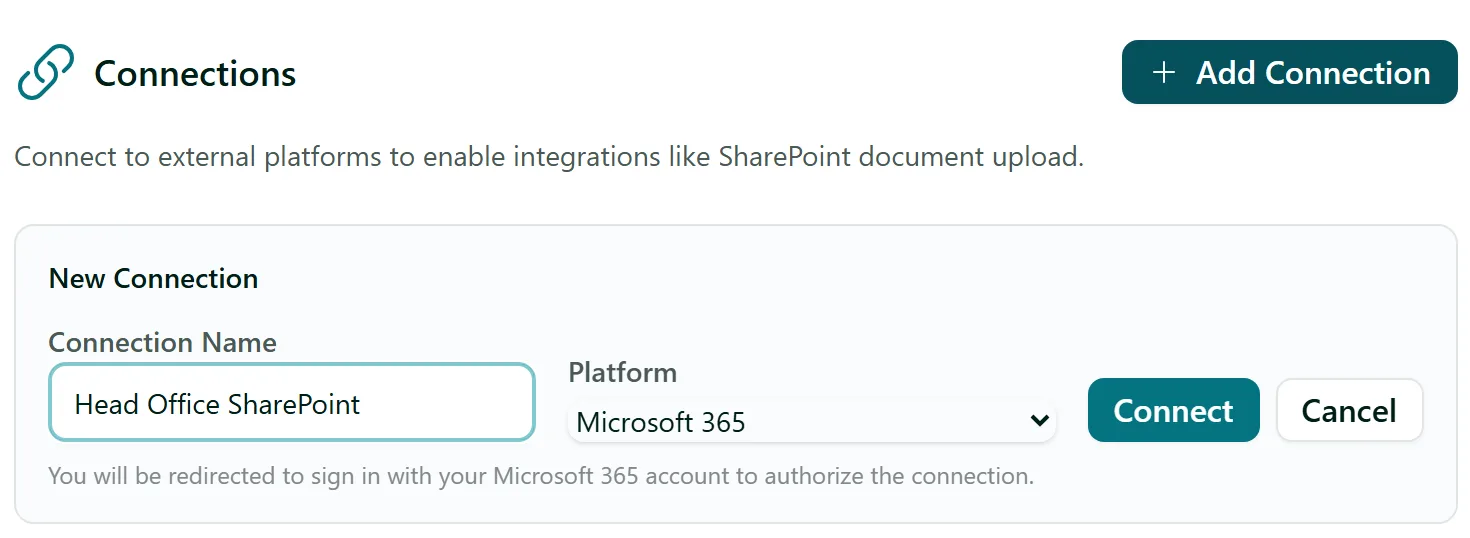
Click Add Connection. Give it a Connection Name (for example "Head Office SharePoint"), choose the Platform and click Connect. You are sent to Microsoft, Xero, monday.com or Salesforce to sign in and approve access, then brought back to AirSign. For Xero you then pick which Xero organisation to use.
Step 2: Choose what it is used for
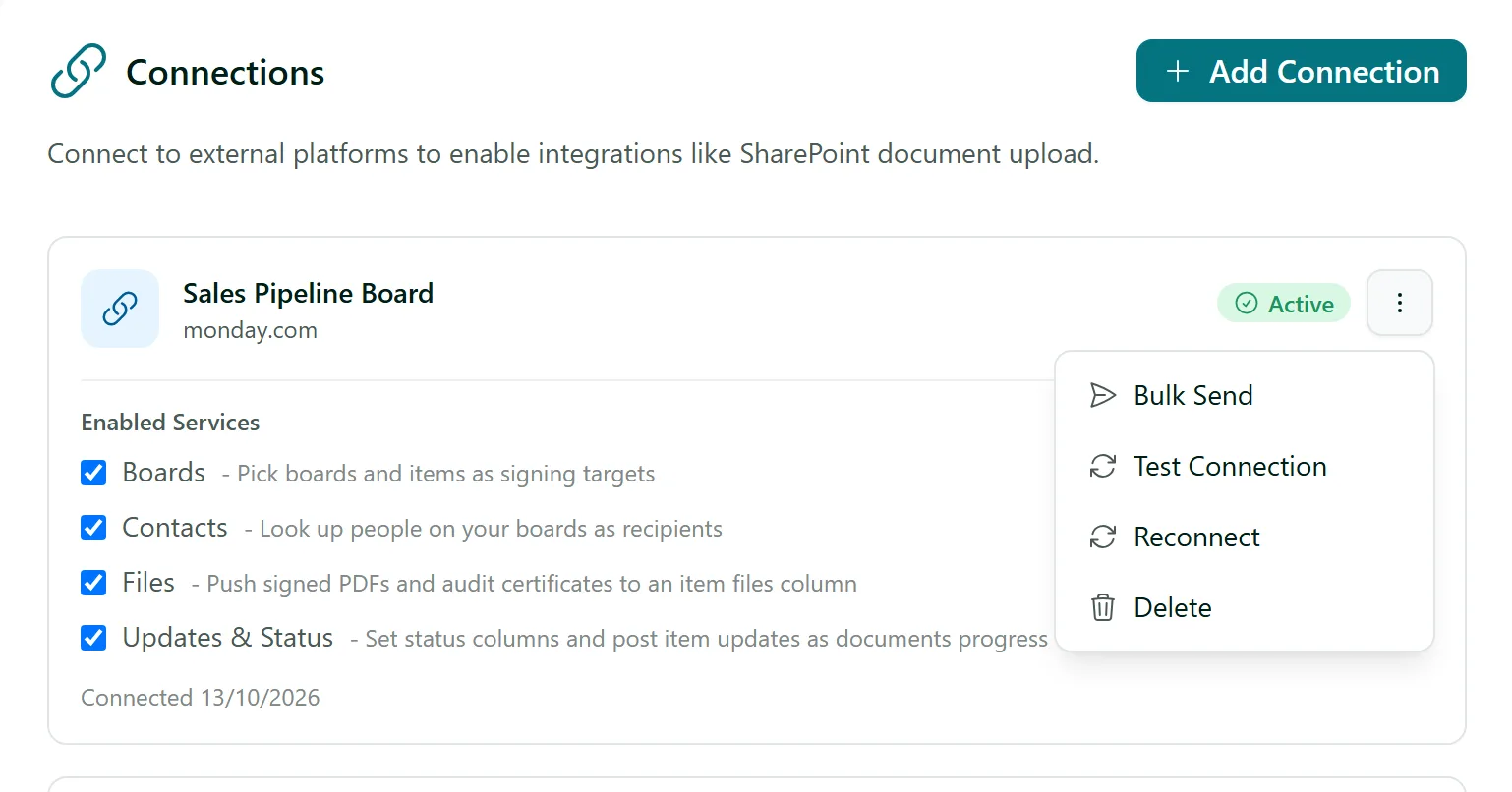
The connection now shows as Active. Under Enabled Services, untick anything you do not want it used for. The ⋮ menu has Test Connection, Reconnect and Delete; monday.com and Salesforce connections also have Bulk Send, which sends a template to the people on a board or in a list of records.
Step 3: Add it to a session
In a session or template, click Add Recipient and change its Recipient Type to SharePoint Upload, Xero Sync, Monday Sync or Salesforce Sync. For SharePoint:
- pick the Connection;
- under Upload Location, browse from Sites to a document library and folder, or type to search folders;
- under Upload Items, tick the signed documents and the Audit Certificate, and change the file names if you like - {sessionName} and {date} are filled in for you.
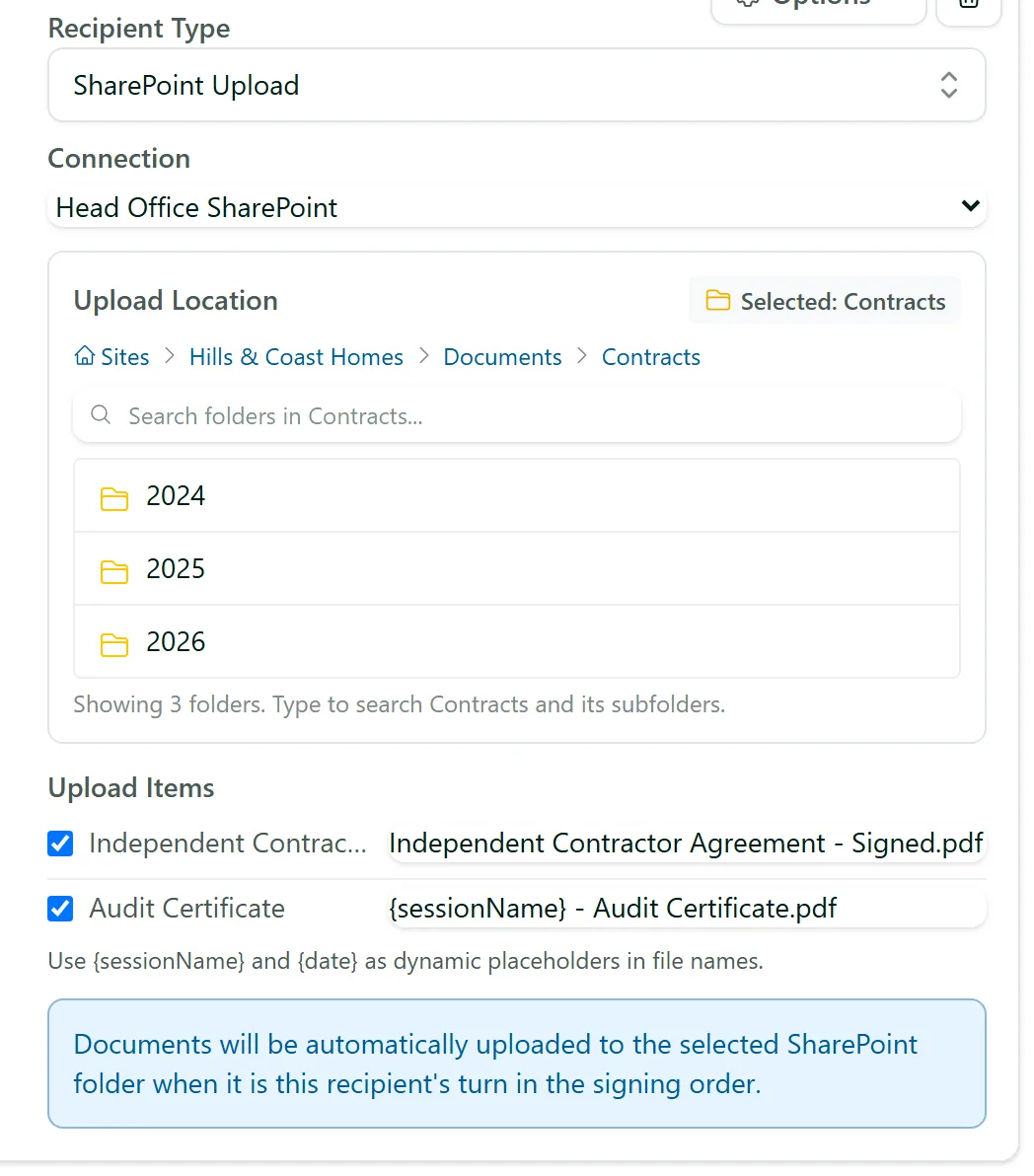
Put the integration recipient after your signers in the signing order. When everyone before it has finished, AirSign uploads the files for you and the session carries on.
Step 4: Reconnect when a sign-in expires
Microsoft and Xero sign-ins expire if they go unused for a long time. When that happens the connection shows Token Expired, and the folder picker offers to reconnect. Open the ⋮ menu and choose Reconnect to sign in again; any upload that was waiting can then be retried from the session.
Step 5: If a signed document can't be filed
If the SharePoint folder was deleted, or moved to another library, after the session was sent, AirSign can't file the signed documents there. You get a notification and an email, and the session stays in Sent with a red Filing failed badge - the signed documents are safe in AirSign. Open the session, click Choose another folder on the SharePoint recipient, pick a folder and click File here. AirSign uploads the documents straight away and the session moves to Completed.
Tips
- Name connections after what they reach ("Head Office SharePoint", "Sales Board") - the name is what your team picks from in a session.
- Set the integration recipient up once in a template and every session from that template files itself.
- Deleting a connection stops any SharePoint upload recipients that use it.
- Renaming a SharePoint folder, or moving it within the same library, is fine - uploads still find it. Deleting it, or moving it to another library, is what breaks filing.
- Reorganising your folders while sessions are still being signed? Open the session and click Change folder on the SharePoint recipient - your signers aren't affected.
- Need your own system told about events instead? See Setting Up Webhooks.
Need More Help?
Related guides: Adding Recipients & Roles, Setting Up Webhooks, Creating Your First Template. See our FAQ section or email support at [email protected].