Recording Payments
Once an invoice is out, AirSign CRM tracks what has been paid against it. Record bank transfers, cash and cheques as they arrive - in full or in part - and online card payments are recorded for you. The invoice's status follows the money: part paid, overdue, then paid.
Where to find it
Step 1: See what is owed
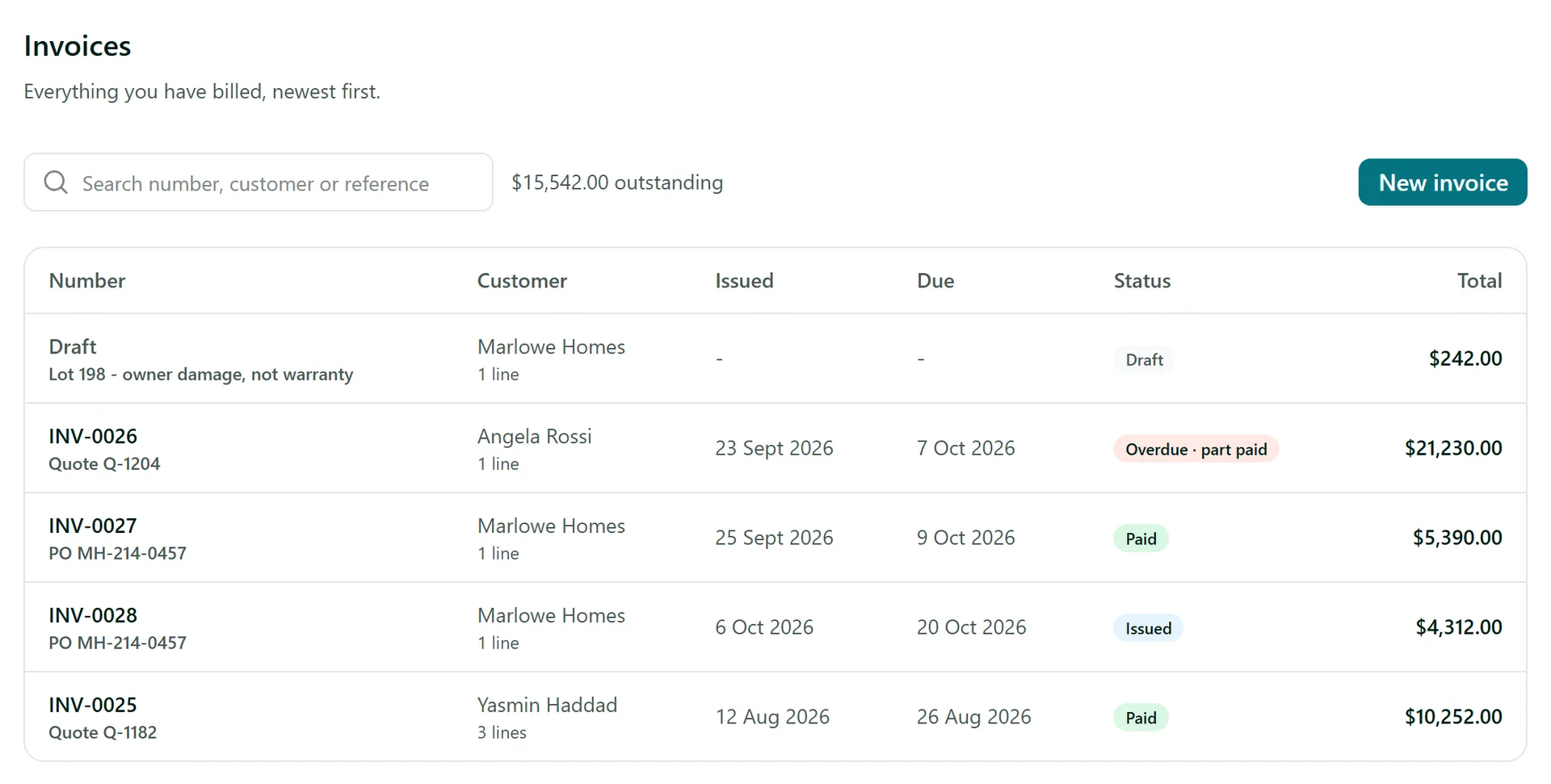
All invoices shows every invoice with its status and, at the top, the total outstanding. The left menu splits them up: Drafts, Awaiting payment (sent and not paid), Overdue (past the due date and not paid in full) and Paid. A badge reads Part paid or Overdue · part paid when some money is in. On the customer list, the Has overdue invoices filter finds who to chase.
Step 2: Record a payment
Open the invoice and click Record payment. Choose How it was paid (Bank transfer, Cash, Card (in person), Cheque or Other), check the Amount - it starts at the full balance - and the Received on date, and add a Reference such as the bank reference. Click Record payment.
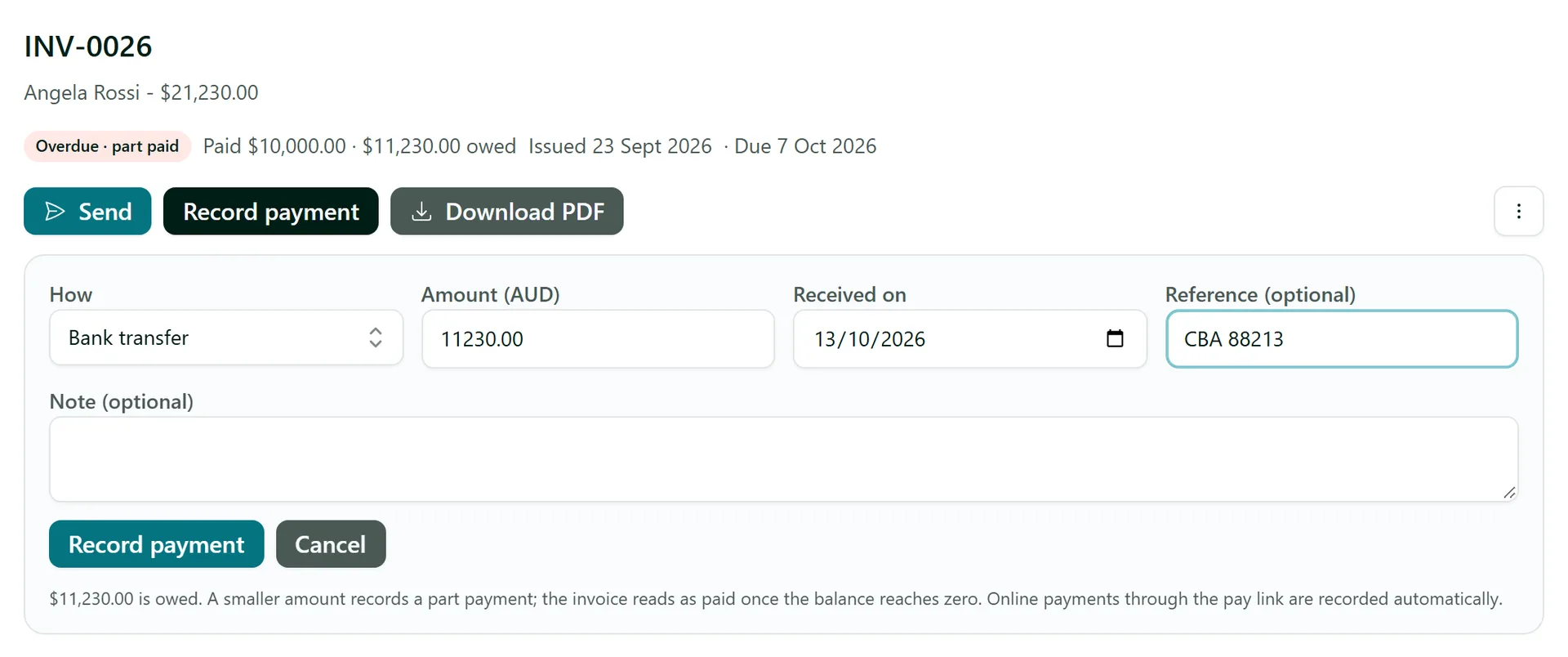
Enter less than the balance for a part payment - a deposit, or the first of several transfers. You can't record more than is owed.
Step 3: Check the balance
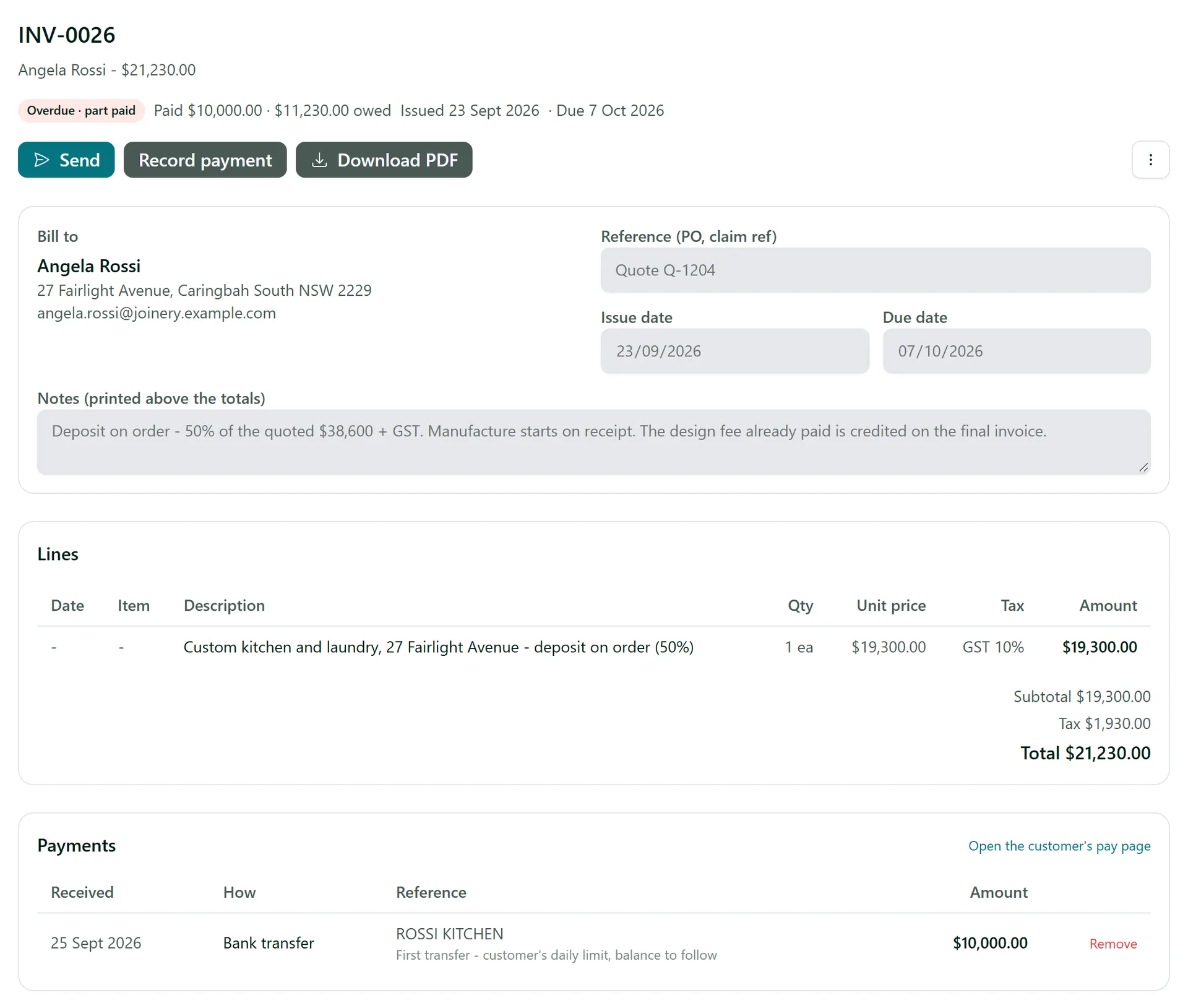
The invoice's status line shows what has been paid and what is still owed, and the Payments table lists every payment. Once the balance reaches zero the invoice reads Paid. Recorded a payment by mistake? Click Remove on its row and the invoice goes back to owing that amount. The PDF shows a Paid line and the Amount due after it.
Step 4: Let customers pay online
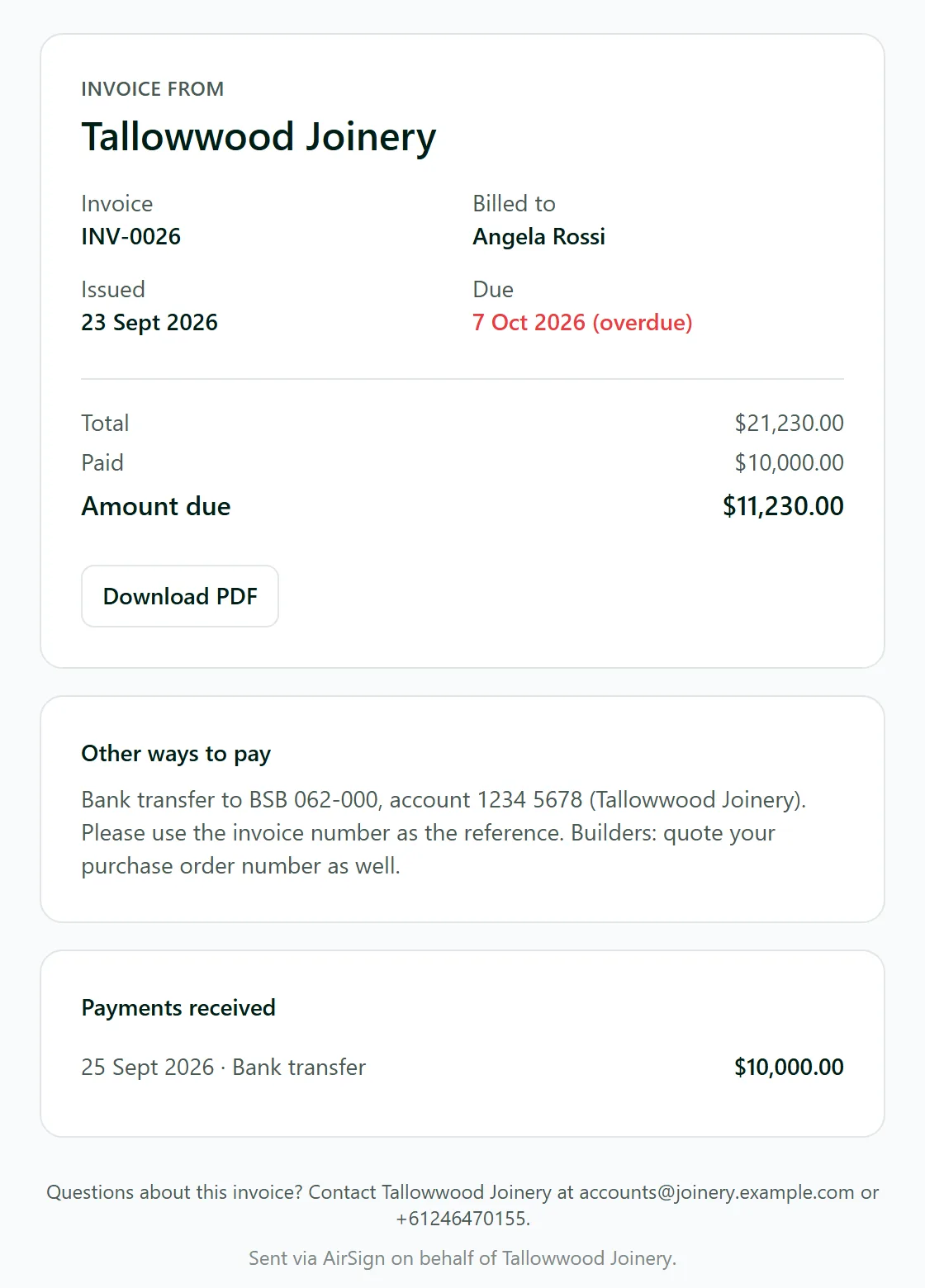
Every issued invoice has a pay page for the customer - Open the customer's pay page on the invoice shows you what they see: the amount due, the PDF, your how to pay instructions and the payments received. To take card payments there, go to Settings > Finance > Online payments, click Connect Stripe and complete Stripe's setup, then tick Offer Pay now. The pay page then has a Pay now button, and payments made with it are recorded on the invoice automatically and paid into your own Stripe account.
Tips
- Online payments can't be removed in AirSign - refund them in Stripe, and the refund shows on the invoice.
- Use Send (or Send again) on an overdue invoice to email it again with a reminder in the message.
- Each payment is also noted on the invoice's timeline, below the payments.
Need More Help?
Related guides: Creating and Sending Invoices, Customer Budgets. See our FAQ section or email support at [email protected].