Customer Budgets
A budget is what a customer has to spend with you over a period - an NDIS participant's plan, a 10-clean prepaid pack, a 20-hour monthly retainer. It is split into buckets of money, sessions or hours. As you book jobs and raise invoices, AirSign draws each bucket down and warns you before a booking goes over.
Where to find it
Step 1: Switch budgets on
In the CRM, click Settings and choose Budgets. Tick Track customer budgets - until you do, nothing about budgets shows anywhere. Choose what happens When a booking or invoice goes over: Warn, and save anyway, or Refuse unless someone gives a reason. Set when to be alerted (days before a budget ends, days unused, % left), then click Save. On the same page, add Budget categories (the kinds of work, such as NDIS support categories) and Budget templates - a starting shape with its length and buckets, so each new budget takes seconds. Give each item on your price list its category on the item's page.
Step 2: Add a budget for a customer
On the customer's Invoicing tab, click Add budget. Start from picks a template - the one for their customer type is chosen for you - and fills in the name, end date and buckets. Enter the Reference (a plan or claim number), check the Starts and Ends / expires dates (clear the end date with No end date for funding that runs until it is used), and type the Amount for each bucket.
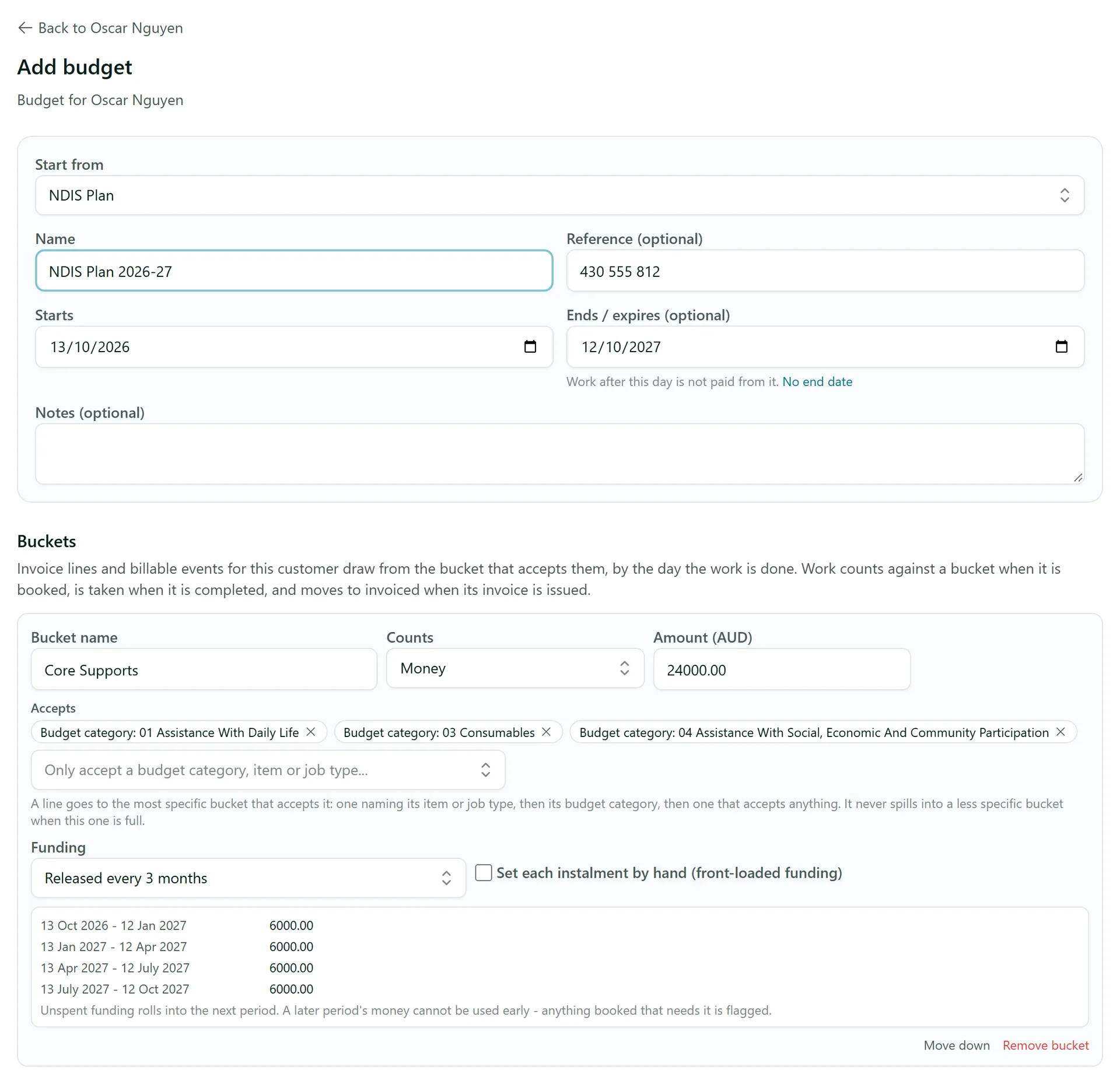
Each bucket has:
- Counts - money, sessions or hours.
- Accepts - the categories, items or job types it pays for. Leave it empty to accept anything.
- Funding - all at once, or released in instalments (for example every 3 months). Unspent funding rolls into the next period, but a later period's money can't be used early.
Click Add budget.
Step 3: Watch it draw down
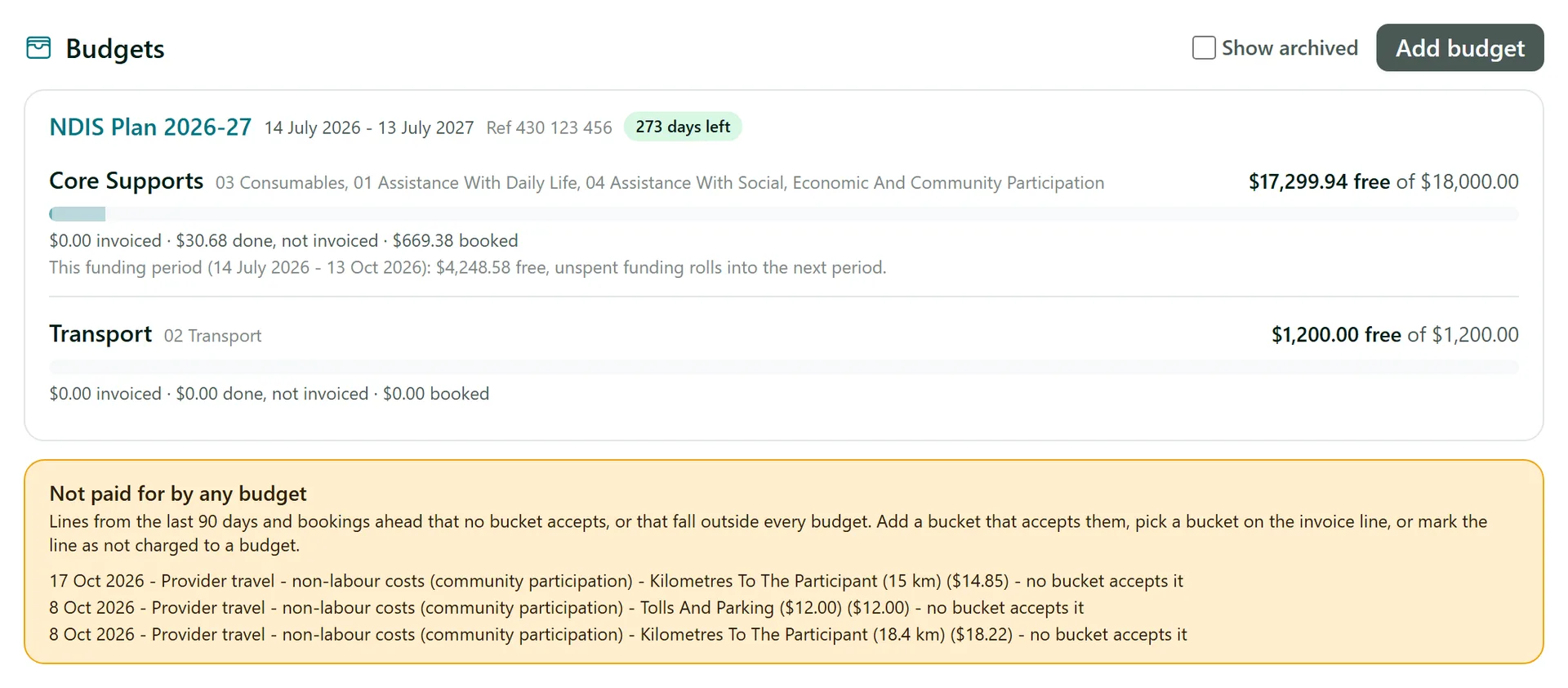
The customer's Invoicing tab shows each budget with its days left and a bar per bucket: what has been invoiced, what is done, not invoiced, what is booked, and what is free. A job counts as booked when it is scheduled, moves to done when it is completed, and to invoiced when its invoice is issued. Lines and bookings that no bucket pays for are listed underneath so nothing slips through.
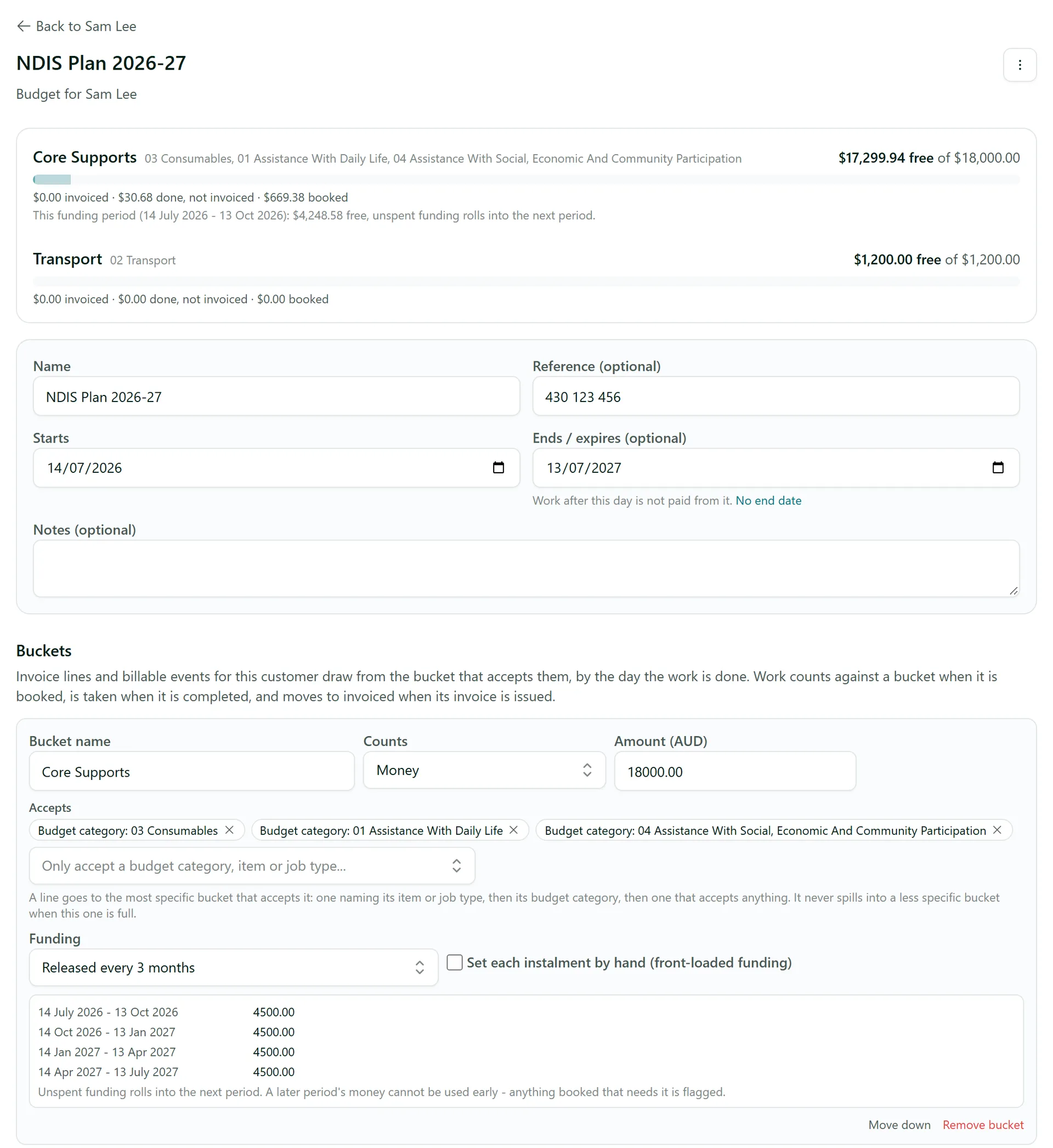
Click the budget's name to open it: the usage of every bucket sits above the form, and you can change dates, amounts and buckets, or archive the budget from its menu.
Step 4: Act on the warnings
When you book a job on the schedule, AirSign checks it against the customer's budget first and tells you if it goes over or falls outside the budget's dates. On invoices, each draft line shows which bucket it draws from, and you can pick a different bucket or mark a line as not charged to a budget. The CRM Dashboard lists Budgets that need a look - over, running low, unused, or about to expire with something unbooked - so you know who to call.

Tips
- The work's date decides which budget pays - a job done in June comes out of June's plan even if it is invoiced in July.
- A line goes to the most specific bucket that accepts it and never spills into a less specific one, so stated funding stays ring-fenced.
- Your organisation can rename "Budget" and "Budget category" (for example "Plan" and "Support category") in Settings > Terminology.
Need More Help?
Related guides: Creating and Sending Invoices, Items, Prices and Rate Cards, Adding Customers. See our FAQ section or email support at [email protected].