Logging Interactions and Notes
Every time you speak with a lead or customer, log it. AirSign CRM keeps each call, email, meeting, message and site visit on the customer's page - who started it, when, who it was with and what was said - so anyone in your team can pick up where the last person left off.
Where to find it
Step 1: Log an interaction
On the customer's Interactions tab, click Log interaction and fill in:
- Type - Call, Email, Meeting, Video call, Message, Site visit or Other.
- Who started it? - whether you reached out or they did.
- When - defaults to now. You can pick an earlier time, but not a future one: a planned call is not an interaction yet.
- With - which of their contacts you spoke to, or no one in particular.
- Summary - one line you will recognise in a list.
- Tags and Notes - optional. The notes become the first note on the interaction.
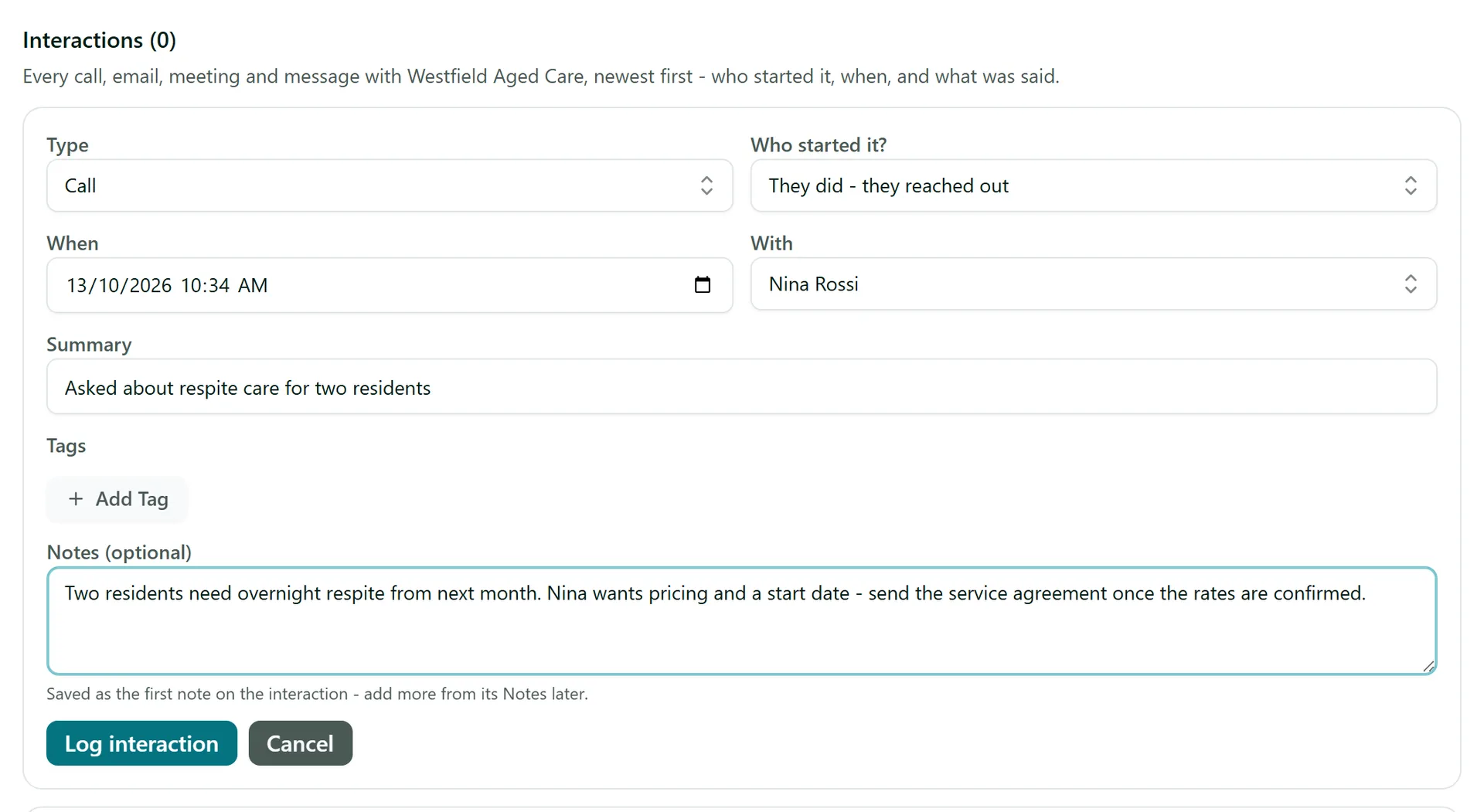
Click Log interaction to save it.
Step 2: Read and add to the history
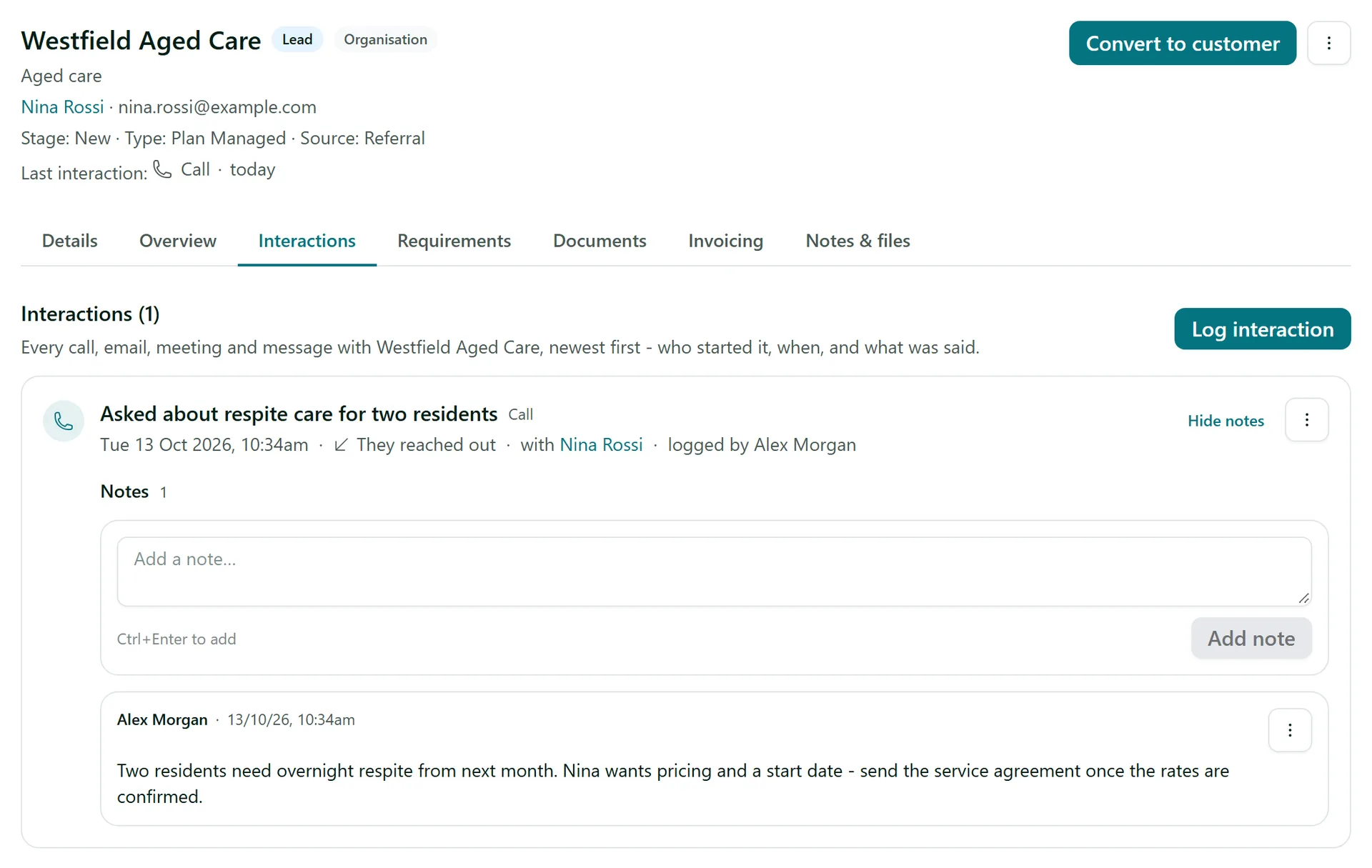
Interactions are listed newest first, and the latest one shows at the top of the customer's page as Last interaction. Click Notes on a row to read its notes or add another - handy for "called back, quote accepted". Each row's menu lets you edit or delete the interaction.
Step 3: See every interaction in one place
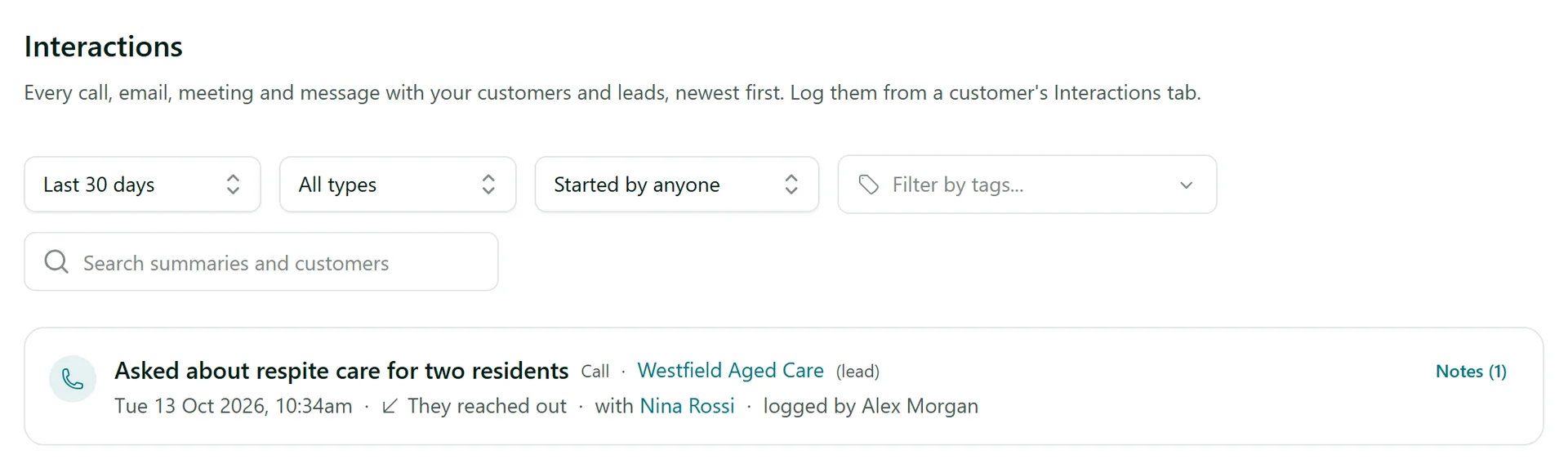
Choose Interactions in the left menu for a feed of every customer's interactions. Filter by time (Last 7 days to Any time), type, who started it and tags, or search summaries and customer names. Click a customer's name to jump to their page.
To find customers you have not spoken to for a while, go to the customer or lead list and set the Not contacted in filter to 60, 120 or 180 days, or sort by Last interaction, longest ago first.
Step 4: Keep notes and files on the customer
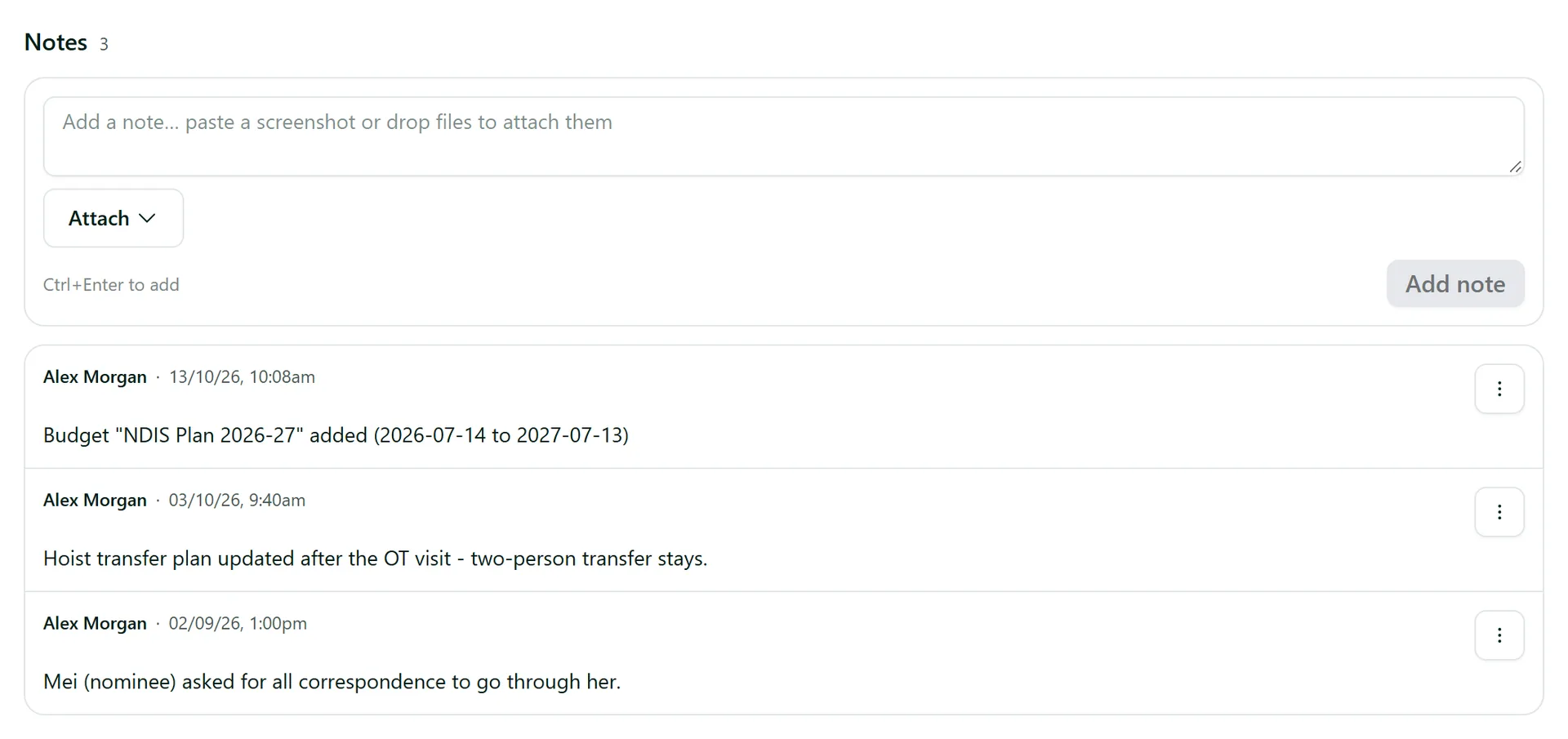
For anything that is not a conversation - a preference, a site detail, an internal reminder - use the customer's Notes & files tab. Type in Add a note and click Add note (or press Ctrl+Enter). Notes are dated and show who wrote them; only the author can edit or delete their own. You can paste a screenshot or use Attach to add files, and the Files section above holds quotes, photos and emails saved as PDF.
Tips
- Log interactions as they happen - the "Last interaction" column on the customer list is only as good as what is logged.
- Interactions are logged by hand. Documents, invoices and forms you send are tracked on their own tabs.
- A customer with logged interactions can't be deleted, only archived, so their history is never lost.
Need More Help?
Related guides: Managing Leads, Adding Customers. See our FAQ section or email support at [email protected].