Online timesheets your team can fill in from any phone
Your team clocks on against a shift or project, or adds the hours they missed. Everything lands in one approval queue, and a person cannot record the same hours twice.
Book a demoPart of the AirSign suite - one plan, every app.
Time tracking without the chasing
Clock on, break, clock off
Staff start and end breaks as they happen, and the recorded breaks come off the worked time on their own.
Add hours they missed
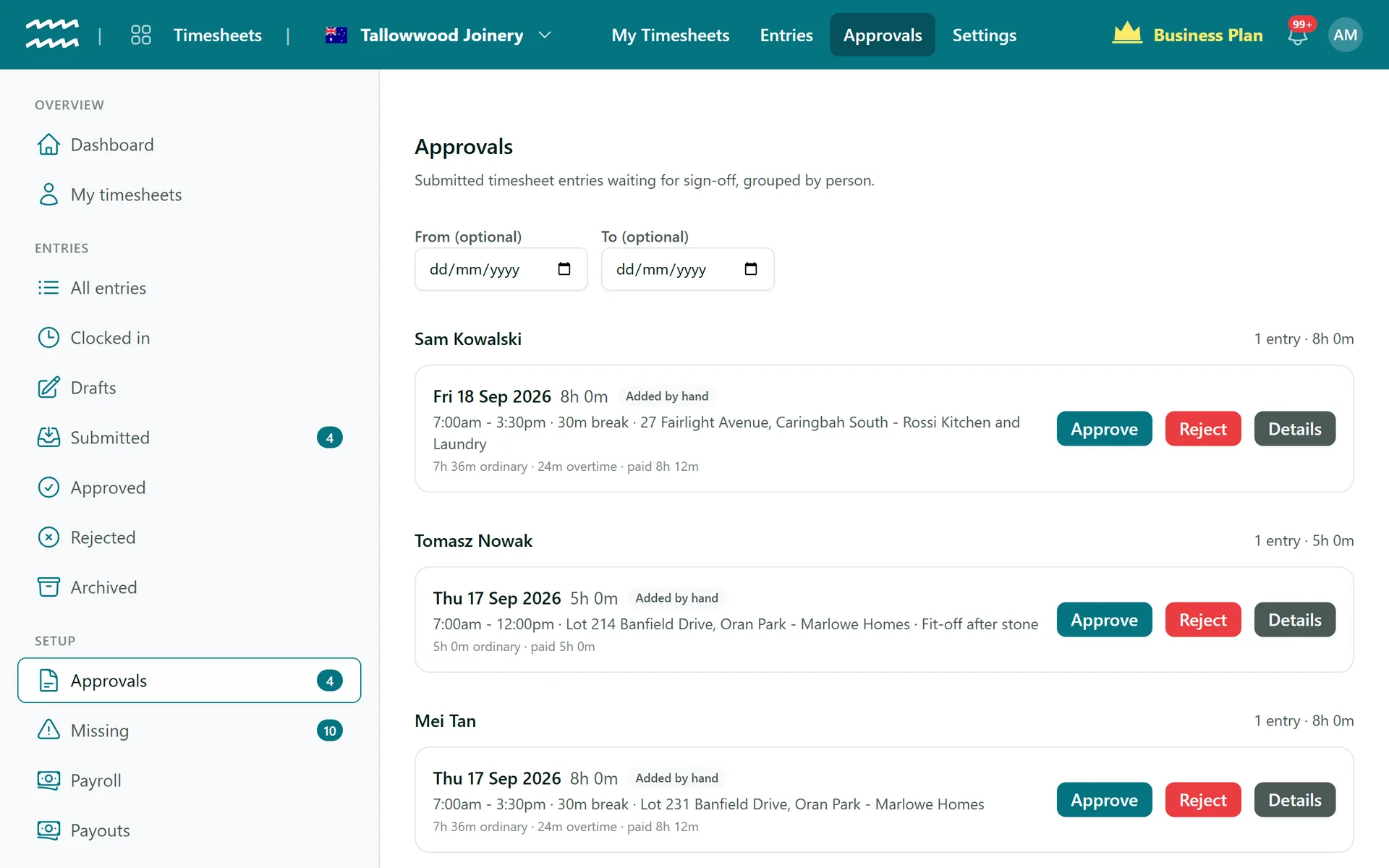
Forgot to clock on? Add hours prefills from that day's shift, and the entry shows as Added by hand for the approver.
Location and photo checks
Off by default. Capture a position, ask for a photo, and flag or refuse a clock in from outside the site.
Approvals by person
Submitted entries sit under each person with subtotals. Approve them, or reject with a reason they will see.
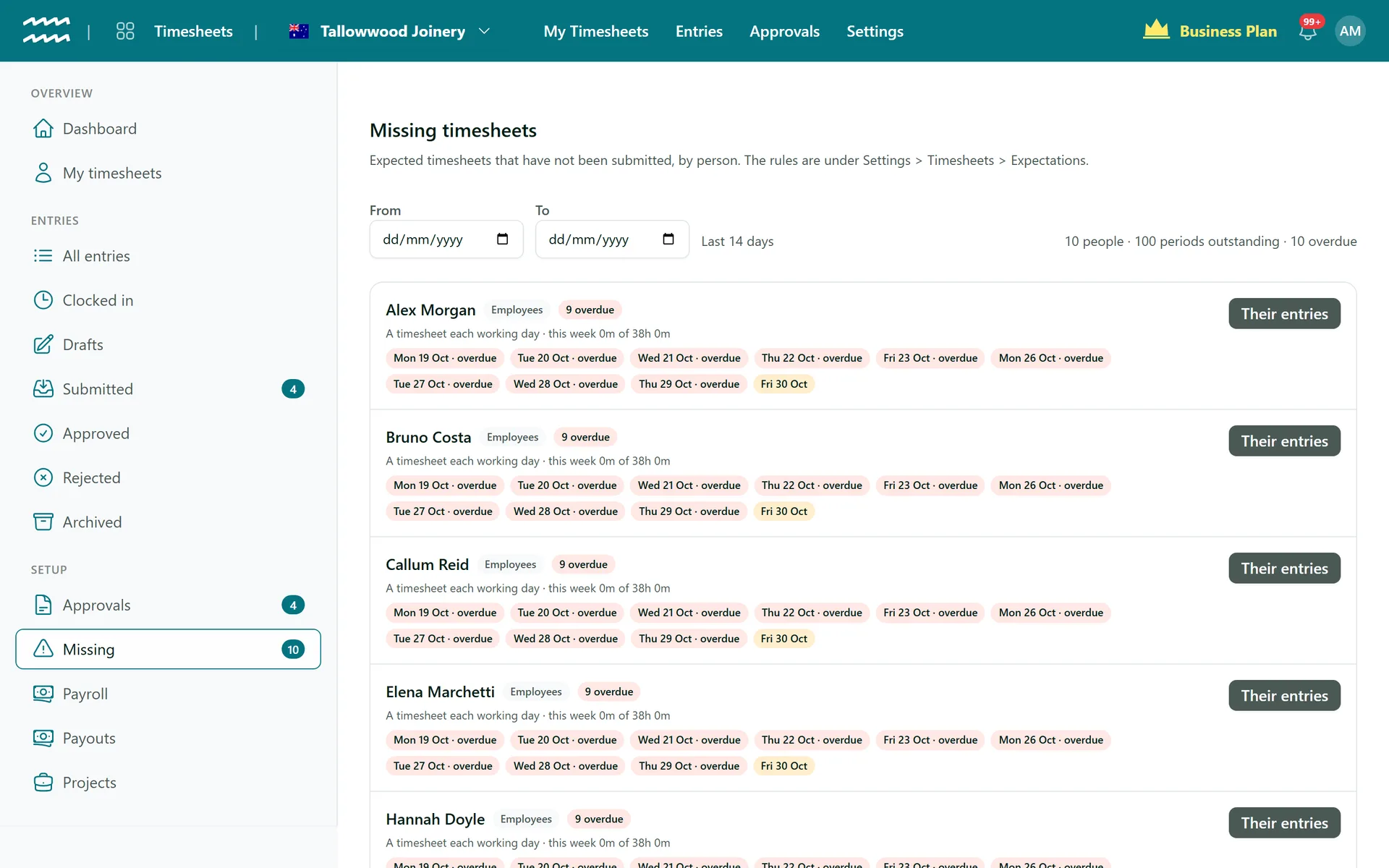
A Missing list
Set who is expected to submit daily, weekly or per rostered shift, and Missing shows everyone who is behind.
Hours count once
A person's entries cannot overlap. Clocking in, keying, editing, submitting and approving all refuse it.
How timesheets work in AirSign
- 1
Set the rules
Under Settings > Timesheets, choose what each engagement type must submit and any clock-in checks.
- 2
Staff record their time
They choose Clock in on their Home or in My timesheets, picking today's shift if they have one.
- 3
Staff submit
A finished entry is a draft they can still fix. Submitting sends it to Approvals and locks it for them.
- 4
Approve or send back
Open Approvals and choose Approve, or Reject with a reason. They can fix a rejected entry and resubmit it.
See who still owes you hours
Missing compares what you expect from each person with what they have recorded, so you are not reading through entries to find the gaps.
- Approved leave and days outside their employment are excused
- A grace period you set before a day counts as overdue
- A reminder in their notification bell, and a daily digest for admins
More in AirSign Staff Management
Staff Rostering
A roster that flags clashes, gaps and missing licences as you build it.
Learn moreXero Payroll Timesheets
Approved hours split into pay buckets and pushed to Xero as a draft.
Learn moreEmployee Records
One record per person, with what they do and what they hold.
Learn moreStaff Compliance Tracking
Licences, checks and agreements tracked through to expiry.
Learn moreEmployee Self Service
Shifts, hours, leave and documents in a phone browser.
Learn moreOnline Timesheets FAQs
AirSign refuses them and says so, whether the hours were clocked or typed in. One entry can end the moment the next one starts. Rejected and archived entries do not count, but they are checked again if they come back.
When they do clock out, an entry left running stops at the 24 hour limit, with a note asking them to check it before submitting. A typed entry over 24 hours is refused.
14 days by default. You can change that or turn it off per engagement type, which leaves the clock as the only way in for those staff. The office can still key hours for them at any time.
No. It only records a position at clock in and clock out, and only if you turn it on. Browser location can be spoofed, so treat it as a record rather than proof. There is also no NFC or kiosk clock-in.
No. Approving your own hours is refused, so someone else has to do it. Entries are approved one at a time, not in a bulk action.
No. Clocking in needs a connection, so a site with no signal needs someone to add the hours afterwards.
AirSign Staff Management is part of the AirSign suite - one plan, every app. Book a demo and we will walk you through it.
Run your workforce from one place
Book a demo and see your roster, timesheets and compliance working together.