Social media post previews for every network
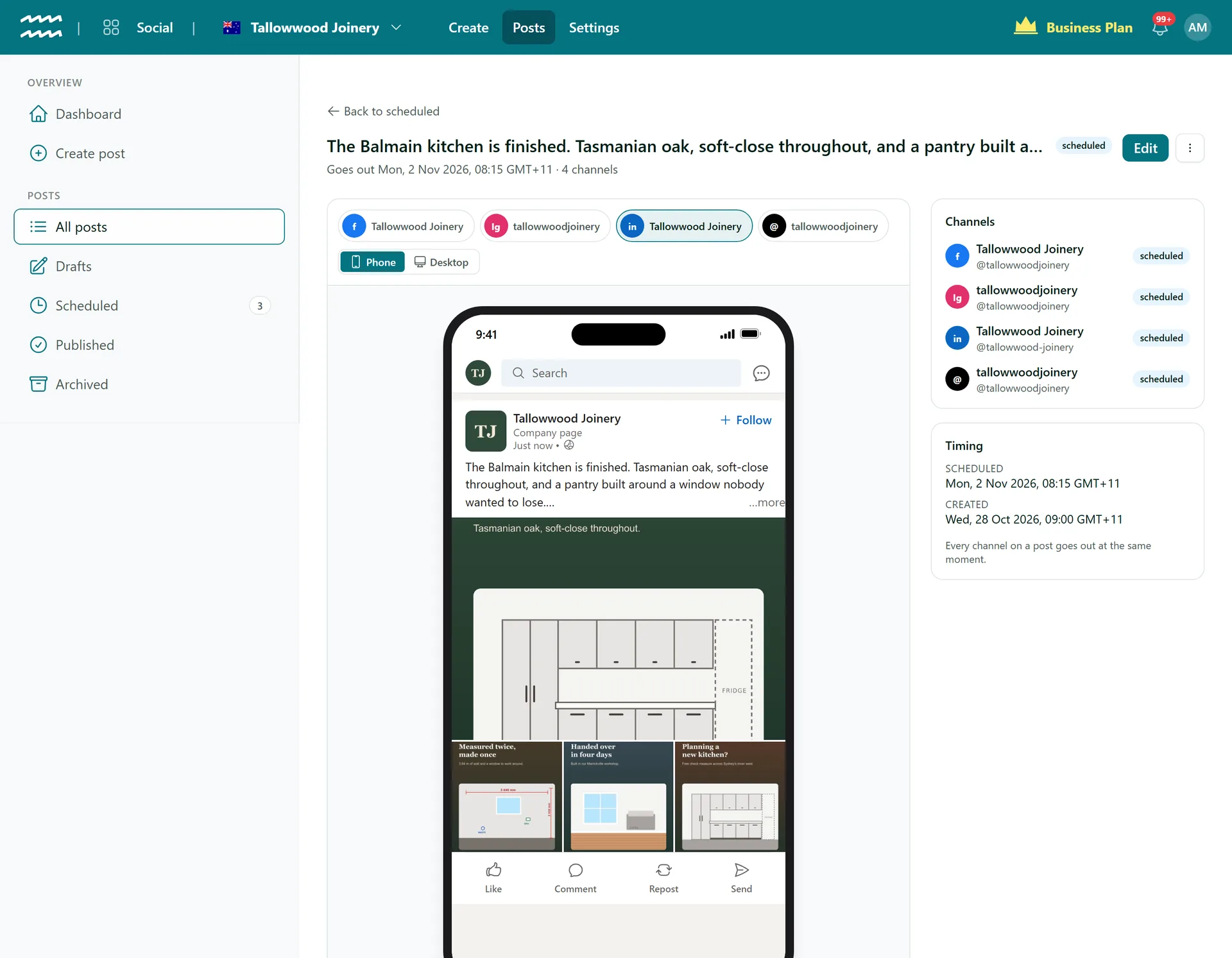
See a post the way each network will show it, at phone and desktop size, before anything goes out. The preview updates as you type and tells you what a network will cut, leave out or refuse.
Book a demoPart of the AirSign suite - one plan, every app.
Catch it before your audience does
Phone and desktop
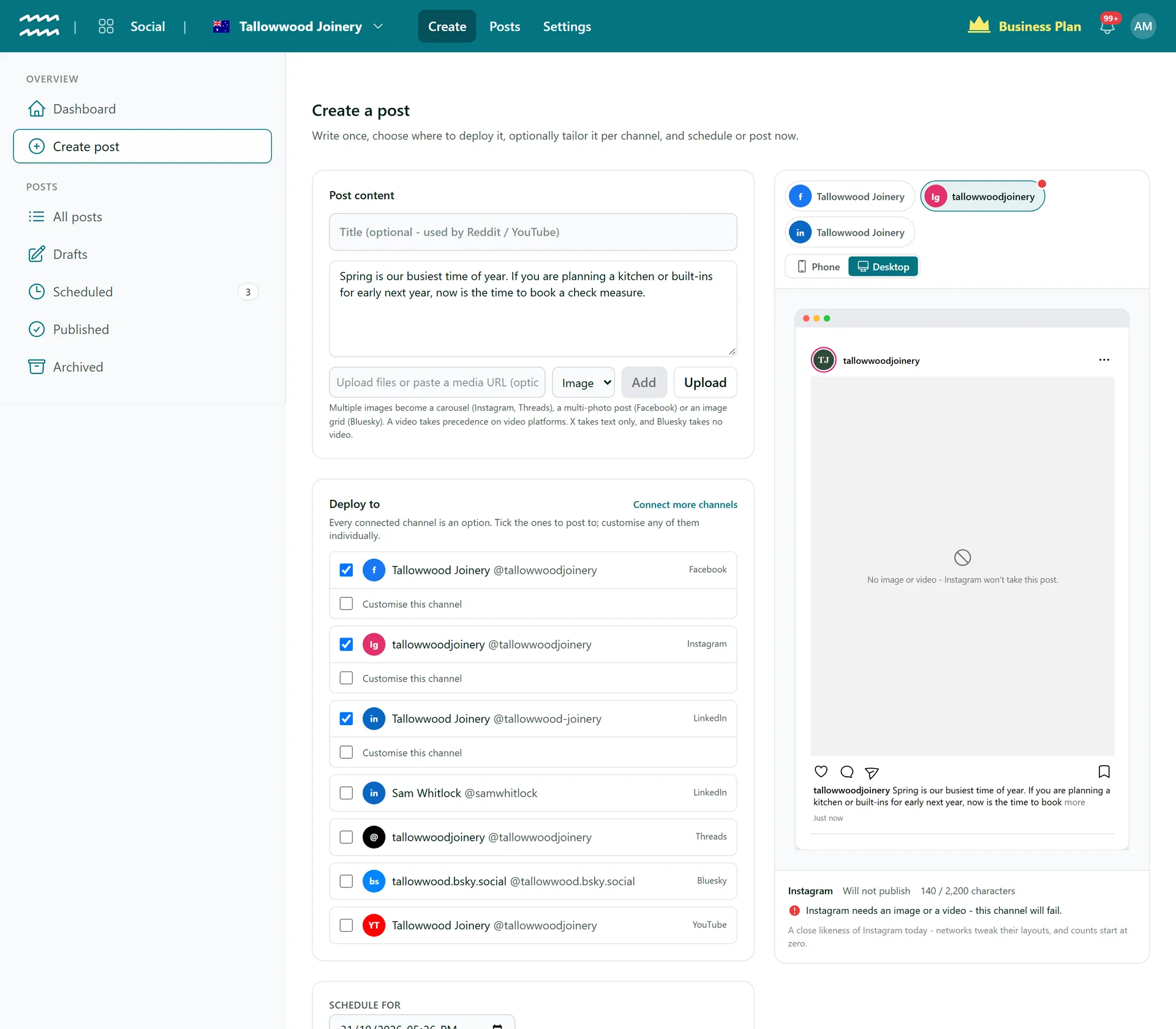
Flip between Phone and Desktop to see the post at both sizes, on that network's own layout.
Where text is cut
See the more link where each network adds it: three lines on LinkedIn, and about 125 characters on an Instagram caption.
How images crop
Images are cropped into the shape each feed allows, and carousels swipe as they will on the network.
Updates as you type
The preview sits beside the post and changes with every edit, including anything you customise per channel.
Notes on what changes
Red means the channel will fail, amber means something is left out and grey is good to know.
Share it with your team
On the post page the channel and view are in the address, so a copied link reopens the same preview.
How to preview a social media post
- 1
Write your post
Choose Create post and add your text and media.
- 2
Tick a channel
Each channel you tick under Deploy to gets its own tab on the preview.
- 3
Switch the view
Choose Phone or Desktop, and move between the tabs for each network.
- 4
Read the notes
A red dot on a tab means that channel will fail. The note under the preview says why.
Know what a network will refuse
The notes under each preview come from the rules AirSign follows when it publishes, so problems show up while you can still fix them.
- Instagram and YouTube posts with no media are flagged
- Posts over the character limit are flagged
- You are told when a video replaces your images
More in AirSign Social
Compose Once
One post to every network, tailored where you need it.
Learn moreSchedule Ahead
Set a date and time and let the post go out on its own.
Learn morePost Status and Reconnects
See which networks published, then fix and retry the rest.
Learn moreCarousels and Video
Carousels, multi-photo posts, Reels and video, per network.
Learn moreYouTube Uploads
Upload to YouTube with a title, tags and visibility.
Learn moreLinkedIn Company Pages
Schedule posts to the company pages you manage.
Learn moreDraft vs Publish
Let people draft posts without being able to publish them.
Learn moreTrue Previews FAQs
No, it is a close likeness. Networks change their layouts, and the likes and comments in a preview start at zero.
No. A preview checks the post, not the connection. If a login has expired or a network rejects the post, that channel fails and the post page shows why.
Yes. Open it from Scheduled to see every channel it is going to.
Only people in your AirSign organisation can open it. There is no public preview link.
AirSign Social is part of the AirSign suite - one plan, every app. Book a demo and we will walk you through it.
Keep every channel active, without the busywork
Book a demo and see your next post previewed on every network.