A LinkedIn company page scheduler that works with your profile too
Connect the LinkedIn company pages you manage and post as the page, with your personal profile as a separate channel. Schedule the same news to both, in different words if you like.
Book a demoPart of the AirSign suite - one plan, every app.
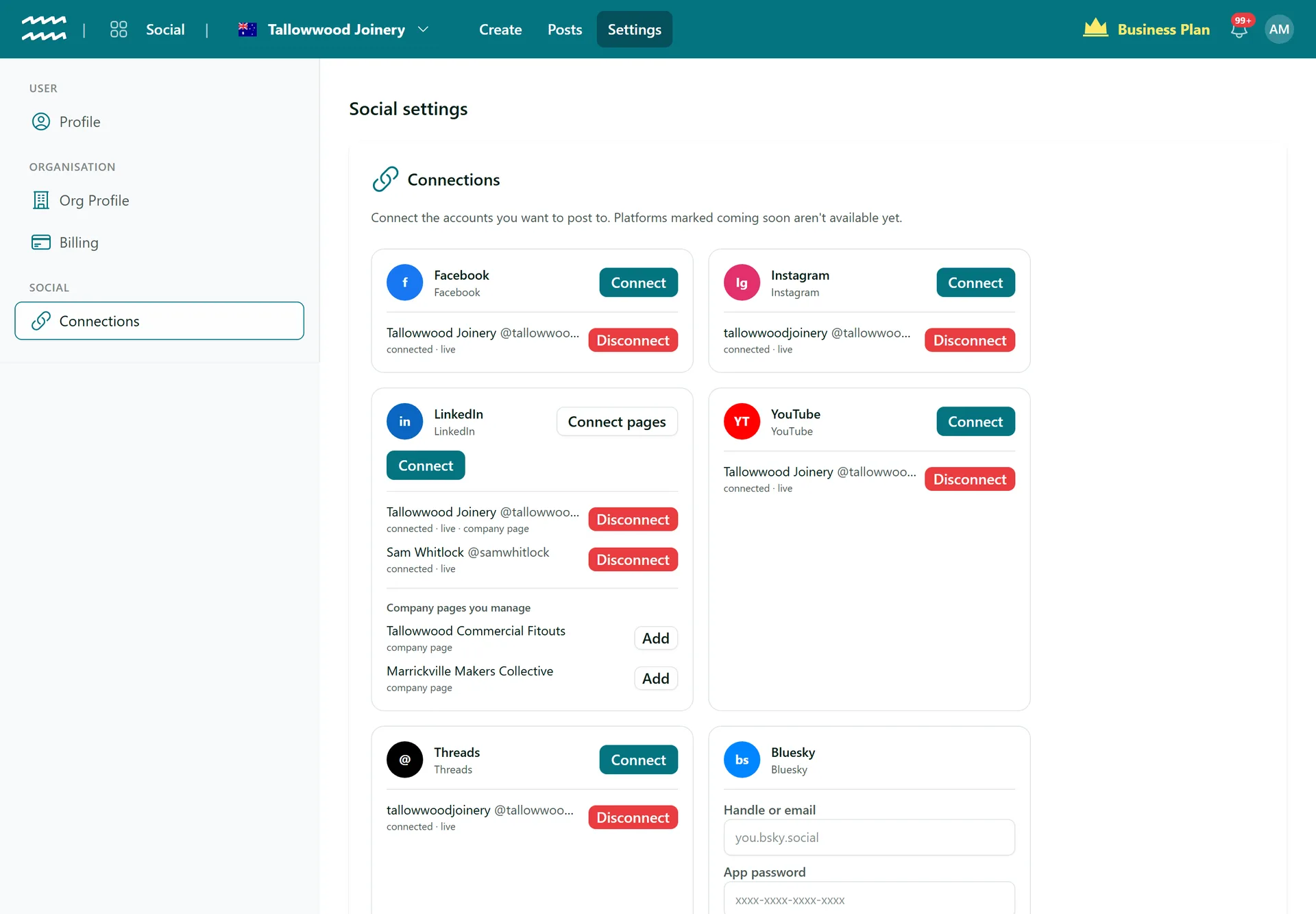
Post as the page, not just as you
Post as the page
Posts go out from the company page itself, not from the person who connected it.
Several pages
Add each page you manage as its own channel, from one LinkedIn connection.
Profiles as well
Connect your personal profile too, and tick the page, the profile or both.
Different words for each
Use Customise this channel to give your profile a more personal version.
Images and video
Post a photo, several images in one post or a video to a page.
See it as the page
The preview uses the page's name and picture, at phone and desktop size.
How to schedule posts to a LinkedIn company page
- 1
Connect your pages
Open Settings, then Connections, and choose Connect pages on LinkedIn.
- 2
Add more pages
Your first page connects straight away. Choose Add beside any others under Company pages you manage.
- 3
Write the post
Choose Create post and tick the page under Deploy to.
- 4
Schedule it
Set the time and choose Schedule, or choose Post now.
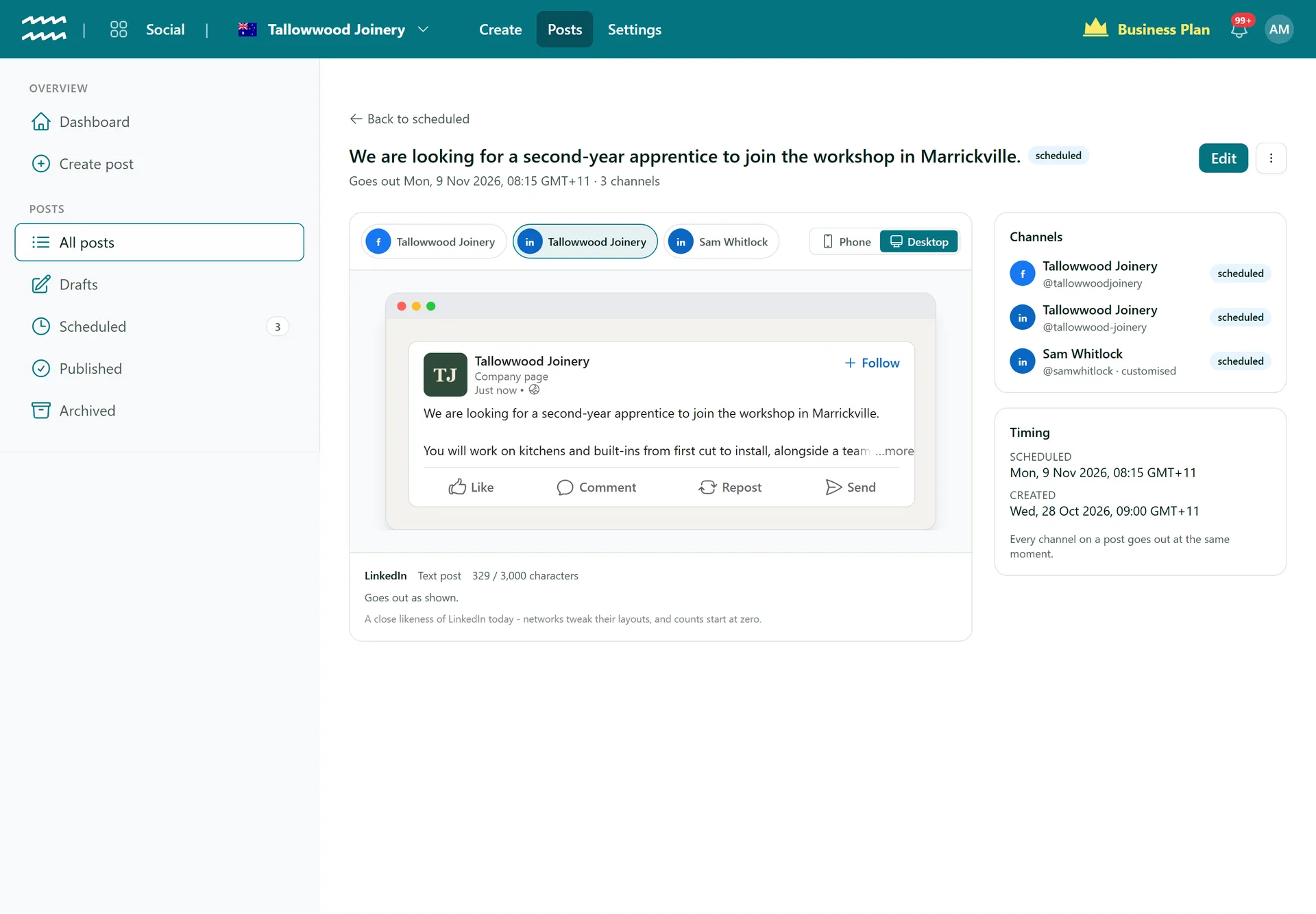
Check the post as your page
Preview the post with your page's name, marked as a company page, the way LinkedIn lays it out.
- Text cuts to a more link after three lines
- Character count against LinkedIn's 3,000 limit
- View on LinkedIn appears once the post is out
More in AirSign Social
Compose Once
One post to every network, tailored where you need it.
Learn moreTrue Previews
See how a post will look on each network before it goes.
Learn moreSchedule Ahead
Set a date and time and let the post go out on its own.
Learn morePost Status and Reconnects
See which networks published, then fix and retry the rest.
Learn moreCarousels and Video
Carousels, multi-photo posts, Reels and video, per network.
Learn moreYouTube Uploads
Upload to YouTube with a title, tags and visibility.
Learn moreDraft vs Publish
Let people draft posts without being able to publish them.
Learn moreLinkedIn Company Pages FAQs
You need to be an administrator of the page. AirSign looks for pages where your LinkedIn account holds that role.
Connections shows no company pages found and nothing is added. Check your role on the page in LinkedIn, then choose Connect pages again.
Connections shows the login as expired. Choose Connect pages to connect again. This adds the page as a new channel, so choose it on any waiting or failed posts.
No. An @name goes out as plain text, not as a LinkedIn mention.
No. There are no analytics or inbox in AirSign Social, so those stay on LinkedIn.
AirSign Social is part of the AirSign suite - one plan, every app. Book a demo and we will walk you through it.
Keep every channel active, without the busywork
Book a demo and see your next post previewed on every network.