Tracking Compliance
AirSign Compliance keeps every signed and uploaded document on file for as long as it matters - when it is valid until, when it needs renewing and every version it has ever had. Its dashboard tells you at a glance what is expiring, what has lapsed and who is missing something.
Where to find it
Step 1: Read the dashboard
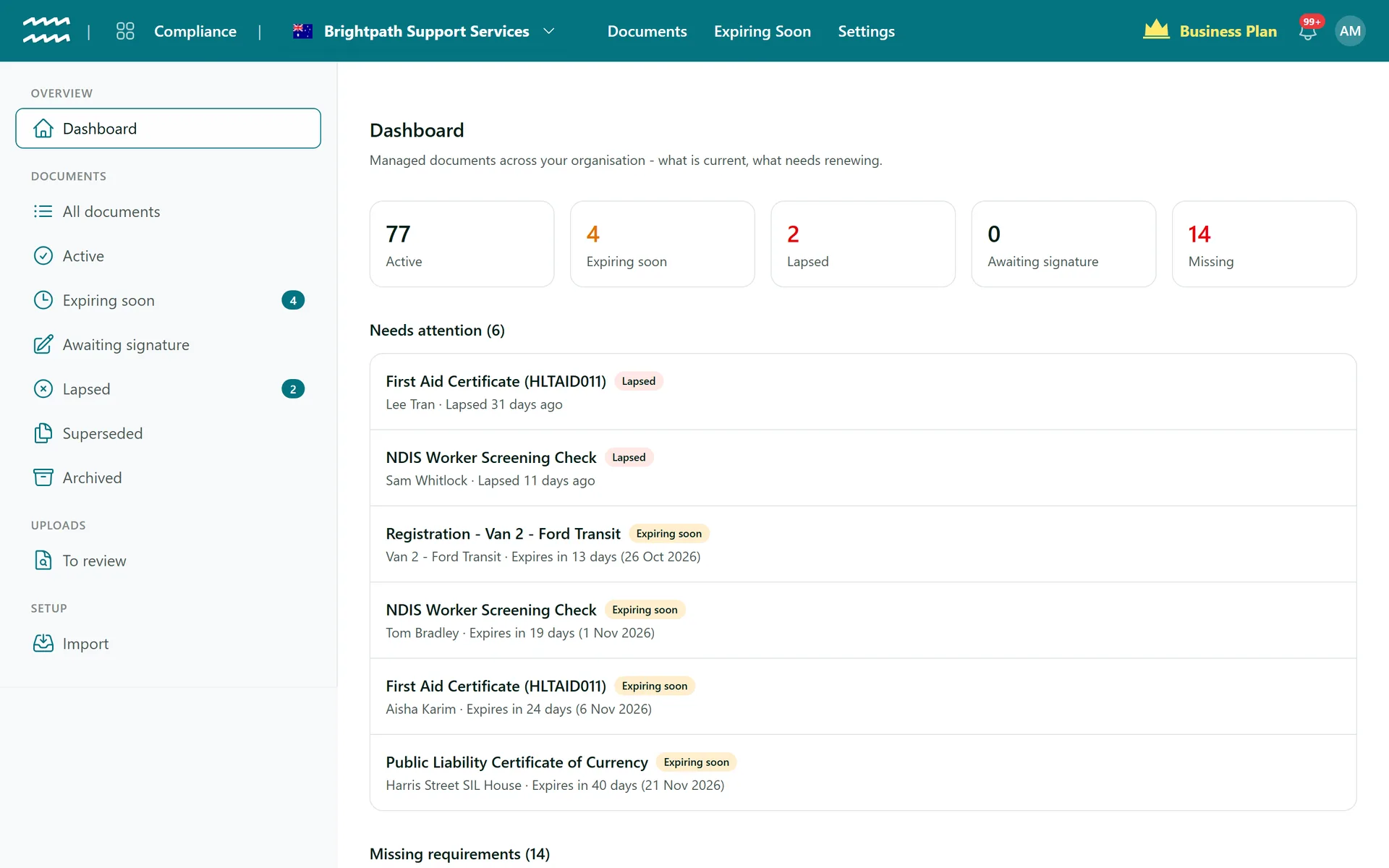
The tiles across the top count your documents that are Active, Expiring soon, Lapsed and Awaiting signature, plus how many requirements are Missing - people, customers, assets or projects with nothing on file for something they need. Select a tile to see the list behind it.
Needs attention lists the documents that need action now, lapsed first, then those closest to expiring. Each row says who it belongs to and how long until (or since) it expires. Documents that came from a template carry a Renew button, which creates a new signing session from the template, ready for you to send.
Step 2: Follow up what is missing
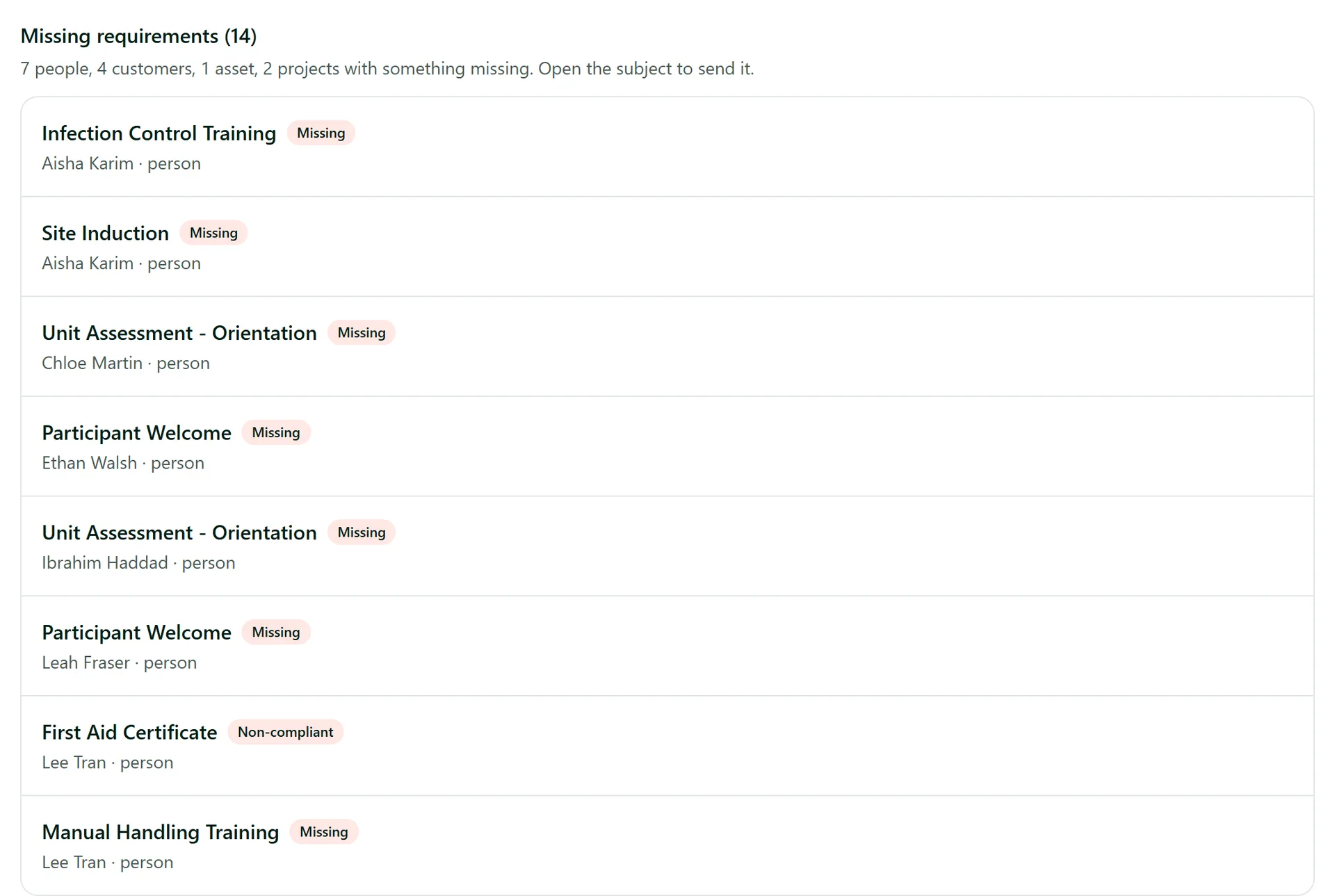
Further down, Missing requirements lists everyone with a requirement and nothing to show for it - a new starter who has not done their training yet, or a lapsed certificate with no replacement. Select a row to open that person, customer or asset and send what they need from their requirements checklist (see Person Records and Documents).
Step 3: Work through the lists
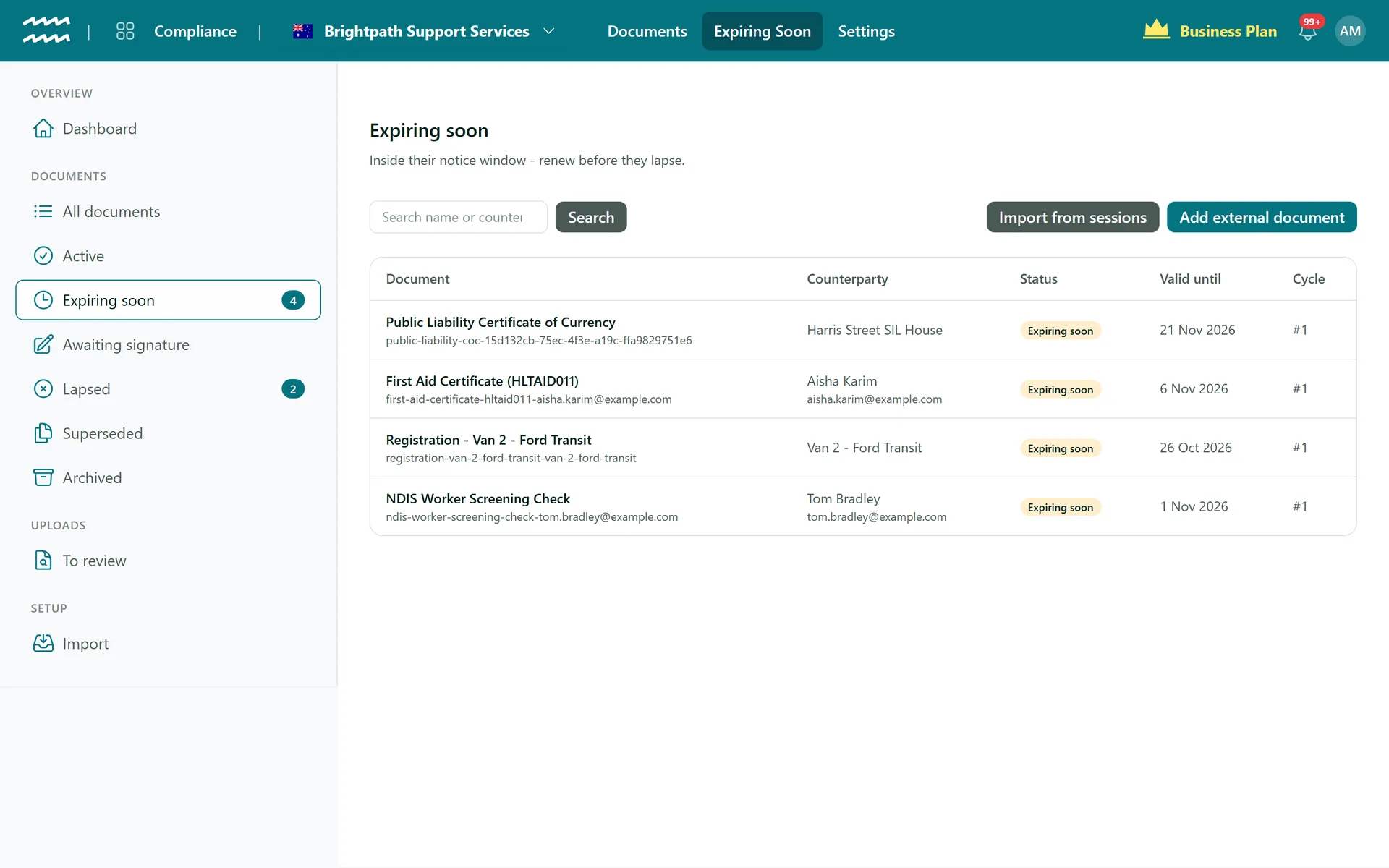
The left menu splits your documents by status: Active, Expiring soon, Awaiting signature, Lapsed, Superseded (replaced by a newer version) and Archived. A document is "expiring soon" once it is inside its reminder window - by default from 60 days before expiry, with further reminders at 30 and 7 days - and AirSign emails the document's owner at each stage. Search by document name or counterparty, or use Add external document to track something signed outside AirSign.
Step 4: Open a document record
Select any document to open its record. The header shows who it belongs to, when it is valid until, which requirement it satisfies and its key. From here you can:
- View person (or customer, asset) to jump to who it belongs to, and View document to open the current file.
- Attach document to add the file for a document tracked without one.
- Renew now to start the renewal signing, when the document came from a template.
- Use the menu for Change expiry, Retire (stop tracking it but keep its history), Recall or Stop tracking.
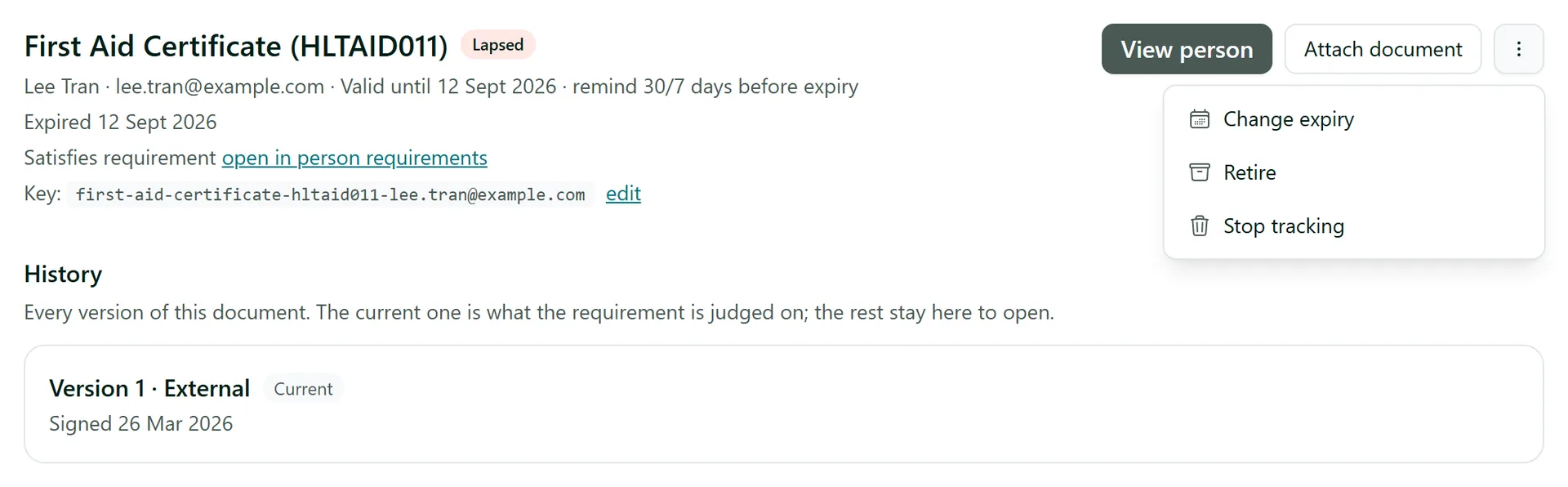
History lists every version of the document. A renewal adds a new version and never replaces the old one, so you can always open what was signed or uploaded at the time.
Step 5: Recall a document sent by mistake
If a document is out for signature and was sent to the wrong person or with the wrong details, use Recall - from the record's menu or from the requirement row on the person's page. The signing session is cancelled. A first send goes back to missing so you can send it again; if it was a new version, the person stays on the version they already signed.
Tips
- The Apps home Dashboard shows the top of the Needs attention list, so you see expiring documents even when you are working in another app.
- Training and form records re-invite the person automatically as they approach expiry, so most renewals need no action from you.
- Retire a document rather than stopping tracking when it has history - auditors may still ask for it.
Need More Help?
Related guides: Setting Up Requirements, Reviewing Uploaded Evidence, Tracking Sessions and Completed Documents. See our FAQ section or email support at [email protected].