Travel and Expense Claims
Some costs are only known once a job is done - the drive there, the kilometres, the parking, the materials bought on the way. Your staff log these as claims against their shift from the staff app. Each claim can be charged to the customer, paid to the worker, or both, and there is no separate approval step: the customer's draft invoice is where you check the charge, and approving the timesheet approves the pay.
Where to find it
Step 1: Set up what can be claimed
Under Settings > Travel and expenses, create your claim types - for example travel time, kilometres, or tolls and parking - and answer how each one is charged to the customer, how it is paid to the worker, and whether it needs a receipt. Then, on each job type under Settings > Job types, choose which claims its jobs offer and what is usually claimed. Shifts made from that job type pick them up automatically.
Step 2: Staff log a claim from their phone
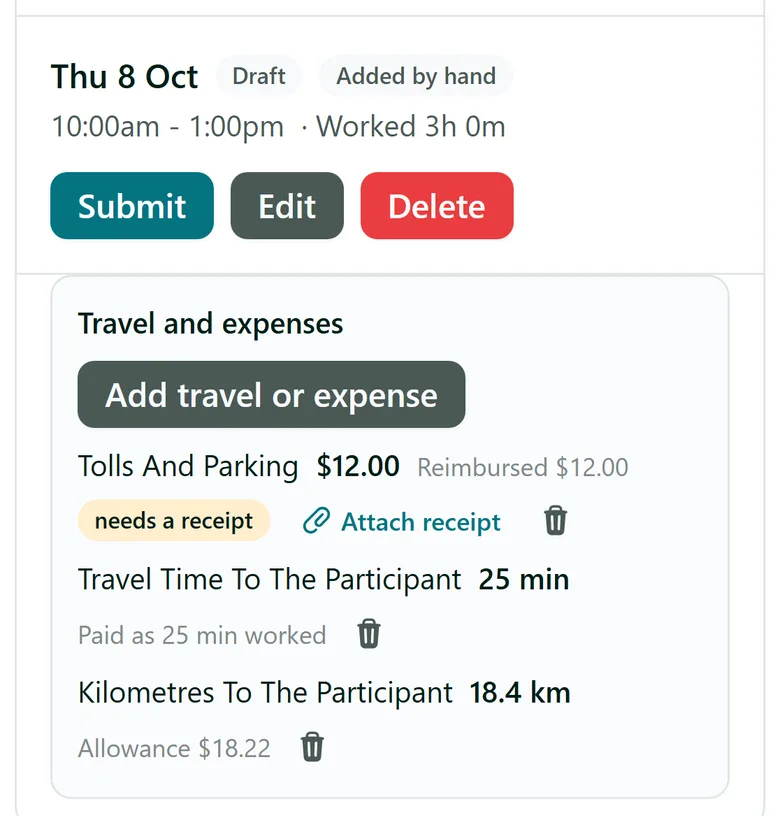
In the staff app, under each timesheet entry for a shift, there is a Travel and expenses box. Staff tap Add travel or expense, choose What, enter how much (minutes, kilometres or dollars) and an optional note, and tap Save. When a receipt is needed they tap Attach receipt and take a photo. The box shows what each claim pays them, for example "Allowance $18.22".
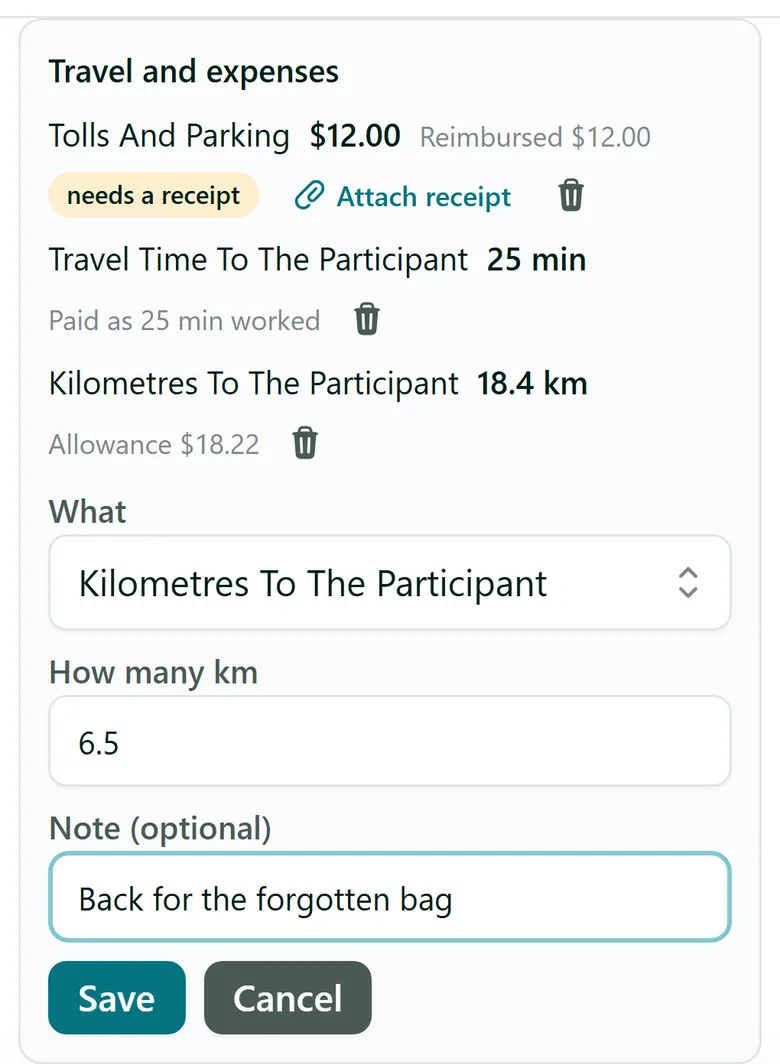
Staff can change their claims until they submit the timesheet entry. After that, the office makes any changes.
Step 3: Check the claims on the job
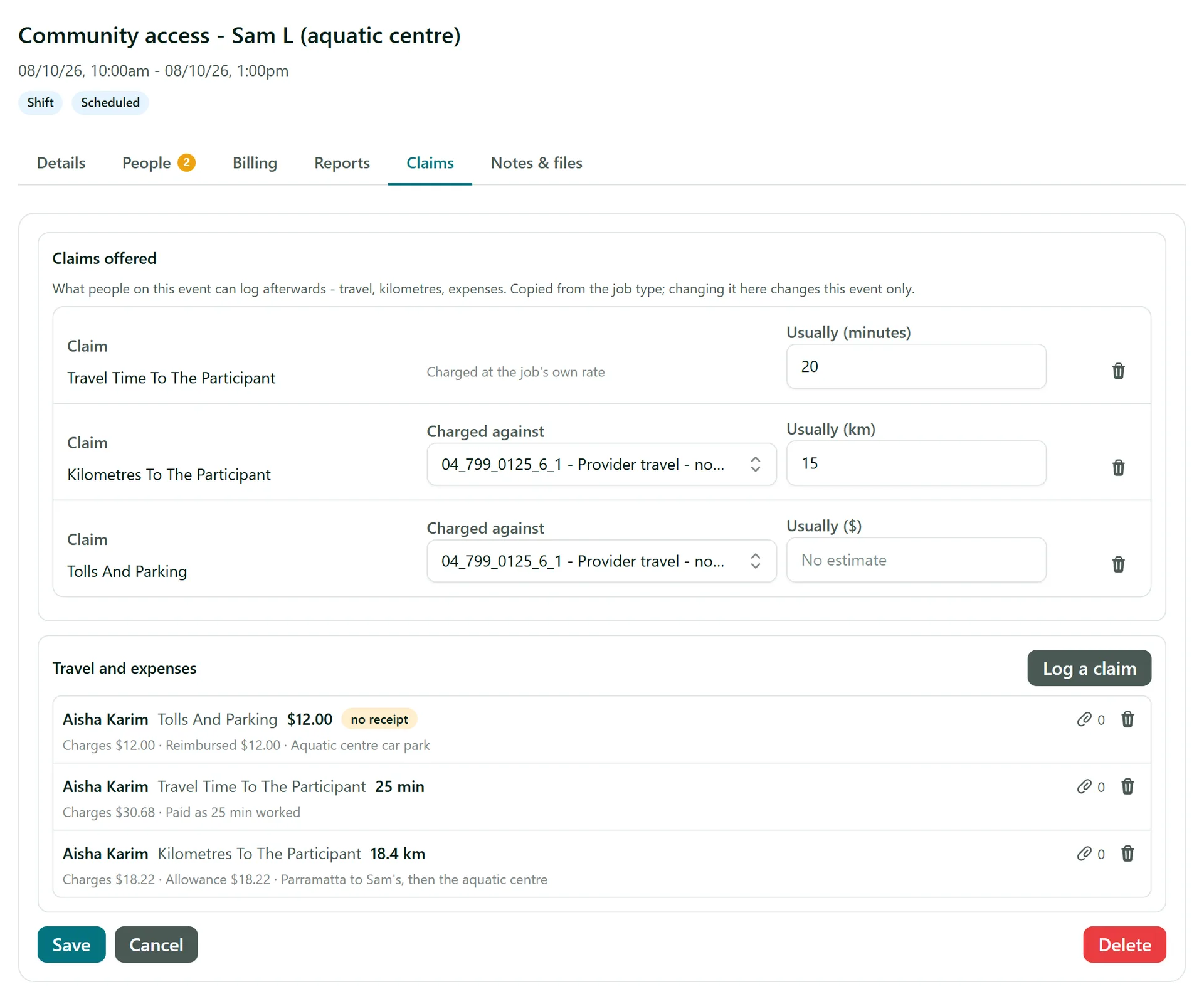
Open the shift in AirSign Schedule and go to its Claims tab. Claims offered lists what people on this job can claim, copied from the job type (change it here for this job only). Travel and expenses lists every claim logged, with what it charges and what it pays, and flags a missing receipt. Click Log a claim to add one for someone who phoned it in.
Step 4: Approve, bill and pay
Claims ride along with the hours: they show under the entry on Approvals, and approving the entry approves them for pay. Charges are added to the customer's draft invoice for the job, where you review them before issuing it. Contractor payouts include travel time, allowances and reimbursements, and the payroll page lists reimbursements to add to your pay run.
Tips
- A cap on a claim type limits what is charged to the customer, never what the worker is paid.
- If you edit a claim line on a draft invoice by hand, AirSign stops updating that line from the claim, so your change is kept.
- For NDIS providers, travel can be charged on the support's own item and kilometres on the travel item, both drawn from the participant's plan.
Need More Help?
Related guides: Approving Timesheets, Payroll and Contractor Payouts, Clocking On and Off. See our FAQ section or email support at [email protected].