Clocking On and Off
Your staff record their hours on their phone, in the AirSign staff app. There are two ways in, and both end up in the same place: clock in when they start and clock out when they finish, or add hours for a day they forgot. Either way the entry is saved as a draft until they submit it for you to approve.
Where to find it
Step 1: Clock in
If they are rostered today, they pick the shift under Shift (optional) - its project fills in by itself and the hours are linked to that shift. Otherwise they can choose a Project (optional) for the hours to count against. They add a note if they like and tap Clock in. A shift they have not accepted yet, or said they cannot make, is not offered.
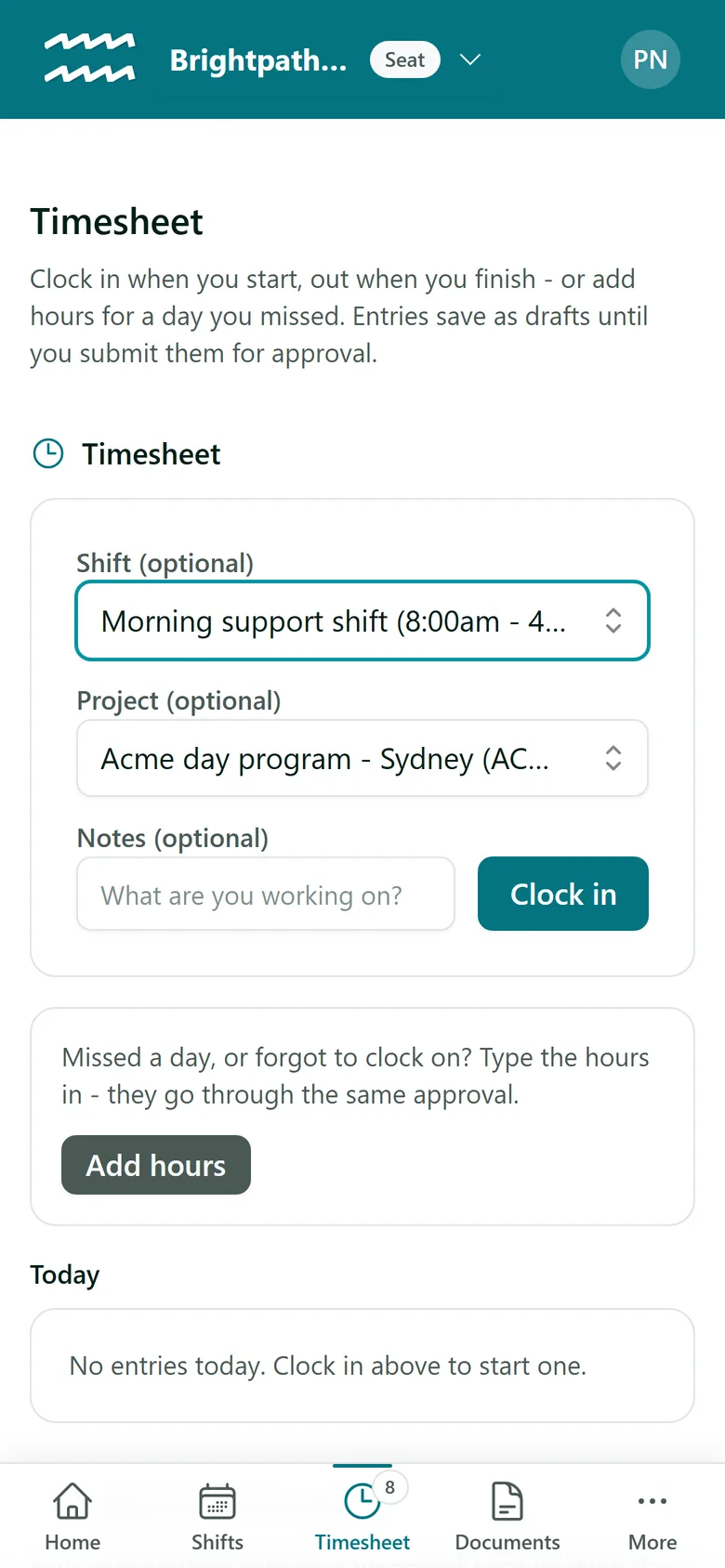
Step 2: Take a break
While they are clocked in, a timer runs. They tap Start break when they stop for lunch and End break when they are back - the break gets its own timer, and break time comes off their worked hours automatically. If they do not use the buttons, they can type the Break (minutes) when they clock out instead.
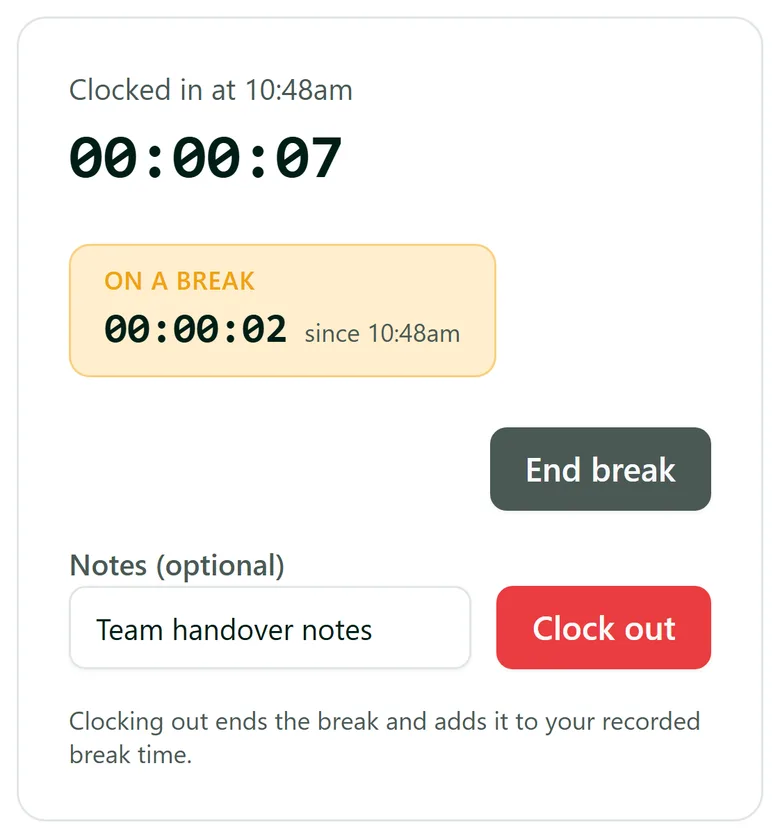
Step 3: Clock out
At the end of the shift they tap Clock out (adding a note about what they worked on, if they like). Clocking out also ends a break that is still running. The entry is saved as a Draft under Today, so they can check the times before handing it in. If your organisation uses travel and expense claims, this is when they add them.
Step 4: Forgot to clock on? Add the hours
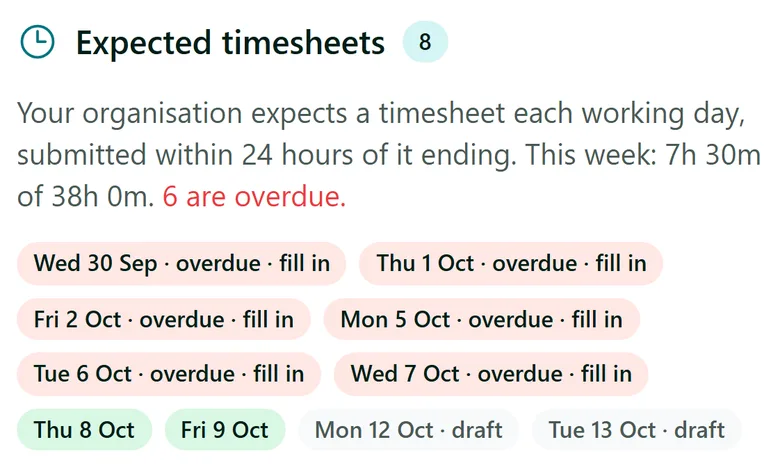
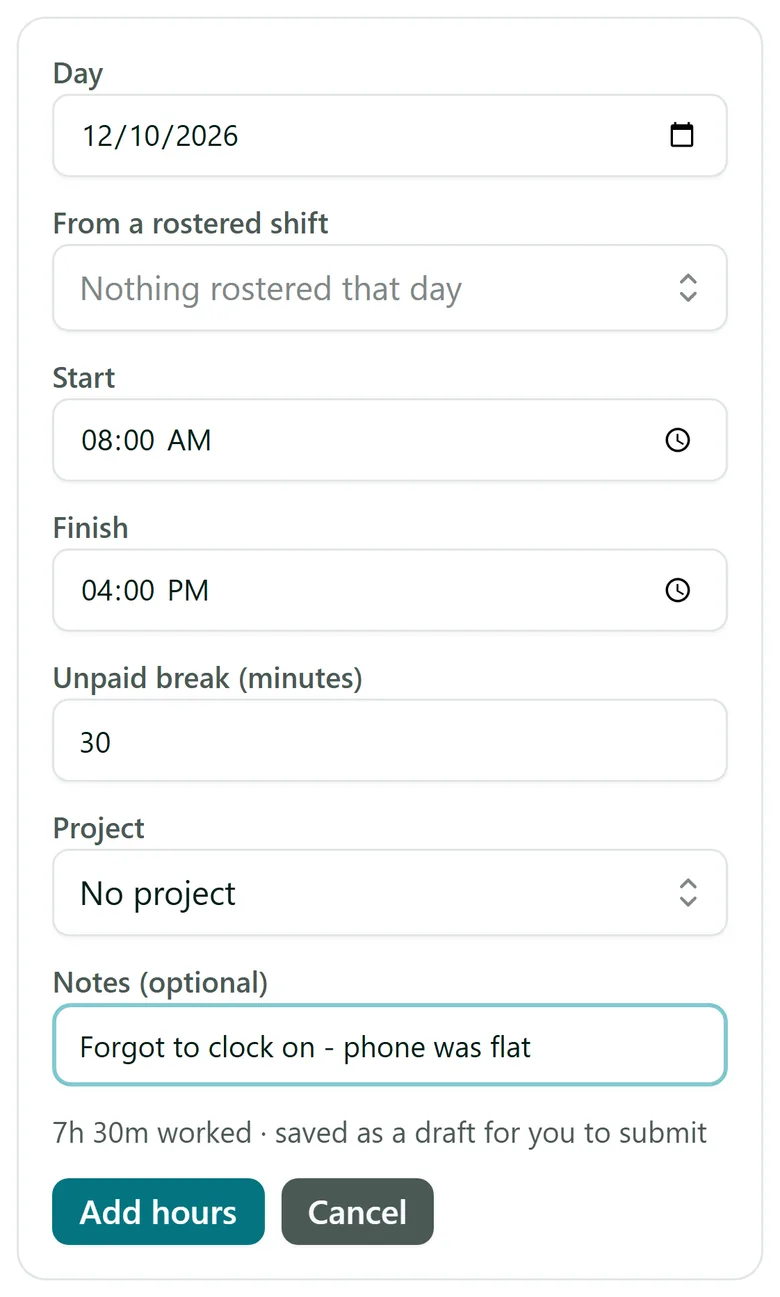
Expected timesheets shows each day your organisation expects a timesheet for, coloured by where it stands, with overdue days in red. Tapping a day that needs filling in opens Add hours already on that day (they can also tap Add hours under the clock). They enter the Start, Finish, Unpaid break (minutes) and project, or pick From a rostered shift to fill the times in from the roster, and tap Add hours. A finish before the start counts as the next morning, for night shifts.
Step 5: Submit for approval
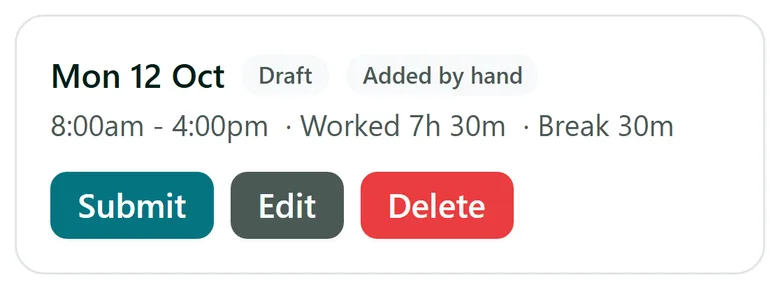
Each draft has Submit, Edit and Delete. Once they tap Submit, the entry goes to the office for approval and is locked for them. If it is rejected, it comes back with the reason, and they can fix it and submit it again. More > This week shows the whole week's entries and total, and earlier weeks with the arrows.
Tips
- You decide how far back staff can add their own hours (14 days by default), or whether the clock is the only way in, under Settings > Timesheets > Keyed entries.
- Settings > Timesheets > Clock-in verification can record where someone clocked on, check it against the site, and ask for a photo.
- Times are shown in your organisation's time zone (set under Settings > Time zone and currency).
Need More Help?
Related guides: Approving Timesheets, The Staff App, Travel and Expense Claims. See our FAQ section or email support at [email protected].