Approving Timesheets
Your staff clock on and off, or type in their hours, from the AirSign staff app. Each entry stays a draft until they submit it, and then it waits for you. Approved hours are locked and ready for payroll or contractor payouts. This guide covers reviewing, approving and rejecting entries, chasing missing timesheets and undoing an approval.
Where to find it
Step 1: Review submitted hours
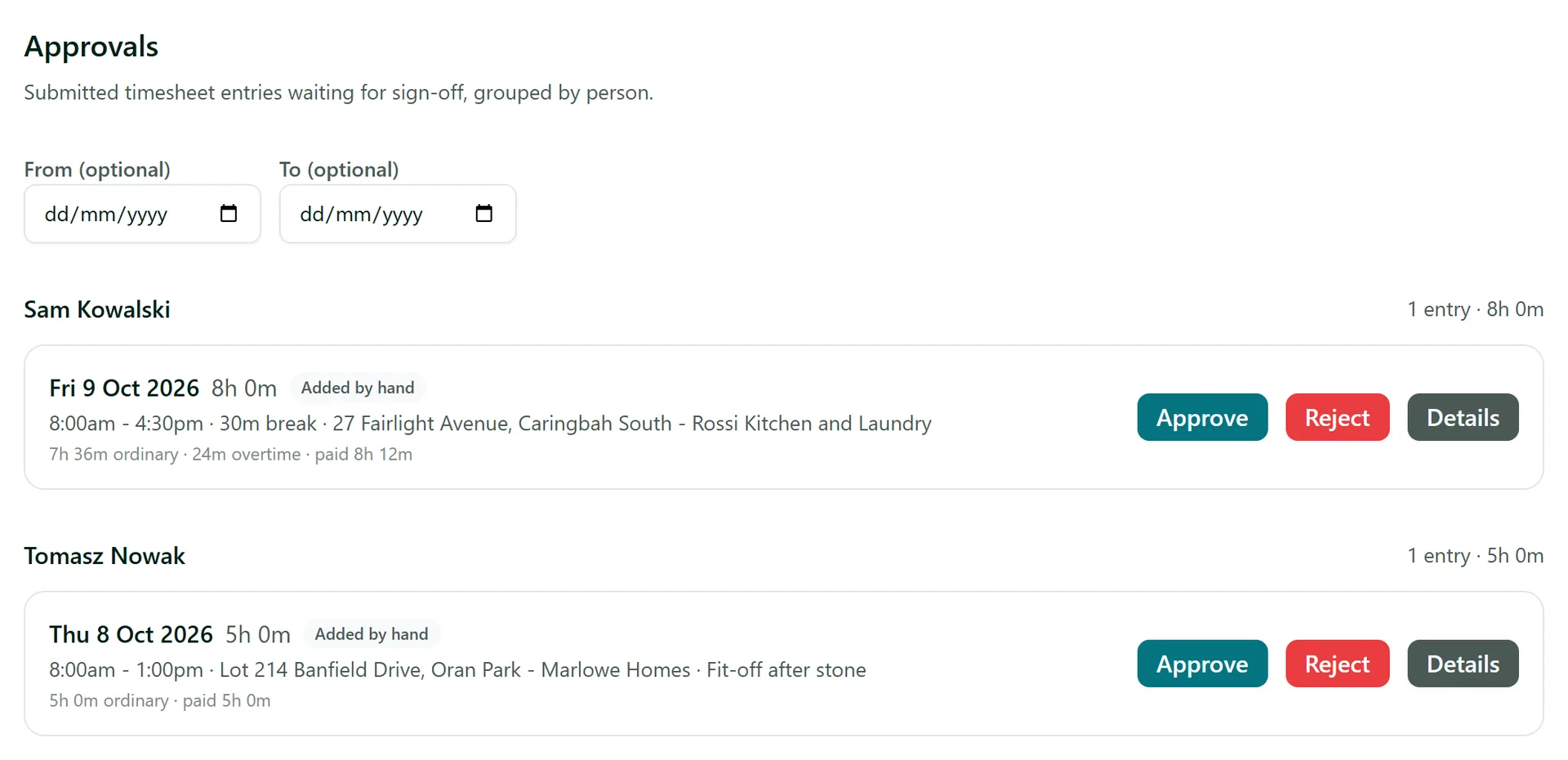
Approvals lists every submitted entry, grouped by person with their total. Each entry shows the day, start and finish, break, the project or job, and how the hours are paid under your award rules (ordinary, overtime and the paid total). Added by hand means the hours were typed in rather than clocked. Use From and To to narrow it to a pay period.
Step 2: Approve, or reject with a reason
Click Approve and the entry is locked. Click Details first to see where they clocked on, any photos, files and notes, and any travel or expenses claimed with it. If something is wrong, click Reject, type a Reason and click Confirm reject - the entry goes back to the person to fix and resubmit. The person is emailed either way.

Step 3: Chase missing timesheets
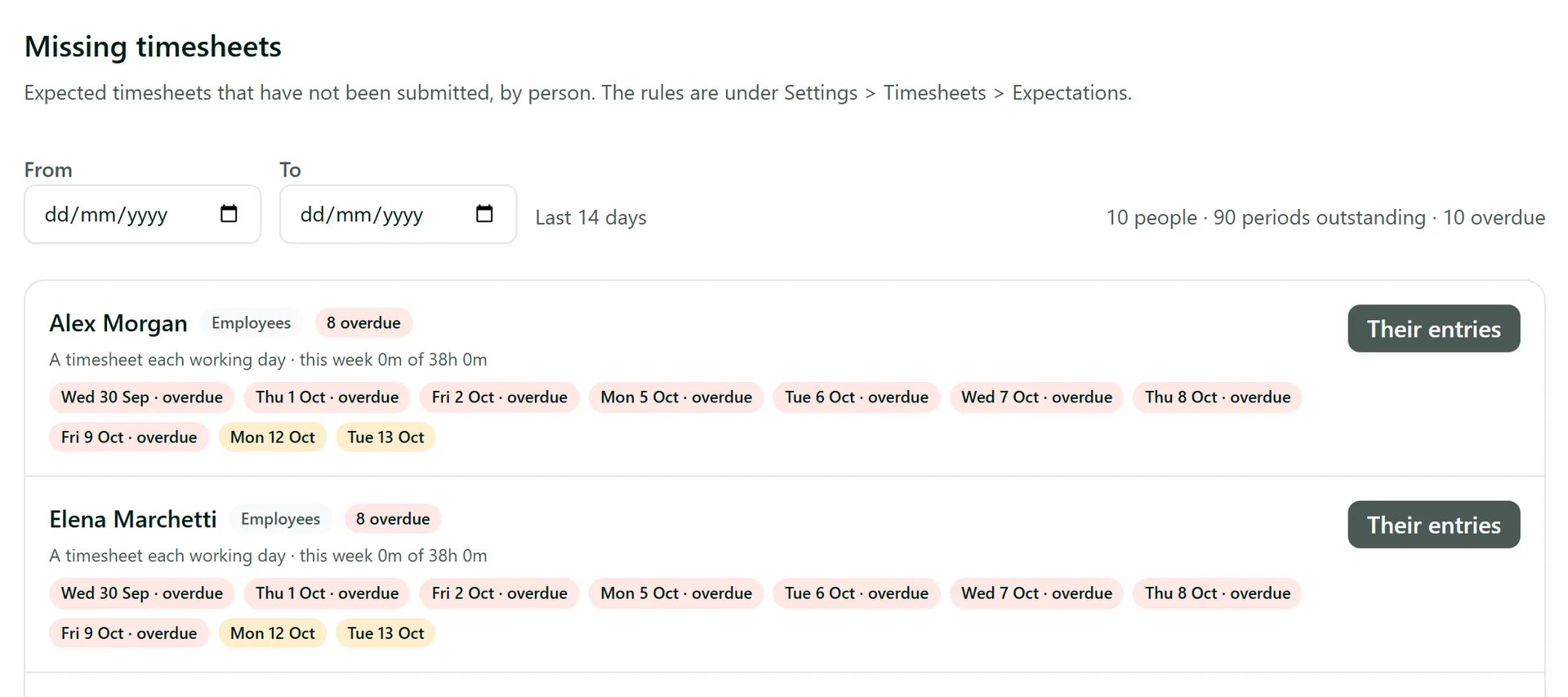
Missing lists everyone who has not handed in a timesheet you expect from them, most overdue first, with a chip per day (or week) and whether it is missing, a draft, rejected or still clocked in. Click Their entries to see what they have recorded. AirSign also reminds people about overdue timesheets for you. What is expected of whom - every working day, every week or every rostered shift - is set under Settings > Timesheets > Expectations.
Step 4: Fix or add an entry for someone
All entries shows everyone's time with person, date and tag filters, and the left menu splits it into Clocked in, Drafts, Submitted, Approved, Rejected and Archived. Click Add entry to key in a missed shift for someone, then submit it for them. Click a row to open it, edit a draft or rejected entry, archive it, or attach a file.
Step 5: Unapprove a mistake
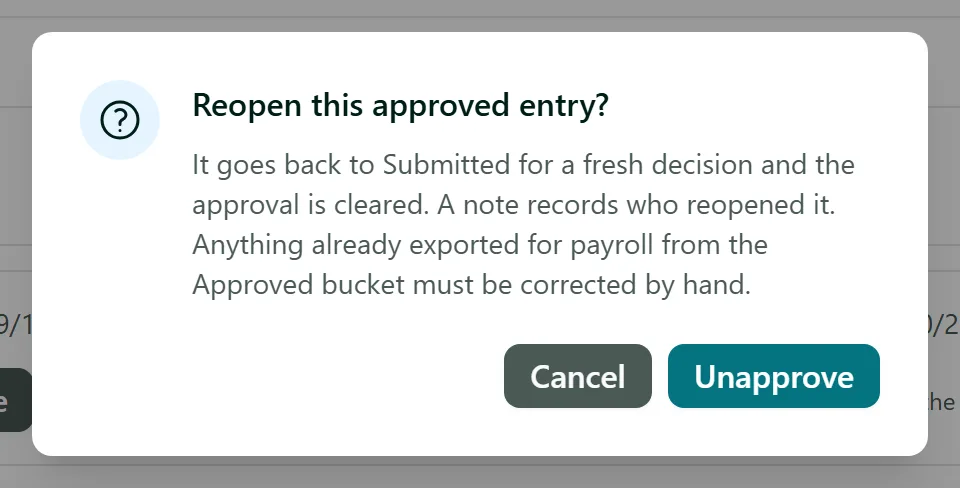
Approved entries cannot be edited or deleted. If you approved one by mistake, open it under Approved and click Unapprove. It goes back to Submitted for a fresh decision, and a note records who reopened it. Anything you already exported for payroll needs correcting by hand.
Tips
- You cannot approve your own timesheet - someone else in your team has to.
- Filter All entries to Approved and click Export CSV for a payroll handoff, or use Payroll for the week-by-week breakdown.
- Overtime, weekend rates and rounding come from Settings > Timesheets > Award and overtime rules. Changing the rules re-works the figures; the recorded times never change.
Need More Help?
Related guides: Payroll and Contractor Payouts, Clocking On and Off, Travel and Expense Claims. See our FAQ section or email support at [email protected].