Payroll and Contractor Payouts
Once hours are approved, AirSign Timesheets turns them into pay. Employees' weeks go to payroll - a breakdown you can export, or push straight to Xero Payroll. Contractors' weeks are paid from Payouts, through Stripe or marked as paid when you pay them another way. Only approved entries ever count.
Where to find it
Step 1: Check the payroll breakdown
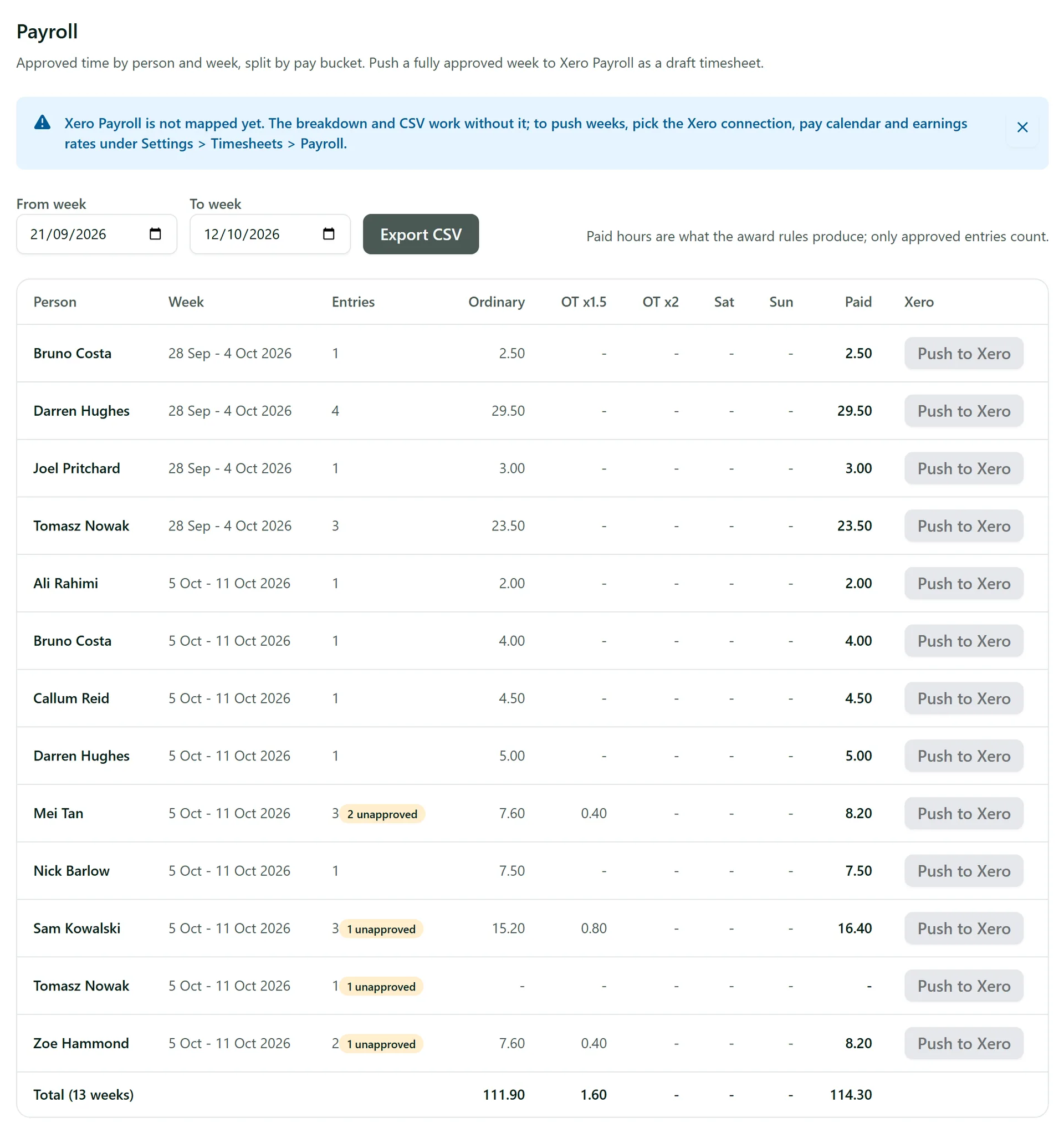
Payroll shows each person's approved time week by week (Monday to Sunday), split into Ordinary, OT x1.5, OT x2, Sat and Sun, with the Paid hours your award rules produce. A yellow "unapproved" badge means that week still has entries waiting - approve or reject them first. Pick the weeks with From week and To week.
Step 2: Export or push to Xero
Click Export CSV to take the breakdown into any payroll system. If you use Xero Payroll, map it once under Settings > Timesheets > Payroll (Xero) (the Xero connection, your weekly pay calendar, an earnings rate for each column and each employee). Then Push to Xero on a fully approved week creates a draft timesheet in Xero for your pay run. A pushed week is marked as pushed; Push again creates a fresh draft if you need one.
Step 3: Set your contractors' rates
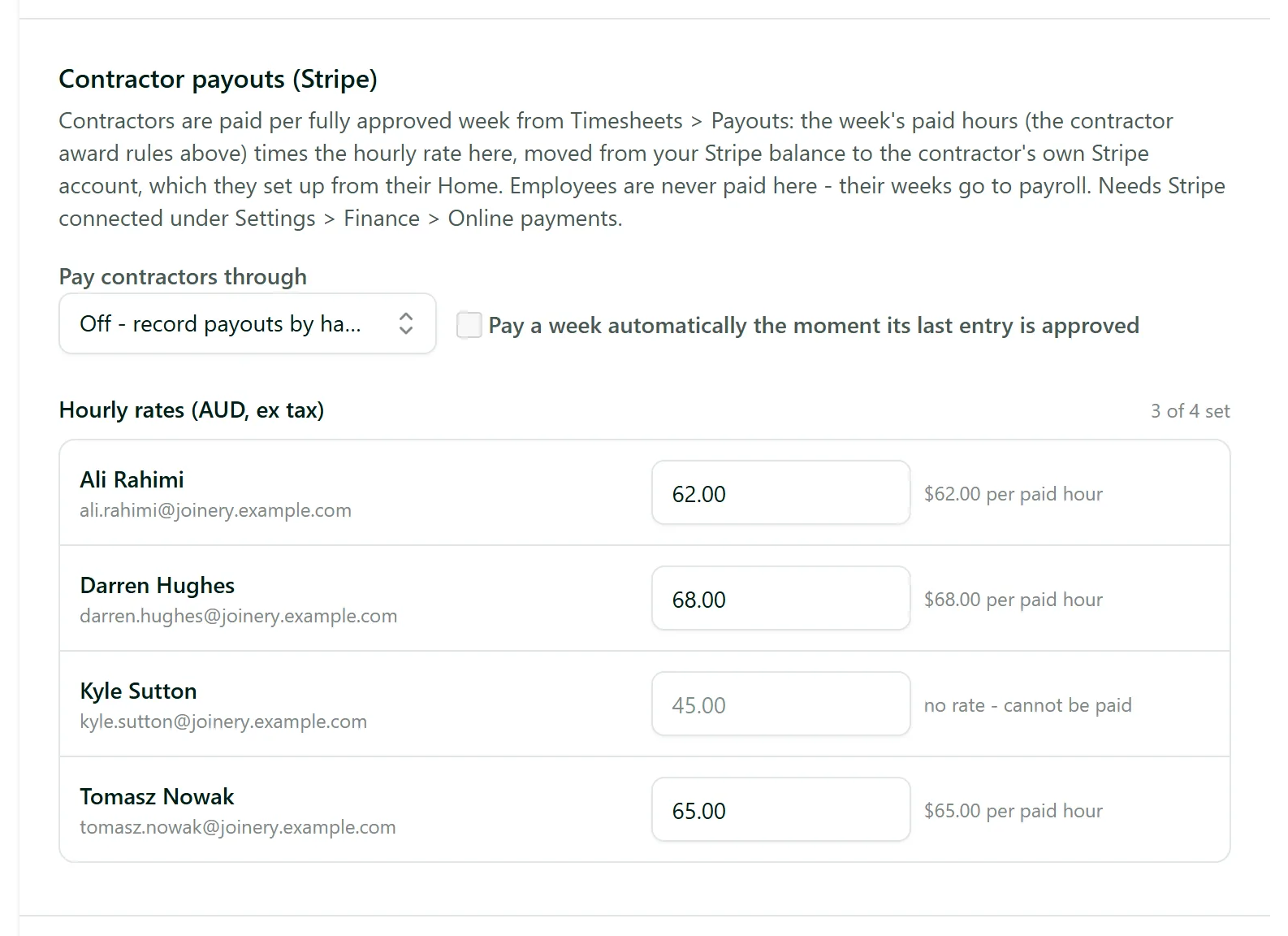
People whose employment is set up as a contractor appear under Payouts instead of payroll. Under Settings > Timesheets > Contractor payouts (Stripe) (or Rates and pay-on-approval on the Payouts page), enter each contractor's hourly rate. To pay through Stripe, set Pay contractors through to Stripe (from your Stripe balance) and connect Stripe under Settings > Finance > Online payments. You can also tick Pay a week automatically the moment its last entry is approved.
Step 4: Pay a contractor's week
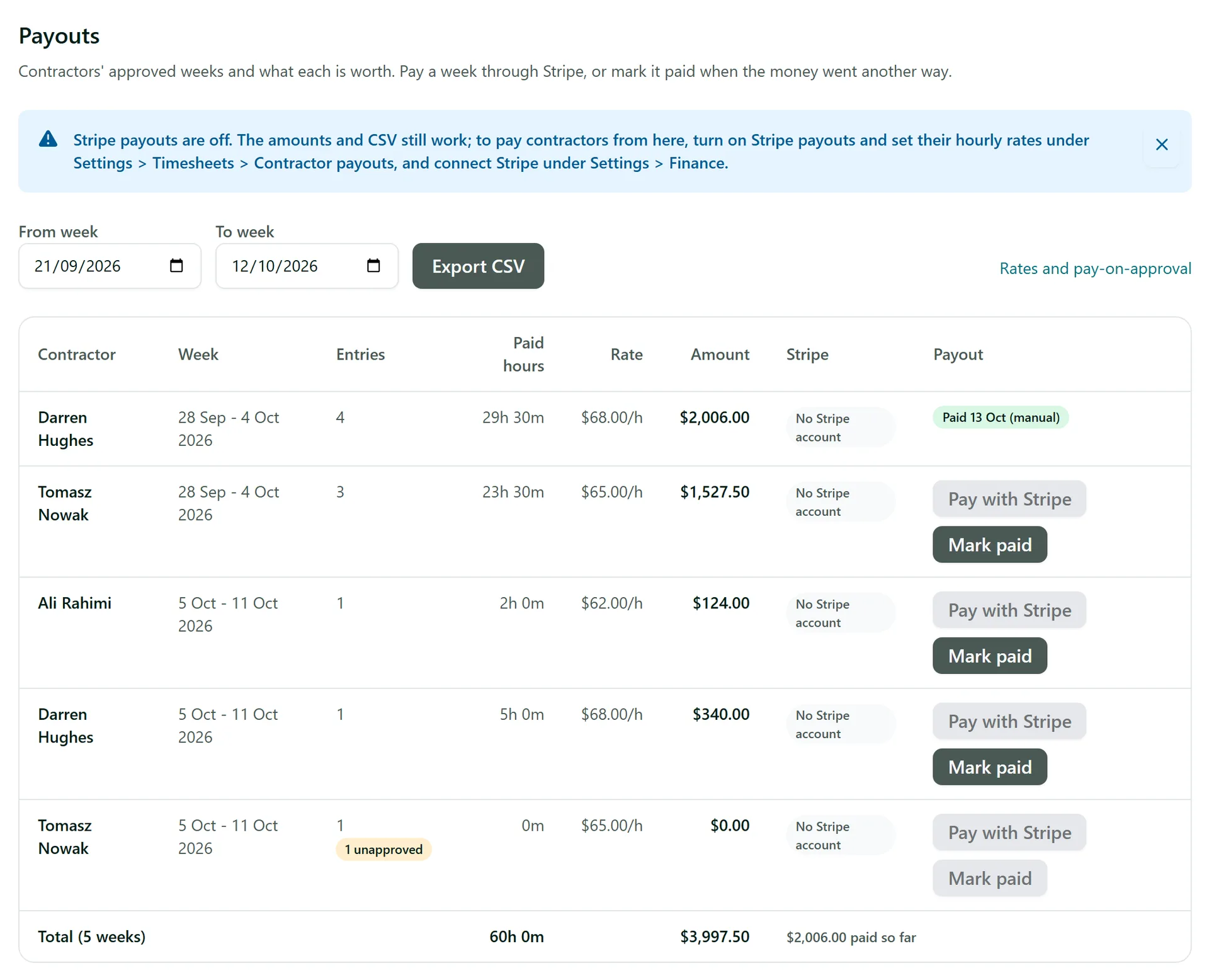
Payouts lists each contractor's fully approved weeks with paid hours, rate and amount, and whether they have set up their Stripe account. Click Pay with Stripe to send the money from your Stripe balance to theirs. If a button is greyed out, hover over it to see why - for example an entry still waiting for approval, or no hourly rate.
Step 5: Or mark it paid
Paid by bank transfer instead? Click Mark paid, add a Reference (optional) such as the transfer number, and confirm. The week shows as paid and its entries are locked so they can never be paid twice.

Tips
- Contractors set up their own Stripe account from Get paid in their staff app, and see their payouts there.
- Travel time, allowances and reimbursements claimed on approved entries are added to contractor payouts and listed for payroll - see Travel and Expense Claims.
- Both pages have Export CSV, so your bookkeeper can check the figures before anything is paid.
Need More Help?
Related guides: Approving Timesheets, Travel and Expense Claims. See our FAQ section or email support at [email protected].