Rostering Shifts
AirSign Schedule is your calendar for shifts, bookings, meetings and leave. You put people (and equipment, like a van) on each one, and AirSign checks the roster as you go - who is already busy at that time and whose documents are missing or out of date - before anyone turns up. This guide shows you how to add a shift, make it repeat and put the right people on it.
Where to find it
Step 1: Open the calendar
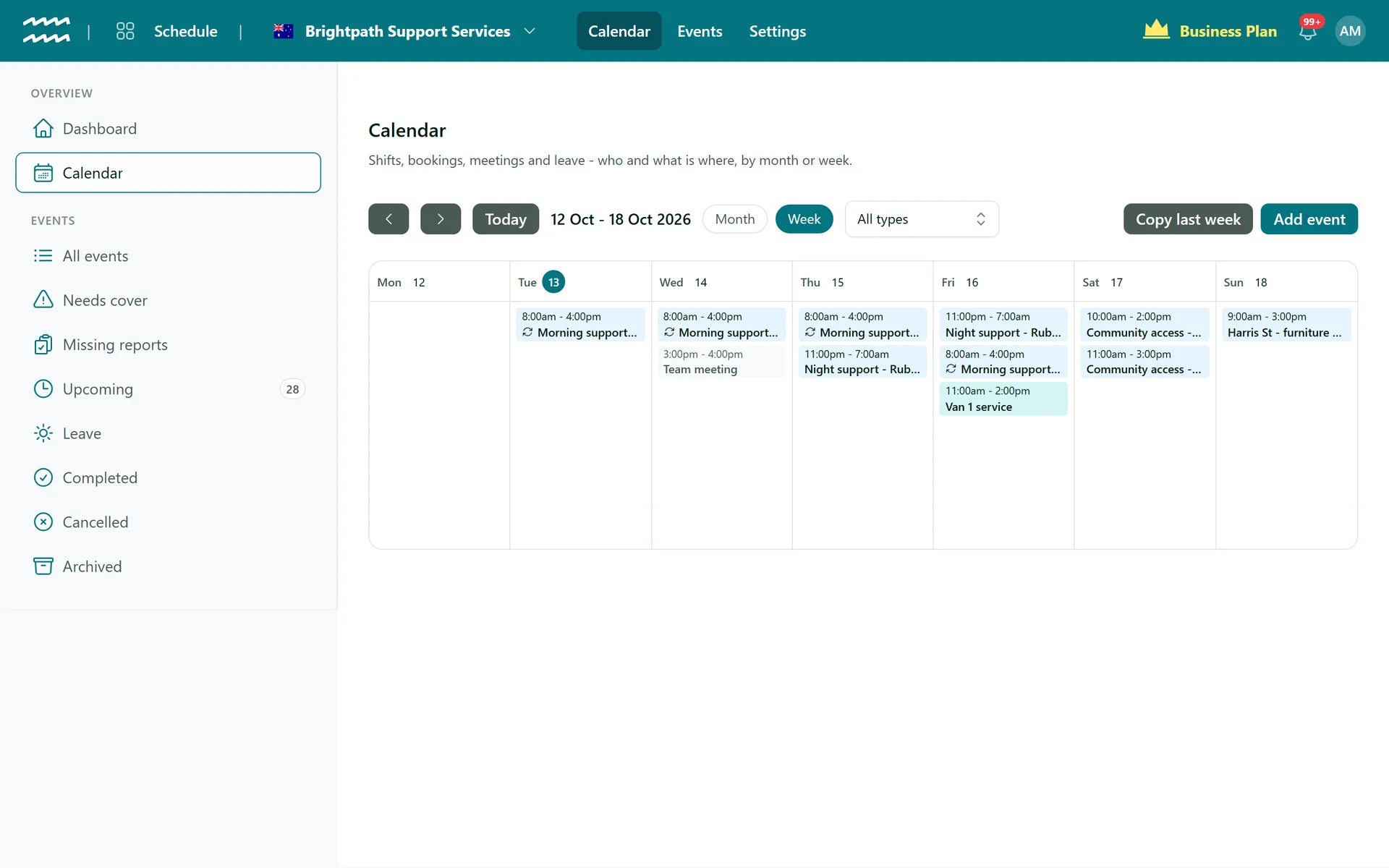
The Calendar shows everything that is on, by Month or Week. Use the arrows and Today to move around, and the All types filter to see only shifts, bookings, meetings or leave. A small repeat icon on an event means it is part of a repeating series. Click any event to see a quick summary - when, where, who is on it - with Open event to change it.
Step 2: Add a shift
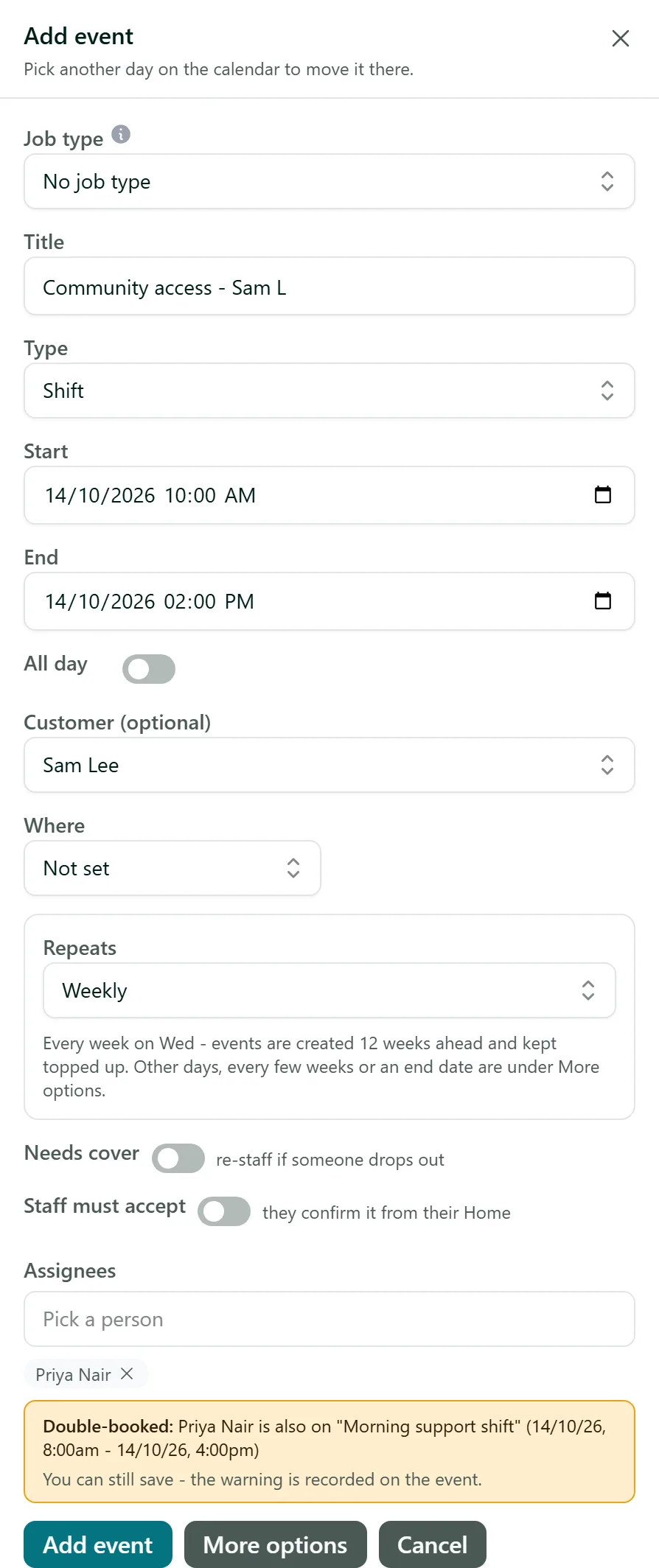
Click a day on the calendar, or Add event, and a panel opens beside the calendar so you can still see the week. Fill in:
- Job type - if you have set up job types (for example "In-home support"), picking one fills in the type, length, billing and reports for you.
- Title, Type (Shift, Booking, Meeting, Leave or Other), Start and End, or All day.
- Customer (optional) and Where - one of your sites, the customer's address, another address, an online link or a phone number.
- Assignees - start typing a name in Pick a person to put someone on it.
Clicking another day while the panel is open moves the new event to that day, keeping the same times. For the full set of options (description, project, equipment, billing, reports and more detailed repeat rules), click More options - everything you have typed comes with you.
Step 3: Make it repeat
Set Repeats to Daily, Weekly or Monthly and the line underneath says exactly what will happen, for example "Every week on Wed". AirSign creates the shifts 12 weeks ahead and keeps topping them up, so the roster never runs out. On the event's own page (More options, or Open event later) the Repeat tab lets you choose every few weeks, particular weekdays, and when it ends (never, on a date or after a number of times).
Step 4: Check the warnings before you save
As you add people, AirSign checks the roster straight away and shows a yellow box when something needs a look:
- Double-booked - the person is already on another event at that time.
- Missing, lapsed or about-to-lapse documents the person's role requires (for example a First Aid Certificate).
- On a customer with a budget, whether the job is still funded.
These are warnings, not blocks - sometimes a double-booking is on purpose. You can still save, and the warning is recorded on the event. If your organisation would rather stop it, an admin can turn on Block rostering people with missing or lapsed required documents under Settings > Scheduling. When you are happy, click Add event.
Step 5: Manage the people on a shift
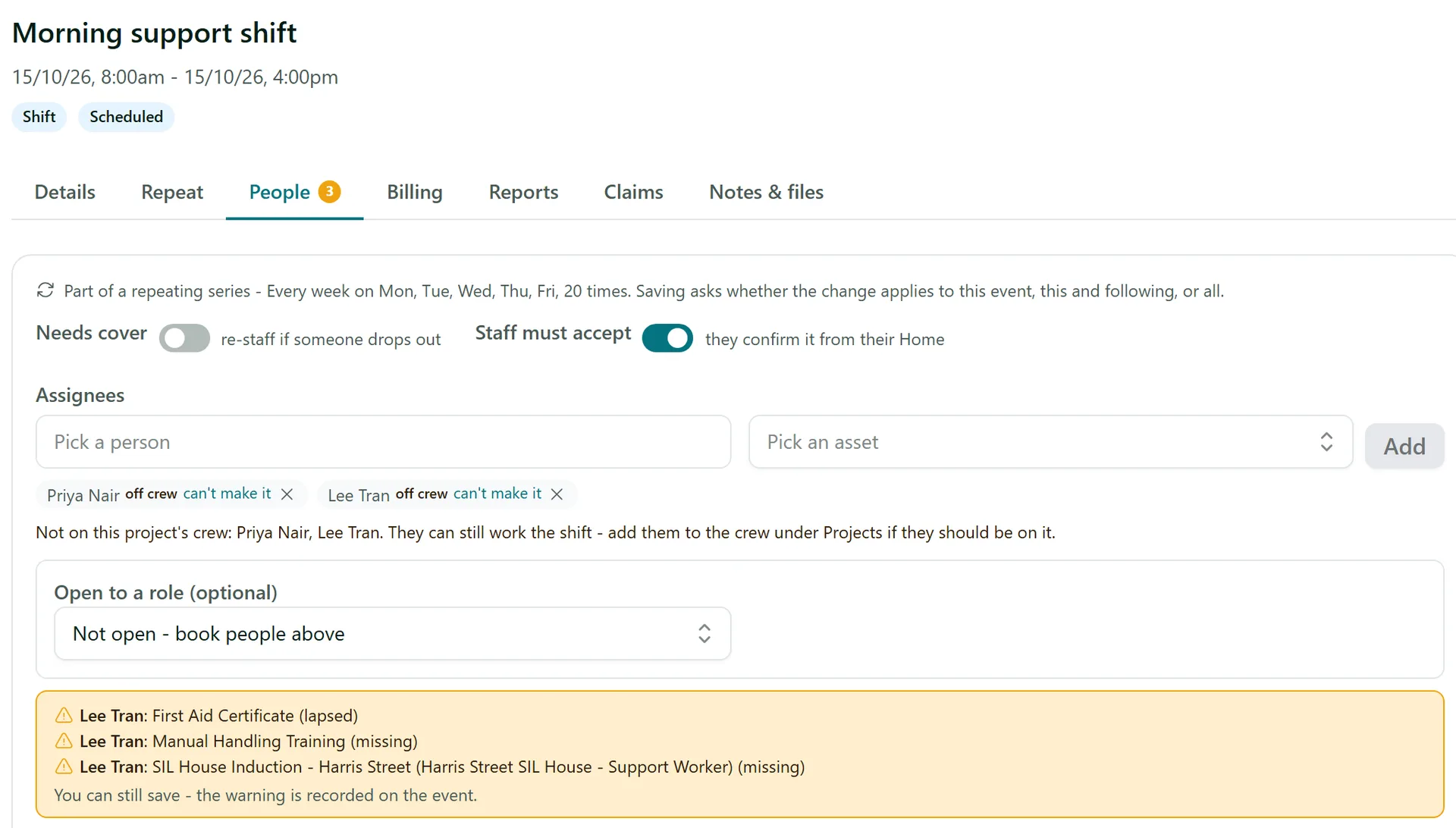
Open the event and go to its People tab. Here you can add or remove people and equipment, and set two staffing rules for the shift:
- Needs cover - if someone drops out, the shift is flagged so you can find a replacement (see Open Shifts and Finding Cover).
- Staff must accept - each person confirms the shift from their own app before it is theirs. Until then their name shows "awaiting OK".
If someone rings in to say they can't make it, click can't make it next to their name to record it for them.
Step 6: Change one shift or the whole series
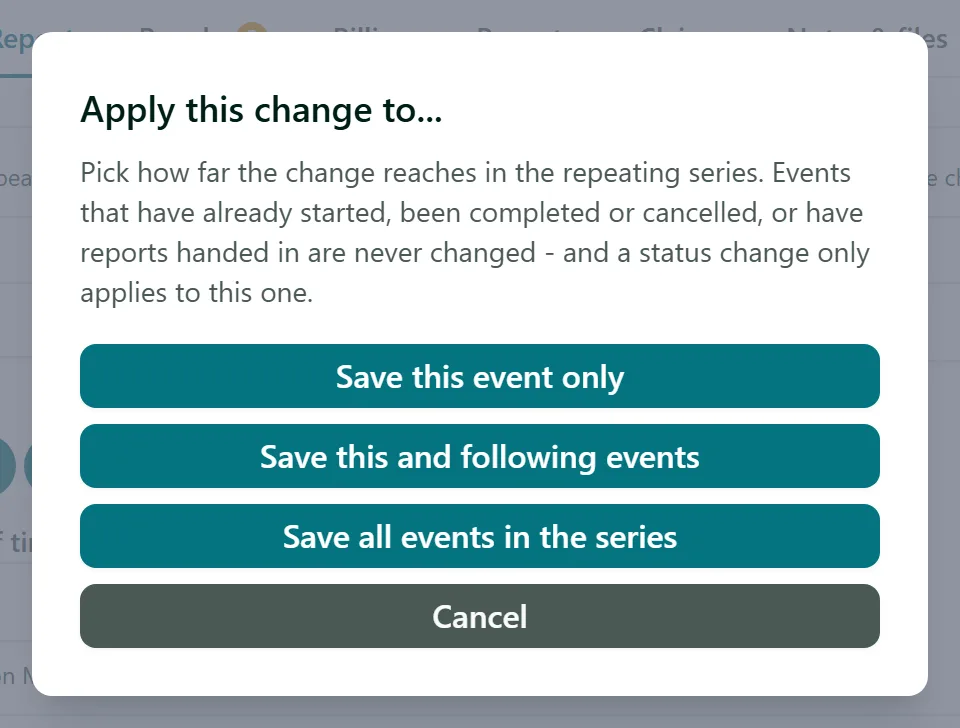
When you save a change to a shift that repeats, AirSign asks how far the change should reach: Save this event only, Save this and following events or Save all events in the series. Shifts that have already started, been completed or cancelled, or have reports handed in, are never changed - your history stays as it was.
Tips
- In week view, Copy last week copies last week's events and their people into this week. Events already there are skipped, so it is safe to run twice.
- All events and the Upcoming, Completed, Cancelled and Archived lists in the left menu give you the same events as a searchable list.
- Times are shown in your organisation's time zone, and a weekly shift stays at the same local time when daylight saving changes.
- If your business calls them something else, an admin can rename "events" (for example to "Shifts") under Settings > Terminology.
Need More Help?
Related guides: Open Shifts and Finding Cover, Managing Leave, The Staff App. See our FAQ section or email support at [email protected].