Open Shifts and Finding Cover
Not every shift has a name on it from the start, and people get sick. AirSign Schedule gives you two tools for this: open shifts, which anyone holding the right role can take or apply for from their phone, and cover, which tracks who has dropped out and suggests who could step in.
Where to find it
Step 1: Open a shift to a role
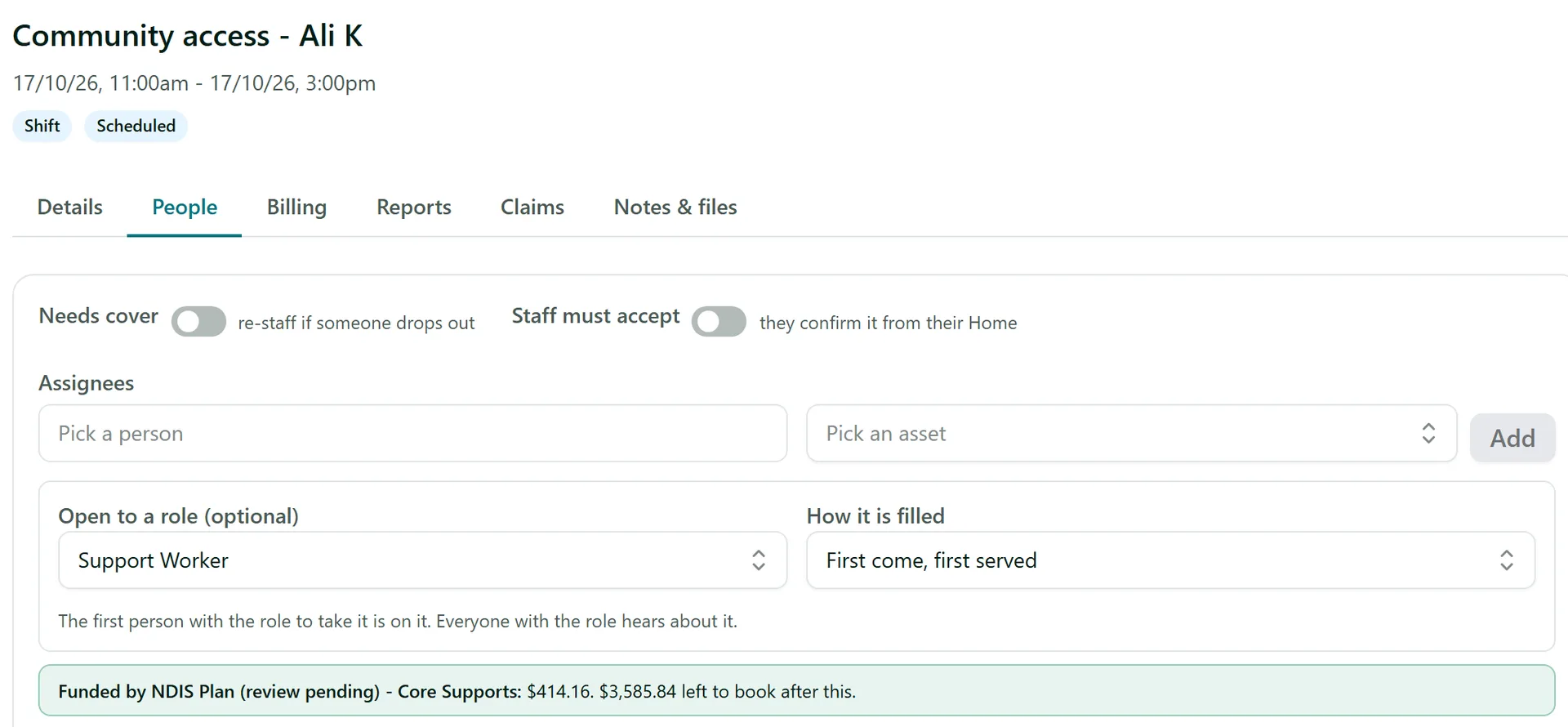
Open the shift and go to its People tab. Under Open to a role (optional), pick the role that can do the work (for example Support Worker), then choose How it is filled:
- First come, first served - the first person with the role to tap Take it is on the shift.
- People apply, you choose - people tap Apply, the applicants are listed on this tab, and you pick who gets it.
Save the shift. Everyone with that role is told, and the shift appears under Open shifts in their staff app. On a repeating shift, taking it takes every week from then on. AirSign still checks the person's documents when they take it, exactly as if you had rostered them yourself.
Step 2: Mark which shifts need cover
Switch on Needs cover on a shift's People tab when it must be re-staffed if someone drops out. If most of your shifts are like that, an admin can make it the default under Settings > Scheduling > Cover (New shifts need cover by default), and set the Cover lead time (hours) - a gap closer than that is treated as urgent.
Step 3: See who has dropped out
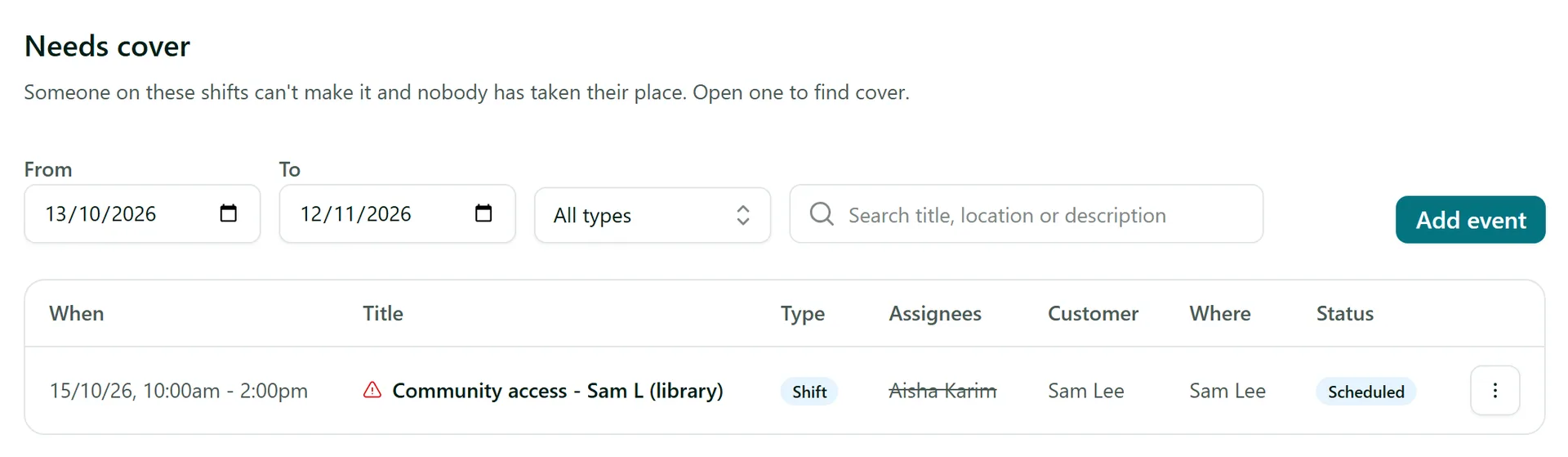
When someone taps Can't make it in their staff app (or you record it for them), you get a notification and the shift appears under Needs cover, with a red warning icon. The person who dropped out stays on the shift, crossed out, so you can see what happened.
Step 4: Find cover
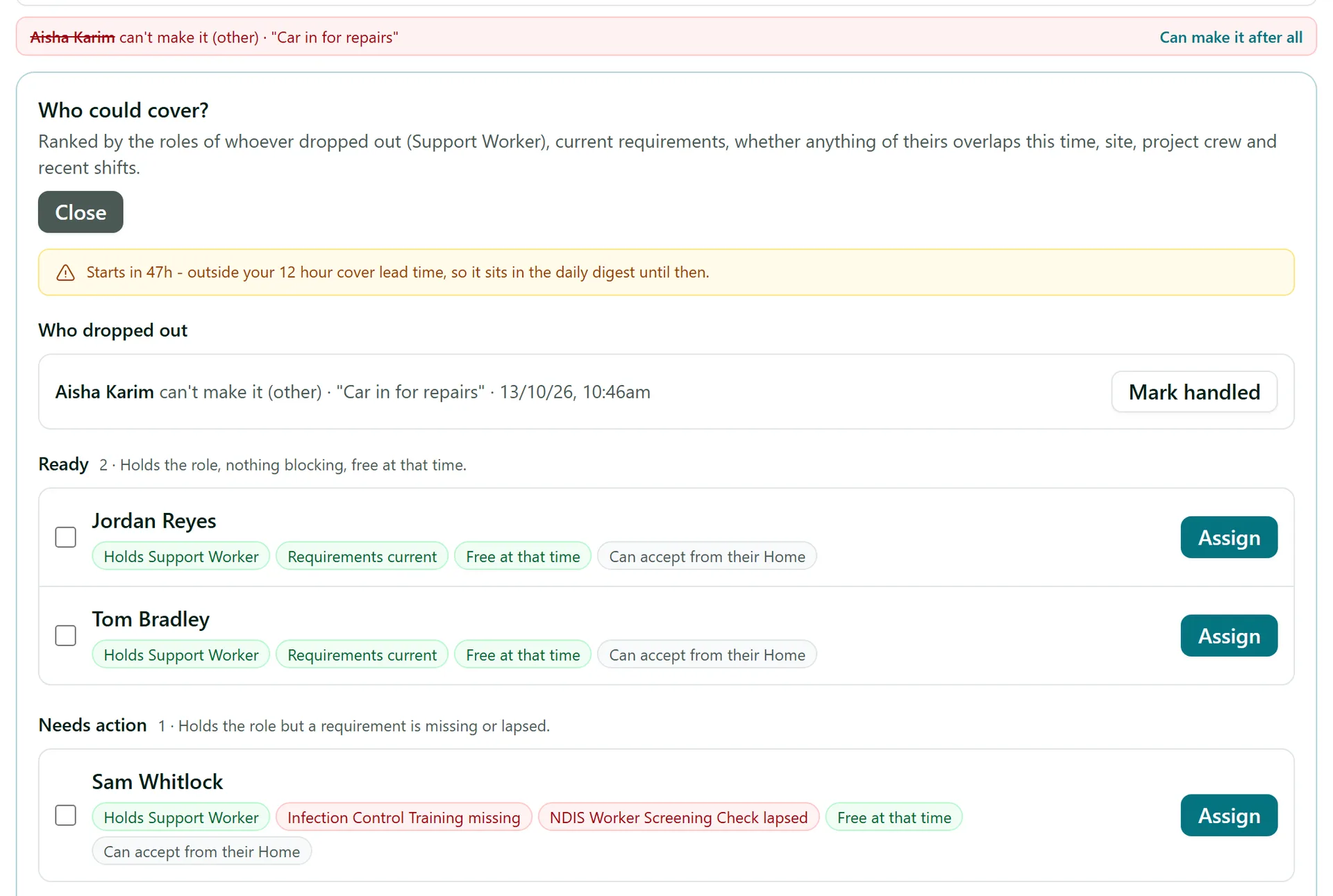
Open the shift and click Find cover. AirSign lists who dropped out and why, then ranks everyone else into groups: Ready (holds the role, nothing blocking, free at that time), Needs action (holds the role but a document is missing or lapsed), Could stretch (does not hold the role on file) and Unavailable (on leave or on another shift). The chips under each name say why. Then either:
- Tick one or more people and click Offer to selected - the first to accept from their phone takes the shift, and the other offers are withdrawn.
- Click Assign to put someone straight on it (the only option for people without the staff app).
- Click Mark handled if you sorted it out another way.
If the person can make it after all, click Can make it after all next to their name to put them back on.
Step 5: Your staff accept it
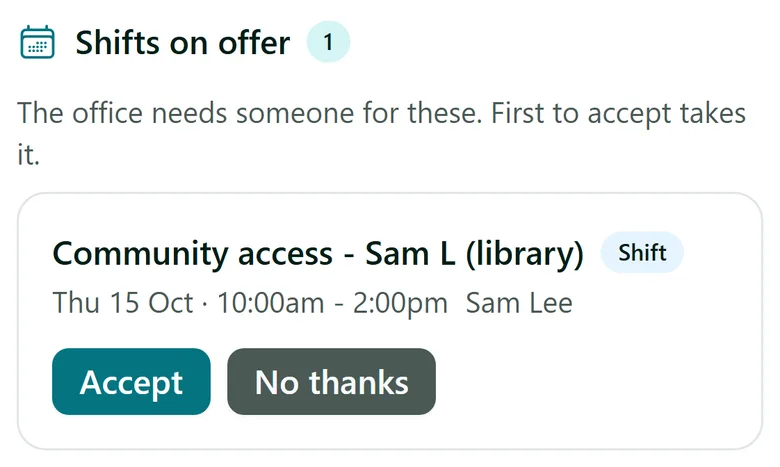
An offered shift shows under Shifts on offer in the staff app, with Accept and No thanks. When someone accepts, they are on the shift, the gap closes and you are told.
Tips
- A shift that is not marked Needs cover still records the drop-out, but nobody is chased - you can still click Find cover anyway.
- Uncovered shifts outside the lead time are rounded up in a daily reminder; inside it, the notification is marked urgent.
- Shift cover events can start a workflow in AirSign Automate - for example, text your casual pool when an urgent shift needs cover.
Need More Help?
Related guides: Rostering Shifts, Managing Leave, The Staff App. See our FAQ section or email support at [email protected].