Project Templates
A project template is a design you build again and again, such as a single storey home or a granny flat, with everything prefilled: the stages with their length and progress-claim share, and the crew each stage needs. New projects copy a template, so they start fully set up. Editing a template never changes projects already created from it.
Where to find it
Step 1: Browse your templates
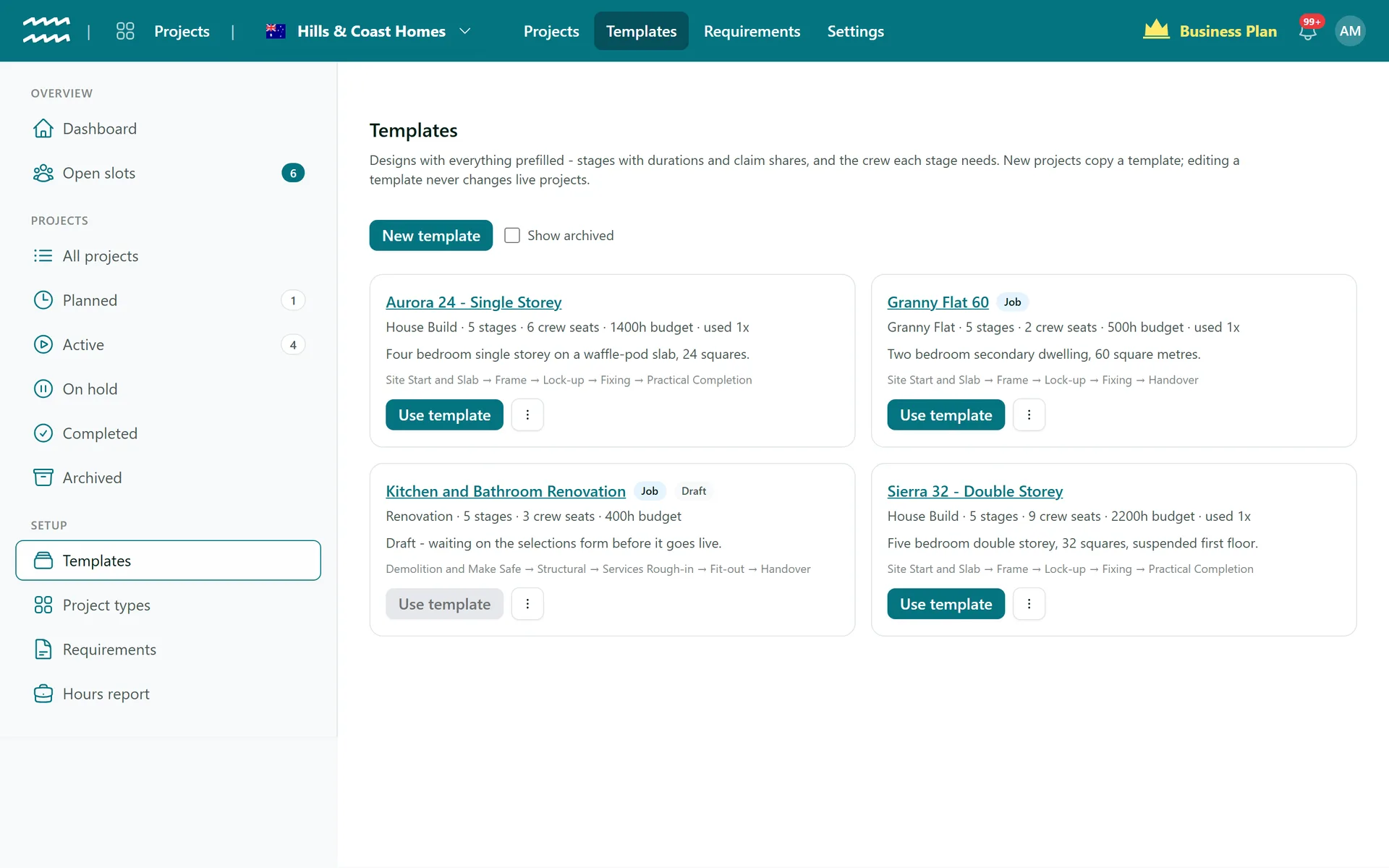
Each card shows the project type, the number of stages and crew seats, the budget hours, how many projects have used it and the stages in order. Click Use template to start a new project from it, or click the name to open it. The card's menu has Edit, Duplicate, Archive (or Restore) and Delete. Tick Show archived to see retired templates.
Step 2: Set up the template
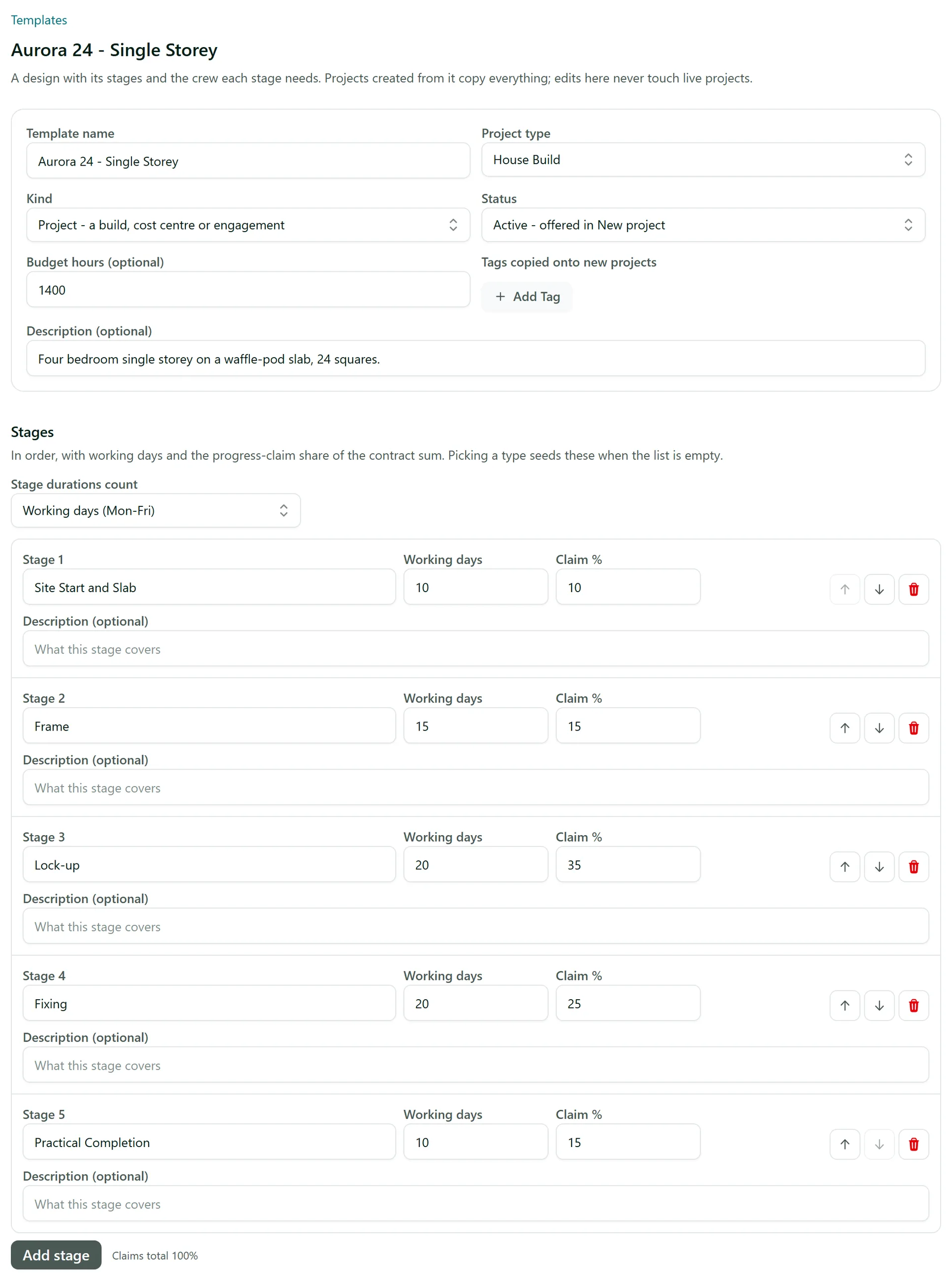
Click New template (or open one to edit it). Give it a Template name, a Project type, the Kind (project or job), optional Budget hours, Tags copied onto new projects and a description. Set Status to Active to offer it in New project, or keep it as Draft while you are still writing it.
Step 3: Add the stages
Under Stages, list the stages in order with the number of days each takes and its Claim % - the share of the contract sum claimed at that stage. Choose whether Stage durations count working days (Mon-Fri) or calendar days. Use the arrows to reorder and the bin to remove a stage. AirSign shows the claims total and warns when it does not add up to 100%. If the list is empty, picking a project type fills in that type's standard stages for you.
Step 4: Add the crew slots
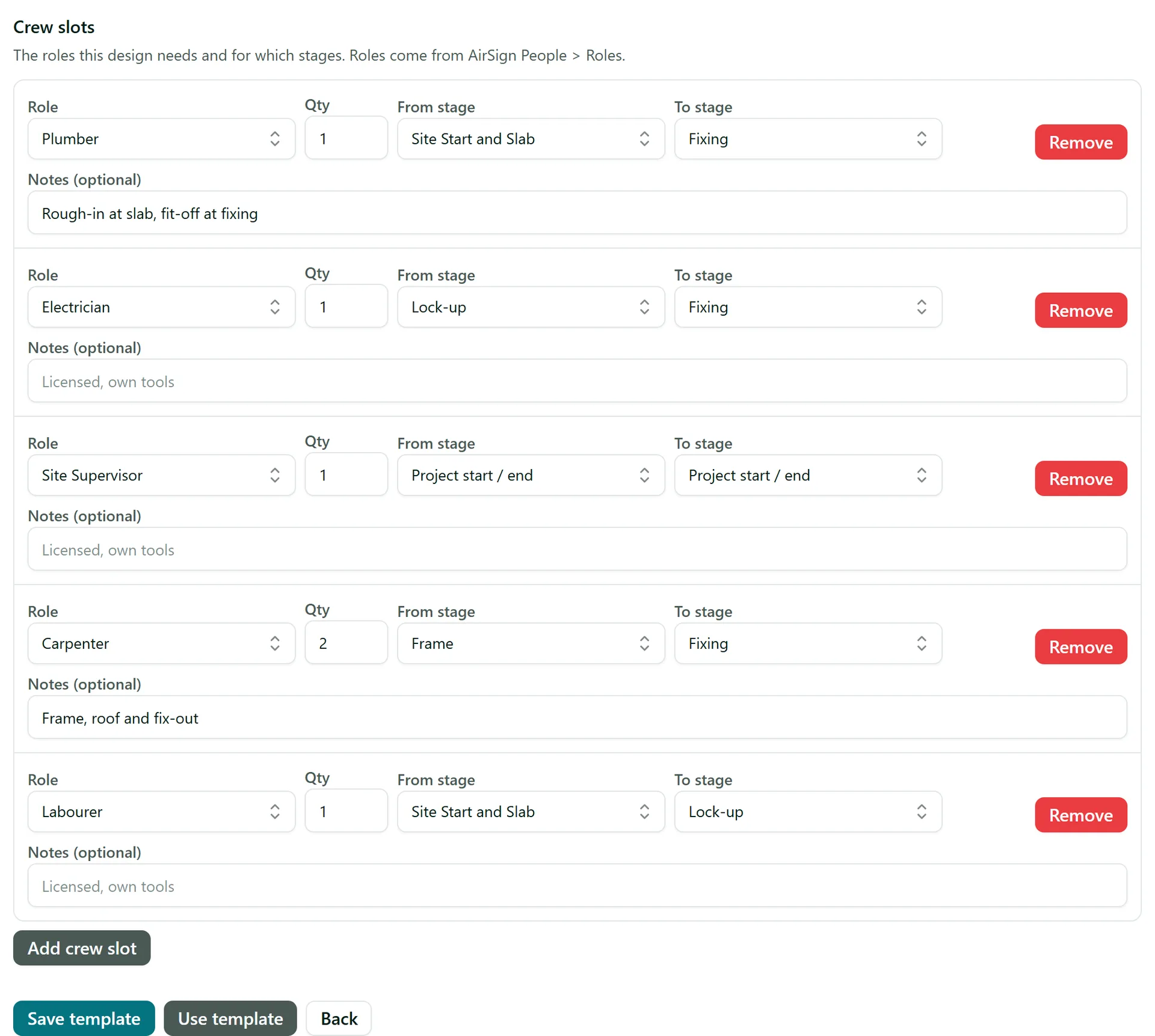
Under Crew slots, click Add crew slot for each role the design needs. Pick the Role, the Qty, and the From stage and To stage they are needed for (for example a plumber from slab to fixing), or Project start / end for the whole job. Add notes such as "Licensed, own tools". Click Save template when you are done.
Step 5: Save a finished project as a template
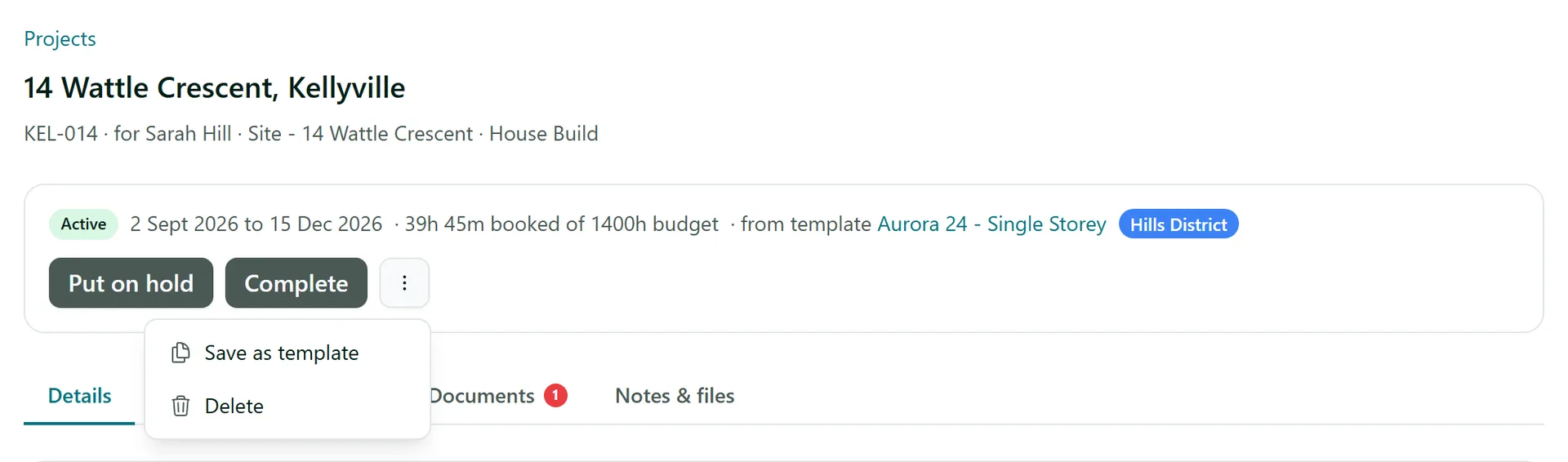
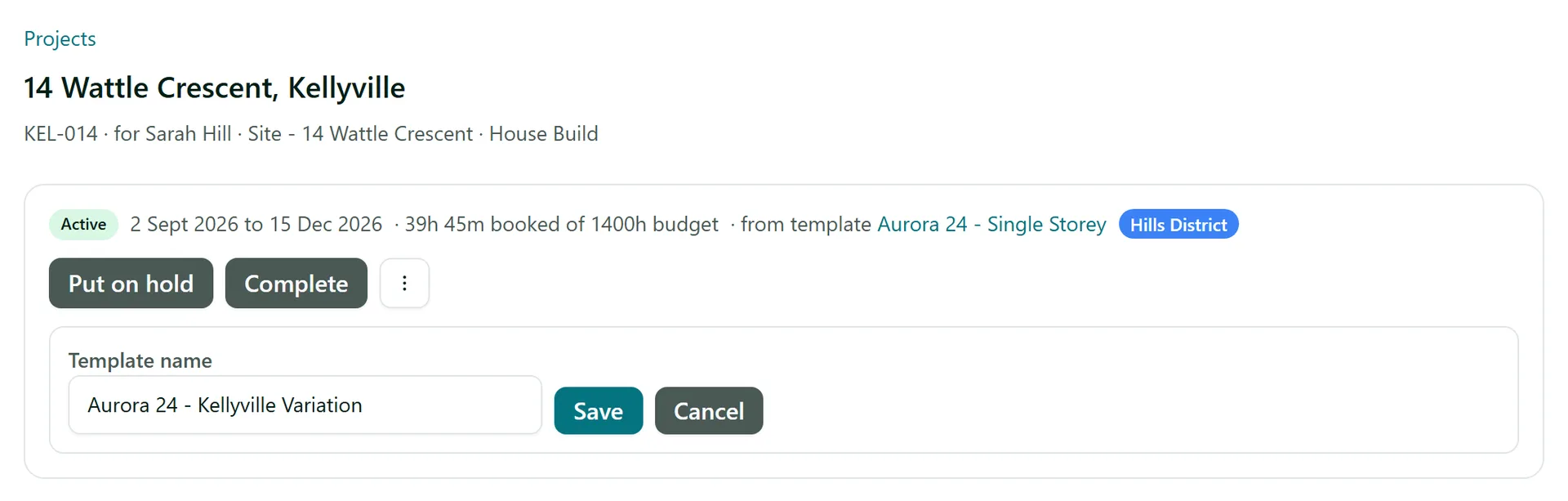
The quickest way to build a template is from a project that went well. Open the project, click the ellipsis menu in its header and choose Save as template.
Enter a Template name and click Save. AirSign copies the project's stages and crew slots into a new template and opens it so you can tidy it up.
Tips
- Project types (under Setup) hold a standard stage list for each kind of build. New templates of that type start from it, and requirements can be set per type.
- Duplicate a template to make a variation, such as a mirrored floor plan, without starting again.
- A template that projects were created from cannot be deleted - archive it to hide it from New project instead.
- Roles for crew slots come from AirSign People, so set those up first.
Need More Help?
Related guides: Creating a Project, Running Stages and Crew. See our FAQ section or email support at [email protected].