Running Stages and Crew
Once a project exists, its Stages tab is the build programme and its Crew tab is who you need on site and who you have. AirSign ranks who could fill each open seat, sends any missing paperwork when you assign someone, and can roster a whole stage into AirSign Schedule in one step.
Where to find it
Step 1: Work through the stages
The Stages tab lists the stages in order with their length, planned dates and progress-claim share. Click Start on the next stage when work begins and Complete when it is done - completing a stage starts the next one, and the actual dates you record move the planned dates of the later stages. The ellipsis menu on each stage has Edit, Skip, Reset (to undo a mistaken Start or Complete), Move up, Move down and Delete. Use Add stage to add one with a name, length in days, claim % and description.
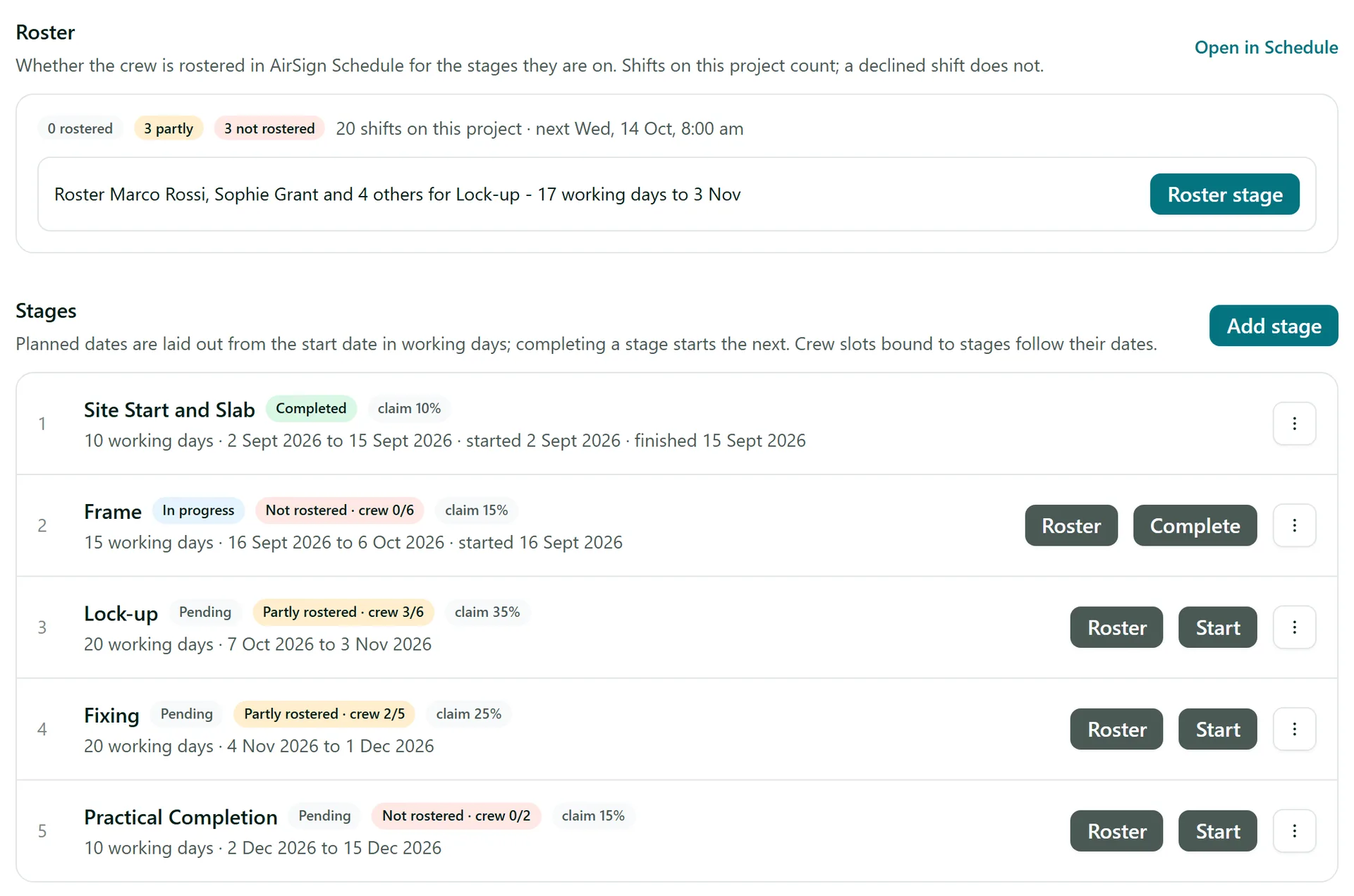
Step 2: Check the crew slots
On the Crew tab, Crew slots are what the project needs: a role, how many, and the stages they are needed for (for example two carpenters from Frame to Fixing). Each slot shows how many seats are filled and the dates it covers, which follow the stage dates. Click Add slot to add one, or use the slot's menu to Edit or Delete it. Roles come from AirSign People.
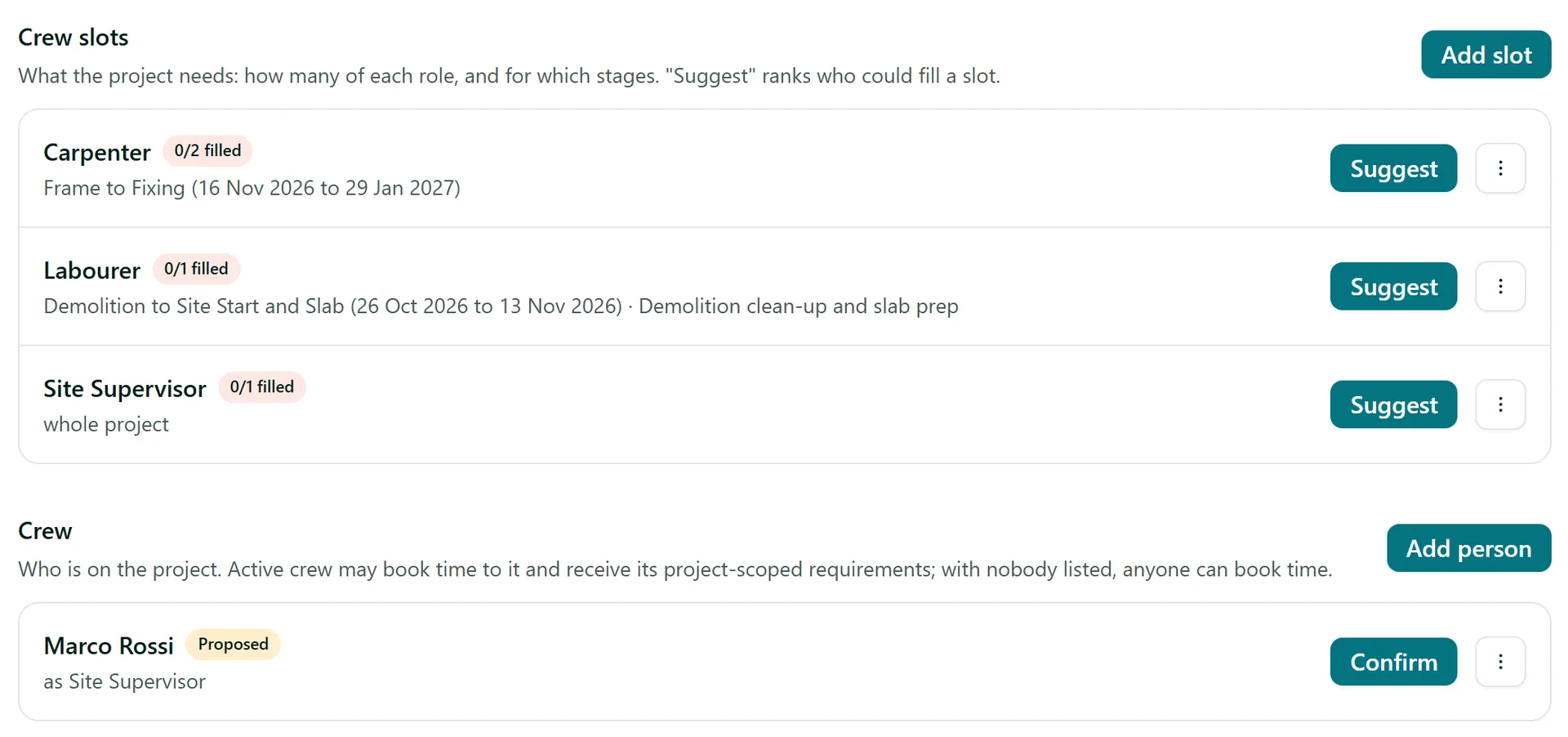
Step 3: Fill a slot with Suggest
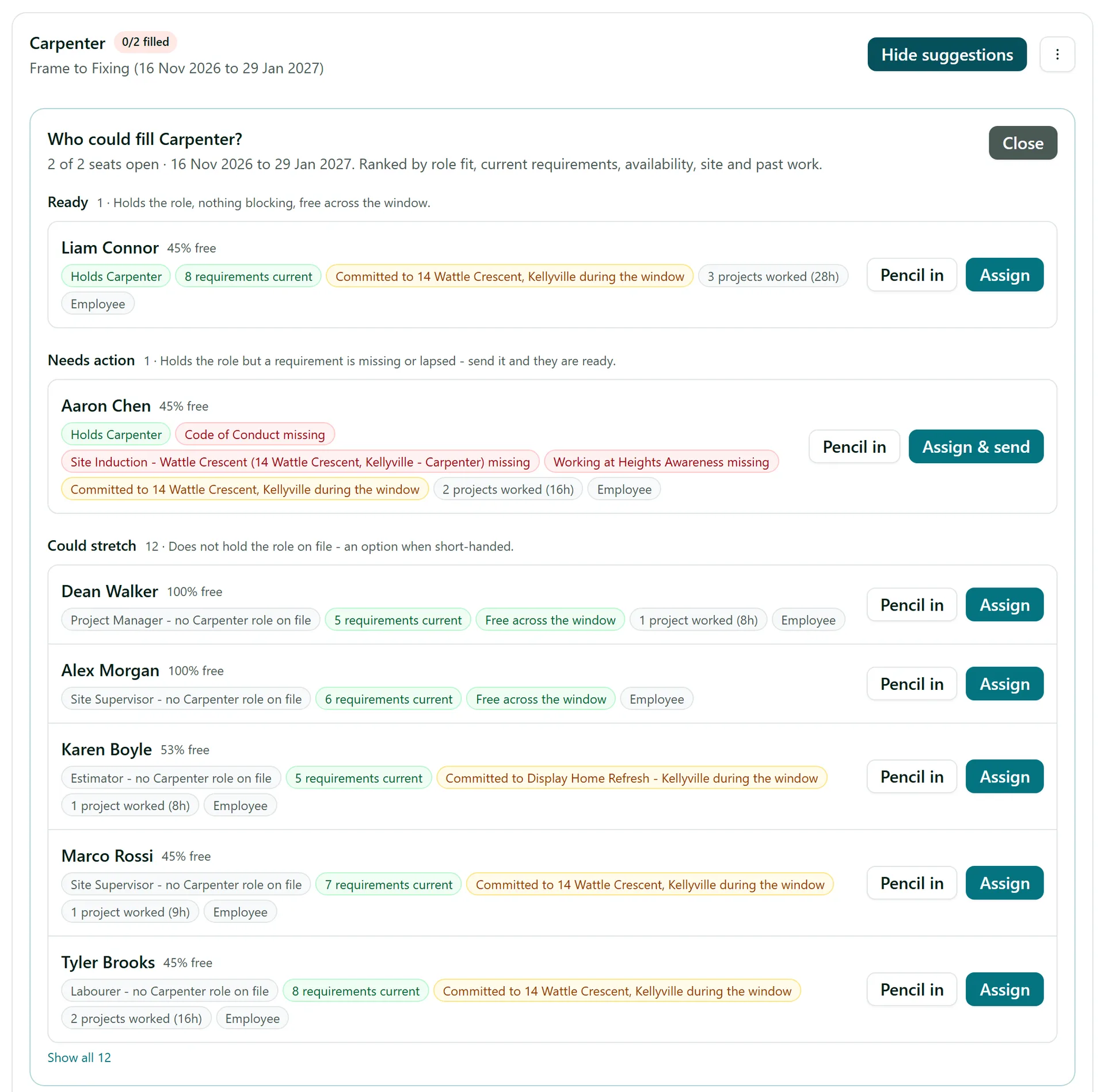
Click Suggest on a slot to see who could fill it, ranked by role fit, current requirements, availability, site and past work. People are grouped as:
- Ready - holds the role, nothing blocking, free across the window.
- Needs action - holds the role but a requirement (like a site induction or a ticket) is missing or lapsed.
- Could stretch - does not hold the role on file, an option when you are short-handed.
- Unavailable - on leave or committed elsewhere for most of the window.
The coloured chips explain each ranking, such as a clash with another project or a missing induction. Click Assign to put someone on the crew, or Assign & send when they have something missing - AirSign sends them what they need. Pencil in adds them as Proposed, with no paperwork sent until you click Confirm in the crew list.
You can also click Add person under Crew to add someone directly, with or without a slot. A crew member's menu has End, Re-add and Remove.
Step 4: Roster a stage
If you also use AirSign Schedule, the Roster card at the top of the Stages tab compares the crew with the shifts actually rostered on this project, and recommends stages under way or starting in the next fortnight that still need rostering. Click Roster stage on a recommendation (or Roster on a stage row). Set the Shift title, Start and Finish times and the Days, tick the crew, then click Roster.
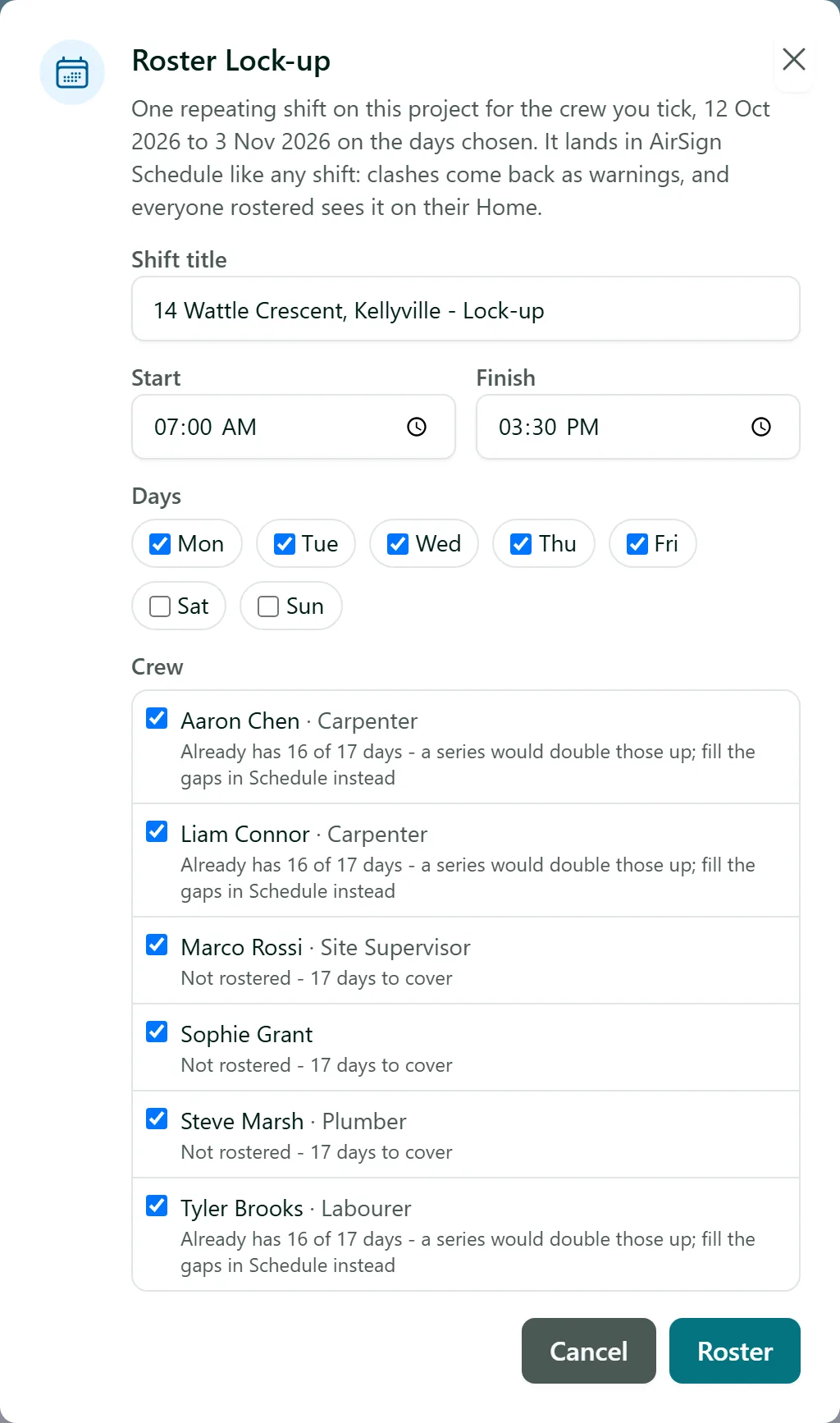
AirSign creates one repeating shift over the stage's dates in AirSign Schedule, and everyone rostered sees it on their Home. Clashes come back as warnings. Anyone who already has some of those days rostered is flagged, because a series would double them up - fill their gaps in Schedule instead. Open in Schedule shows the project's shifts on the calendar.
Tips
- The Dashboard shows open crew slots and stages without a roster across every project, so you can see what needs staffing at a glance.
- Assigning someone to the crew sends any requirement scoped to that project, such as a site induction, straight away.
- Pencil people in while you are still planning - proposed crew carry no obligations until you confirm them.
- Active crew can book time to the project in AirSign Timesheets. With nobody on the crew, anyone can book time to it.
Need More Help?
Related guides: Creating a Project, Project Documents and Hours, Project Templates. See our FAQ section or email support at [email protected].