Inviting Staff to AirSign
Staff do not need a login for you to send them documents - every email link works on its own. But once they have their own AirSign account connected to your organisation, they get a Home on their phone with everything you send them in one place: documents to sign, forms, training, their requirements, shifts and timesheets. This guide shows how a person gets that login and how you check who is connected.
Where to find it
Step 1: Make sure they are on your books with the right email
Add the person in AirSign People with the email address they will sign in with, and give them an employment (see Adding People). AirSign matches their account to their record by this email, so check it is correct. A connection is only offered when your organisation has something for them - work, requirements, training, forms, shifts or a class - so a person with nothing to do is never asked.
Step 2: Ask them to create their AirSign account
There is no separate invite to send. Ask the person to sign up for AirSign with that same email address and verify it. The training and form emails AirSign sends already end with a link to create an account with their email filled in. When they sign up with an email you have on file, AirSign offers to join your organisation instead of creating their own, so they skip the business set-up.
Step 3: They connect to your organisation
After signing in with a verified email, they see An organisation has you on their books listing your organisation and how they are listed. They select Connect. If they choose Not now, the same offer stays on their Home so they can connect later. Students can also join a class with its join code here.
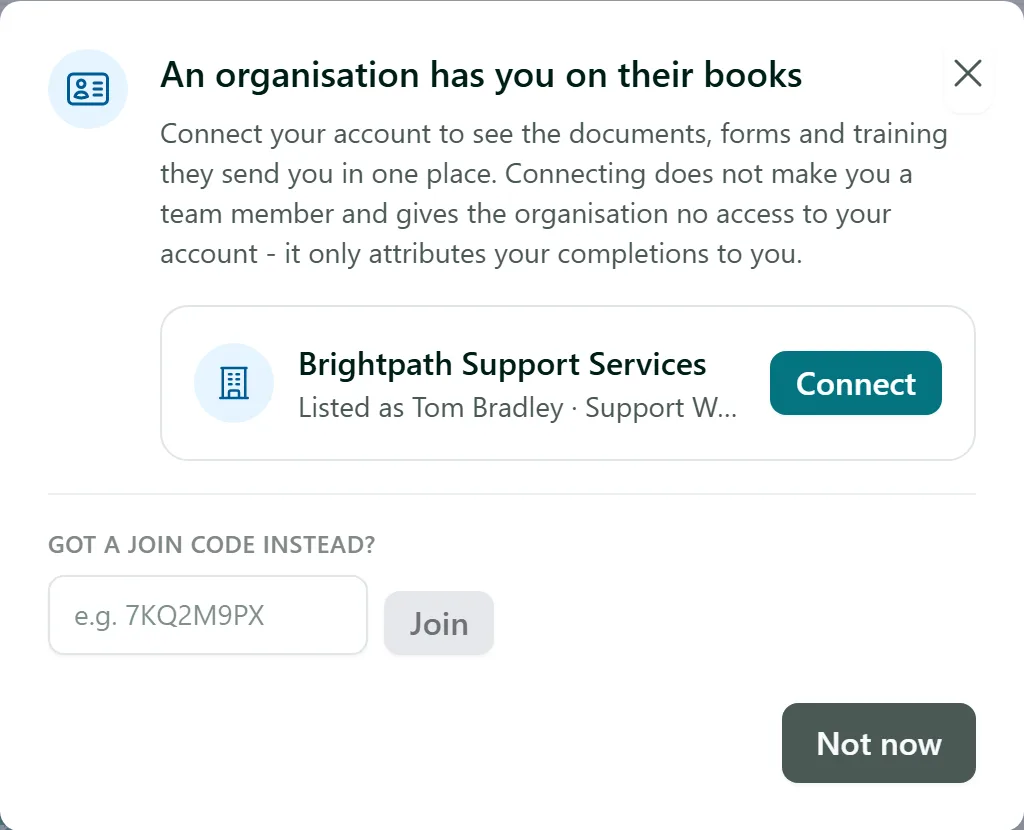
Connecting does not make them a member of your team and gives your organisation no access to their account - it only links their work to them. Your organisation's admins get a notification in the bell when someone connects.
Step 4: They use their Home
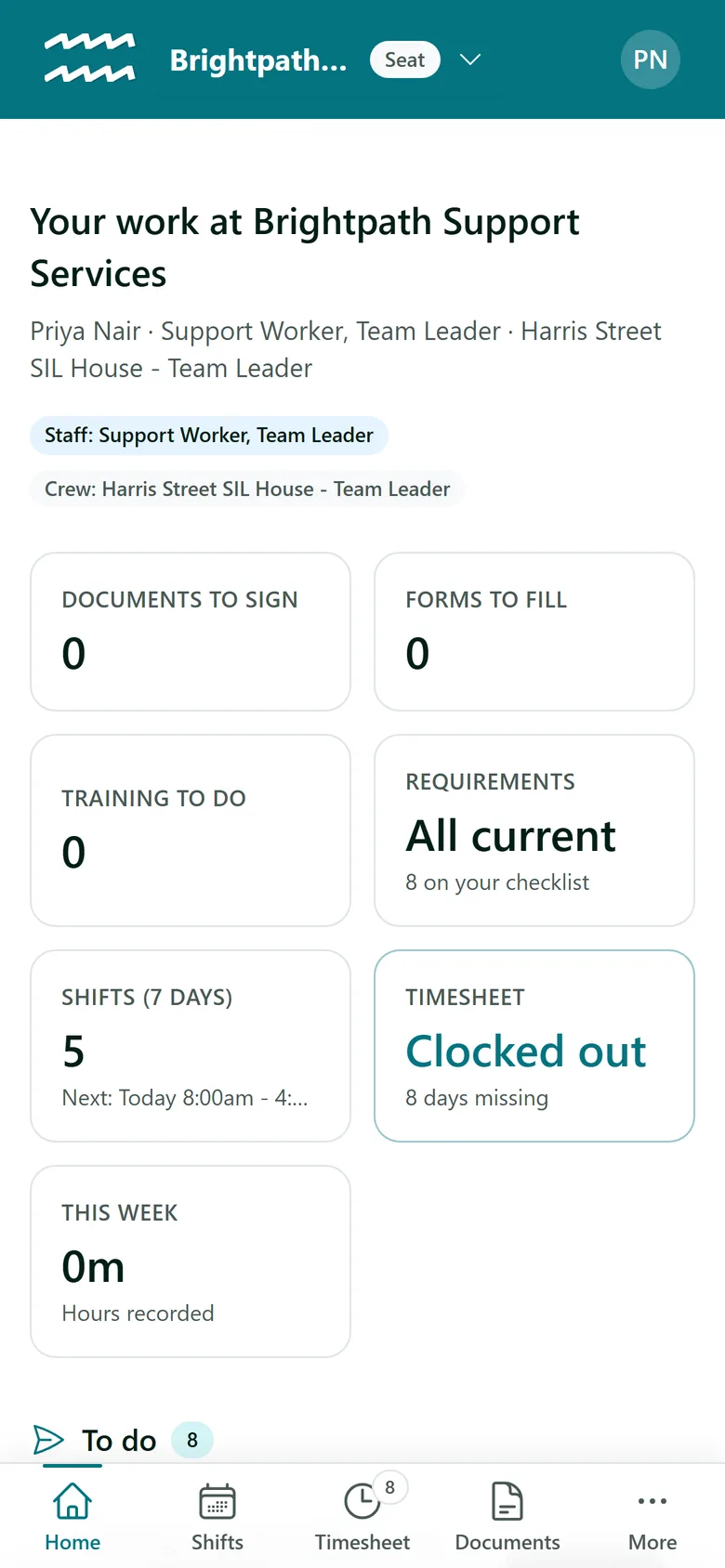
From then on, signing in takes them to their Home for your organisation. It shows their roles, then a tile for each kind of work - documents to sign, forms to fill, training to do, requirements, shifts and timesheet - and a To do list. On a phone the tabs sit along the bottom. Shifts and timesheets only appear for people who work for you.
Step 5: Check who is connected
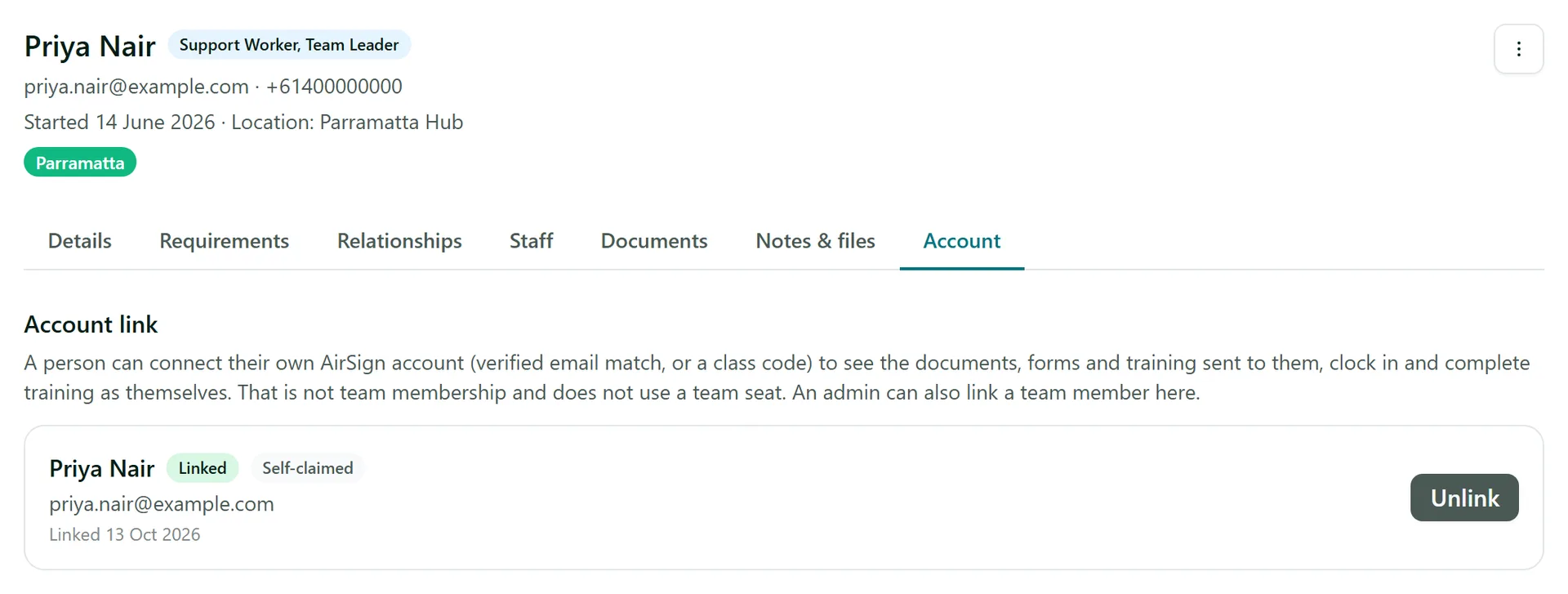
Open the person and go to the Account tab. A connected person shows Linked with how the link was made (for example Self-claimed) and the date. While linked, their email follows their AirSign account, so it can no longer be edited on the person. Select Unlink to remove the connection.
Step 6: Office staff who also need to manage AirSign
Someone who needs to send documents or manage your apps should be invited to your team instead (see Team Access and SSO). When a team member's email matches a person, they are linked automatically, and their own work appears under My work on the Apps home. An admin can also link an existing team member from the person's Account tab by choosing them under Team member and selecting Link.
Tips
- Spelling matters - a person can only connect if the email on their record matches the one they sign up with.
- Nothing waiting for them yet? Add their employment (or send them training or a form), and the connection offer appears the next time they sign in. A document to sign on its own does not trigger it - that reaches them through the email link.
- A person can be connected to several organisations with one AirSign account and switch between them.
Need More Help?
Related guides: Adding People, Person Records and Documents, Team Access and SSO. See our FAQ section or email support at [email protected].