Project hours tracking against the budget you set
Your crew book time to a job when they clock in, and the Hours report adds it up per project, net of breaks. Set budget hours on a job and it gets flagged once it goes over.
Book a demoPart of the AirSign suite - one plan, every app.
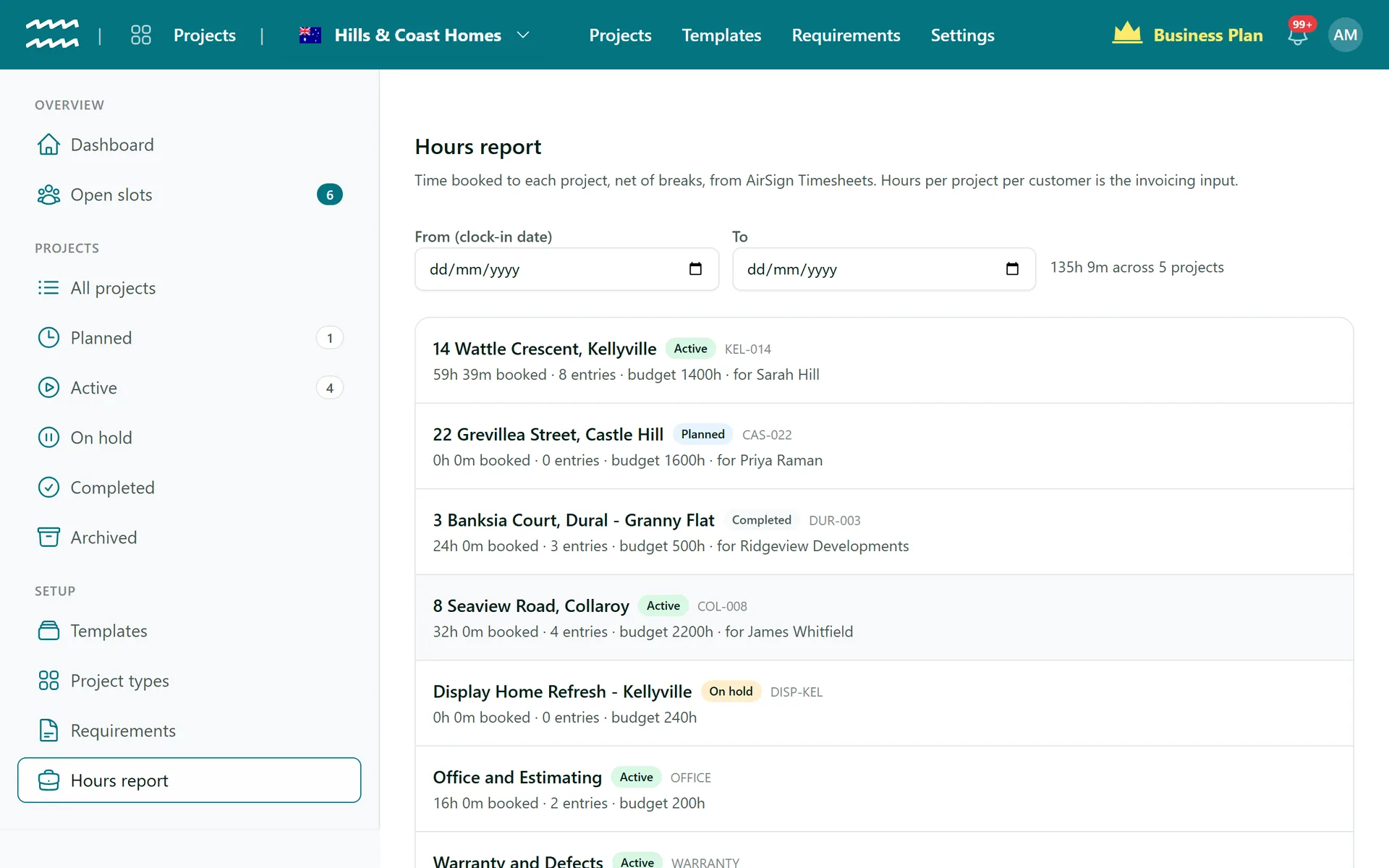
Hours that come from timesheets, not guesswork
Booked at clock-in
Staff clock in from their Home against a project, or add hours for a day they missed.
Net of breaks
The report counts time worked, so breaks do not inflate a job's total.
Budget hours
Give a job a budget and it shows on the report and at the top of the job.
Over budget flag
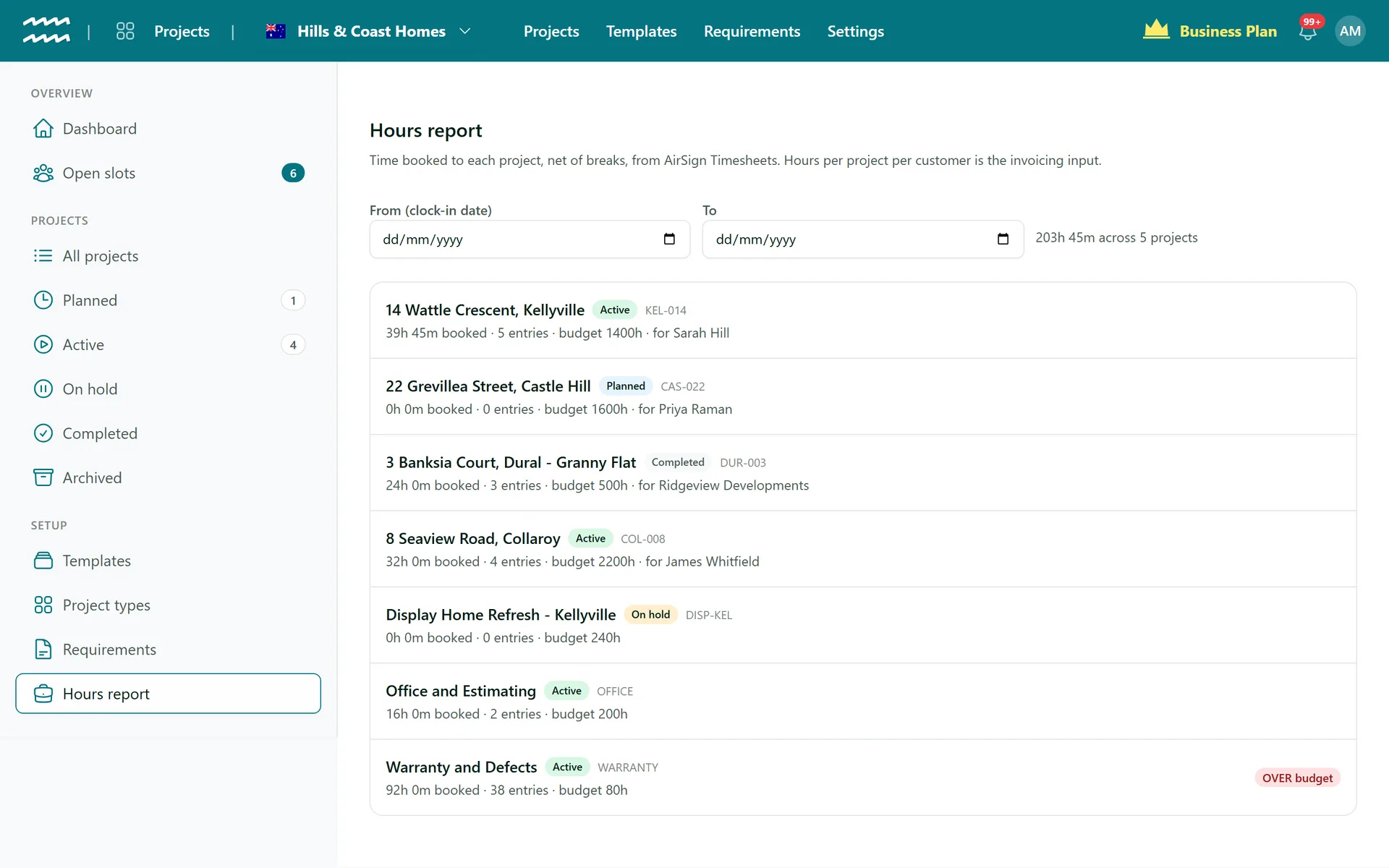
A job past its budget gets an OVER budget badge on the report.
Any date range
Filter by clock-in date to see a week, a month or the job to date.
Crew only, if you want
Once a job has a crew, only they can book to it. A job with no crew is open to anyone.
How to track hours against a job
- 1
Set the budget
Enter Budget hours when you create the job, or on its Details tab.
- 2
Book the time
Staff clock in from their Timesheet page on Home and choose the job.
- 3
Open the report
Go to Hours report in the Projects menu.
- 4
Set your dates
Use From and To, or leave them blank for all time.
- 5
Open the job
Click any row to go straight to that job.
Spot a job that has run over
Each row shows the hours booked, the number of entries, the budget and the customer. Anything over gets called out.
- Total hours across the period at the top
- Completed and archived jobs stay on the report
- A job with no budget still shows its hours
Project Hours Tracking FAQs
No. The report is per project. Hours are booked to the job, not to a stage.
No. It reports hours only, so there are no pay rates, costs or margins on it.
No. It counts every entry that has not been archived, including ones not yet approved in AirSign Timesheets.
No. The badge appears once booked hours pass the budget, and no alert or email is sent.
No, there is no export on this report.
Not from this report. Invoicing lives in AirSign CRM, so use the hours as your reference.
AirSign Projects is part of the AirSign suite - one plan, every app. Book a demo and we will walk you through it.
Staff every job with the right people
Book a demo and we will build your first project template with you.