Sending Training and Running Classes
In AirSign you do not send a module on its own - you make it a requirement. A training requirement says who must complete which module (every Support Worker, everyone in a class, a type of customer), so AirSign knows who is missing it, sends it out and chases it when it is due again. This guide covers assigning training, sending it, running a class and what the trainee sees.
Where to find it
Step 1: Make the module a requirement
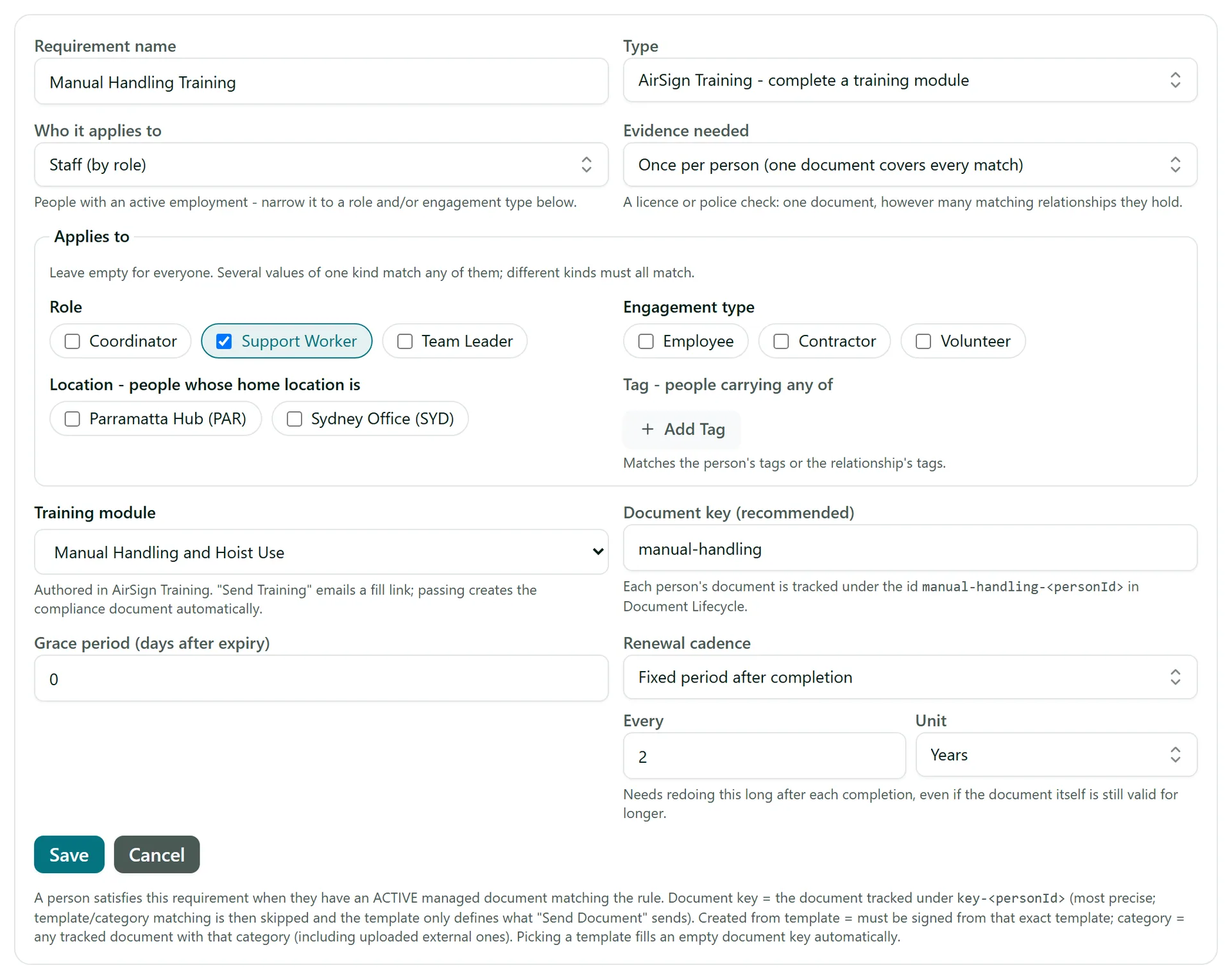
In AirSign People, open Requirements and press Add requirement. Set Type to AirSign Training - complete a training module and pick the Training module (only active modules are listed). Then choose Who it applies to:
- Staff (by role) - narrow it under Applies to to roles, engagement types, locations or tags.
- Students (by class) - pick the classes it applies to (leave empty for every class).
- Customer contacts (by customer type) or Anyone on the books.
Set a Renewal cadence if the training must be redone (for example every 2 years), then Save. New people who match the rule are sent the module automatically when they are added to a role or class.
Step 2: Send training to one person
Open the person in AirSign People and go to their Requirements tab. A training requirement they have not completed shows as Missing with a Send Training button. Press it and they are emailed a link to the module. Once it is out, the row shows when it was sent and the button becomes Send again to remind them with the same link. To send a requirement to everyone who is missing it at once, use Send to everyone missing on the Requirements list.

Step 3: Run a class
A class is a group trained together - an intake, an apprentice year, an induction group. In AirSign Training go to Classes, press Add class and give it a name and optional dates. Each class gets a Class code. On the class page you can:
- Enrol people - pick an Existing person or add a New person on the spot. Enrolling sends them the training their class requires automatically.
- Share the class code, or copy the join link, so students can join themselves from their Home.
- Under Send training to the class, pick a Training requirement and press Send to ... enrolled - everyone still missing it gets a link.
- See each student's result in the Class matrix further down the page.
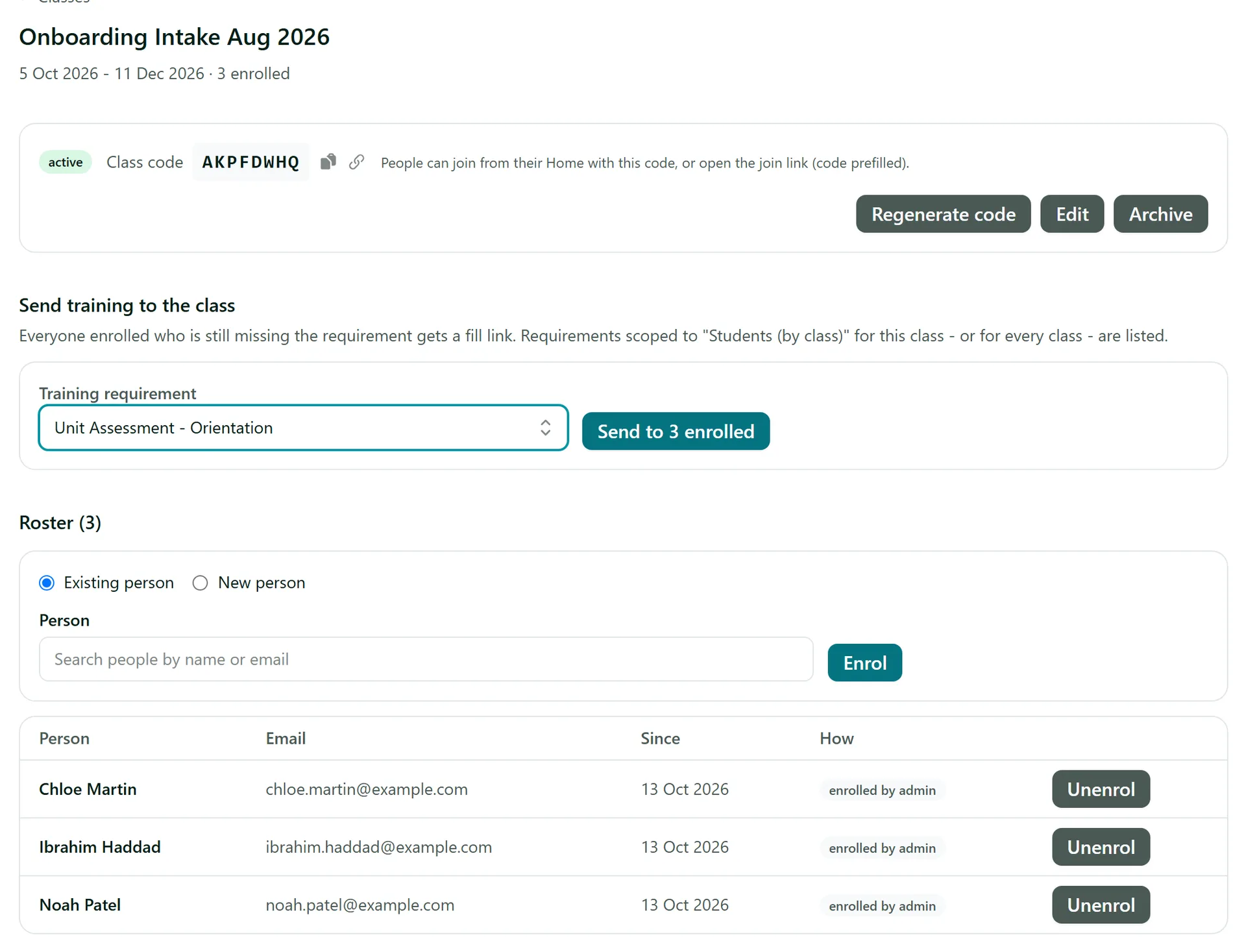
Regenerate code issues a new code when the old one has been shared too widely - the old code stops working straight away. Unenrol removes someone from the class but keeps their completed training on their record.
Step 4: What the trainee sees
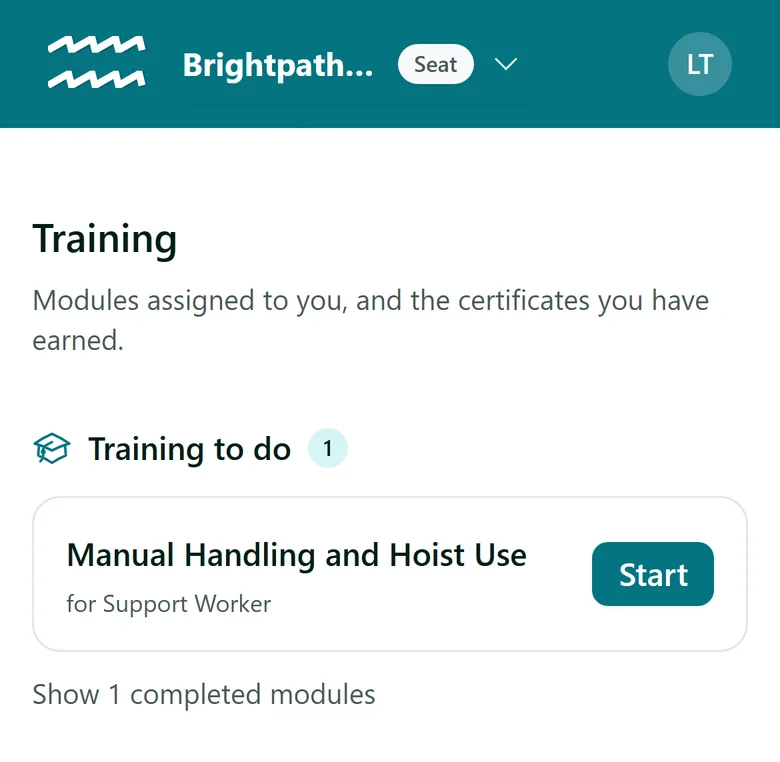
Your own staff and students find their training on their AirSign Home, on a phone or a computer. The Training to do tile opens the list of modules assigned to them, each with a Start button (or Continue if they have already begun - progress is saved as they go).
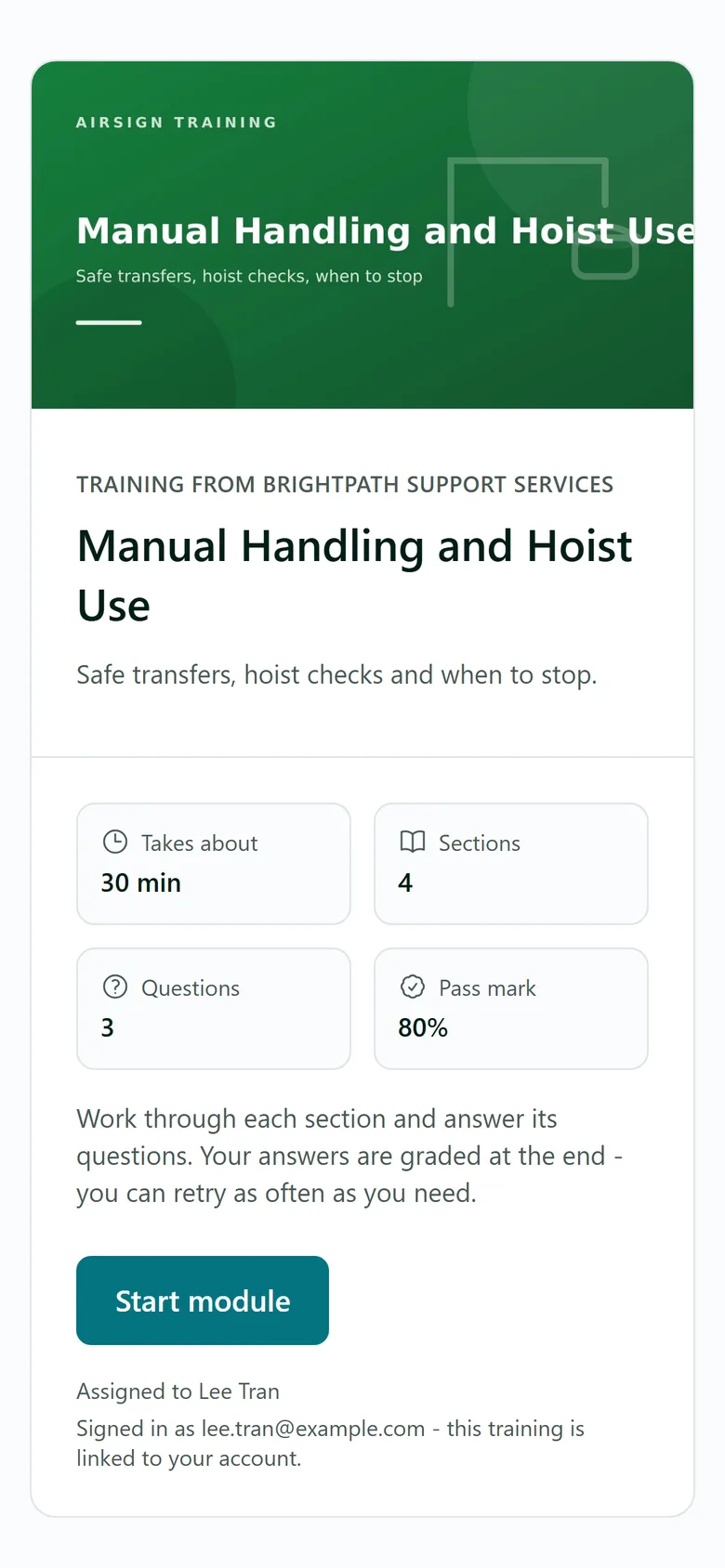
The module opens on an intro screen showing how long it takes, the number of sections and questions, and the pass mark. They press Start module, work through each section with Next section, then Submit answers. If they pass, the completion is recorded on their file straight away and they can Download your certificate. If they do not reach the pass mark, they see which answers were wrong and can try again from the start (up to the module's maximum attempts, if one is set).
Tips
- Customers and other people outside your team can complete training from the emailed link without an account, unless the module is set to require a signed-in account.
- When a completion is due to expire, AirSign re-sends the module automatically - refresher training runs itself.
- Your organisation can rename "Class" and "Student" (for example to Course and Participant) under Settings > Terminology.
Need More Help?
Related guides: Creating a Training Module, Training Matrix and Certificates. See our FAQ section or email support at [email protected].