Creating a Training Module
A training module is a short online course your staff, students or customers work through and pass: an induction, a manual handling refresher, a code of conduct. You build it once from sections of content and quizzes, and every completion lands on the person's record as a compliance document, with an optional numbered certificate.
Where to find it
Step 1: Start a new module
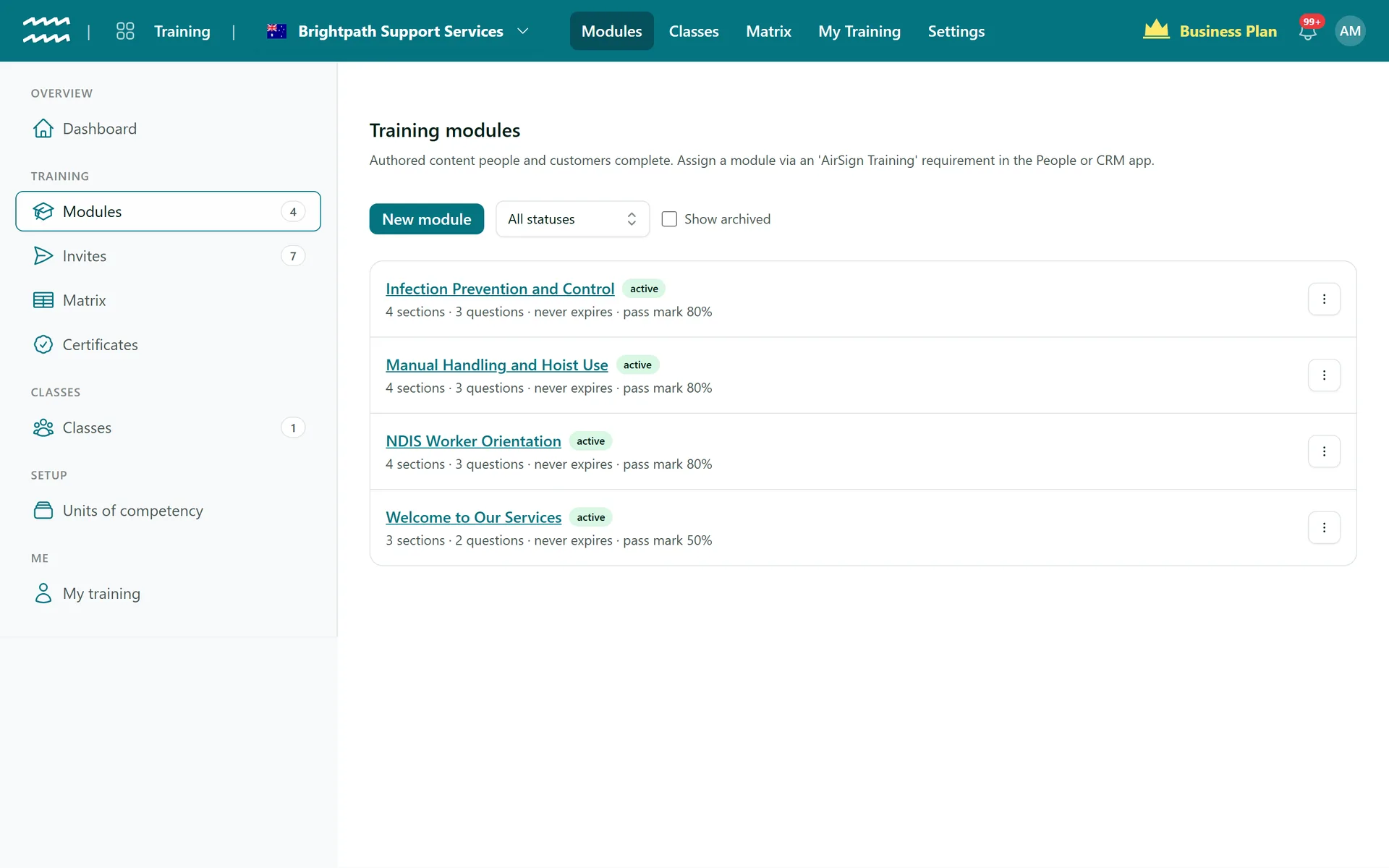
The Modules page lists every module with its section and question count, how long a completion stays valid and its pass mark. Press New module to start one, or use a module's ... menu to Duplicate it as a fresh draft (its quizzes are copied too, so the two stay independent).
Step 2: Fill in the module settings
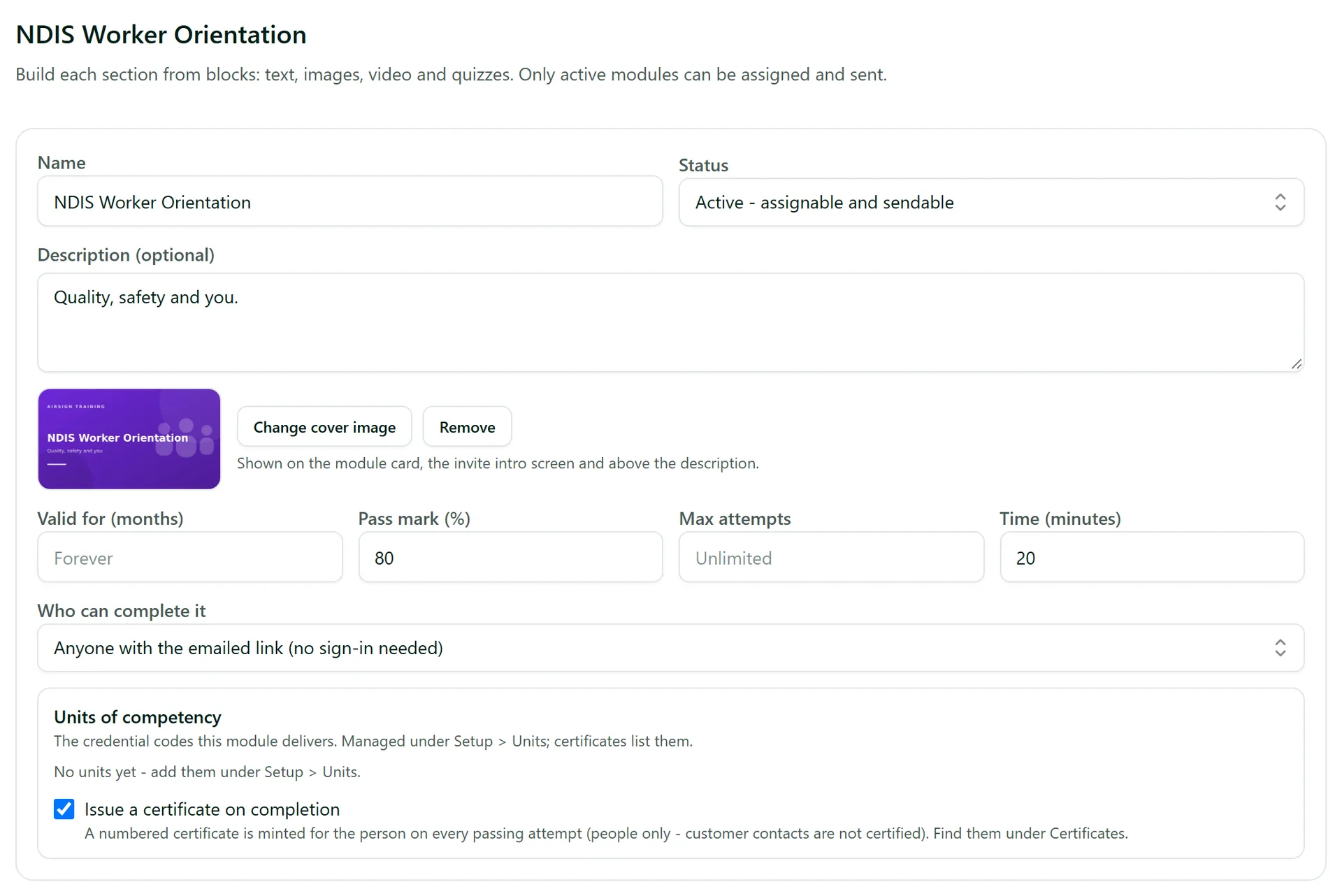
The top card holds the settings for the whole module:
- Name and Description (optional) - trainees see both on the intro screen before they start.
- Status - Draft while you build, Active when it is ready. Only active modules can be assigned and sent.
- Add a cover image - picked from your image library and shown on the intro screen.
- Valid for (months) - leave blank and a completion never expires; set it and AirSign re-sends the module automatically when it is due again.
- Pass mark (%), Max attempts (blank = unlimited) and Time (minutes) (your estimate, shown to trainees).
- Who can complete it - anyone with the emailed link, or only a signed-in, verified account matching the invite email. Your own staff, students and crew always sign in, whatever this is set to.
- Units of competency and Issue a certificate on completion - tick to give everyone who passes a numbered certificate. Units are added under Setup > Units of competency.
Step 3: Add sections and content blocks
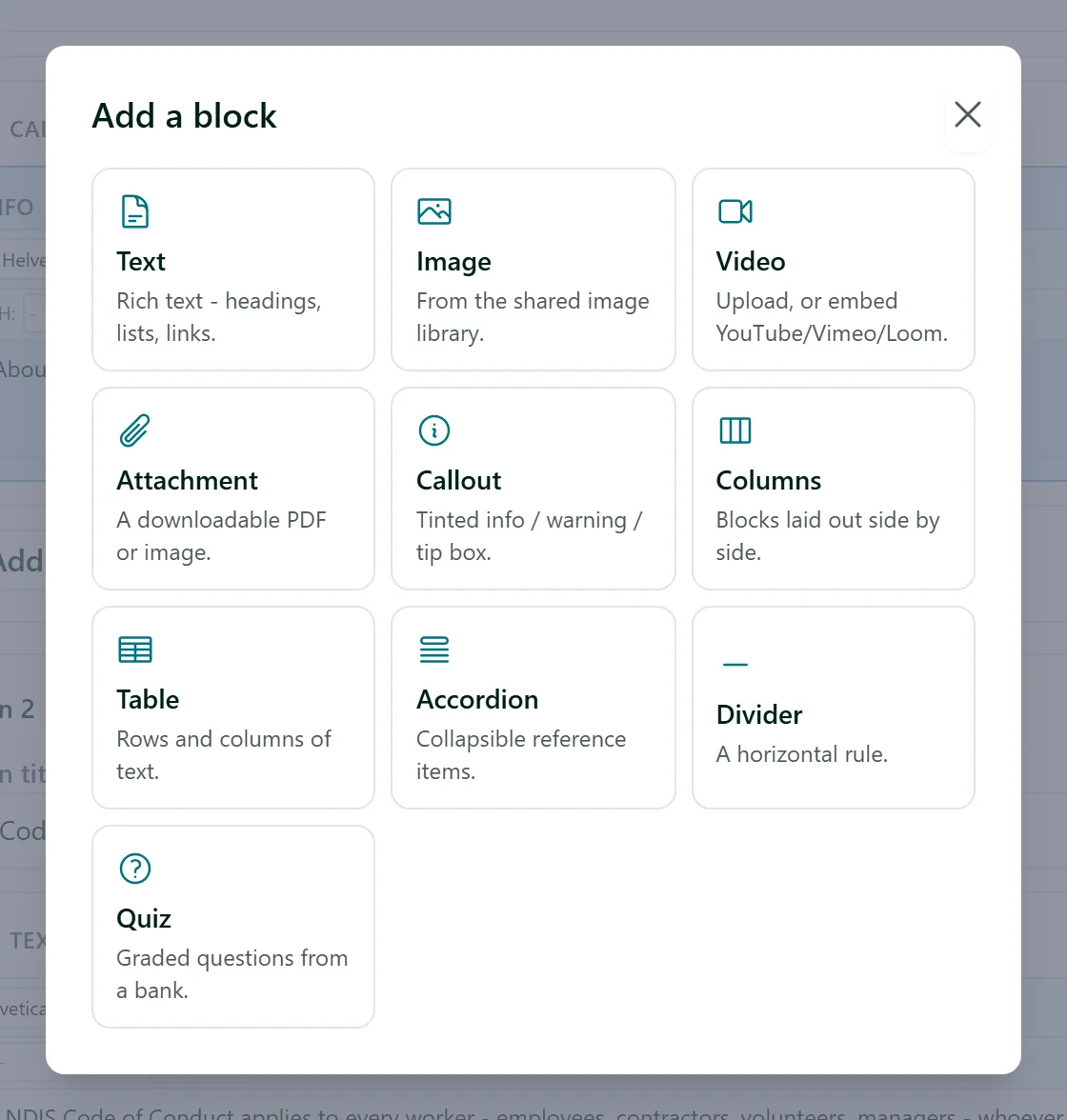
Trainees work through a module one section at a time. Give each section a Section title, then press Add block to add content: Text, Image, Video (upload a file or paste a YouTube, Vimeo or Loom link), Attachment, Callout, Columns, Table, Accordion, Divider or Quiz. Drag blocks by their handle to reorder them, and use the gear icon for a block's settings (for example, a video that must be watched before the trainee can continue). Press Add section at the bottom for the next section.
Step 4: Write the quiz questions
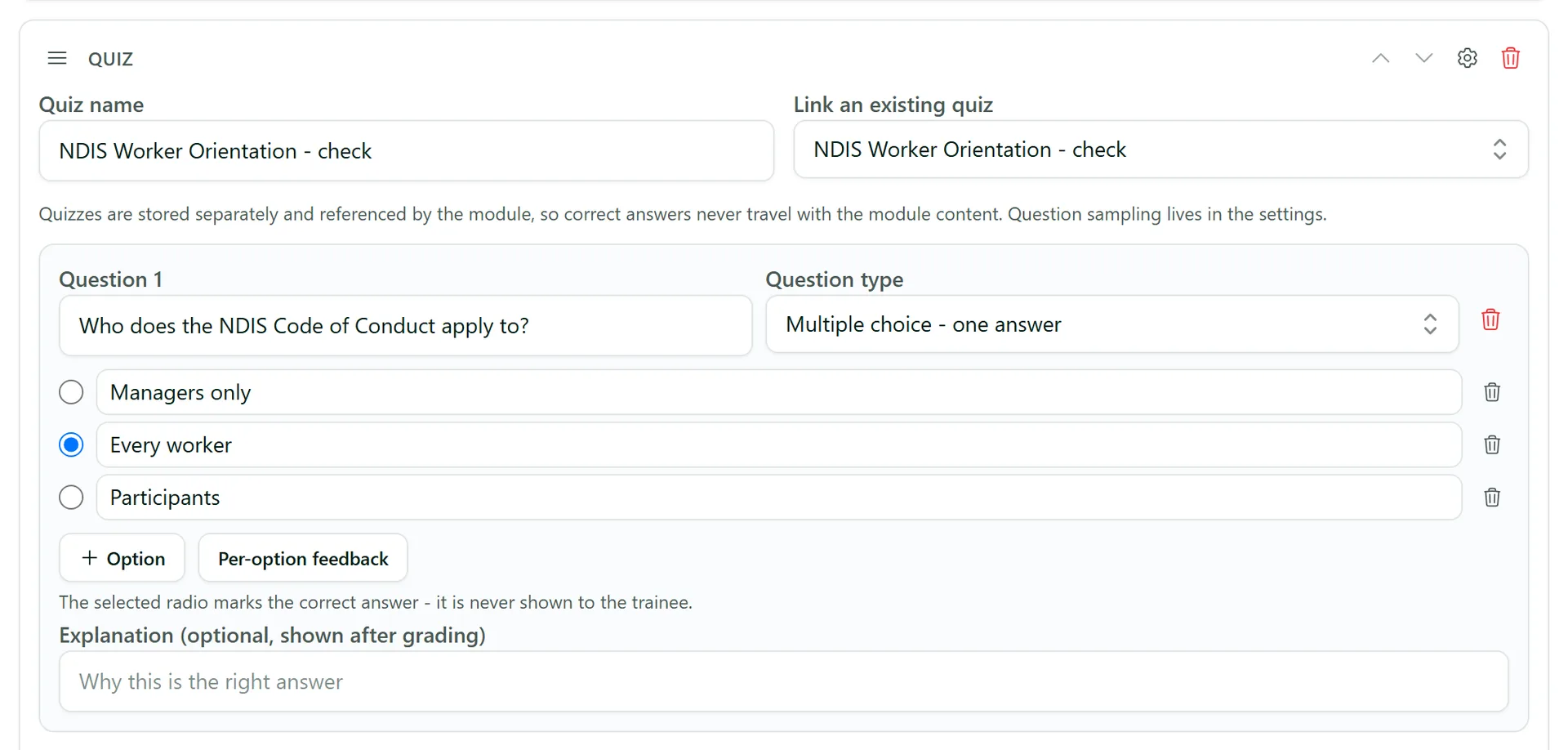
A Quiz block holds the graded questions. Give it a Quiz name (or Link an existing quiz to reuse one), then Add question. Each question has a Question type: multiple choice (one answer or pick all that apply), true / false, put in the right order, match the pairs, fill in the blank, or short answer. For multiple choice, the selected option marks the correct answer. Add an Explanation and it is shown to the trainee after grading. Answers are graded by AirSign, and the correct answers are never sent to the trainee's browser.
In the quiz block's settings you can set Sample questions per invite so each trainee gets a random selection from a bigger question bank.
Step 5: Preview it, then save
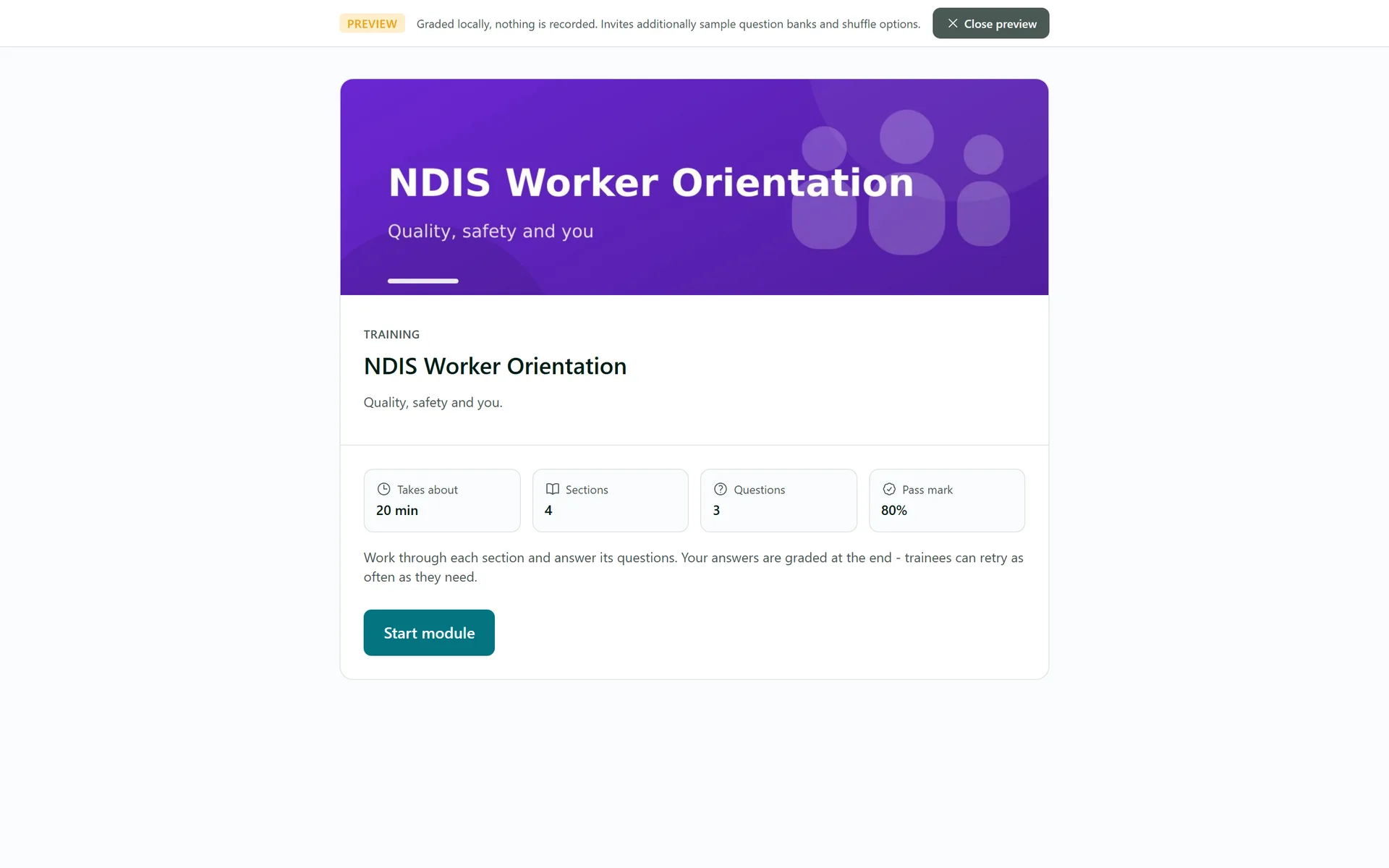
Press Preview to run through the module exactly as a trainee would, including unsaved changes. Nothing is recorded. When you are happy, set the status to Active and press Save module. Fullscreen gives you more room to build longer modules.
Tips
- Save the module once before adding Attachment blocks - attachments need a saved module to upload to.
- Once people have attempted a module, a Performance card on the module shows attempts, average score and the first-attempt pass rate.
- Editing a module never changes training already sent - each invite keeps the version the trainee was given.
- A module in use cannot be deleted. Set its status to Archived to retire it instead.
Need More Help?
Related guides: Sending Training and Running Classes, Training Matrix and Certificates. See our FAQ section or email support at [email protected].