Inspection reports that come back with the photos attached
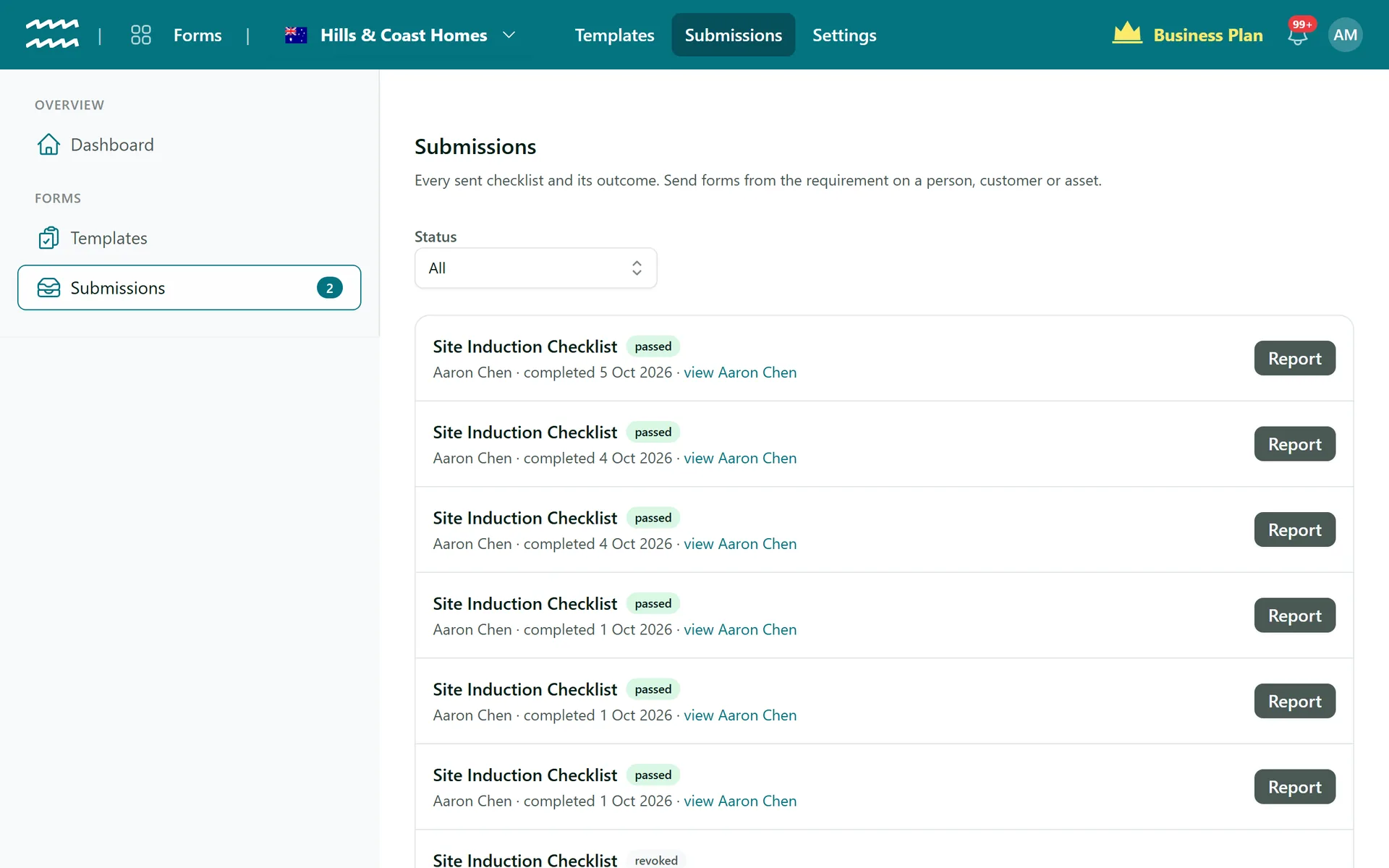
When a checklist is submitted, AirSign grades it and files the result. Open Submissions to see what passed, what came back with issues and what is still waiting, then download a PDF report for any completed one.
Book a demoPart of the AirSign suite - one plan, every app.
From a tap on site to a report on file
A PDF for every submission
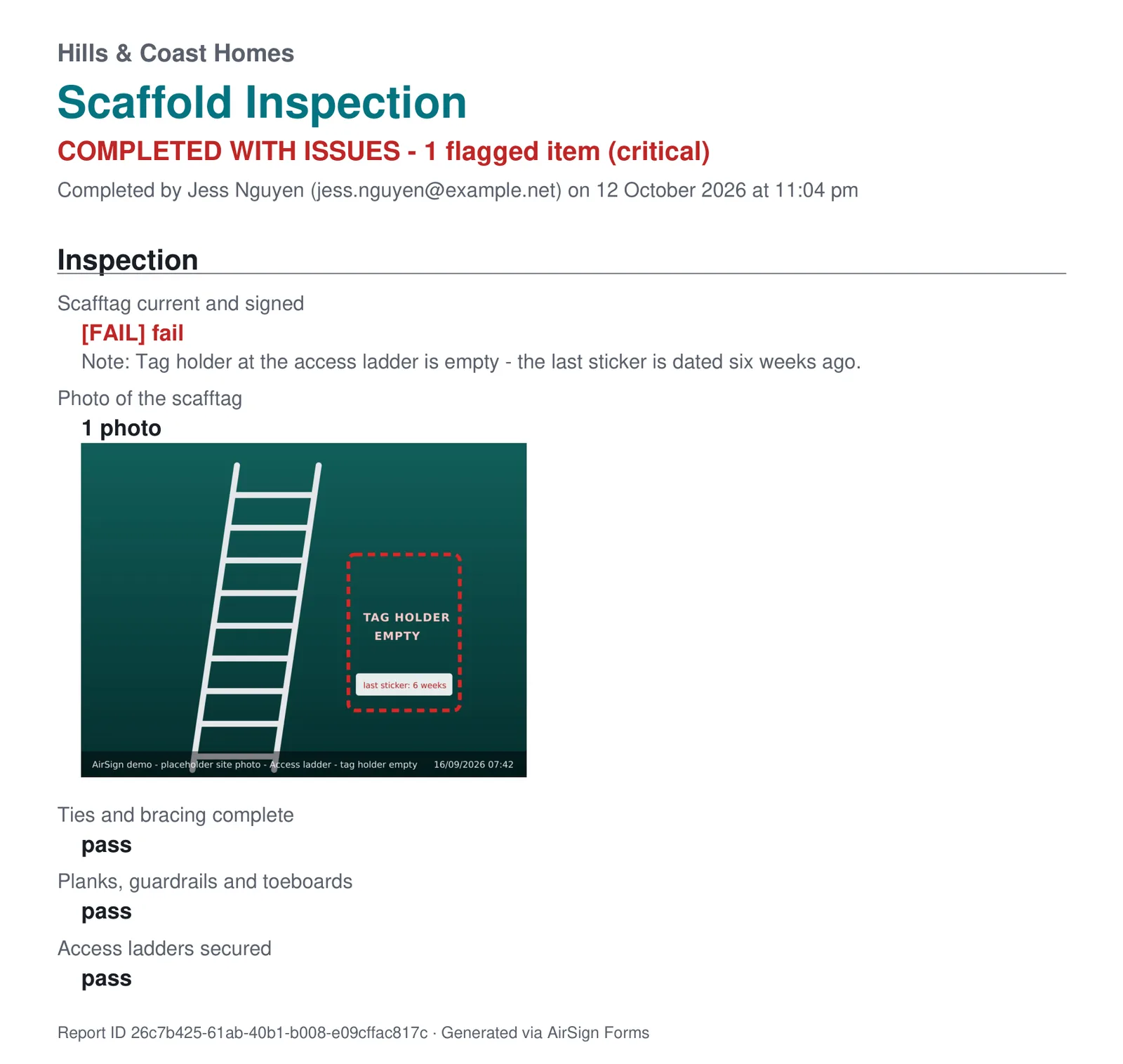
Choose Report on any completed form to download the outcome, every answer and every note.
Photos in the report
Evidence taken on site is embedded under the answer it belongs to, not attached somewhere else.
Know when one comes in
A completed form rings the notification bell and links to its row in Submissions. Only clean job report forms stay quiet.
Filter by status
Narrow the list to awaiting completion, passed, with issues or revoked.
Filed as a record
A completed form creates or renews the compliance record for the person, customer or asset.
Revoke a link
Sent it to the wrong person? Revoke link stops an unfinished form from being completed.
How to review a completed inspection
- 1
Open Submissions
Go to Submissions in AirSign Forms, or follow the link in the notification.
- 2
Find what needs a look
Set the Status filter to Completed - with issues.
- 3
Read the outcome
Each row is badged as passed, the number of issues or critical issues.
- 4
Download the report
Choose Report to save the PDF, ready for an auditor or client.
- 5
Follow it up
Use the view link on the row to open the person, customer or asset it was for.
What the PDF report shows
The report is written for whoever has to rely on it later, so the outcome is at the top and anything that failed stands out.
- An outcome banner, with the number of flagged items
- Who completed it and when, plus the IP address it came from
- Failures in red with their notes, and photos in place
Inspection Reports FAQs
They can use Download the report on the screen they see after submitting.
No. The report records who completed it, when and the IP address, not a GPS location.
No. It is a standard PDF, without the seal a signed document gets. The original submission stays stored in AirSign.
No. It stays as the record of what was answered at the time.
No, there is no CSV export, and reports download one at a time.
Links stay open for 90 days. Sending again to the same person re-emails the same link.
Partly. Answers in scripts like Chinese or Arabic are kept in full in AirSign, but the PDF shows those characters as question marks with a footnote.
AirSign Forms is part of the AirSign suite - one plan, every app. Book a demo and we will walk you through it.
Turn paper checklists into proof
Book a demo and bring the checklist you use today.