Inspection checklists that ask for proof when something fails
Build pre-starts, site inspections and audits from sections of checks, readings and photos. Decide what a failed item has to come back with, then send the checklist out as a requirement that repeats on your schedule.
Book a demoPart of the AirSign suite - one plan, every app.
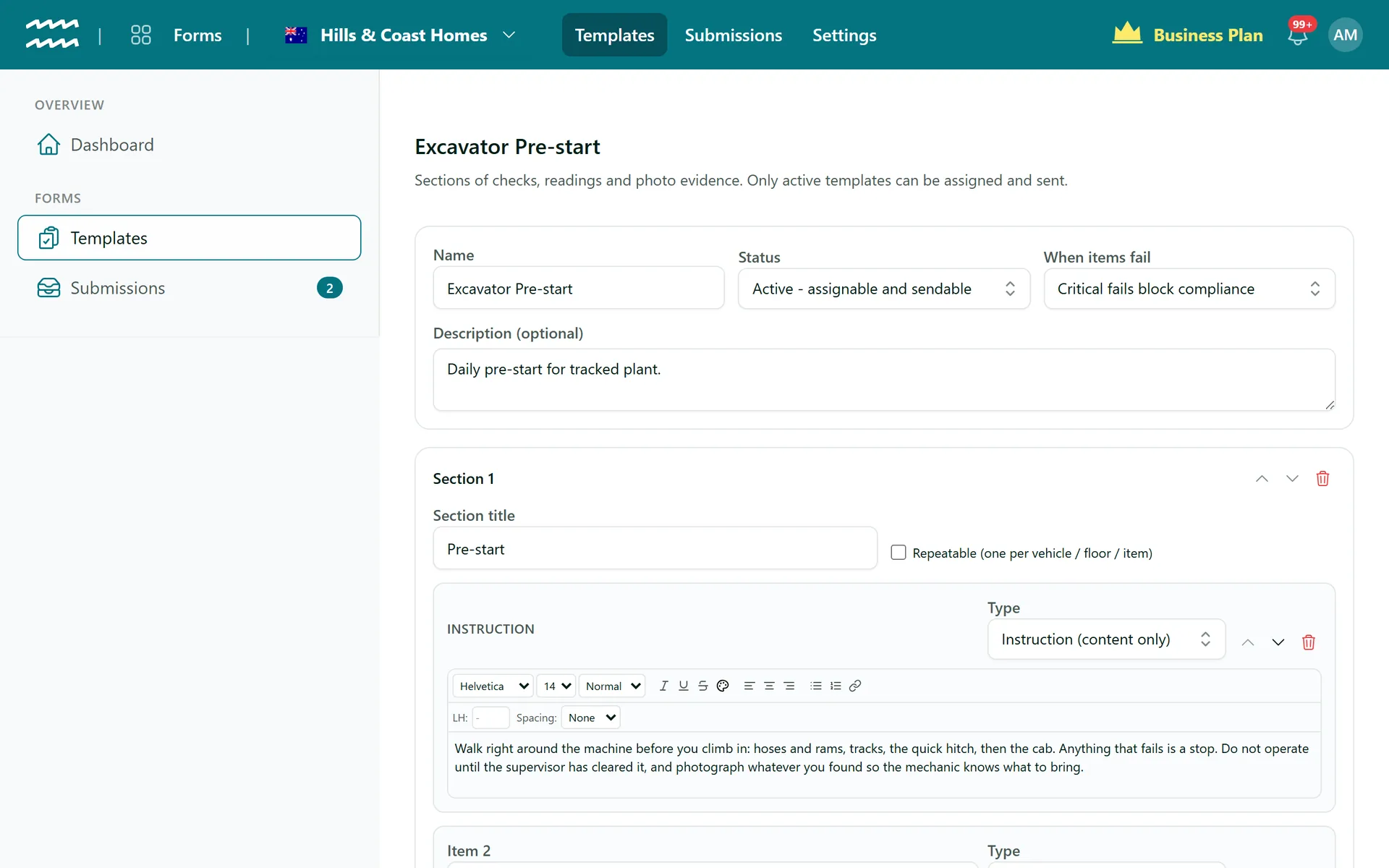
A checklist builder made for work done on site
The right kind of question
Pass/fail, yes/no, choice, rating, number, meter reading, text, date and photo, with instruction blocks between them.
Photos from the phone camera
A photo item opens the rear camera on a phone. Any item can ask for a photo every time, or only when it fails.
Critical items
Mark the checks that matter most as critical, then choose whether a critical fail is flagged or blocks compliance.
Repeatable sections
Write a section once and let the person on site add one for each vehicle, floor or extinguisher.
Meter readings
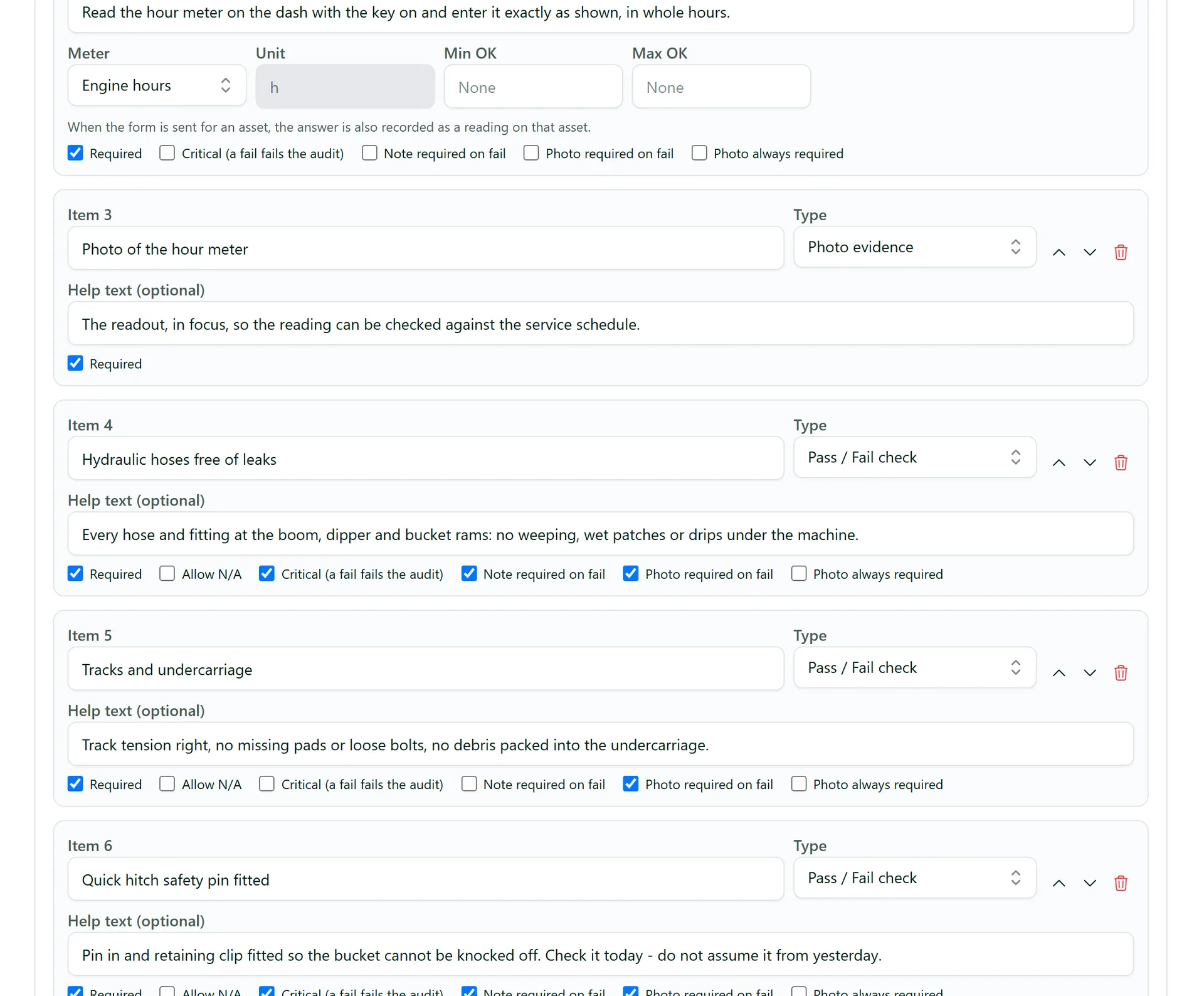
Ask for odometer, engine hours, fuel or your own meter. On an asset's form, the answer lands on the asset too.
Repeats on a cadence
Set a check to be redone every so many days, weeks, months, quarters or years, or once per calendar period.
How to build an inspection checklist
- 1
Create the template
Open Templates, choose New template, then give it a name and set When items fail.
- 2
Add sections and items
Use Add section and Add item, pick each item's Type and tick options like Critical or Photo required on fail.
- 3
Make it active
Set Status to Active and choose Save template. Draft templates cannot be assigned or sent.
- 4
Assign it
In People, CRM or Assets, add a requirement with the AirSign Form type, pick the template and set a Renewal cadence.
- 5
Send it
Use Send Form on the person, customer or asset, and a fill link is emailed to whoever is doing the check.
Set what each failed item must come back with
A check that simply says fail tells you very little. Each item has its own options, so the ones that matter cannot be submitted without the evidence you need.
- Note required on fail and Photo required on fail appear as soon as an item fails
- Number and meter readings fail outside the Min OK and Max OK you set
- Help text under each question tells people exactly what to look for
Inspection Checklists FAQs
No. Checklists open in the phone browser with nothing to install, but they need a connection. Progress saves as you go, so someone who loses the page can pick up where they stopped.
No, there is no conditional logic. The only thing that changes is a failed item asking for its note or photo.
Outside people can use the emailed link, or you can untick that when sending to require a signed-in account. Your own staff, students and crew always complete forms signed in.
Nothing. Each send carries a frozen copy of the checklist, so the person filling it in sees the version they were sent.
Not yet. A form goes to a person, a customer or an asset. A shift in AirSign Schedule can also ask for a form as its job report.
There is no public library to browse. You build your own, then use Duplicate on a template to start the next one.
AirSign Forms is part of the AirSign suite - one plan, every app. Book a demo and we will walk you through it.
Turn paper checklists into proof
Book a demo and bring the checklist you use today.