Asset Checks and Readings
Requirements tell AirSign what each asset must have on file - a current registration, insurance, a daily pre-start, a monthly scaffold inspection. AirSign then shows which assets are missing something, sends checks to the person who holds the asset, and keeps a meter history of odometer and engine hours.
Where to find it
Step 1: Add a requirement for a class
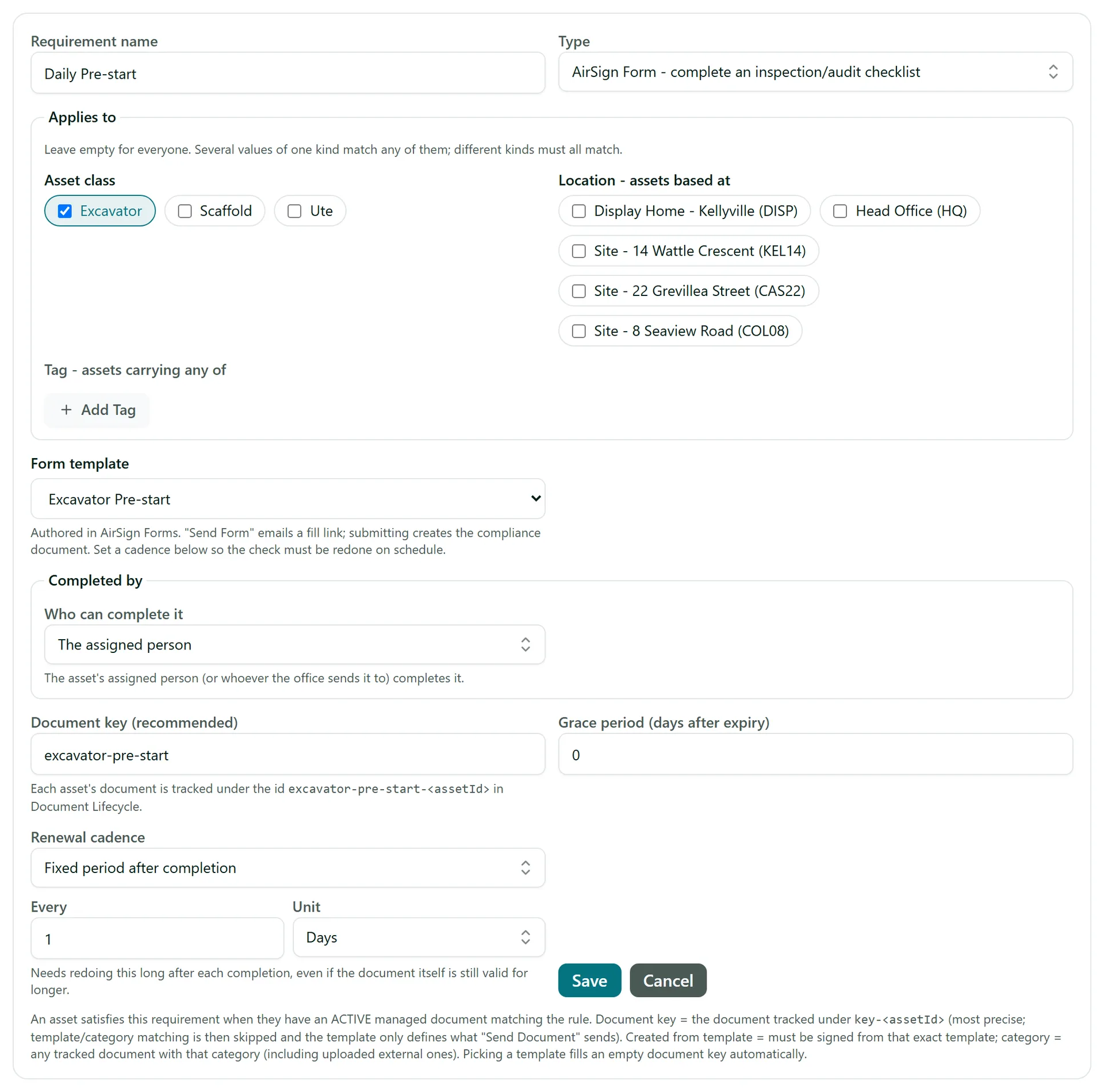
Press Add requirement and give it a Requirement name. Choose the Type:
- External - a document from outside AirSign, such as a rego or insurance certificate, that you upload with its expiry date.
- AirSign Form - an inspection or checklist (a pre-start, a scaffold inspection) built in AirSign Forms. Pick the Form template.
- AirSign Session - a document signed from one of your templates.
Under Applies to, tick the Asset class (and optionally locations or tags) - leave it empty to apply to every asset. For a form, Completed by says who can do the check: the assigned person, or anyone with a role you choose. Set a Renewal cadence so the check must be redone on a schedule - for example every 1 day for a daily pre-start - then Save.
Step 2: See what is outstanding
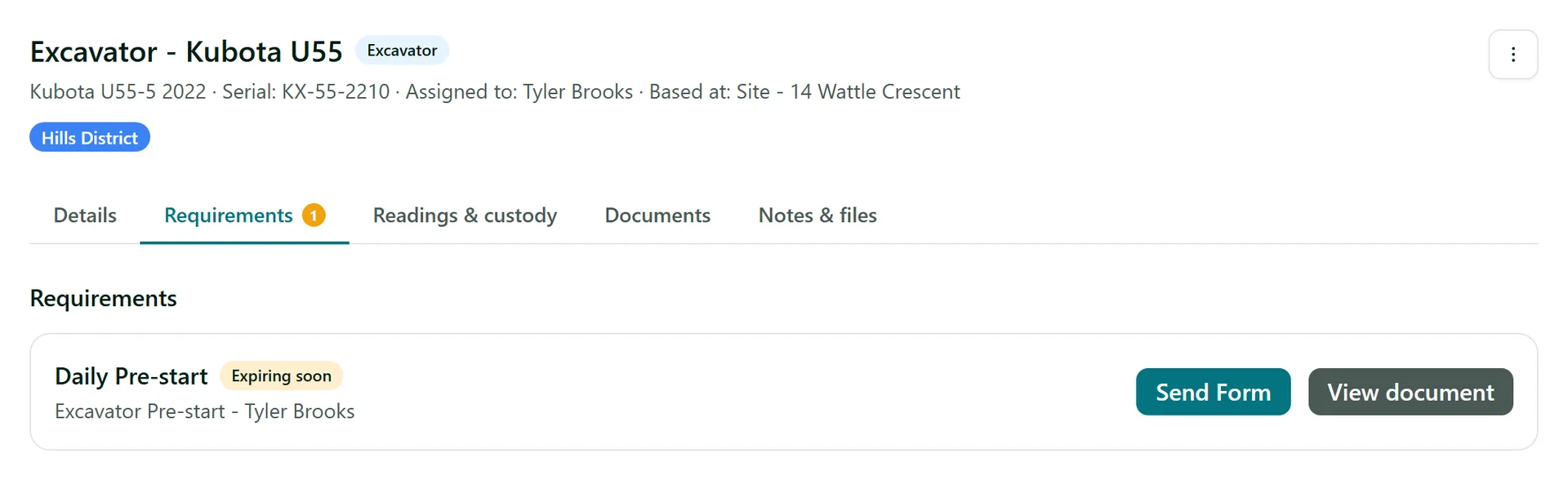
The All assets list shows a compliance badge for every asset. Open an asset and go to its Requirements tab for the detail - each requirement with its status, such as Compliant, Expiring soon or Missing. A red or amber number on the tab shows how many need attention.
Step 3: Send a check or upload a document
For a form requirement, press Send Form and enter who should do the check. They get a link to fill it in on their phone, and the completed form satisfies the requirement. Checks also go out on their own: to the assigned person when an asset is added or handed over, and again each time the cadence comes round. Staff find them on their Home under Asset checks.
For an external requirement, use the upload button on the row to add the registration or certificate and its expiry date. View document opens what is on file.
Step 4: Record meter readings
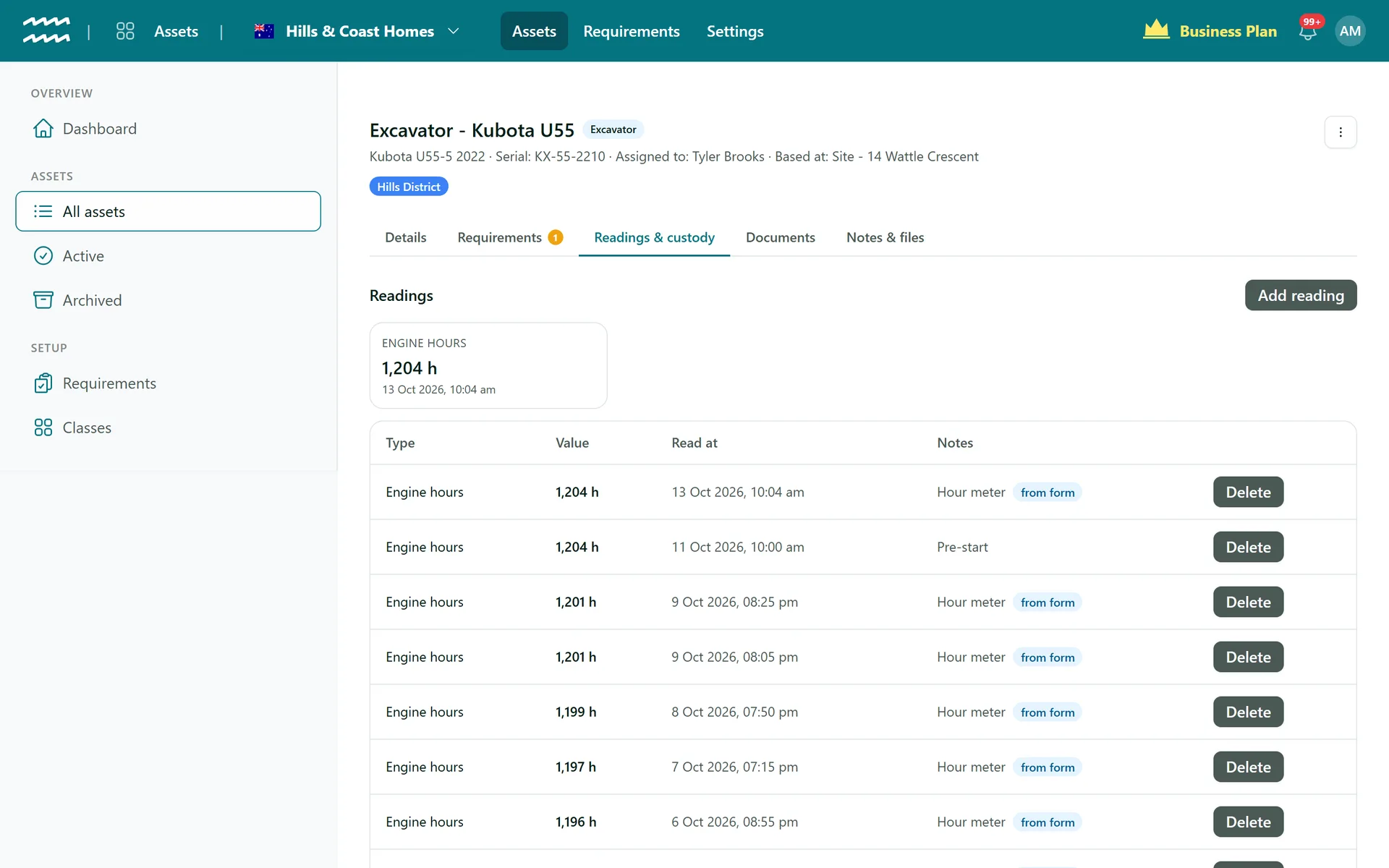
The Readings & custody tab shows the latest reading of each type and the full history. Readings taken in an inspection form (for example the hour meter on a pre-start) are added automatically and marked from form.
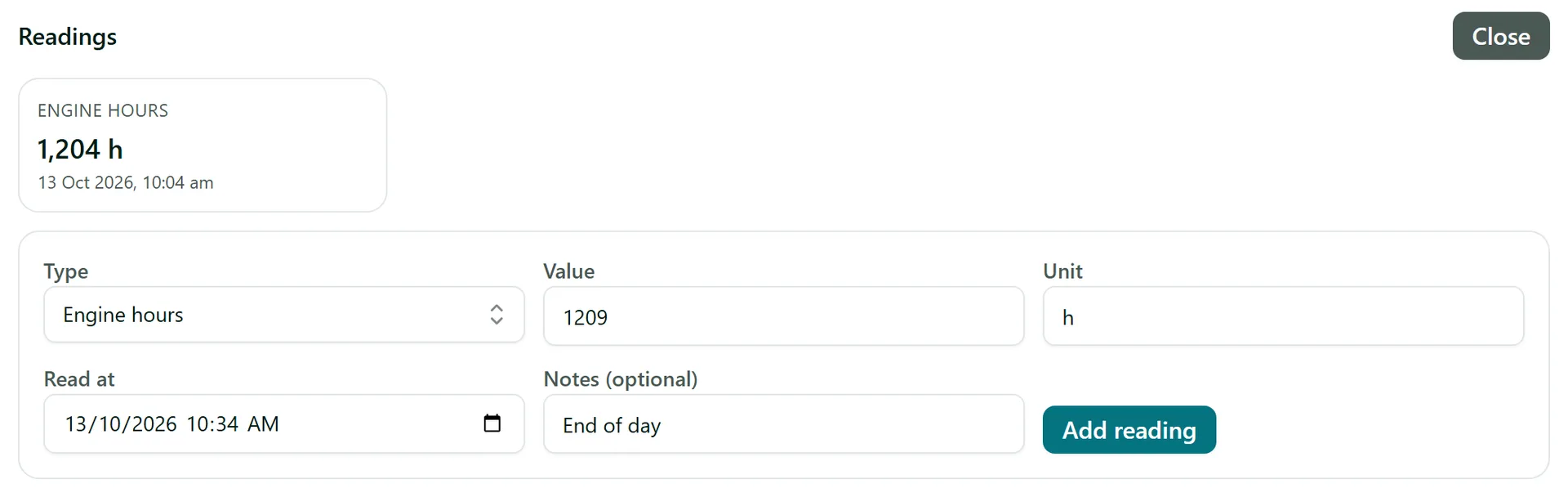
To add one by hand, press Add reading, pick the Type (Odometer, Engine hours, Fuel or Custom), enter the Value, check the Read at time, add any notes and press Add reading.
Tips
- Under Setup > Classes, each class shows its Checklist, so you can see at a glance what a new ute or excavator will need.
- On the Requirements list, Send to everyone missing sends a form requirement to every asset that still needs it.
- The unit follows the reading type (km, h or L) - change it if you record in something else.
Need More Help?
Related guides: Adding Assets. See our FAQ section or email support at [email protected].