Adding Assets
AirSign Assets is your register of vehicles, plant, tools and equipment, and whether each one's paperwork is in order - rego, insurance, inspections, pre-start checks. You group assets into classes, add each asset, and assign it to the person who holds it.
Where to find it
Step 1: Look over your assets
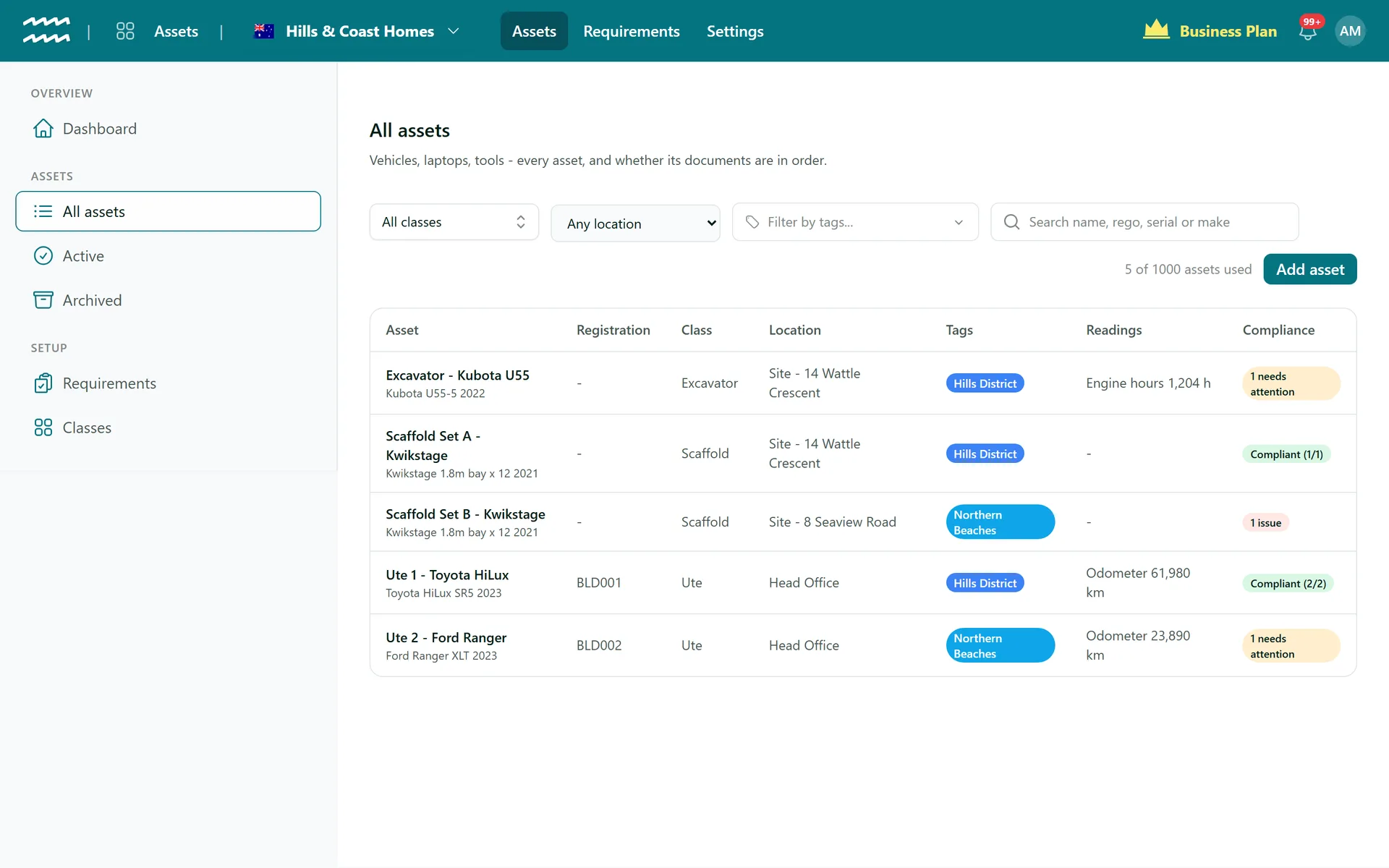
All assets lists every asset with its registration, class, location, tags, latest meter reading and a compliance summary: Compliant, needs attention (something is due soon) or an issue (something is missing or lapsed). Filter by class, location or tag, or search by name, rego, serial or make. Click a row to open the asset.
Step 2: Create your asset classes
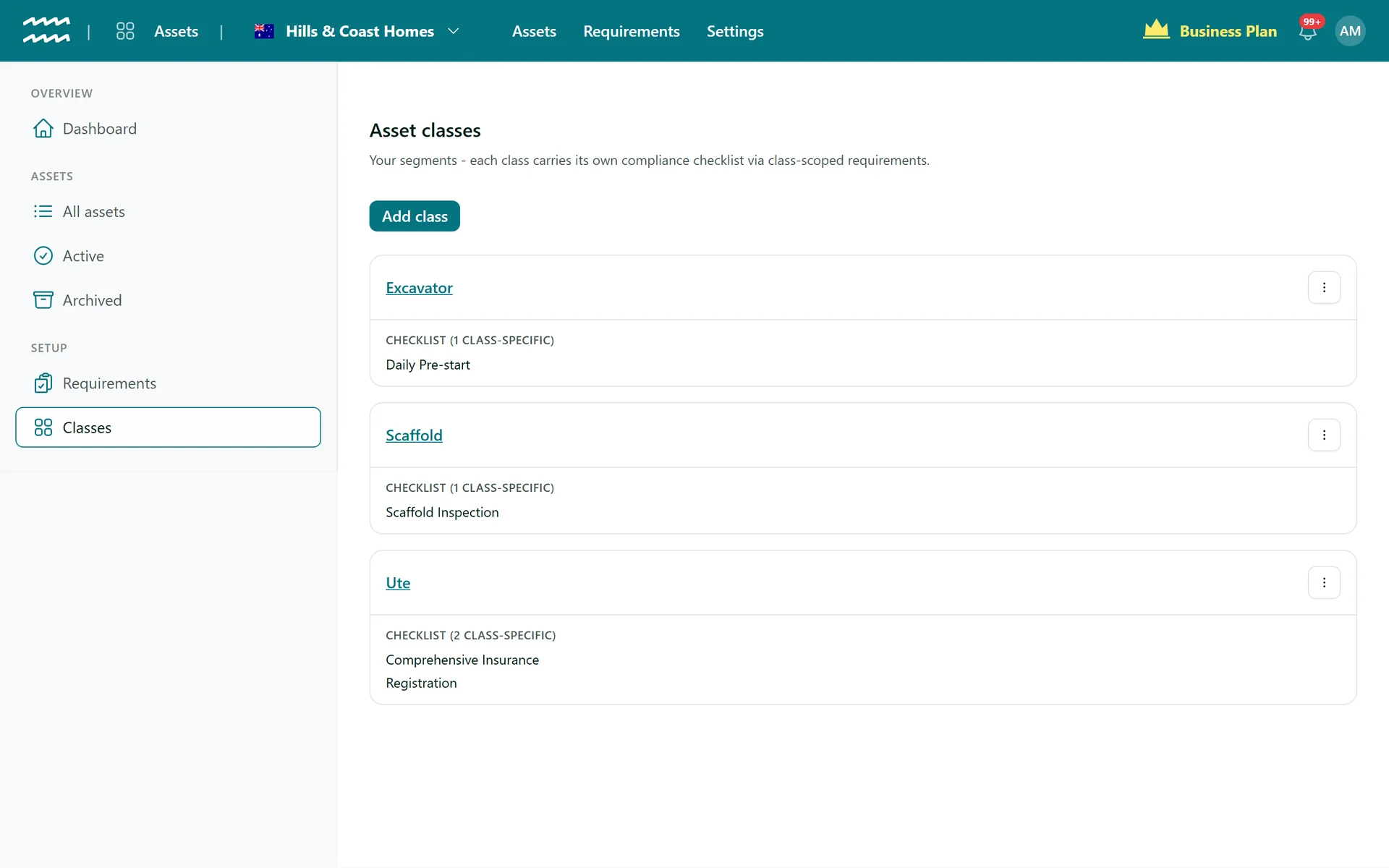
A class is a kind of asset - Ute, Excavator, Scaffold, Laptop. Each asset belongs to one class, and requirements you scope to a class apply to every asset in it. Go to Setup > Classes, press Add class, enter a Class name and an optional description, and press Add class. Each class shows its Checklist - the requirements that apply to it.
Step 3: Add an asset
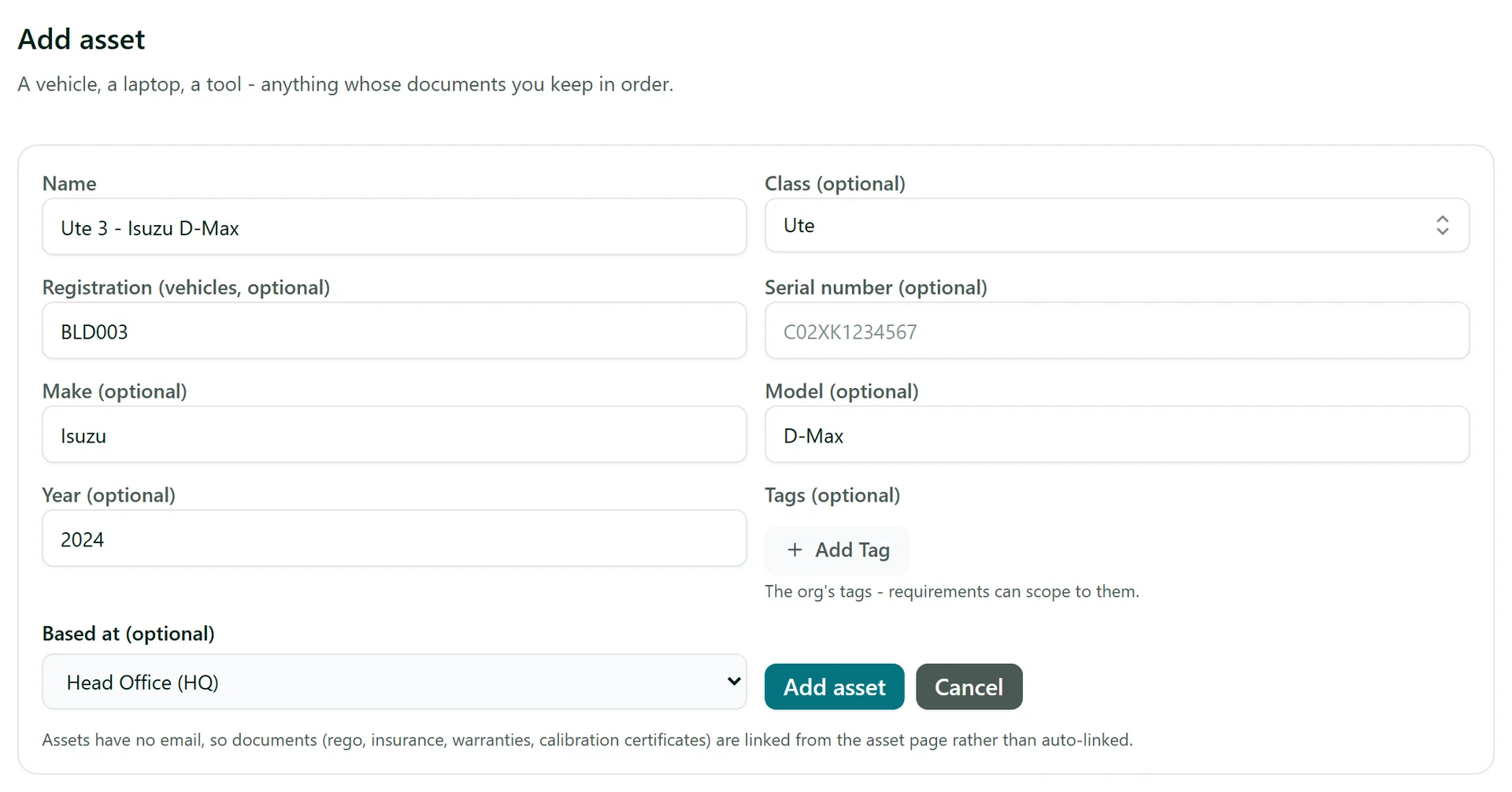
On All assets press Add asset. Give it a Name people will recognise ("Ute 3 - Isuzu D-Max") and pick its Class. Fill in the Registration for vehicles or the Serial number for everything else, plus make, model and year if you like. Add Tags and where it is Based at, then press Add asset. The new asset's page opens straight away.
Step 4: Assign it to a person
On the asset's Details tab, search for the person under Assigned to (person) and press Save. The assigned person is who receives the asset's checks and forms. Every hand-over is kept in the custody history on the Readings & custody tab, so you can always see who had the asset and when.
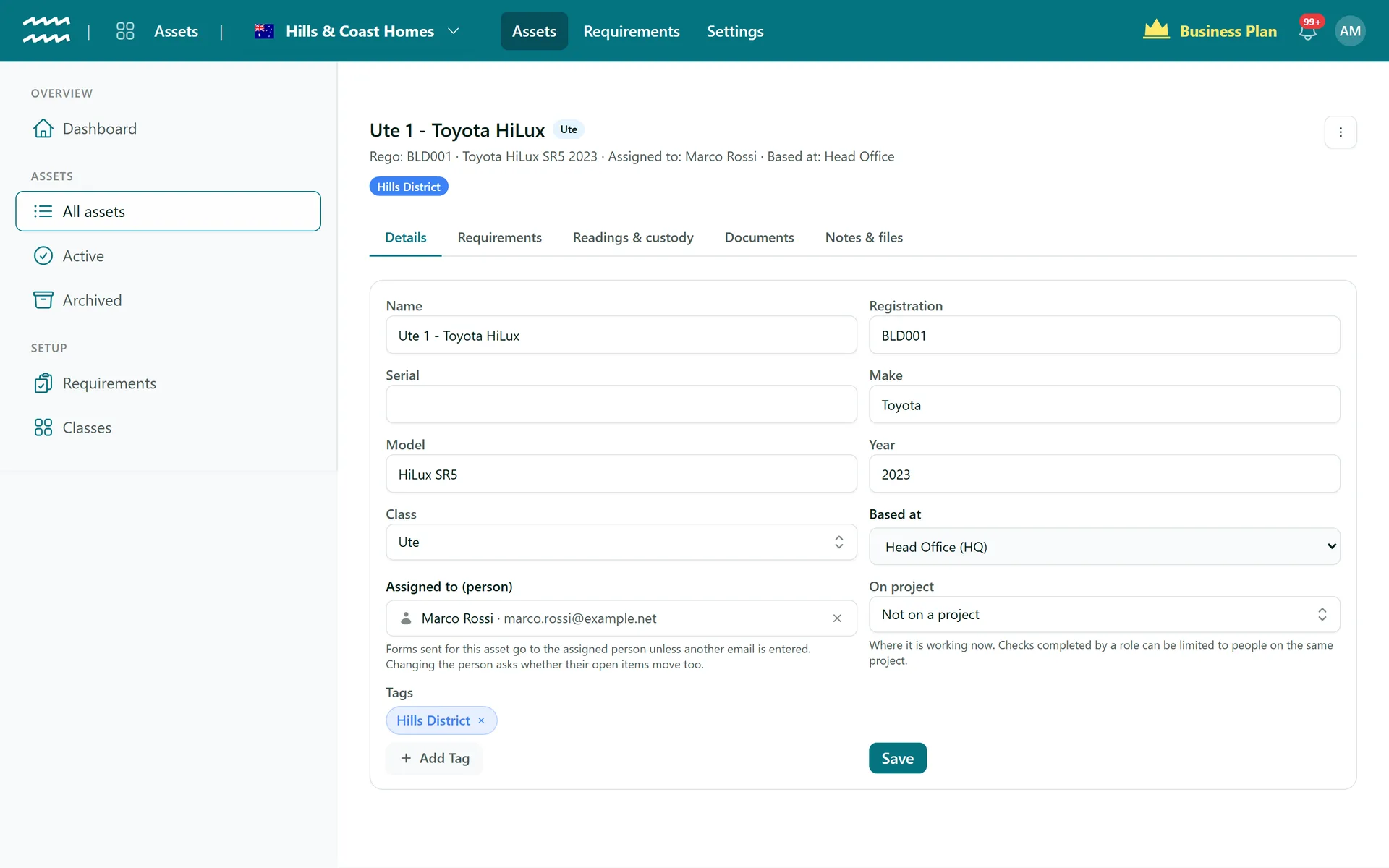
If you change the assigned person while the previous holder still has open checks or documents for the asset, AirSign asks whether to Move to the new holder (they are re-sent to the new person) or Leave with the previous holder.
Tips
- Use On project on the Details tab to record which project a piece of plant is working on.
- The Notes & files tab holds the manual, photos and purchase papers. Anything that expires (rego, insurance) belongs on the Requirements tab instead.
- Sold or retired an asset? Use the ... menu at the top of its page to archive it - its history is kept and it leaves the day-to-day list.
Need More Help?
Related guides: Asset Checks and Readings. See our FAQ section or email support at [email protected].